Getting Started with Real-Time Guidance Agent
Real-Time Guidance Agent delivers powerful capabilities to enhance agent performance through AI-powered support that adapts to every conversation. These capabilities are enabled by its interactions with various components of the Administration Platform. Setting up a new implementation of Real-Time Guidance Agent for your account involves configuring these interactions in alignment with your business requirements across multiple stages.
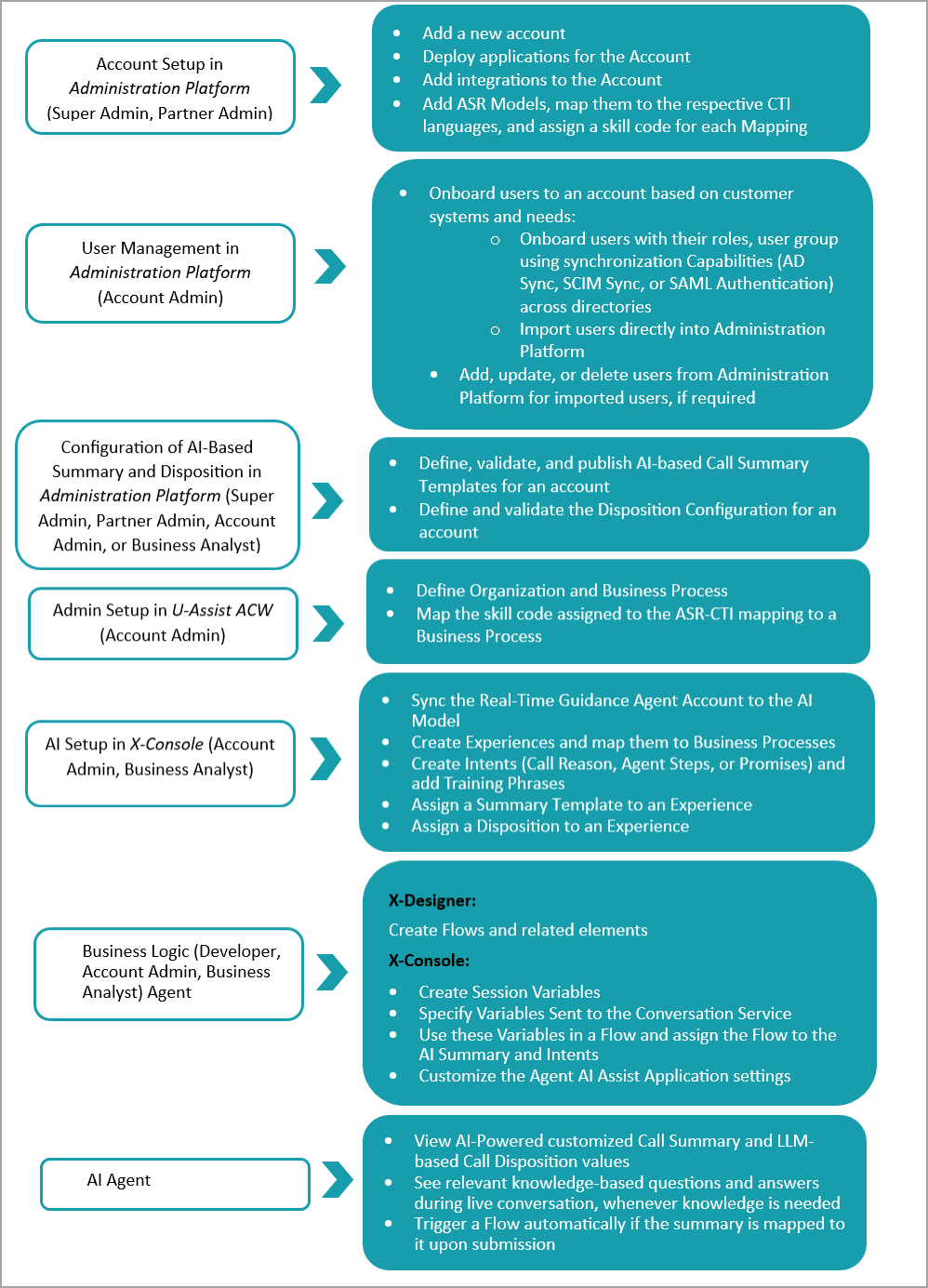
The diagram below shows the high-level stages and workflow for setting up Real-Time Guidance Agent for your account.
Note
Before setting up Real-Time Guidance Agent, a customer/tenant account must be created and users must be added under this account in Administration Platform. Please contact your Uniphore Support representative for more information.
Account Setup in Administration Platform
A Super Admin or Partner Admin can create a new account for the customer or demo by adding an account, and then add the first Account Administrator user to the account.
To add a new Account, click here.
A Super Admin can deploy the required applications, including adding add-ons, configuring the deployment type, and setting up licensing and notification options for the account.
For application deployment instructions, click here.
A Super Admin can add ASR Models, and an Account Admin can map ASR Models to the respective CTI languages and assign a skill code for each Mapping.
To configure ASR Models and Mappings, click here.
A Partner Admin can add the customer or demo Integrations to the account in order to get data into the account.
To add integration to an account, click here.
User Management in Administration Platform
After the account is set up, user onboarding can be done through different methods based on the customer’s systems and requirements, such as directory synchronization or user import options.
To onboard users, click here.
An Account Administrator can view and manage all account users, as well as organize and maintain the structure of system users and groups within the specific organizational hierarchy.
To manage users, click here.
To set up the organization hierarchy, click here.
Configure Customizable AI-Based Summary and Disposition in Administration Platform
A Super Admin, Partner Admin, Account Admin, or Business Analyst can design, test, and deploy AI-based Call Summary Templates tailored to specific operational and industry needs. These Templates define the information to be extracted from conversations and how it should be presented to an Agent.
To define a Summary Template, click here.
A Super Admin, Partner Admin, Account Admin, or Business Analyst can define, test, and deploy a four-level Call Disposition Hierarchy that leverages an LLM-based service to automatically categorize calls based on their purpose, outcome, and specific customer requirements.
To define a Disposition, click here.
Note
Account Admin users can create Summary Templates and Dispositions only for their assigned account.
Super Admin users can create Summary Templates and Dispositions across all partners and accounts.
Partner Admin users can create Summary Templates and Dispositions for any account under their partner organization.
Admin Setup in U-Assist ACW
An Account Administrator can define organization(s) for an account and create Business Processes for each organization’s section, and map the skill code (assigned in the ASR-CTI mapping) to the appropriate Business Process that handles different types of calls (for example: Sales vs Support vs Customer Service).
To set up an Organization, click here.
To set up a Business Process, click here.
To map a skill code to a Business Process, click here.
AI Setup in X-Console
An Account Admin or Business Analyst user must perform an Organization (i.e., Line of Business) synchronization for it to be recognized and used during a conversation at runtime. After synchronization, the user can create Experiences, map them to the corresponding Business Processes, and create Intents in X-Console.
To create and manage Experiences and Intents, click here.
An Account Admin or Business Analyst can map different versions of Summary Templates from the Administration Platform to an Experience and to Intents on the GenAI Summary Configuration page.
To assign a Summary Template to an Experience, click here.
An Account Admin or Business Analyst can also map the relevant Disposition to an Experience, based on business needs, on the GenAI Summary Configuration page.
To assign a Disposition to an Experience, click here.
Business Logic
A Developer, Account Admin, or Business Analyst can perform the following design logic activities from X-Designer:
Create, publish and run Flows.
View all Flow-related resources (e.g., Session Variables and Integration Points).
For details about working with X-Designer Flows, click here.
A Developer, Account Admin, or Business Analyst can perform the following configuration activities from X-Console:
Create Session Variables used to store values globally for access by multiple flows.
Specify Variables sent to the Conversation Service through an API.
Use these Variables in a Flow and assign the Flow to the GenAI Summary and Intents.
Customize Agent AI Assist components that are to be displayed to an Agent during runtime and configure runtime mappings.
To create Session Variables, click here.
To specify Variables sent to the Conversation Service, click here.
To assign Flows to the GenAI Summary, click here.
To assign Flows to Intents, click here.
To customize the Agent AI Assist Application, click here.
AI Agent
Agents can access the Agent AI Application either as a standalone web application or as an embedded component within a CRM application.
The Agent AI Application provides Agents with a powerful runtime gateway to view the following AI-Powered capabilities:
Whenever a Summary is submitted, if the Summary is mapped to a specific Service Flow in the account settings, that Flow will be triggered. Additionally, all Summary data and AI-predicted Disposition values will be stored and made available for other Flow elements or Administration Platform activities.