ASR Models and Mapping
Once the Applications are deployed and the ASR Configuration added, create Automatic Speech Recognition (ASR) Models, and assign those models to skill codes and other experiences for each Account using ASR Mappings. This is required for various system processes across Uniphore's products, including transcripts, Skill Codes, and Business Processes. This section details how to manage the ASR Models and ASR Mappings for an Account, including adding, editing, and deleting models and mappings.
Note
Account Admins can configure ASR Mappings but not ASR Models, while Super Admins can configure both ASR Models and Mappings.
For Application Deployment information, see Application Deployment.
For ASR Configuration steps, see ASR Configuration.
Before managing ASR Models and Mappings, it's important to understand the following concepts in this context:
Applications: The Uniphore applications that make use of the ASR system component. Deploy applications before setting up your ASR Models and Mappings. For information on deploying your applications, click here. ASR Mappings are mostly used by Real-Time Guidance Agent and Self-Service Agent.
In general, the ASR is used by the following products for their associated features:
Communication Recording Agent uses the ASR to transcribe calls in real-time. These transcriptions are made available in the UI for each call on the Conversations (post-call) and Live Monitor (real-time) pages. Set up transcription policies to determine which calls are transcribed for Communication Recording Agent. Click here for more information.
The ASR provides call transcripts to Knowledge (KaaS) systems, enhancing some of the product's features. A text-based Voice Activation Detection (VAD) service is used on these transcripts to get the details of call segments (user speech, agent speech, silence, etc). Tonal service on call audio and transcripts provides end-of-call sentiment for each conversation. An LLM runs natural language queries on transcripts to gain conversation insights, such as finding the reason for customer issues.
Real-Time Guidance Agent uses the ASR to transcribe audio chunks for Business Processes using Business Process-specific languages and Skill Codes. This transcription is then processed in accordance with the redaction configuration file, which prevents Agents from seeing PCI, PII data, and customer-specific sensitive information in the transcription.
Self-Service Agent uses the ASR to transcribe user queries and requests. These transcriptions are passed to the LLM, which interprets their intent, applies context, and generates relevant responses. These responses are then synthesized back into speech using Text-to-Speech (TTS), completing the conversational loop with the user. The ASR is fine-tuned for different accents, noisy environments, and domain-specific vocabularies, ensuring the AI voice agent can handle real-world conversations seamlessly.
Languages: The languages supported by the ASR. Each language can be supported by multiple ASR Models, but each ASR Model is configured with a single Language. For our purposes, languages are already added to the system. When managing models and mappings, simply select the language to use for each model and mapping.
ASR Models: Each model is configured to process a specified language, using specified technologies, and then send the processed data to a specific endpoint. Multiple models can be created to add support for multiple languages, use different technologies, and send data to different API endpoints.
Skill Codes: Use Skill Codes to map CTI languages throughout the system, from Business Processes to ASR Models and Mappings. For more information on CTI Languages and Skill Codes, see the Real-Time Guidance Agent documentation here.
ASR Mappings: Each mapping assigns an ASR Model with a Skill Code and enables a deployed application to use that model to process data for an Account. Multiple mappings can be created for each application to process multiple languages using different models and skill codes.
ASR Models
This section details how users with the Super Admin role can configure ASR Models to process languages using specified technologies and send the processed data to specific endpoints. Create multiple ASR Models to add ASR support for different languages, use different technologies, and send the processed data to different API endpoints.
Note
The model Name is automatically generated using the settings you choose in this panel.
Go to https://ng.uniphore.com/admin and log in with Super Admin credentials:
Enter the Organization Name for your partner admin portal.
Enter your Email address and Password, select the I'm not a robot checkbox, and click Continue.
Go to Users & Accounts and click ASR Models at the top.
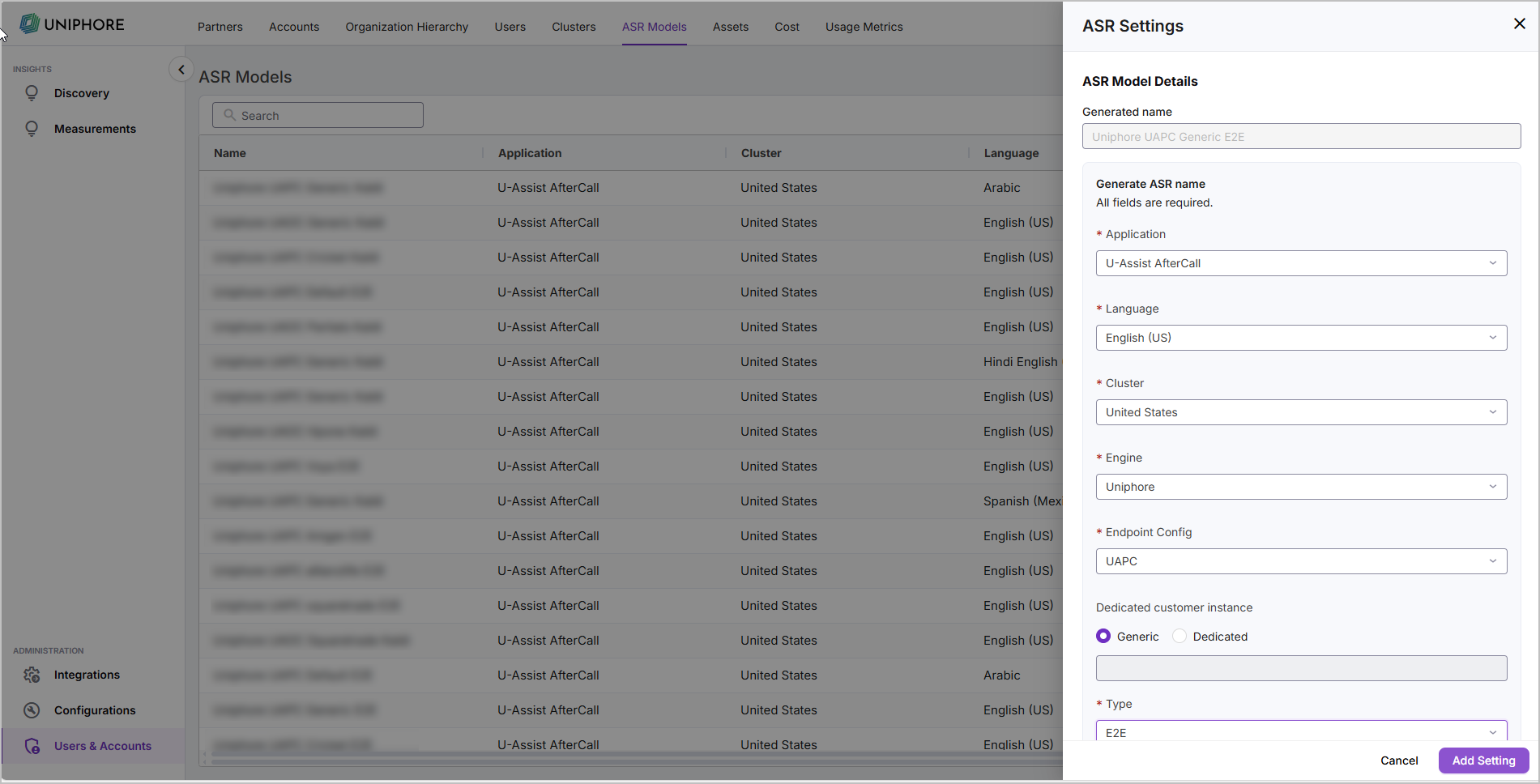
Click Add ASR Setting to open the new ASR Setting panel.
Use the Application dropdown to determine which application uses the ASR.
Use the Language dropdown to determine which language the ASR model uses.
Use the Cluster dropdown to specify the Kubernetes cluster region where the ASR is deployed. This is likely to be the cluster closest to where the data originates to avoid latency and data transfer between regions (important for regulatory purposes).
Use the Engine dropdown to determine which underlying engine to use. Select Uniphore.
Use the Endpoint Config dropdown to select which endpoint configuration to use, either UAPC or UAOC. For our purposes, select UAPC.
Historically, when the setting Type is set to the now-deprecated Kaldi value, Endpoint Config would determine the variant of endpoint configuration, U-ASSIST POST CALL (UAPC) for final ASR results, or U-ASSIST ON CALL (UAOC) for partial ASR results.
Under Dedicated customer instance, determine if ASR using this model is used by a single customer tenant or used by multiple tenants.
If tenant-specific customization warrants a dedicated instance, select Dedicated and enter the Slug for the Account that the ASR is dedicated. To find the Slug, go to Users & Accounts > Accounts, find the Account in the list and see the value in the Slug column.
If no tenant-specific customization warrants a dedicated instance and therefore the ASR can be a shared resource, select Generic.
Use the Type to determine which ASR Architecture to use. Select End to End (E2E).
Historically, the now-deprecated Kaldi value would use the classic/hybrid ASR.
Under ASR Endpoint URL enter the URL to connect to a given ASR, in the format
websocket URL scheme://type-asr-endpointconfig-language code.kubernetes namespace:port number.For example:
ws://e2e-asr-uapc-en.platform:2700Here,
wsindicates is the WebSocket URL scheme,e2eindicates it is E2E ASR,uapcindicates U-ASSIST,enindicates the language is English,platformindicates the Kubernetes namespace in which the ASR is deployed, and2700indicates the port number to connect through.The platform engineer who deploys the ASR enters the same based on the ASR configuration.
Click Add Setting to create the new ASR Model. The new model is added to the ASR Models list.
Edit an existing ASR model to change the ASR Endpoint URL for the model.
Go to https://ng.uniphore.com/admin and log in with Super Admin credentials:
Enter the Organization Name for your partner admin portal.
Enter your Email address and Password, select the I'm not a robot checkbox, and click Continue.
Go to Users & Accounts and click ASR Models at the top.
Find the ASR Model that you want to change the ASR Endpoint URL for. Use the Search bar to filter your models.
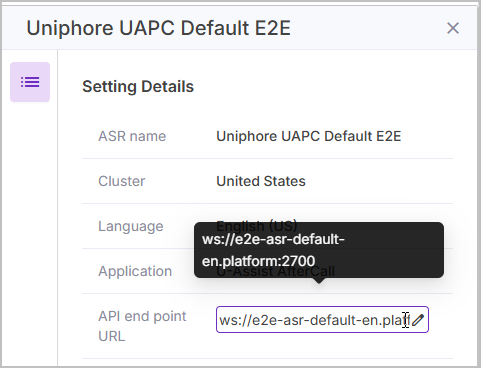
Click > to the right of the model to open the Setting Details panel.
Hover over the API Endpoint URL value and click
 .
.Change the value as needed, then click
 to confirm the change.
Warning
Deleting ASR Models is permanent; there is no undo for this action.
Do not delete an ASR Model if it is in use or if any ASR mappings use the model.
If an ASR Model is accidentally deleted, it must be re-added. See Add an ASR Model for instructions to add a new ASR Model.
Go to https://ng.uniphore.com/admin and log in with Super Admin credentials:
Enter the Organization Name for your partner admin portal.
Enter your Email address and Password, select the I'm not a robot checkbox, and click Continue.
Go to Users & Accounts and click ASR Models at the top.
Find the ASR Model that you want to remove. Use the Search bar to filter your models.
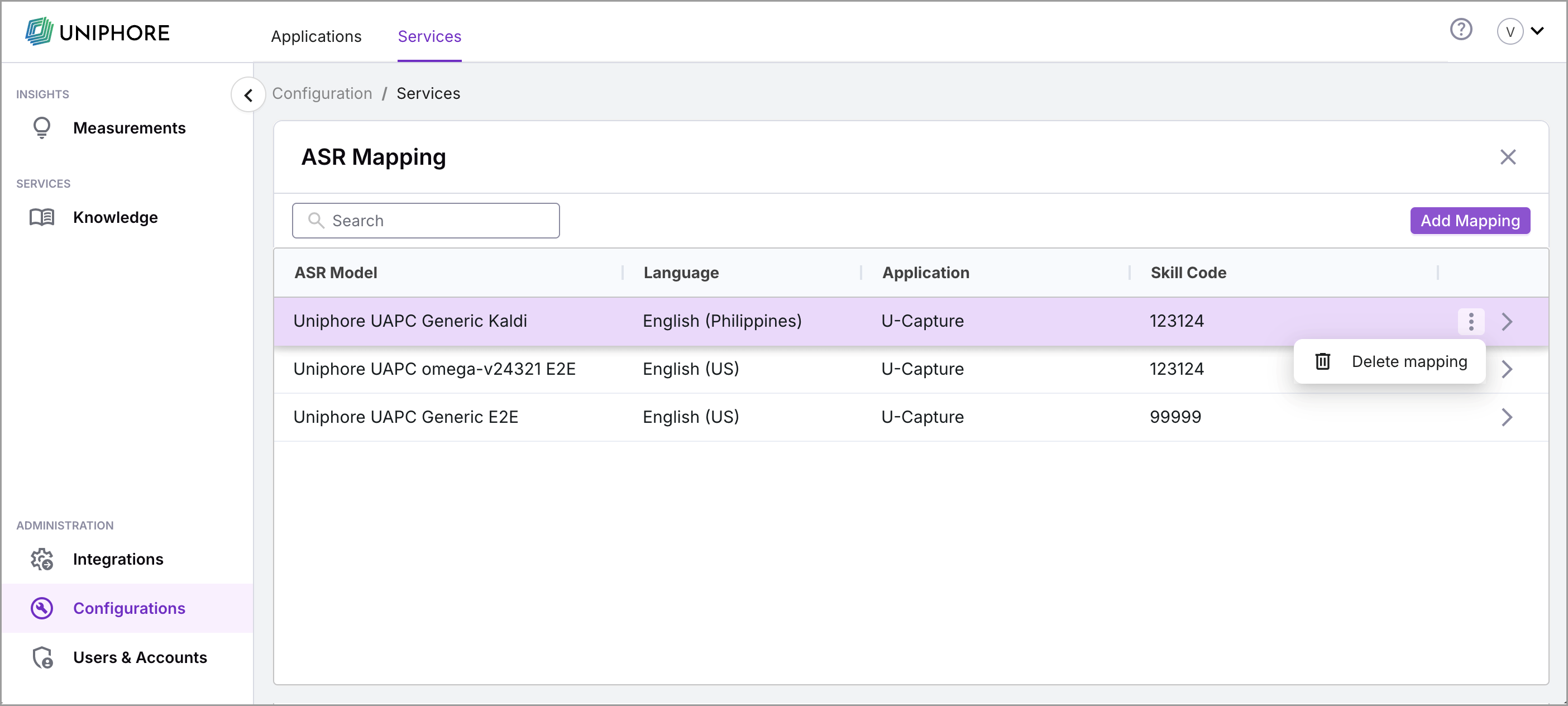
Click
 to the right of the model, and click Delete mapping.
In the confirmation dialog box, confirm that you want to delete the ASR Model. Once confirmed, the model is deleted.
ASR Mappings
This section details how Super Admins and Account Admins can assign ASR Models to Skill Codes and other experiences for each Account using ASR Mappings. Create different mappings for each application if more than one model or skill code is required per application. For example, to be able to process both German and English-United States for an application, two mappings using different models and skill codes need to be created for that application.
Note
Depending on the deployed applications, prerequisite configuration may be required. For Real-Time Guidance Agent, map the necessary CTI language and Skill Code to the specific business process in the CTI Language Mapping section of the U-Assist ACW Admin portal. See CTI Language Mapping for more information.
Go to https://ng.uniphore.com/admin and log in with Partner or Super Admin credentials:
Enter the Organization Name for your Partner admin portal.
Enter your Email address and Password, select the I'm not a robot checkbox, and click Continue.
Go to Configurations and click Services at the top.
In the ASR Mapping card, click View to see a list of existing ASR mappings for the Account along with the ASR Model, Language, Application, and Skill Code.
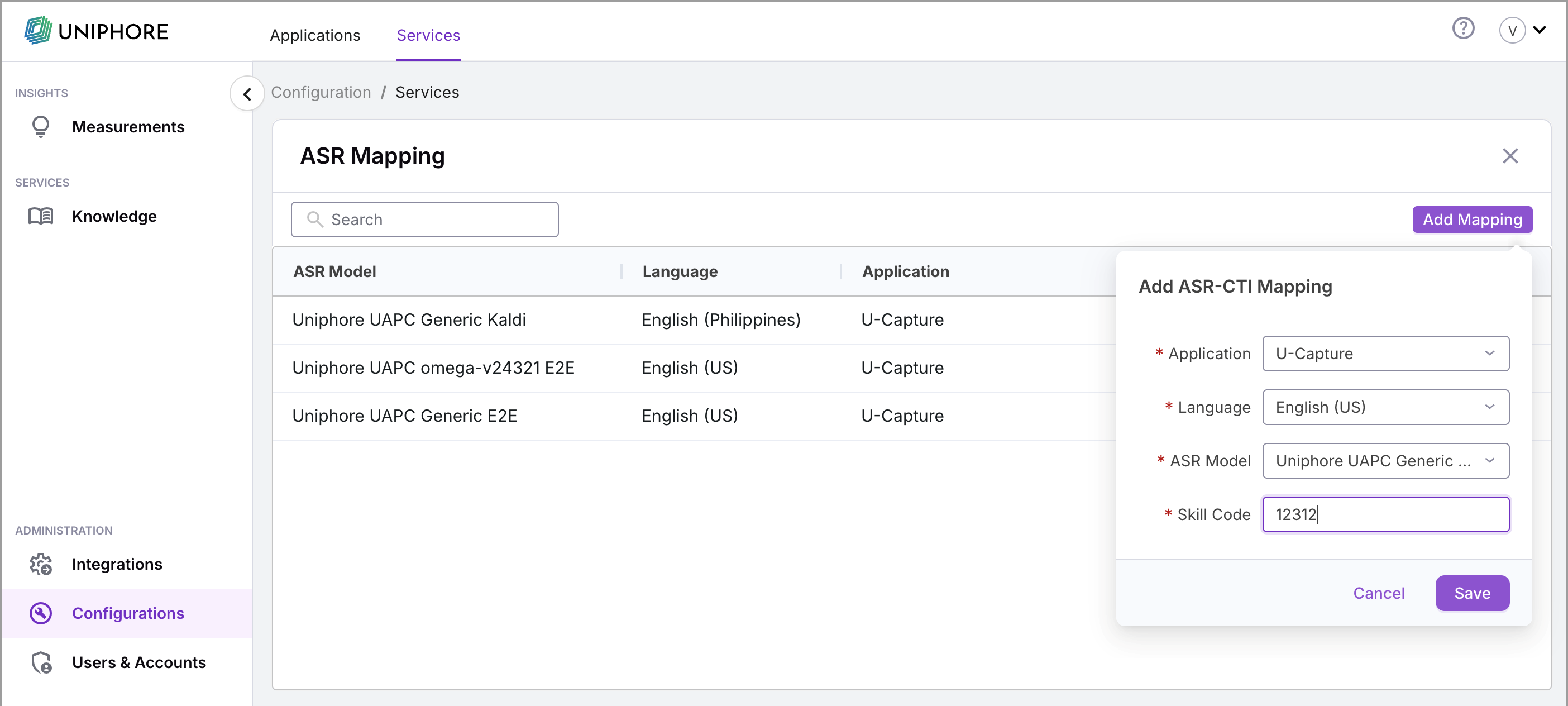
Click Add Mapping to display the Add ASR-CTI Mapping dialog.
Use the Application dropdown to select an application to which the mapping applies. Applications must be deployed for the Account for them to be displayed here. For more information on deploying applications, click here.
Use the Language dropdown to select the language to use for the mapping. For Real-Time Guidance Agent, select the language that corresponds to the ISO language code selected in the CTI Language Mapping and ASR Model. For more information Real-Time Guidance Agent supported languages, click here.
Use the ASR Model dropdown to select an ASR Model to use when processing data for the selected application. ASR Models determine which language and technologies are used for the process, and which API endpoint the processed data is sent to. For more information on ASR Models, click here. Once the ASR Mapping is created, the ASR Model for that mapping can be edited.
In the Skill Code field, enter the Skill Code for the mapping. For Real-Time Guidance Agent, this is the Skill Code provided in the CTI Language Mapping. Each Business Process requires its own CTI Mapping Skill code and ASR Configuration. For more information, see ASR Configuration and Setup Business Process. Skill Codes are also used throughout the system to identify the ASR Mapping; therefore, the Skill Code can not be edited once the mapping is created. A new ASR mapping needs to be created to use a different Skill Code.
Confirm the above settings and click Save. The new ASR Mapping has been added to the list, and the selected ASR Model and Skill code are now used for the specified application when processing data.
Edit an existing ASR Mapping to change the ASR Model for the mapping. When you create or edit an ASR Mapping, only the ASR Models that support the Language specific to the mapping are listed.
Note
ASR Mapping Skill Codes can not be edited. To use a different Skill Code, create a new ASR Mapping. See Add an ASR Mapping above.
Go to https://ng.uniphore.com/admin and log in with Partner or Super Admin credentials:
Enter the Organization Name for your Partner admin portal.
Enter your Email address and Password, select the I'm not a robot checkbox, and click Continue.
Go to Configurations and click Services at the top.
In the ASR Mapping card, click View to see a list of existing ASR mappings for the Account along with the ASR Model, Language, Application, and Skill Code.
Find the ASR Mapping that you want to change the ASR Model for. Use the Search bar to filter your mappings.
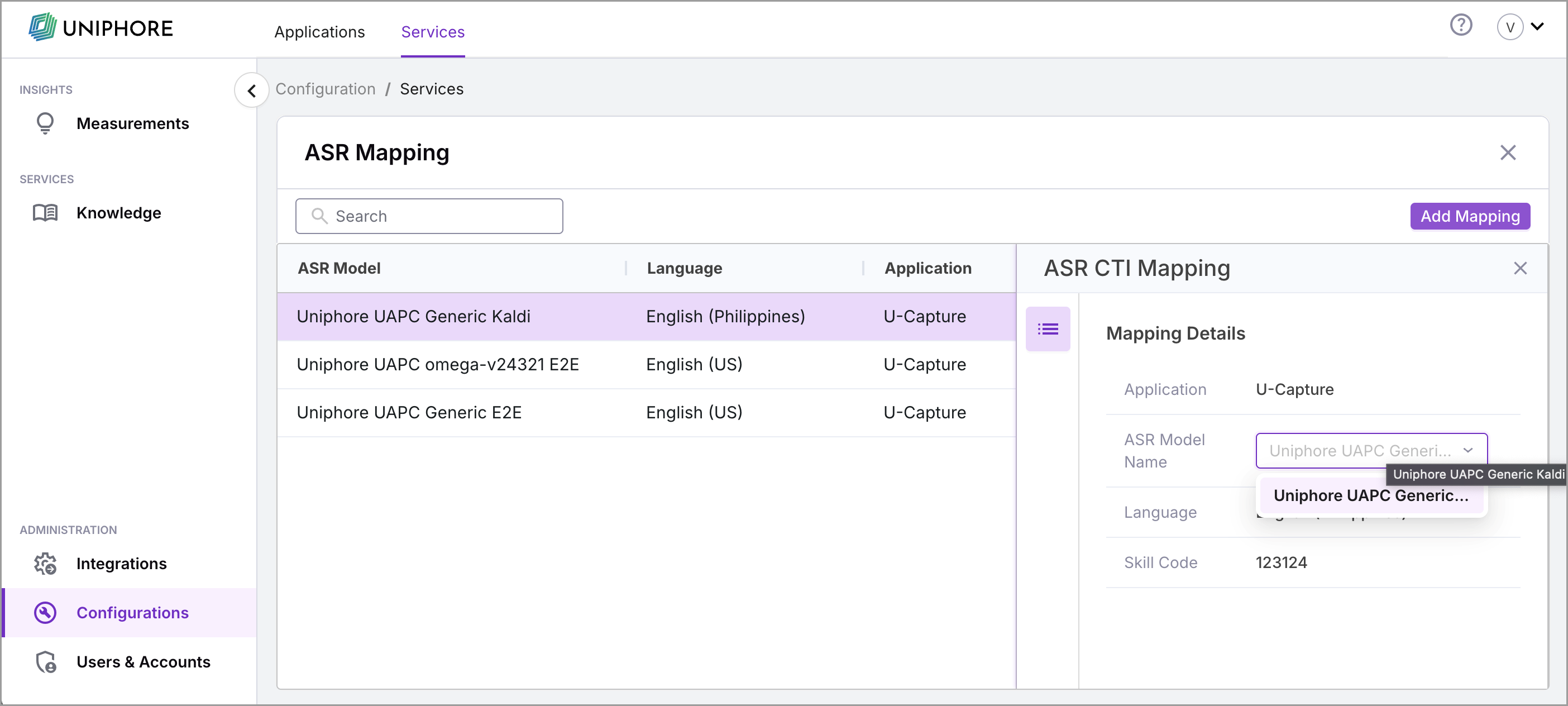
Click > to the right of the mapping to open the Mapping Details panel.
Click
to the right of the ASR Model Name to open the ASR Model dropdown.Select the model to use for this mapping. As noted, only models that support the mapping's Language setting are listed. When you select the, model the change is automatically saved, and a "successful" notification is displayed.
Warning
Deleting ASR Mappings is permanent; there is no undo for this action. If an ASR Mapping is accidentally deleted, it must be re-added. See Add an ASR Mapping for instructions to add a new ASR Mapping.
Deleting an ASR Mapping that is being used by the system causes that mapping, and therefore the model and skill code, to no longer be used for processing data. If an application still has a mapping configured, then new data is processed according to the remaining mappings. If no mappings exist for a deployed application, then new data is not processed by the ASR.
Go to https://ng.uniphore.com/admin and log in with Partner or Super Admin credentials:
Enter the Organization Name for your Partner admin portal.
Enter your Email address and Password, select the I'm not a robot checkbox, and click Continue.
Go to Configurations and click Services at the top.
In the ASR Mapping card, click View to see a list of existing ASR mappings for the Account along with the ASR Model, Language, Application, and Skill Code.
Find the ASR mapping that you want to delete. Use the Search bar to filter ASR Mappings.
Click
to the right of the mapping, and click Delete mapping.In the confirmation dialog box, confirm that you want to delete the ASR Mapping. Once confirmed, the mapping is deleted.