Add a New Account
Each Uniphore customer or demo environment requires an account to be created in the Uniphore Admin Portal. Each account has it's own applications, integrations, and users configured, along with any application specific configuration. This topic explains how to create and set up a new account. You'll add the account, assign an administrator, and sign in as the admin for the first time. After that, the account is ready to add users to and complete any application-specific configuration.
Important
You need Partner or Super Admin access to create and manage accounts on the Uniphore Admin Portal.
Create the New Account
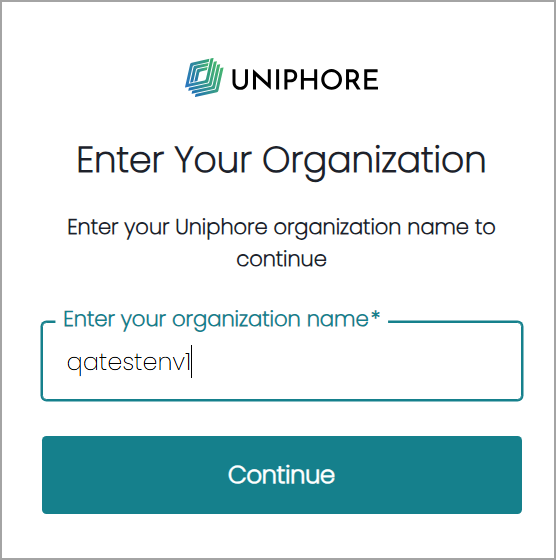
Go to https://ng.uniphore.com/admin and log in with Partner or Super Admin credentials:
In the Account ID field, enter the Organization Name for your Partner admin portal.
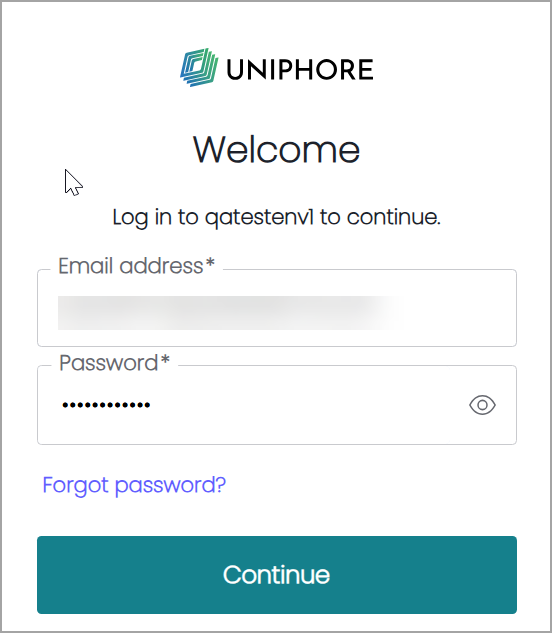
Enter your Email address and Password, select the I'm not a robot checkbox, and click Continue.
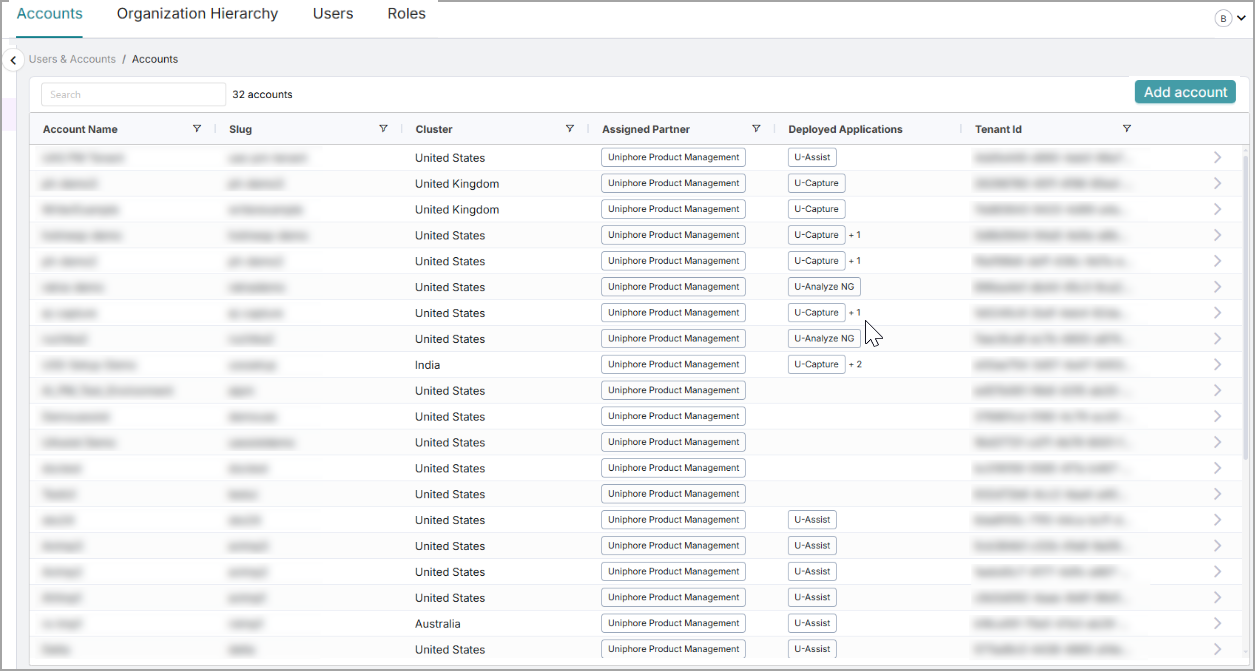
Go to Users & Accounts, click Accounts at the top, and then click Add account in the top right.
Enter the following details for the new account:
Account name - The name of the account.
Slug - The slug for the URL used to access the account.
Cluster - The location of the cluster to deploy the account in.
Partner - Select the Partner account to add the new account. If you're logged in as a Partner Admin, this is already selected based on your login credentials.
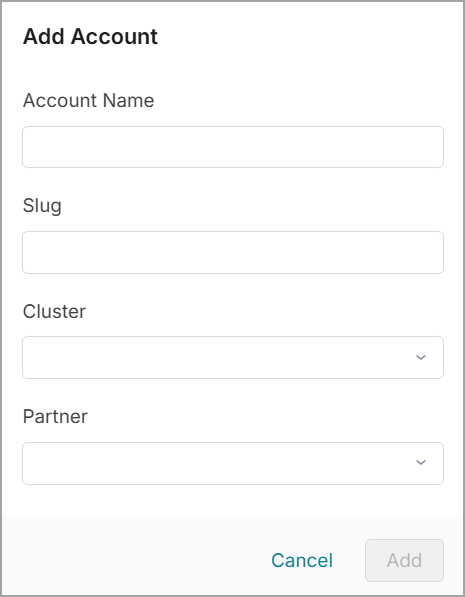
Once you've reviewed and confirmed the details, click Add.
The new account is added. See below for the steps to add the administrator to the account.
Add an Administrator
Once the new account is created in the Uniphore Admin Portal, an administrator user should be added to the account. This administrator can then log into the account and easily see and configure the account's users, Organization Hierarchy, and application specific configuration.
To Add an Administrator User to the New Account:
Go to https://ng.uniphore.com/admin and log in with Partner or Super Admin credentials:
Enter the Organization Name for your Partner admin portal.
Enter the Email address and Password, select the I'm not a robot check box, and click Continue.
You can either add an existing user as an administrator, or add a new user to the account:
To make an existing user an administrator of an account:
Go to Users & Accounts and click Users at the top.
Use the Search bar to find the user that you want to add as an administrator to the account and click the user's name.
Under Accounts & Roles, select the account from the Accounts dropdown. A new tab under Roles is added for the account. Under Roles in the tab for the new account, make sure the Account Administrator role is selected.
Once you've reviewed and confirmed the details, click Update User.
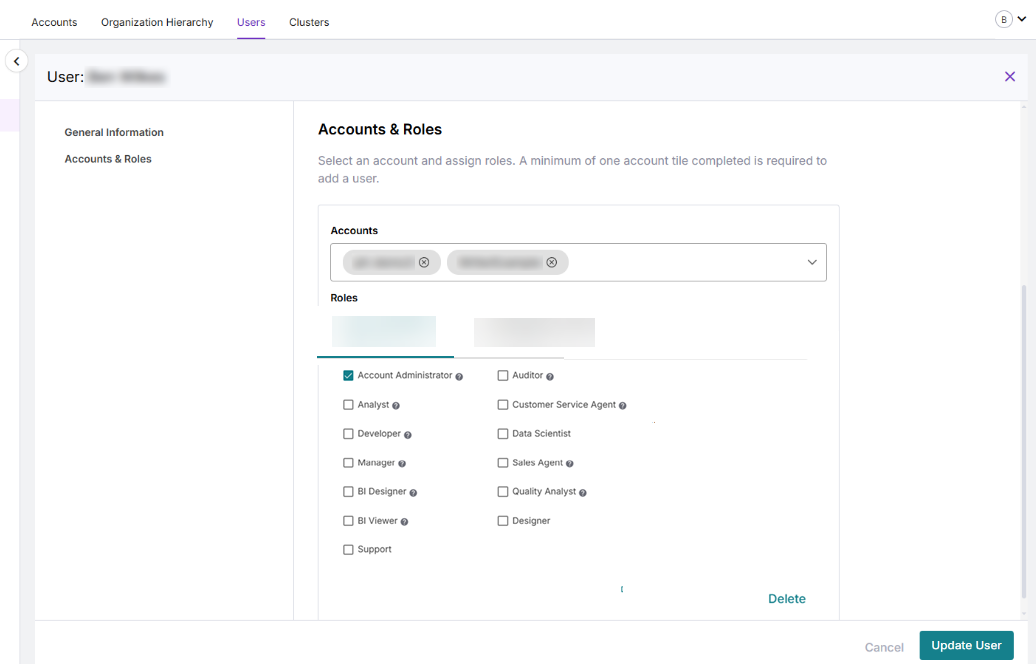
To add a new user an administrator of the account:
Go to Users & Accounts and click Users at the top.
Click + Add User, enter the First name, Last name, and the Email for the new admin user.
Under Accounts & Roles, select the account from the Accounts dropdown. Under Roles, select the Account Administrator role.
Once you've reviewed and confirmed the details, click Add User to add the new user.
The system sends a password reset link to the email address you entered. Use the link to set a password for the new administrator account.
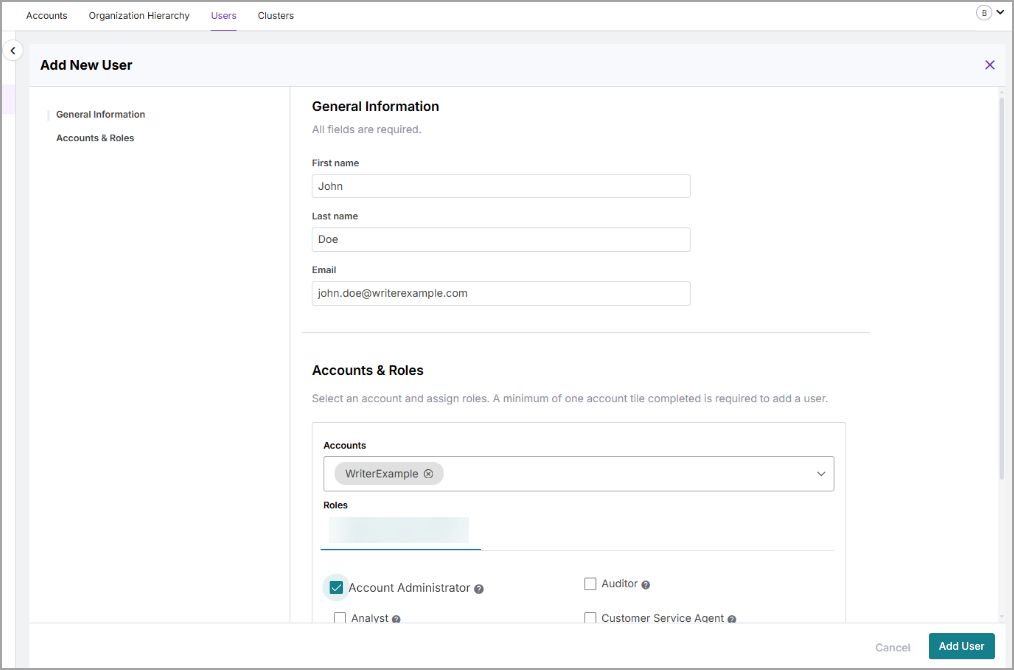
Now that you’ve added the administrator user, you can log in to the account. See the steps below.
Log in as the Administrator User
To continue configuring the account (e.g., adding users, setting up application-specific settings, etc.), you must log in as an administrator. (See Add an Administrator on how to add an administrator user.)
To Log in to the New Account as the Administrator User:
Go to https://ng.uniphore.com/admin - You may already be logged into the portal. If so log out by clicking the user dropdown in the top right and clicking Logout. The page should then refresh and take you to the log in landing page.
Enter the Organization Name for the account, This is the Slug entered when first creating the account.
Enter the Email address and Password of the administrator user for the account, select the I’m not a robot check box, and then click Continue.
You are now be logged in.
For information on managing the account users, including initial onboarding steps, click here.
Before configuring each application, a Super Admin must first deploy each application in the Uniphore admin portal. For information on deploying each application to the account click here.
After you deploy your applications, an Account Administrator can complete the application-specific configuration. For details, refer to the relevant product documentation for the appropriate links.