Define Organization
For each newly created tenant, the Default Organization and Business Process are automatically added. An Administrator can also create a specific Organization (for example: Auto Insurance, Travel Services, Cable Provider, etc.) for a tenant by clicking the Plus icon. Business Processes (BPs) are created for each Organization’s section and language that handles different types of calls (for example: Sales vs Support vs Customer Service).
Best Practice: Organizations should be created based on Industry while BP should be based on language, since the CTI is mapped to each individual BP.
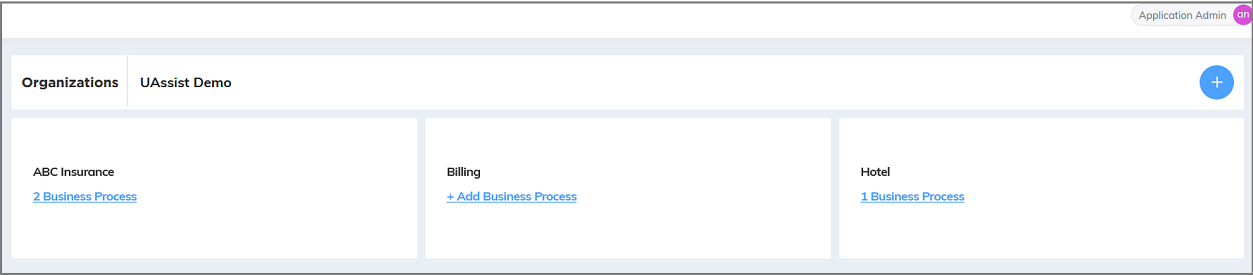
Click Add Organization (
 ) button to add an Organization.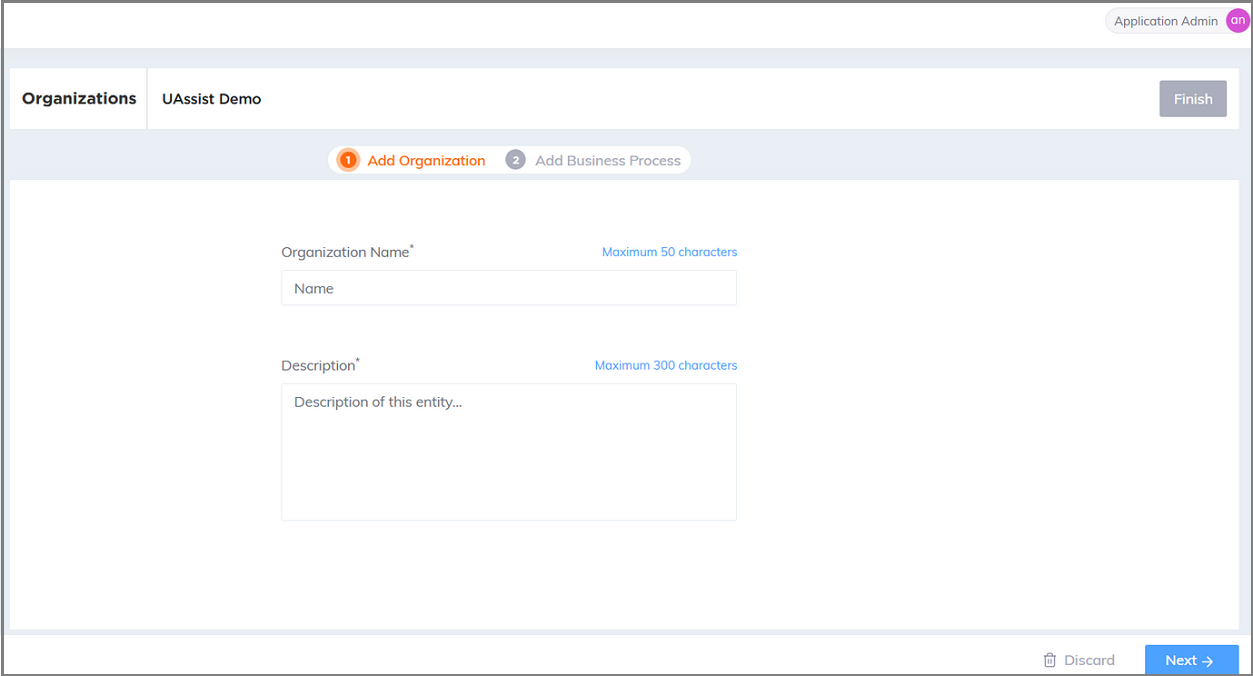
In the Organization Name field, enter the name of the Organization. The Organization name should not exceed a maximum of 50 characters.
In the Description field, enter the description of Organization. The description should not exceed a maximum of 300 characters.
Note
Except for - and _, the following special characters are not allowed in the Organization name and description.
/ [ ` ! @ # $ % ^ & * ~ < > ; ' : " / [ \ ] | { } ( ) = + ] /
In addition to these special characters . and , are not allowed in the Organization name.
Click Next to navigate to Add Business Process page. For setting up Business Process, click here.
Click Finish to save the Organization and Business Process details. To cancel your activity at anytime without saving, click Discard.
Edit Organization
Mouse hover the specific Organization tile and click Edit (
 ) icon to edit the Organization details.
The Organization page appears. Edit the name and description as required.
Click Next to navigate to Add Business Process page and click Finish to save the updated details.
Delete Organization
Mouse hover the specific Organization tile and click Delete (
 ) icon to delete the Organization. A confirmation message will be displayed.
Click Yes to delete the Organization. You cannot delete an Organization that contains any configured Business Processes.
Note
The selected Organization / Business Process cannot be deleted in any of the scenarios listed below:
If the Alerts, Entities and CTI language mapping configured for the selected Business Process in the U-Assist ACW application.
If the Experience is mapped to the selected Business Process in the X-Console.
If the Business Process does not contain any of the configured alerts, and the 'Alerts' feature is disabled in the U-Assist ACW Admin Portal's App Profile Settings.
If the Business Process does not contain any of the configured Entities, and the 'ACW' feature is disabled in the U-Assist ACW Admin Portal's App Profile Settings.