Guidance
A Guidance Agent provides real-time, in-call assistance to human agents during live conversations. It uses the underlying AI agent’s knowledge and reasoning to deliver relevant suggestions, recommended next-best actions, and answers as the conversation unfolds.
Update Name, Language, Description (if required).
Add capabilities that define the Guidance Agent's functional expertise.
Configure In-Call Agent.
Configure Pre-Call Agents.
Configure Post Call Agents.
Configure a Guidance Agent
After creating a Guidance Agent, configure its properties, capabilities, tools, knowledge, and supporting AI agents to define how it assists contact center agents during customer interactions. For more details about real-time assistance during customer interactions, refer to About Agent Assistant.
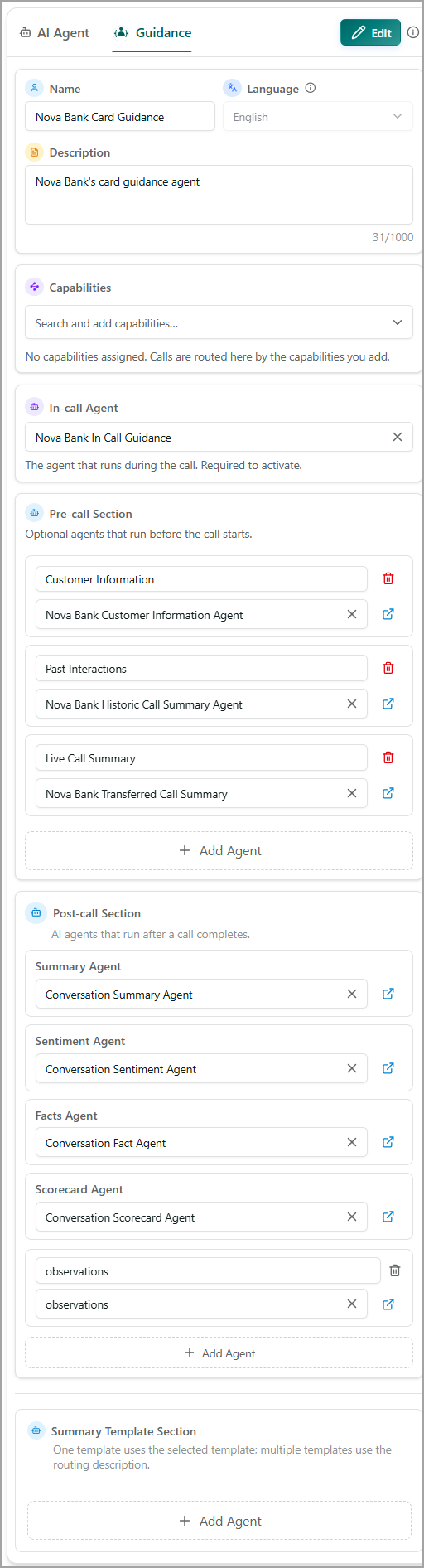
To Configure Guidance Agent:
Upon creating a Guidance Agent, the configuration page opens. Otherwise, you can also select a Guidance agent from the Agent Studio and click Configure.
Ensure the Guidance tab is selected.
Configure the following details:
Field
Description
Name
Displays the name of the Guidance Agent. You can modify the agent name if required.
Language
Select the language used by the Guidance Agent. Currently, only English is supported.
Description
Enter a brief description of the Guidance Agent.
Capabilities
Add one or more capabilities that define the Guidance Agent's functional expertise. A capability consists of one or more routing metadata key-value pairs that identify the type of customer interaction. For more details, refer to Capability Routing.
In-call Agent
Select the AI Agent that runs continuously throughout the customer interaction. This field is required before the Guidance Agent can be activated.
Pre-call Agents
Optionally select one or more AI agents to run before the customer interaction begins. These agents retrieve and present contextual information to the contact center agent before the call starts.
Post-Call Section
Select one or more post-call AI agents to execute automatically after the customer interaction ends. These agents can perform tasks such as generating conversation summaries, analyzing sentiment, extracting key facts, and evaluating interactions using scorecards.
Summary Template Section
Select one or more summary template agents to generate contextualized post-call summaries that capture relevant information from customer conversations.
Click Save in the top-right side of the page to save the guidance agent configuration.
Configure In-Call Agent
The In-call Agent is an AI Agent that runs continuously throughout a live customer interaction. It processes the conversation in real time and provides contextual guidance to contact center agents based on the ongoing conversation. Depending on the detected intent, it can display recommendations, next-best actions, compliance guidance, and other actionable information on the agent desktop.
You can configure one or more In-call Agents to address different business scenarios or customer intents during the same interaction.
Note
AI Agents with Published status are only listed for selection.
Configure Pre-Call Agents
Pre-call Agents are optional AI agents that run before a customer interaction begins. They retrieve relevant customer information and context from the customer's previous conversations, enabling contact center agents to start conversations with the information they need.
In the Pre-call section, the Pre-call Intelligence Agent is pre-populated. You can add multiple agents if required.
Click + Add Agent.
Enter a unique Agent Name to identify the pre-call agent.
Select an AI Agent from the dropdown.
Based on the configured pre-call agents, AI-generated contextual insights from previous conversations are displayed on the Agent Assistant screen to guide the agent during the call. For more information about viewing past call interactions for guidance, refer to Agent Assistant.
Note
To view the configuration details of the selected AI Agent, click Open agent config (
 ) next to the Select agent dropdown.
To remove a Pre-Call Agent from the Guidance Agent configuration, click Delete (
 ) next to the Agent name field.
Configure Post Call Agents
Post-Call Agents are AI agents that run after a customer interaction is completed. You can configure one or more Post-Call Agents for a Guidance Agent to process the completed conversation and generate relevant outputs, such as summaries, sentiment analysis, facts, or scorecards.
By default, the Post Call Section includes the following agent types:
Summary Agent - Generates a summary of the completed conversation.
Sentiment Agent - Analyzes the sentiment of the conversation.
Facts Agent - Extracts relevant facts from the conversation.
Scorecard Agent - Evaluates the conversation based on configured criteria.
Select the required AI Agent for the applicable post-call agent type.
To configure an additional post-call agent, click + Add Agent.
Enter a unique Agent Name to identify the post-call agent.
Select the required AI Agent from the dropdown.
Configure Summary Template Section
The Summary Template Section allows you to configure how summary templates are assigned to calls and guidance agents. You can use a default summary template for all calls or configure specific templates with routing logic for individual agents.
The default summary template is selected by default and applies to all calls when no agent-specific routing configuration is used.
You can also assign summary templates to specific agents and define routing logic to determine when to use the configured template.
Click + Add Agent.
Select a summary template from the dropdown list. All summary templates configured in Summary Studio are available for selection.
For more details on configuring a summary template, refer to Summary Studio.
Enter the appropriate Routing Logic to define the conditions under which the summary template should be applied.
Repeat these steps to add more summary templates as required.
Agent Assistant in Agent Desktop
Agent Assistant is a docked side panel in Agent Desktop that provides real-time AI assistance during customer interactions. It works alongside your CRM application, so you can continue working with customer records, policies, and other business information without leaving the call.
The Agent Assistant panel provides the following information and assistance during a call:
AI guidance - Provides contextual recommendations based on the configured AI Agent and Guidance Agent.
Knowledge and assistance - Uses the configured knowledge, skills, and tools to help you address the customer's request.
Customer insights - Displays relevant AI-generated insights from the customer's previous interactions to help you understand the customer's history and provide more contextual assistance.
Call information - Displays call details and the live transcript so you can follow the conversation in real time.
Post-call insights - Provides an AI-generated post-call summary based on the capabilities configured for the post-call agents.
For more details about real-time assistance during a live conversation, refer to About Agent Assistant.
Link Alerts to a Guidance Agent
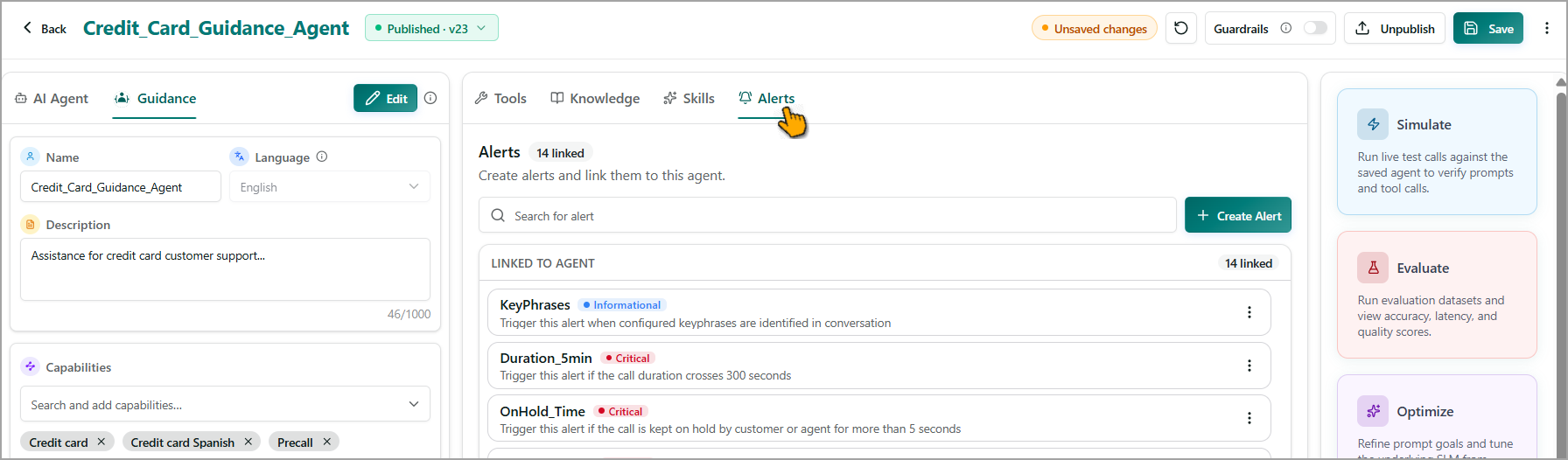
The Alerts tab lets you create and link alerts to a Guidance Agent. Alerts automatically identify specific conditions during a call, such as prolonged silence, extended hold time, or configured keyphrases. These alerts help agents and supervisors identify potential issues and respond in real time.
Note
The Alerts tab is available only when configuring a Guidance Agent.
The tab lists the alerts already associated with the Guidance Agent and displays the total number of linked alerts.
When the linked alerts list is long, enter a few letters or keywords from the alert name in the Search field to locate a specific alert.
You can create a new alert directly from the Alerts tab. Click Create Alert to navigate to the Create Alert page.
For more information about creating an alert, refer to Alerts Configuration.
Click More options (
 ) in the row of the alert you want to manage.
Select one of the following actions:
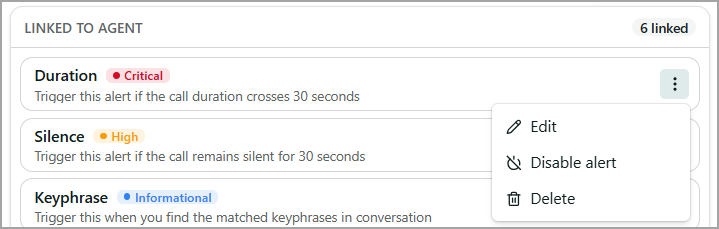
Edit - Opens the alert configuration page, where you can modify the alert details and trigger conditions.
Disable alert - Disables the alert. Once disabled, the alert is not displayed to the agent during an active call.
Delete - Permanently deletes the alert.