Summary Studio
Summary Studio is a workspace for creating and managing post-call summary templates. It allows you to create templates tailored to specific business requirements, manage existing templates, and control their availability.
These summary templates are assigned to guidance agents during configuration to generate contextualized post-call summaries that capture relevant information from customer conversations and provide insights beyond generic summaries.
For more details on assigning summary templates to a guidance agent, refer to Configure a Guidance Agent.
For more details on viewing the post-call summary after a call, refer to Agent Assistant.
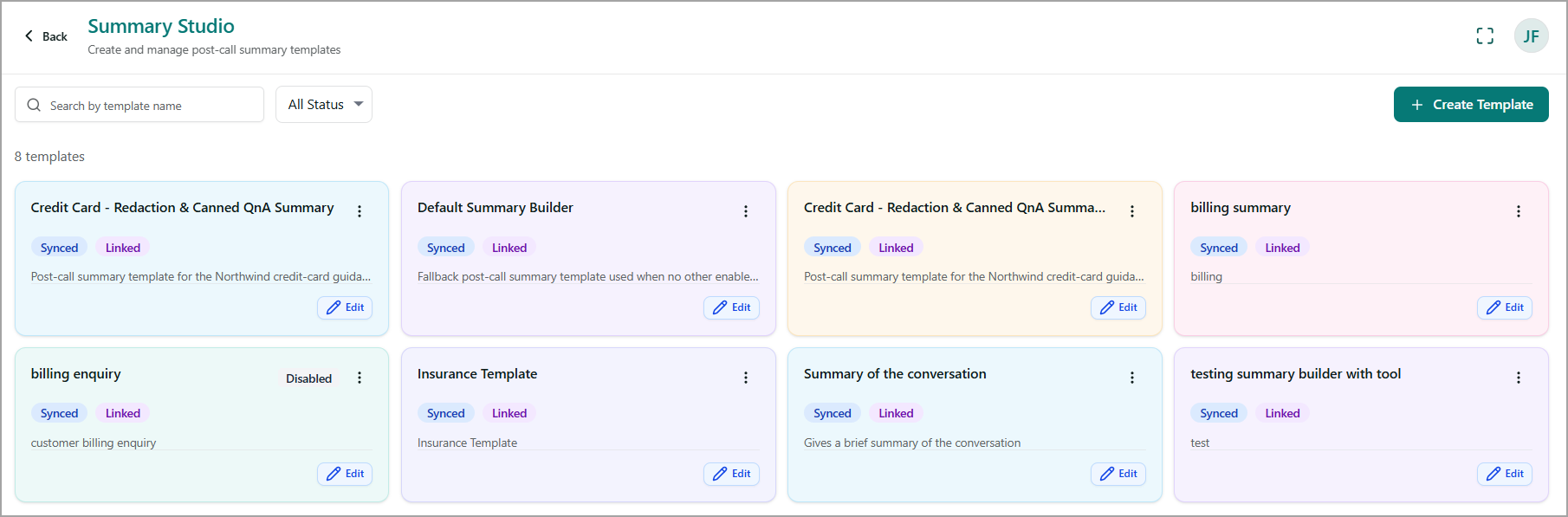
Each template includes a name, description, status, and summary configuration. Templates can also display synchronization and linkage information to help you understand their current state.
Access Summary Studio
Navigate to Setup > Summary Studio to view and manage your existing summary templates. Each widget is displayed as a card that provides the following information and actions:
Template Name - The name assigned to the summary template.
Description - A brief explanation of the template's purpose.
Synced - Indicates whether the template is synchronized with its associated configuration.
Linked - Indicates that the template is linked to Supervisor Agent in Business AI Cloud.
Status - Indicates whether the template is Active.
Edit - Allows you to modify the summary template configuration.
Ellipsis
 - Provides additional actions, such as deleting the summary template.
Searching and Filtering Templates
Use the search and filter options to locate a specific template.
Search by Template Name - Enter one or more letters or words in the search field at the top of the page. The list displays only the templates that match your search criteria.
Filter by Status - Select Enabled or Disabled from the All Status drop-down to display templates based on their current status.
Create a New Summary Template
Click + Create Template on the Summary Studio page. The Create Summary Template page appears, where users configure a new post-call summary template and preview its configuration before saving.
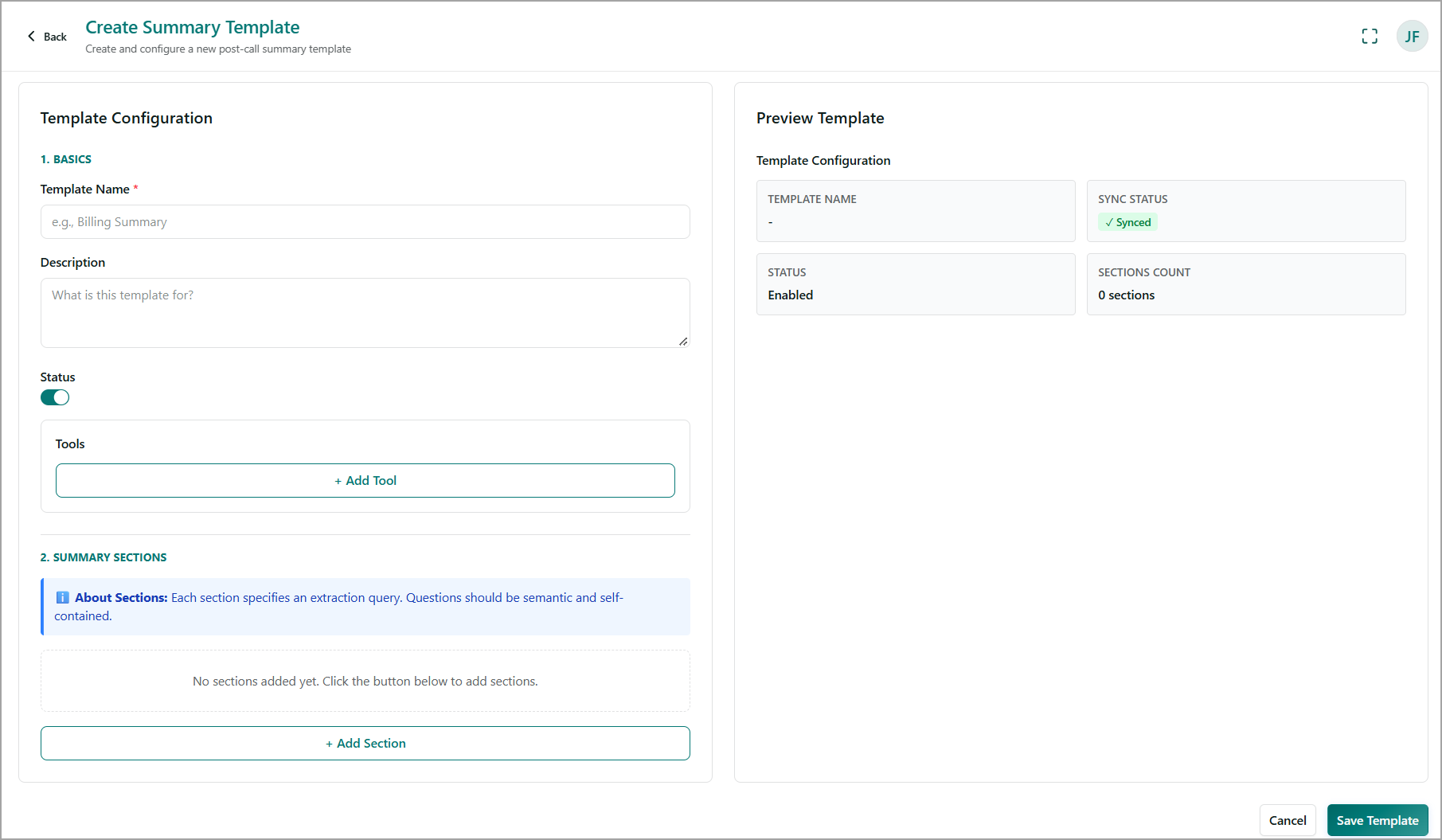
In the Basics section, provide the following information:
Template Name - Enter a unique name for the summary template.
Description - Enter a brief description explaining the purpose of the template and the information it is intended to capture.
Status - Use the toggle to enable or disable the template. The toggle is ON by default, indicating that the template is enabled.
Tools - Click Add Tool to select the tool required by the template. Provide instructions for the selected tool to execute the configured summary requirements.
In the Summary Sections, click Add Section to define the information to be extracted from the conversation. Each question or extraction query is displayed as a separate section in the generated summary.
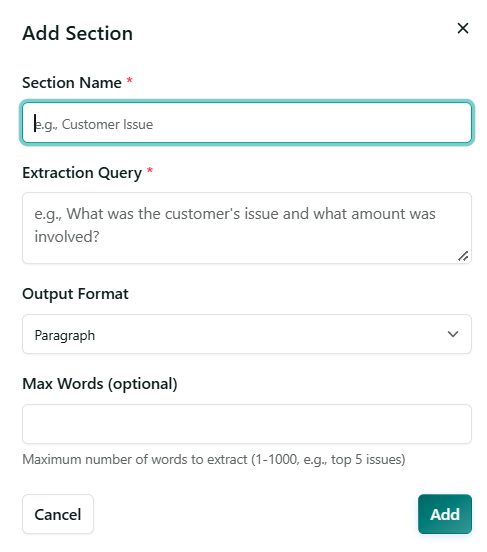
Section Name - Enter the name of the summary section that will appear in the generated post-call summary.
Extraction Query - Enter a clear query specifying the information to extract from the conversation. For example: Extract the customer's issue with the billing amount.
Output Format - Select the required format from the drop-down list to determine how the section's content is displayed in the summary. The available formats are:
Paragraph - Displays the extracted information as a paragraph.
Bullet Points - Displays the extracted information as a bulleted list.
Numbered List - Displays the extracted information as a numbered list.
Max Words - Optionally, enter the maximum number of words to be extracted for the section.
Click Add to add the summary section. To cancel your activity at any time without saving, click Cancel.
Repeat these steps to add more summary sections as needed.
In the Preview Template section, review the configured summary template information, including:
Template Name - Displays the name assigned to the template.
Sync Status - Indicates whether the template is synchronized with its associated configuration.
Status - Indicates whether the template is enabled.
Sections Count - Displays the number of summary sections configured in the template.
Edit the Summary Template
Click Edit on the required summary template card to update the post-cost summary template configuration. Update the required details, then click Save to apply your changes.
Delete the Summary Template
Click Ellipsis
on the required summary template card and select Delete. A confirmation message is displayed.Note
Deleting a summary template is permanent and cannot be undone. This action can impact all guidance agents associated with the template. Ensure that no associated agents require the template before proceeding.