Simulate
Before releasing agents to production, it's essential to ensure they behave as expected across a range of real-world scenarios. The simulation capability provides a controlled, risk-free environment in which teams can thoroughly test and validate their agents before any customer interaction occurs.
Using simulation, teams can execute test calls against a saved agent to verify that prompts are interpreted correctly and tool calls function as intended. This makes it easy to catch and resolve issues well before they impact customers.
By identifying gaps and unexpected behaviors during simulation rather than in production, organizations can continuously improve agent quality.
Note
Only agents created using Process Discovery can be simulated.
Teams can validate the following:
Customer journeys: Ensure end-to-end interactions flow as designed
Tool usage: Confirm that the agent invokes the right tools at the right time
Agent responses: Review the quality and accuracy of generated outputs
Workflow execution: Verify that multi-step processes complete correctly
Escalation paths: Test that handoffs to human agents trigger under the right conditions
To Simulate an Agent:
Use Simulate to test an agent with selected personas and evaluate how well it performs a process. You can run simulations using Text or Voice interactions and review the configured evaluation metrics.
Navigate to Agent Studio. Select the Agent and click Configure. The configuration dialog opens.
Click Simulate. The Process Simulate dialog opens.
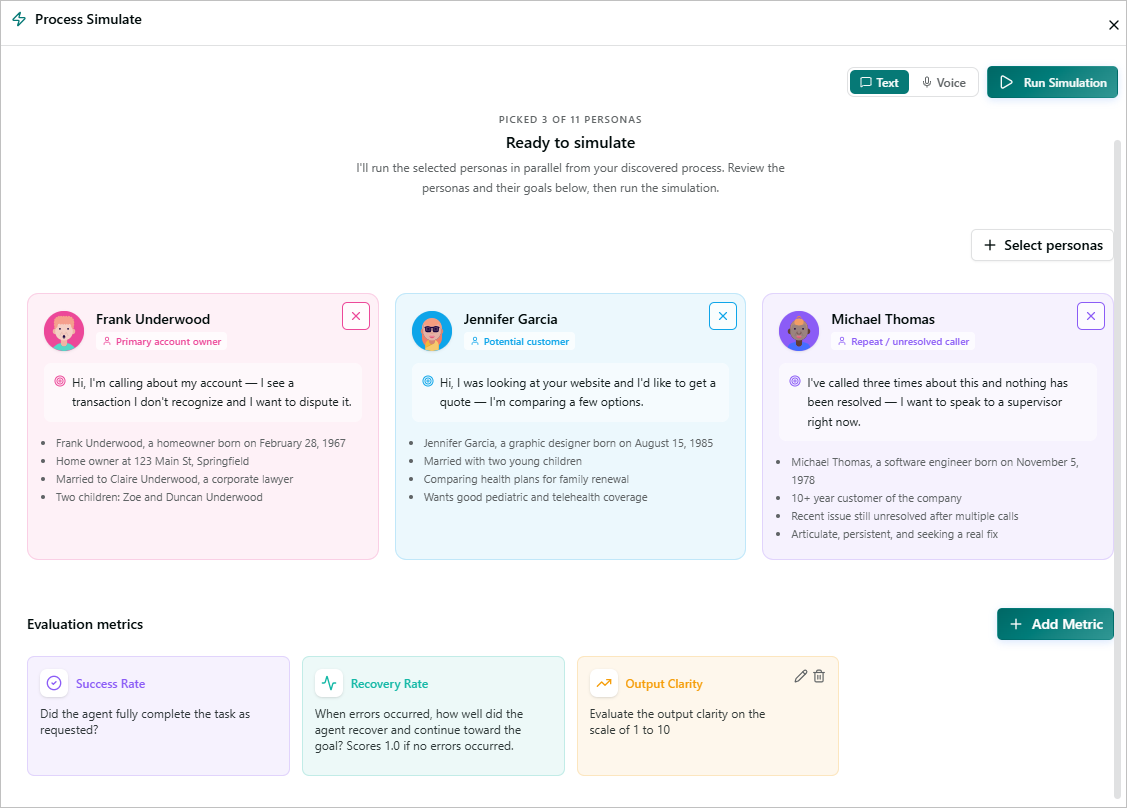
Select the channel for the simulation. You can select either Text or Voice channel.
Click + Select Persona to select the Persona Archetype. In the Persona Archetype, click + to add a persona and x to remove a persona. The added persona is displayed in the Process Simulate dialog. Up to 3 personas can be used in a simulation.
Click + Add Metrics to select Evaluation Metrics. The Add Custom Metric dialog opens. By default, Success Rate and Evaluation Rate metrics are shown.
The Success Rate metric indicates whether the agent successfully completed the requested task.
The Recovery Rate metric measures the agent's ability to recover from errors and continue toward the intended goal. A score of 1.0 indicates that no errors were encountered.
In Add Custom Metric, enter the Display Name for the custom metric and Description. Click Add Metric. In addition to the default metrics, custom metrics are included during the call simulation.
Click Run Simulation to test an agent with a selected persona and observe how the agent processes a conversation in real time. For more details, refer to Run a Simulation.
To Run a Simulation
A simulation replays a realistic conversation with the selected persona, executes the agent’s complete pipeline, including listening, intent recognition, tool execution, and response generation, and evaluates the outcome to help you verify that the agent behaves as expected.
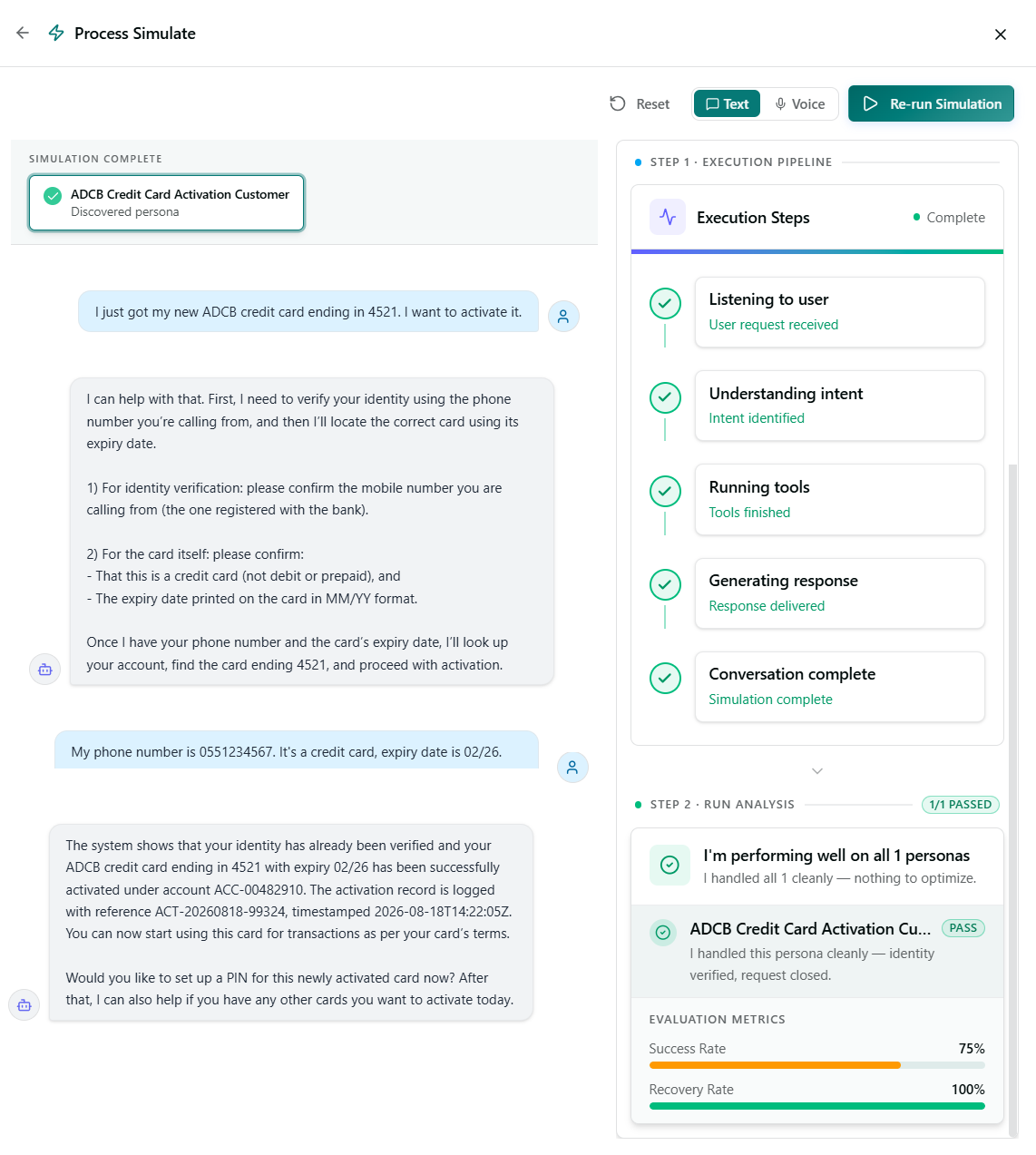
Conversation Transcript: The left panel displays the simulated conversation between the persona (right-aligned, blue) and the AI Agent (left-aligned, gray). Review the transcript to see what the persona asked, how the agent responded at each turn, and whether the agent requested the required information, such as identity verification or card details, before completing the task.
Step 1: Execution Pipeline
The execution pipeline displays the following steps:
Listening to user - Indicates that the agent received the user's request.
Understanding intent - Indicates that the agent is analyzing the user's intent and conversation context.
Running tools - Indicates that the agent is executing the required backend tools or lookups.
Generating response - Indicates that the agent generated and delivered a response.
Conversation complete - Indicates that the simulation completed successfully from start to finish.
Each stage displays a green checkmark and a status such as Complete when it finishes successfully. If a stage fails, review the conversation transcript for that turn to identify the issue.
Step 2: Run Analysis
The Run Analysis step summarizes how the agent performed for the personas included in the simulation.
Pass/fail counter - Displays the number of personas the agent handled successfully out of the total personas tested.
Overall performance summary - Provides a brief summary of the agent's performance, such as I'm performing well on all 1 personas.
Persona results - Lists each persona tested with a PASS or FAIL label and a brief explanation of how the agent handled the persona's request.
Evaluation Metrics:
Success Rate - The percentage of simulated turns or tasks the agent completed correctly.
Recovery Rate - The percentage of unexpected inputs or situations from which the agent successfully recovered, such as by asking a clarifying question or correcting its course, instead of failing.
To Re-run a Simulation
Use Re-run to run an existing simulation again with the same persona and configuration. Re-running a simulation helps you validate agent behavior after making changes to the agent, prompts, knowledge, or other configurations.
In the dialog, click Re-run Simulation on the right side. The re-run creates a new simulation run while preserving the original simulation for comparison.
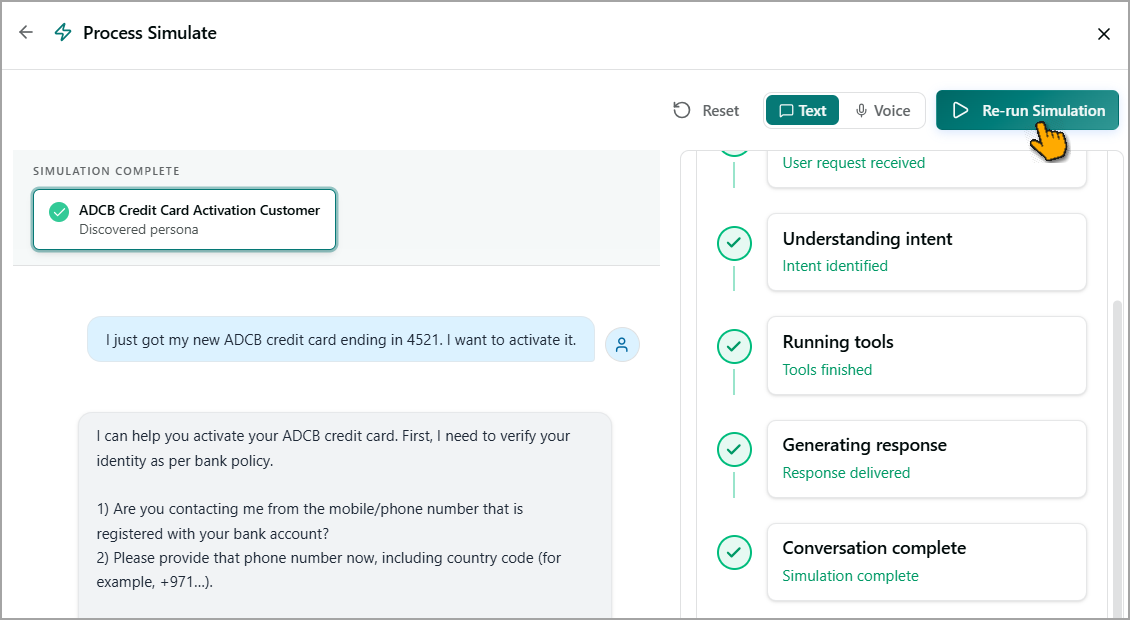
After the simulation completes, review the results to verify that the agent behaves as expected.
To Reset a Simulation
Use Reset Simulation to restore a simulation to its initial state and clear the current simulation results. This allows you to start the simulation again from the beginning.
In the dialog, click Reset (
 ) on the right side. After the simulation is reset, you can start a new simulation and review the results from the beginning.