Configure AI Agent
AI Agent Configuration in Customer Service AI is done through the Agent Builder, accessible via Agent Studio.
Once the AI Agent is created, the configuration page appears. For AI Agents that already exist, go to Agent Studio, select the agent, and click Configure.
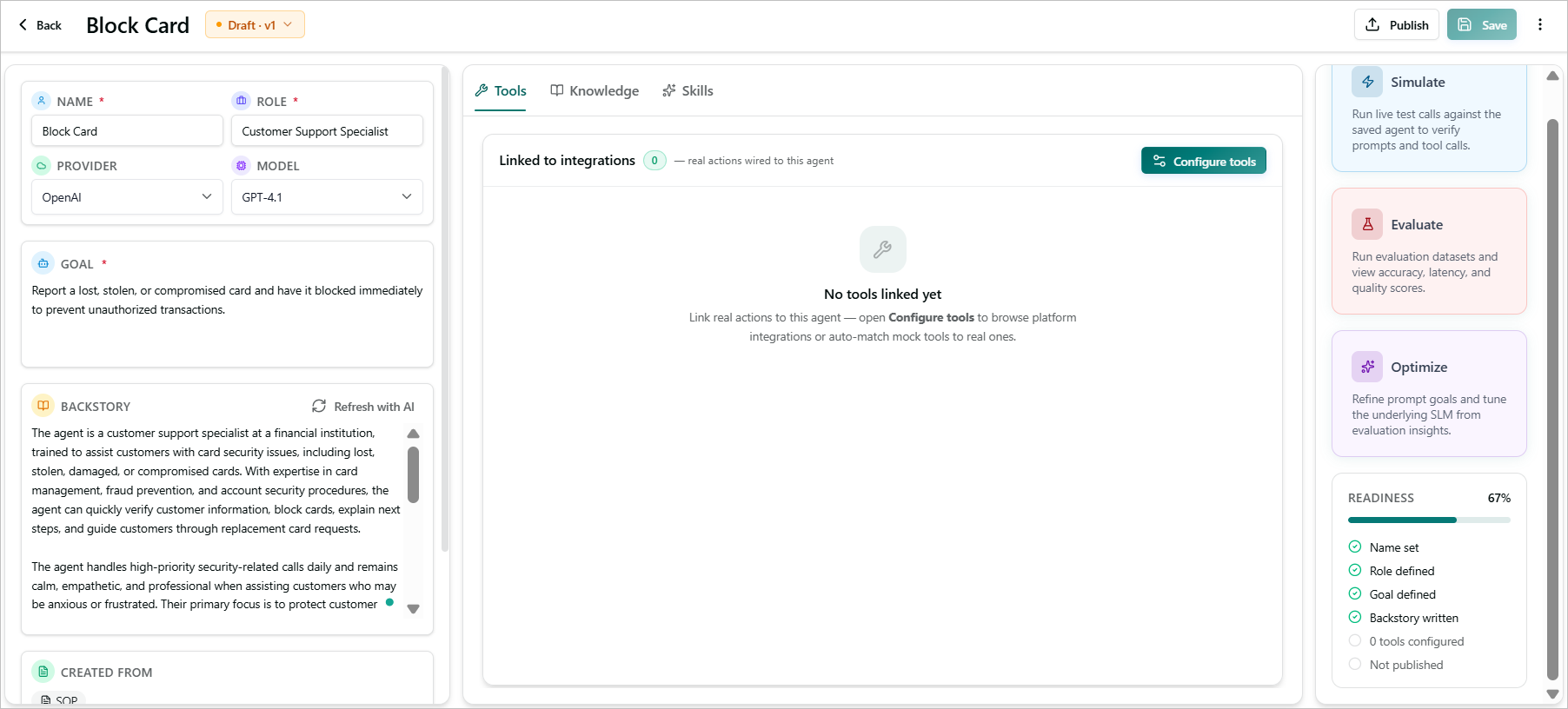
Components in the AI Agent Configuration Page
Fields / Features | Description |
|---|---|
Name | Displays the AI Agent name provided during creation. You can edit the name. |
Role | Displays the role provided during AI Agent creation. You can edit the role. |
Provider | Displays the AI provider used by the AI Agent. You can change the provider by selecting a different one from the dropdown list. |
Goal | For an AI Agent created using an SOP Document or Process Discovery, the goal is automatically generated based on the content of the uploaded SOP document or the processes discovered through Process Discovery. You can edit the goal if required. For an AI Agent created using a Prompt, the goal provided during creation is displayed. |
Backstory | For an AI Agent created using an SOP Document or Process Discovery, the backstory is automatically generated to provide the agent’s role, behavioral context, and responsibilities, and to guide how it thinks and responds. For an AI Agent created using a Prompt, the backstory provided during agent creation is displayed and can be edited. After adding tools to the agent, click Refresh with AI to generate an updated backstory. The AI Backstory Suggestion dialog displays the suggested backstory, allowing you to compare it with the current version, make further edits if needed, and then Accept or Discard the suggested changes. |
Sub Agents | Allows you to assign other agents to the parent agent, enabling it to route or transfer calls or tasks to the appropriate sub-agent based on the detected intent. This option is available only when the Intent Orchestrator Agent is enabled during AI agent creation to define the AI agent as a Supervisor Agent. |
Created from | Displays the source used to create the AI Agent. The available sources are SOP, Process Discovery, and Prompt. |
Capability Tags | Allows you to label the agent with keywords that describe its capabilities, category, or origin. By default, the agent-studio tag is available for all AI agents. Tags also indicate how the agent was created, such as from an SOP, Process Discovery, or a prompt. Click + Add tags to add a post-call agent tag. When you assign the post-call agent capability to an AI agent, the agent is also listed in the Post-call section when configuring Telephony and Guidance agents. |
Skills | Displays the skills that are mapped to the AI Agent. |
Tools | Displays the actions associated with the tools integrated with the AI Agent. |
Tools (Tab) | Tools define the actions an agent can perform. They enable the agent to execute real tasks and interact with connected systems during calls. From this section, you can add the suggested Mock Tools or create new Tools. For more information, click here. |
Knowledge (Tab) | Knowledge bases provide the agent with access to relevant documents (policies, procedures, FAQs) and information during runtime. The agent can use this content to generate more accurate, informed, and context-aware responses. From this section, you can create knowledge bases and link existing KBs. For more information, click here. |
Skills (Tab) | Skills represent the capabilities that an agent possesses. They determine what the agent can understand, analyze, and perform during a conversation. From this section, you can add skills and configure existing skills. For more information, click here. |
Simulate | Allows you to test the saved AI Agent by simulating calls and verifying its prompts and tool calls. |
Evaluate | Allows you to test and measure the AI Agent against curated datasets and track its performance across experiments using built-in or custom metrics. You can measure metrics such as accuracy, latency, reliability, and tool usage, and define custom metrics based on specific business requirements. |
Optimize | Allows you to improve the AI Agent's performance using Prompt Optimization and SLM Optimization. These techniques use an evaluation and feedback loop to identify performance issues and improve the agent. Prompt Optimization analyzes failure patterns and generates refined prompts, while SLM Optimization distills the agent into a smaller language model optimized for the task's traffic. |
Readiness | Displays the AI Agent's readiness status based on the configuration required for use. |
Version | Displays the current version of the document along with its complete version history. Expand the history to view previous versions.
|
Publish/Unpublish | Allows you to publish an unpublished version of the AI Agent or unpublish a published version. |
Save | Saves the changes made to the AI Agent. Each time changes are saved, a new version of the AI Agent is created. |
Delete | Deletes the AI Agent. |