Alerts Configuration
A Real-Time Guidance Alert is a notification that is displayed to an Agent or Supervisor while a call is in progress. Alerts are generated using predefined Triggers that can recognize specific events or AI-based analyses during the call.
Alerts function intelligently in Real-Time Guidance, with the ability to simultaneously analyze call conversations, customer and Agent emotions, and other attributes to help an Agent deliver more effective service. Alerts can also provide valuable real-time coaching for sales recommendations, responses to customer service queries, or soft skills suggestions for an Agent.
For example, if a customer sounds angry and has uttered a keyphrase like 'I want to discontinue this service', an Alert can be displayed to the Agent that says, 'Try to get more details about the customer's frustration'.
Alerts can also be used to heighten Supervisor awareness about events that require immediate attention during the call.
Real-Time Guidance Agent currently supports three types of Alerts: Information Alerts, Coaching Alerts, and Critical Alerts.
Accessing Alert Configuration
From the left navigation pane, go to Setup > Desktop Configuration.
Click the Alerts Configuration card or select Configure within the card to view all alerts created for Real-Time Guidance.
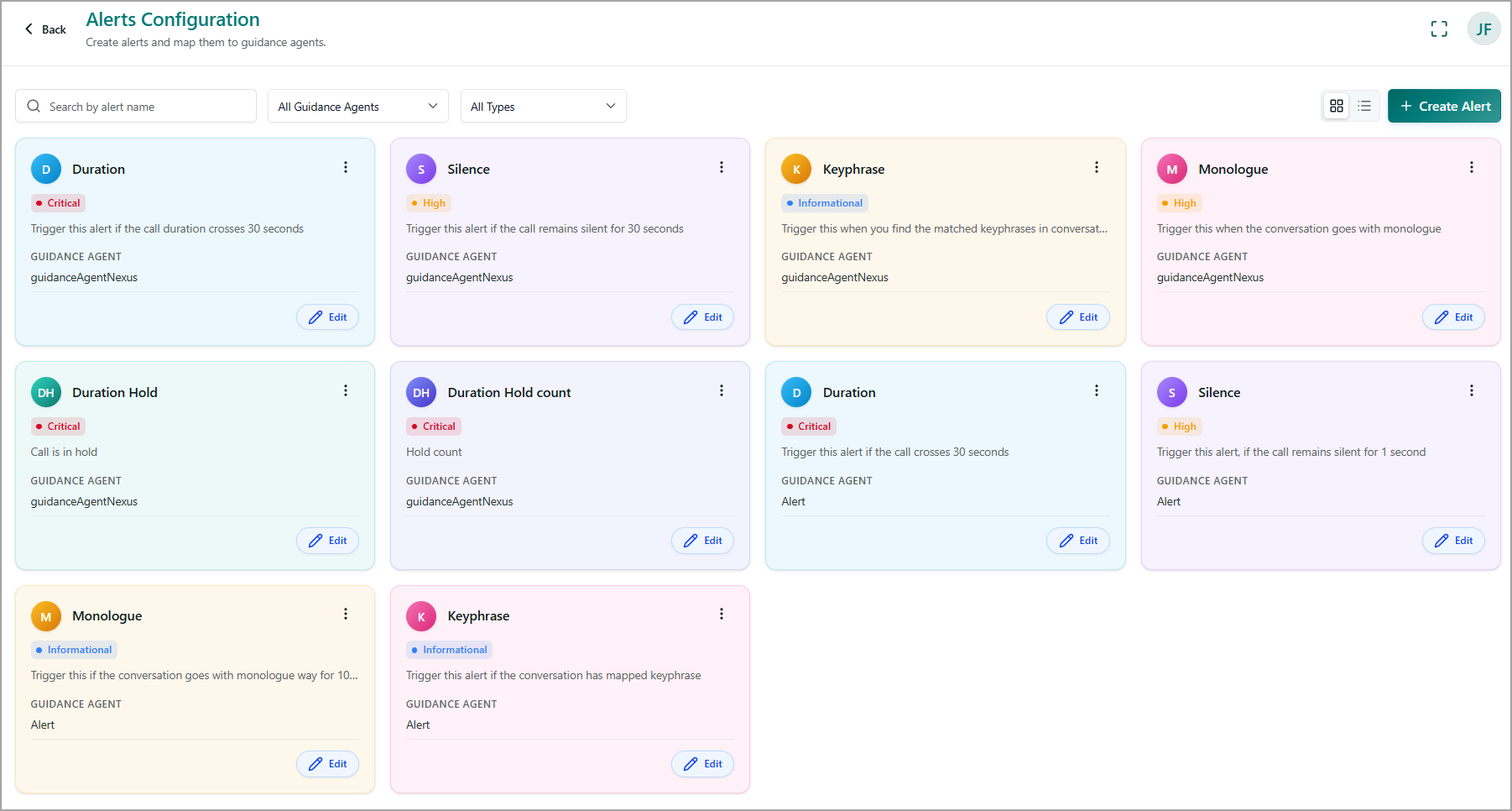
The Alerts Configuration page displays the available alerts as cards by default. Click Table View
 at the top-left of the page to view the alerts in a table.
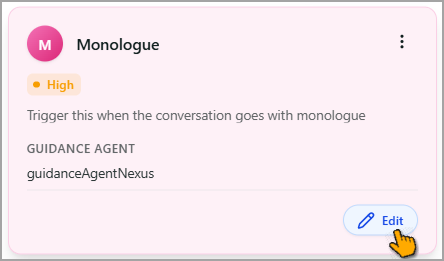
Each alert card includes the following information:
The alert name alongside an icon containing its initials.
The alert severity as Critical, High, or Informational.
Brief description of the condition that triggers the alert.
The Guidance Agent associated with the alert.
Search and Filter Alerts
When the alert list is long, use the search and filter options to locate a specific alert.
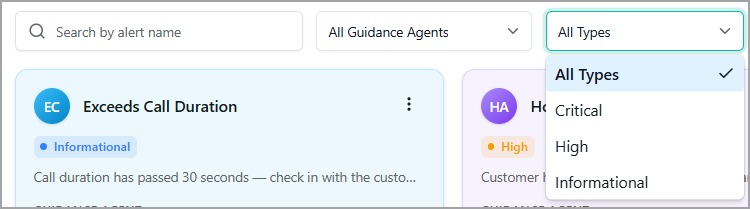
Search by alert name - Enter a few letters or keywords from the alert name in the Search field at the top of the page. The list displays alerts that match the search criteria.
Filter by Guidance Agent - Select a Guidance Agent from the Guidance Agents dropdown list to display alerts associated with that agent.
Filter by Type - Select an alert severity from the Alert Types dropdown list to display alerts with the selected severity: Critical, High, or Informational.
Create a New Alert
Click Create Alert at the top-right side of the page.
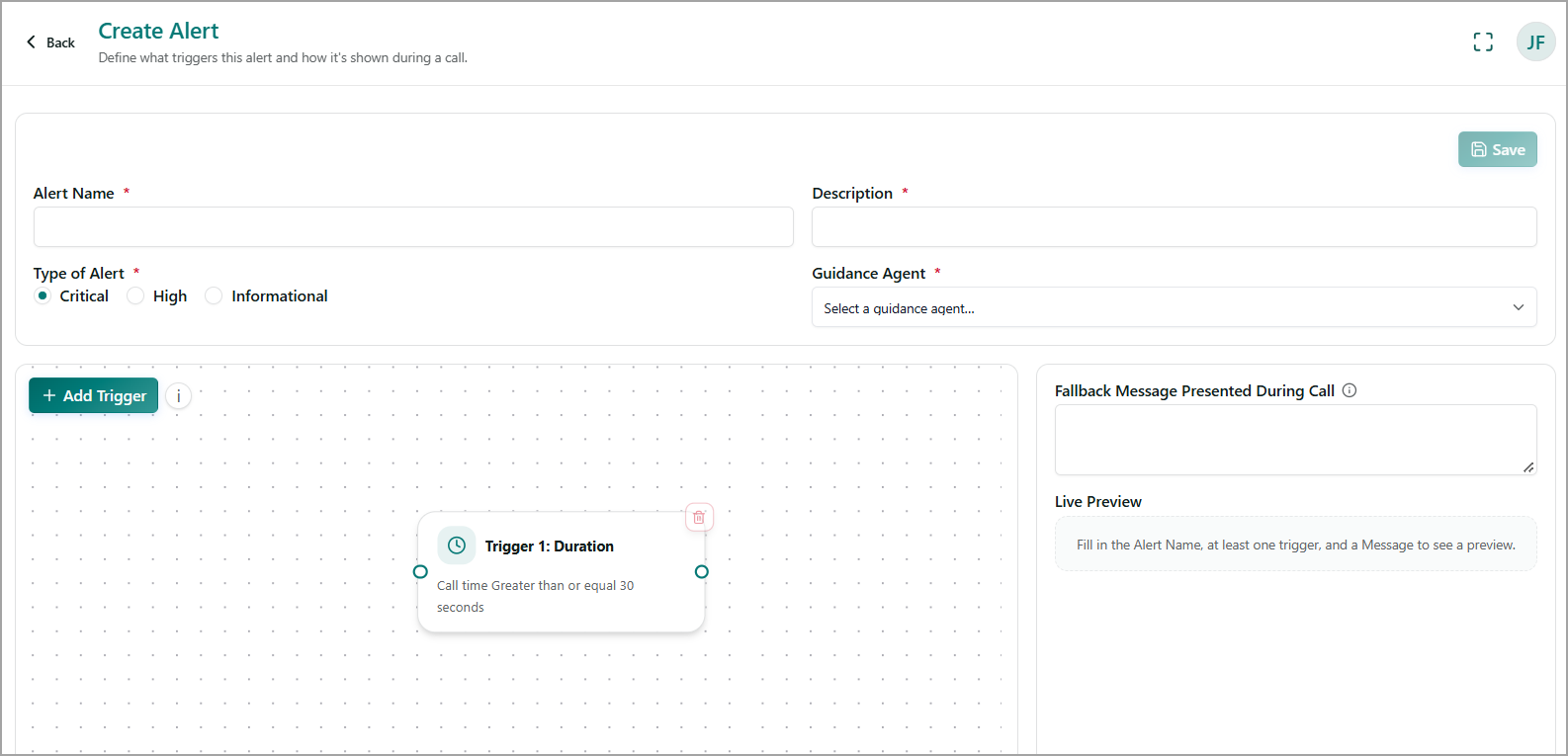
In the Alert Name field, enter a unique name for the Alert.
In the Description field, provide information about this Alert that helps to explain why it exists and how it is used.
From the Type of Alert radio buttons, select any one of the following Alert types:
Critical Alerts - Notify the Agent and/or Supervisor about an event or status change that requires immediate attention.
High Alerts - Prompt the Agent to perform a task based on events in the call, or other AI-based data.
Information Alerts - Provide information about the caller, their account, or a real-time event, that is relevant to the call.
From the Guidance Agent dropdown list, select the guidance agent to which the alert is to be associated.
In the trigger builder, add triggers to define the conditions that activate an alert during a call. You can add triggers based on call duration, monologue, silence, or key phrases.
Click a trigger node on the canvas to edit its configuration, or click + Add Trigger to add another trigger to the alert.
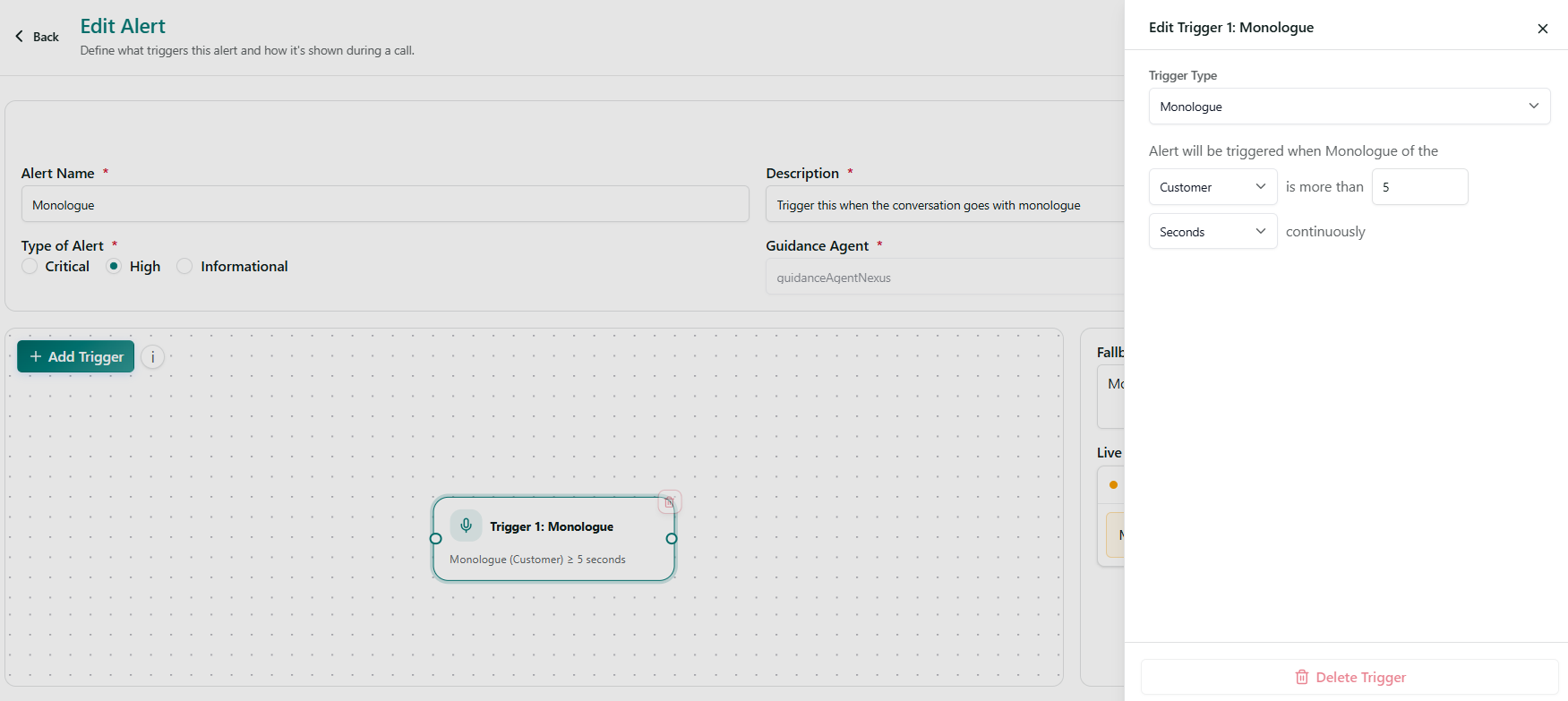
From the Trigger type dropdown, select the type of Trigger for the Alert. For more details, refer to Alert Trigger Settings.
After selection, the chosen Trigger type will appear in the trigger node.
To remove a specific Trigger type from the current set at any time, click Delete
 on the right side of the Trigger.
Adjust the settings for each Trigger type that you select according to the needs of the current Alert. Each type of Trigger maintains its own settings. For more details, refer to Alert Trigger Settings.
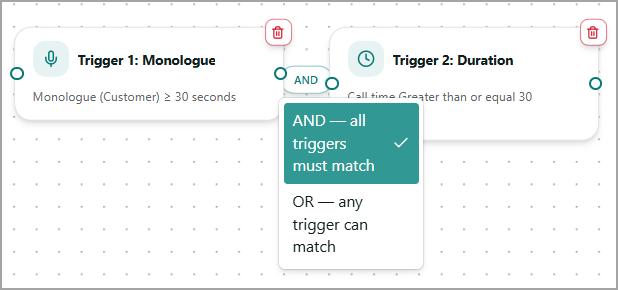
When you add multiple Triggers for an Alert, from the Triggers Relation connector, choose how the set of Alarm Triggers will operate together.
Choosing the AND operator applies all valid Triggers inclusively (i.e., enabling all Triggers be applied for the Alert).
Choosing the OR operator applies all valid Triggers exclusively (i.e., enabling only one of the Triggers to be applied for the Alert).
Note
You can choose only a single operator to apply to the current set of Alarm Triggers. You cannot 'mix-and-match' the operators for different Triggers in the set.
In the Fallback Message Presented During Call field, enter the message to display to the agent if the AI Agent fails to respond when the alert is triggered.
Review the Live Preview to verify how the alert will appear during a call.
Click Save to save the alert configuration. The new alert is added to the list of alerts associated with the selected Guidance Agent.
Tip
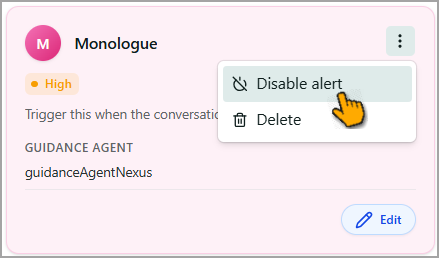
New alerts are enabled by default at runtime. To deactivate an alert, select Disable alert on the corresponding alert card for the relevant guidance agent.
Working with Trigger Types
Each type of Alert Trigger that you assign maintains its own unique characteristics, based on the requirements of the type. This makes it possible for you to combine Triggers and adjust each one according to the needs of the current Alert.
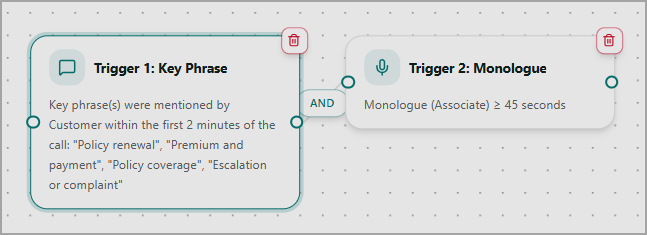
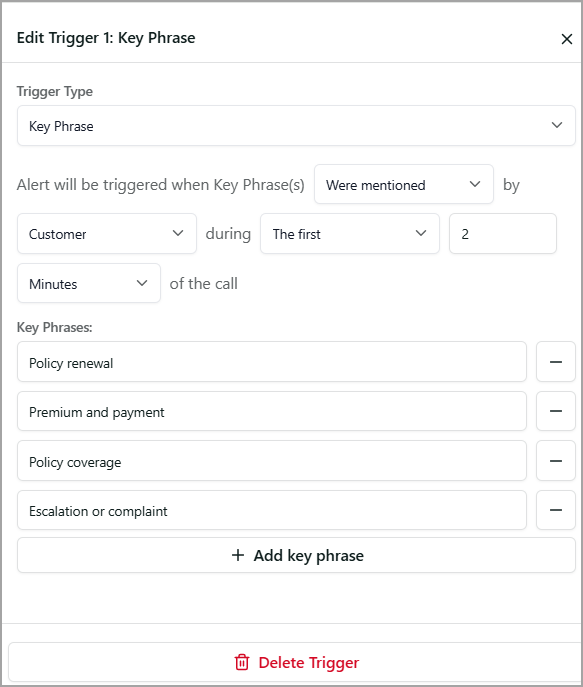
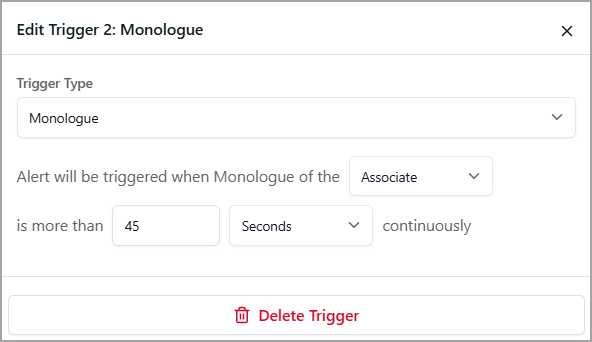
In the example below, a Key Phrase Trigger listens for at least one of the given phrases to be spoken by the Customer during the first 2 minutes of the call. An additional (and unrelated) Monologue Trigger also detects when the Agent speaks non-stop for longer than 45 seconds. Both types can be triggered in the same Alert when the AND operator has been chosen in the Triggers Relation dropdown
 |   |
When assigning some Trigger settings, you can also invert the trigger. For example, a Key Phrase Trigger can also be invoked if a specified Key Phrase is not spoken for a specified period of time.
Customer Service AI currently supports the following types of Triggers, each with its own unique settings:
Duration - The length of the entire conversation, or a Hold time, is longer than the specified time period. It is also possible to trigger an Alert when the number of times the call is placed on Hold exceeds the specified count.
Monologue - The Agent speaks without pause for a time period greater than the specified measure.
Silence - The period of time when words are not spoken between the Agent and the caller exceeds the specified measure.
Key Phrase - One or more specific expressions or word sequences that occur during the conversation. The speaker of the phrase can be specified, as well as its timing (i.e., within a designated period toward the beginning or end of the call). It is possible to trigger an Alert when the phrase(s) do not occur in the conversation.
Edit an Existing Alert
Click Edit in the alert card to modify the required alert configuration details, as described in Create a New Alert.
Delete an Alert
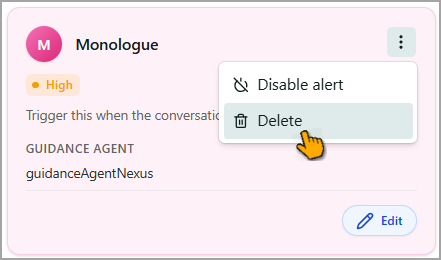
Click Ellipsis
 on the alert card and select Delete to permanently remove an alert.