1.0.16 Release Notes_November 09, 2026
Release Date: November 09, 2026
The Business AI Cloud 1.0.16 release introduces the following new or enhanced features.
Important
This document provides high-level information on the latest release features and enhancements for the Business AI Cloud. For detailed procedures, configuration steps, and comprehensive guidance, please refer to the Business AI Cloud User Guide.
Release Highlights
New Features
Taxonomy and Ontology - Generates a taxonomy and ontology for a source alongside Global Entity Extraction, and promotes them to the Knowledge Graph.
Pipeline Tags - Adds tags to the Data Engineering Agent, allowing you to group pipelines and manage tags during pipeline creation and on the settings page.
AI Readiness Checklist - Adds a readiness checklist report for Knowledge Clusters and their Knowledge Bases, indicating whether Data AI agents have sufficient detail and context to provide accurate answers.
STTM Report - Adds a Source-to-target mappings (STTM) report that lists mappings with low or medium confidence, along with the reason for that rating and the recommended action to improve it.
Graph-Enabled Search - Evaluates a Knowledge Base with Graph-enabled search, a combination of Semantic search and Agentic search, and lets you set it as the default search for AI agents that access the Knowledge Base.
LLM as Judge - Adds an AI model judge to the evaluation that scores Knowledge Base answers and tracks how closely multiple judges agree over time.
Agent Tool Optimization - Improves the descriptions of the tools attached to an agent by evaluating them against an experiment, proposing clearer versions, and letting you choose which changes to apply.
Migration Tools - Moves artifacts from a source environment to your current environment, so you can promote tested work without rebuilding it by hand.
Enhancements
Knowledge Graph - Displays the relationships between the graph and its taxonomy and ontology details.
Data Agent Instructions - Refreshes the Knowledge Bases and the Knowledge Clusters with an updated interface, manual save, AI-assisted rewriting, and a view of an instruction quality score on every save, with clear warnings for instructions that need improvement.
Data Agent Audits - Expands the Audit feature to record every change made to a Knowledge Cluster, so you can see who changed what and when. Adds multiple filters to narrow long histories, and brings the same audit experience to the Knowledge Bases, Data Engineering Agent, and Data Orchestrator Agent.
Knowledge Cluster - Refreshes the Knowledge Cluster interface and the Knowledge Cluster's AI Copilot experience.
Knowledge Cluster Mapping - Downloads and uploads mapping details in CSV and Excel formats.
STTM Review with Copilot - Adds a tabular view for reviewing STTM and lets you add or remove target and source tables before approval.
Synthetic Q&A Generation - Filters Q&A pairs by Regenerated, Unchanged, and Deprecated status in Fine Tuning Studio.
Create Agent - Refreshes the agent creation page and adds a Reasoning setting that controls how much the model reasons before responding.
App Builder - Displays session history up front in the Copilot and replays Copilot conversations as a video.
Agentic Workflow:
Agent Version Pinning - Pins a specific agent version in a workflow agent node. By default, the node uses the Latest option to always run the newest version.
Mock Execution - Tests workflows in mock mode with mock outputs on nodes, and supports mockTools for agents during mock execution.
Process Intelligence:
Stop Process Discovery - Stops a running process discovery in Process Intelligence (PI) before it completes.
Workspace - Adds user group assignment and role tagging to the workflow creation page, allowing admins to configure access without leaving the page.
Evidence Linking - Links process step evidence and source details in Process Intelligence to their occurrence, so you can open the occurrence detail page in one click.
Workspace Context Graph - Adds a separate section to view an interactive node graph that shows how the entities, steps, and processes in the selected process relate to one another.
SOP Studio - Adds an image editor for process steps and an Active Steps panel that displays the active steps associated with the selected step.
Chronos - Upgrades Chronos to version 3.9 with the following updates:
Closes chunks on time and names each file after the chunk's actual start.
Keeps an open chunk after a crash or power loss and recovers leftover chunks on startup.
Sets H.264 as the default codec for recording output.
Keeps the older
monitor_*names for chunks created before the upgrade and applies the new naming to new chunks. Both stay playable and upload.Supports AWS S3, Google Cloud Storage, Azure Blob, and MinIO for storage.
Lets admins show a tray icon with recording status, allow users to pause and resume a recording, and display a small recording pill on screen. Admins control how much authority users get, and all options are off by default.
Notice
For more information, refer to the Chronos Process Intelligence Tool.
New Features
Taxonomy and Ontology
Business AI Cloud generates a taxonomy and an ontology for your source during data preparation, in addition to Global Entity Extraction. Together, they form the schema the platform builds from your source documents. The platform uses this schema to build the Knowledge Graph, so the extracted information follows your domain vocabulary.
A taxonomy organizes content into a hierarchy of classes, from broad categories to specific types, and lists the attributes that describe each class.
An ontology describes how those classes connect through named relationships, which shows how the items in your content relate to one another.
Key Capabilities:
Review the generated schema on the Taxonomy and Ontology details page before you use it.
Promote the reviewed taxonomy and ontology to the Knowledge Graph, so graph construction reflects a schema you have verified.
Keep graph content consistent with your domain vocabulary across documents.
The Taxonomy and Ontology Generation feature is available within Data Prep in Business AI Cloud’s Data Layer.
To access it, go to the Home page > Data > Data Ingestion > Data Prep > Global Entity.
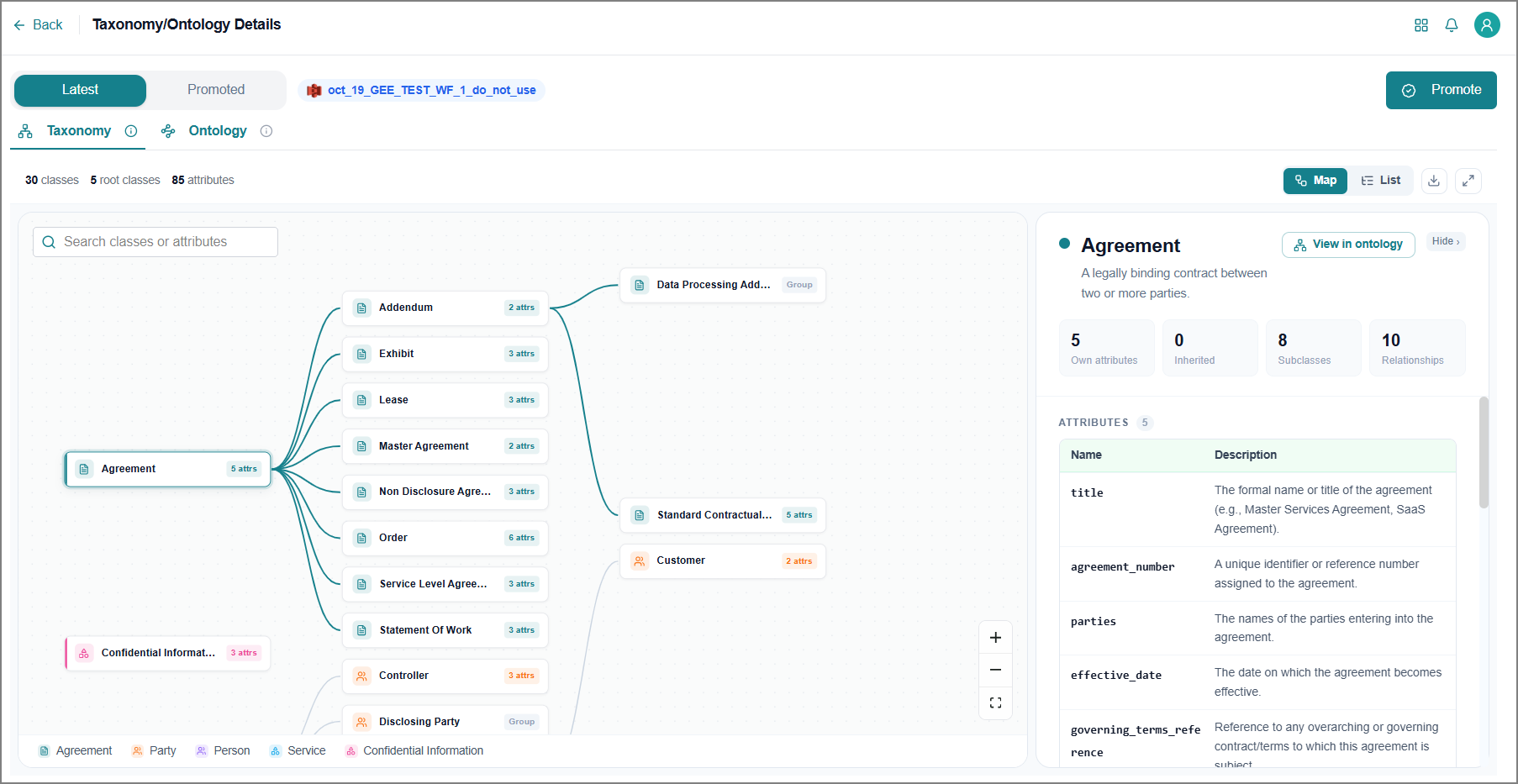
To know more, refer to Reviewing and Promoting Taxonomy/Ontology in the User Guide.
Pipeline Tags
Business AI Cloud supports tagging for pipelines in the Data Engineering Agent. As teams build more SQL pipelines across multiple sources and targets, the pipeline list becomes harder to scan and organize. Tags add a label to each pipeline, allowing related pipelines to be grouped under a shared name. Because tags are part of the pipeline definition, the grouping stays with the pipeline instead of living in a separate document or naming convention. This keeps larger pipeline libraries organized as they grow.
Key Capabilities:
Create a new tag at the point where you build a pipeline, so you do not need to plan your labels in advance.
Add or remove tags from the settings page as your grouping needs change.
Apply a consistent labeling approach across pipelines created by different team members.
The Pipeline Tags feature is available within the Data Engineering Agent in Business AI Cloud’s Data Layer.
To access, go to the Home page > Data > Data Agents > Data Engineering Agent > Tags.
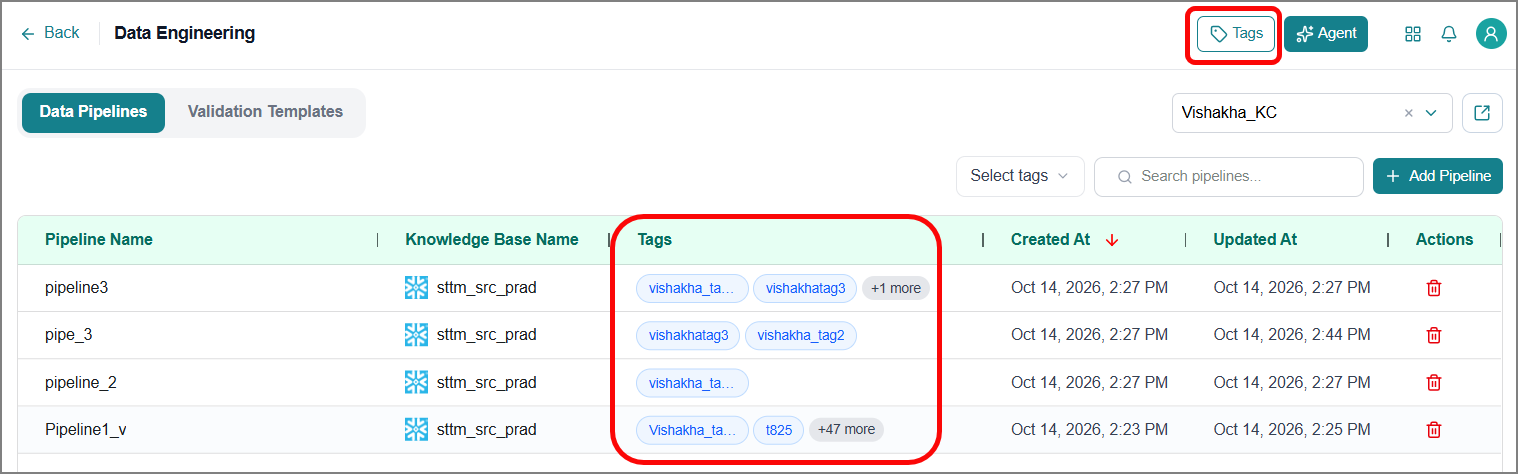
For more information, refer to Managing Tags in the User Guide.
AI Readiness Checklist
Business AI Cloud adds a readiness checklist report for Knowledge Clusters and their Knowledge Bases. Data agents give accurate answers only when they have enough detail about your data. The report shows whether a Knowledge Cluster and its Knowledge Bases have sufficient detail and context for agents to answer accurately and perform tasks reliably. Each card in the report shows a result, and cards with a warning icon need your attention.
Key Capabilities:
Find gaps in Knowledge Base and Knowledge Cluster context before agents use them, so you can fix issues early.
Understand each score through the reasoning shown next to it, which helps you decide what to improve.
Improve the cluster report by fixing the Knowledge Base gaps first, since it shows results for each Knowledge Base.
The AI Readiness Checklist is available within the Data Discovery Agent in Business AI Cloud’s Data Layer.
To access it, go to the Home page > Data > Data Agents > Data Discovery Agent > Knowledge Cluster > Check Readiness.
For more information, refer to Summary Tab in the User Guide.
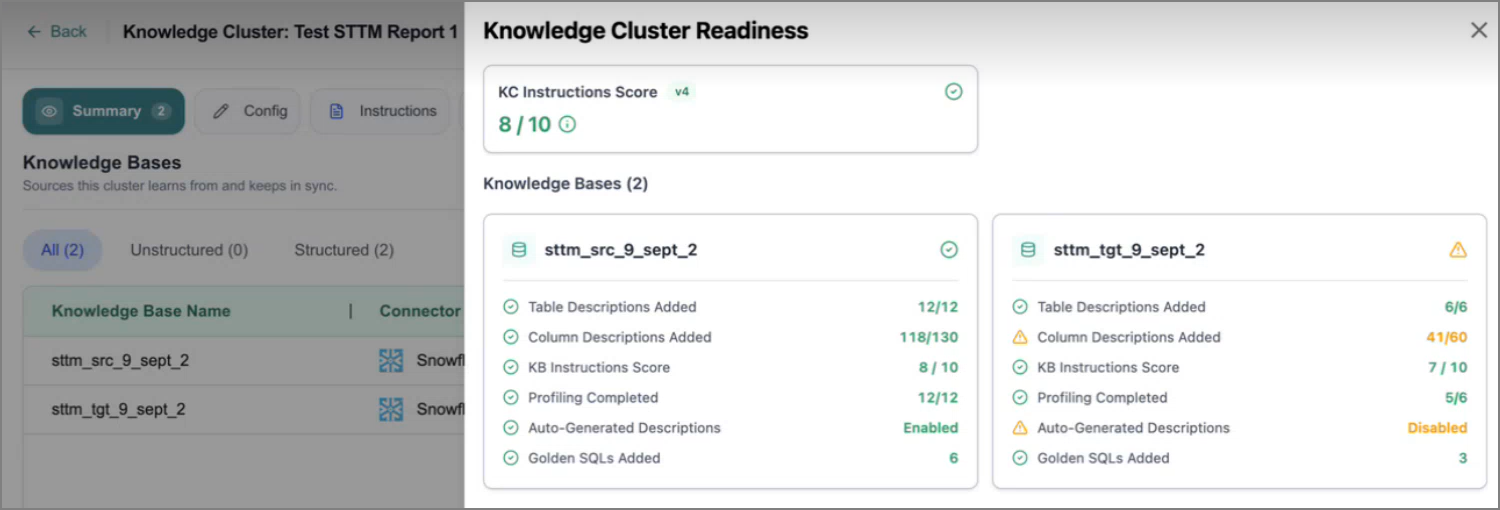
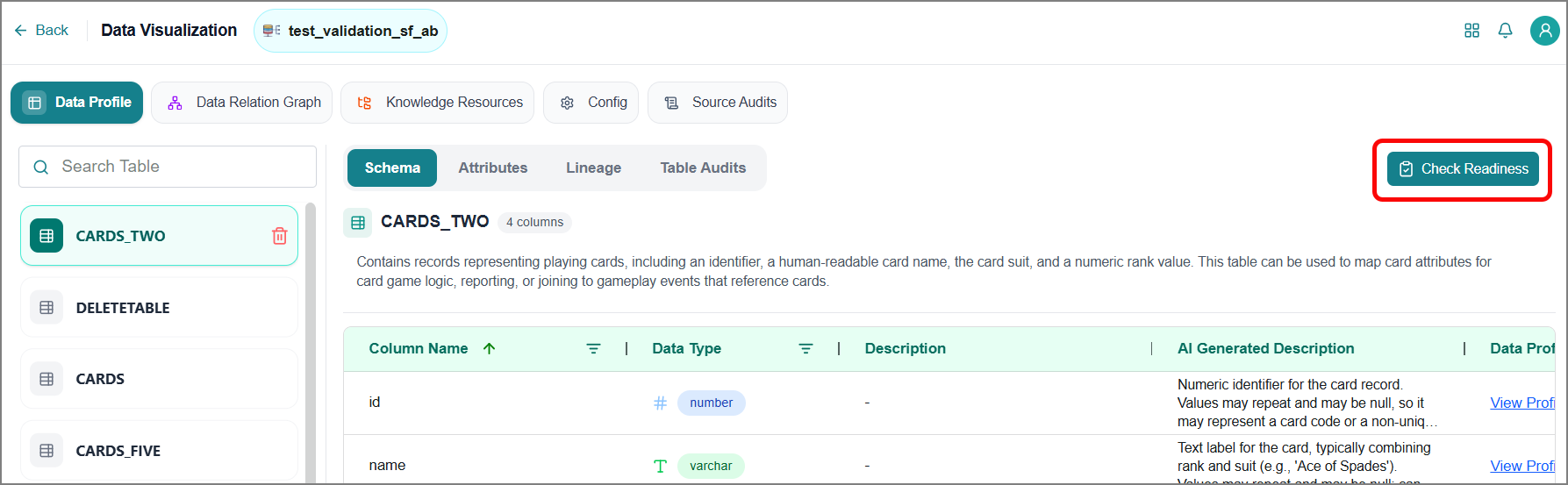
To access it, go to the Home page > Data > Data Ingestion > Relational DB > View Metadata > Check Readiness.
For more information, refer to Knowledge Base Readiness in the User Guide.
Source-to-Target Mappings Report
Business AI Cloud adds a Source-to-Target Mappings (STTM) report that identifies mappings with low or medium confidence. For each mapping, it displays the reason for the rating, action type, and the recommended action to improve it. A column can have more than one issue. In that case, the same target column appears in multiple rows, each with a different action type and recommended action. This allows you to focus your review efforts on the mappings that require the most attention.
Key Capabilities:
Find low- and medium-confidence mappings quickly, instead of reviewing the full mapping table.
The report gives the reason for the rating and the recommended action to improve it.
Understand why a mapping received its rating, and follow the recommended action to improve it.
The STTM report is available in the Data Discovery Agent within the Business AI Cloud’s Data Layer.
To access it, go to the Home page > Data > Data Agents > Data Discovery Agent > Knowledge Cluster > Knowledge Resources tab > Mappings tab > Report.
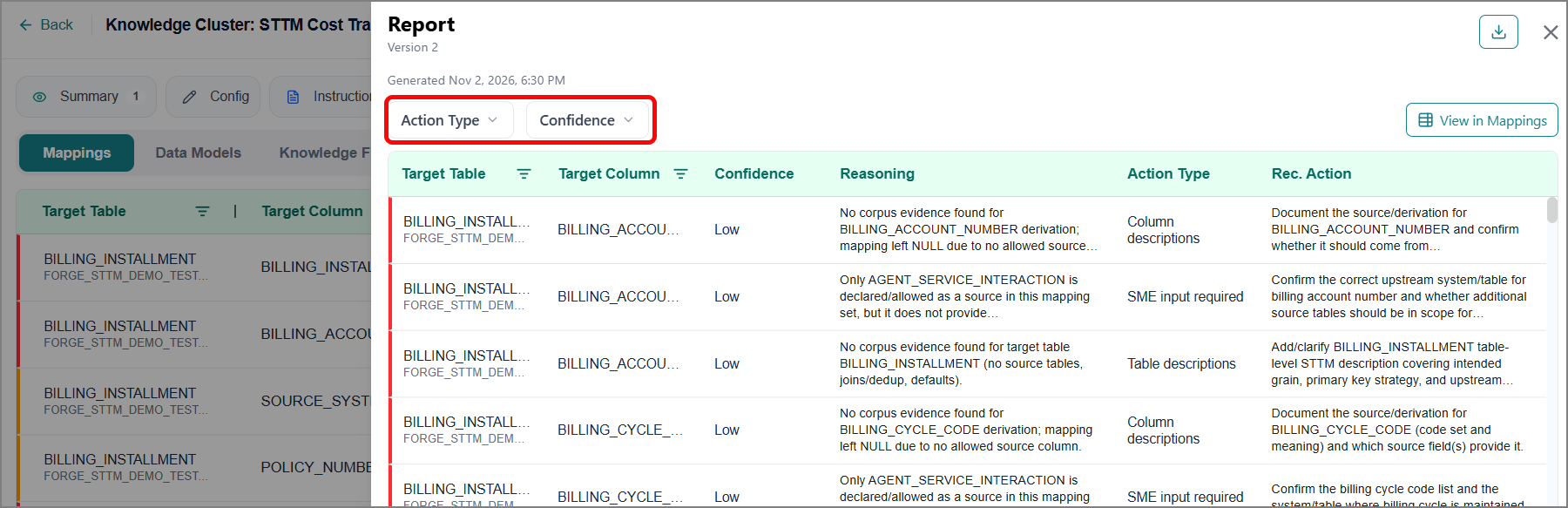
For more information, refer to Knowledge Resources Tab in the User Guide.
Graph-Enabled Search
Business AI Cloud lets you evaluate a Knowledge Base with graph-enabled search. This search method first narrows the scope: agents use the Knowledge Graph to identify the files most relevant to a question, then search only within those files rather than across the entire Knowledge Base. Evaluating it on the same questions as other search methods shows whether the narrower scope improves answer quality for your content. The evaluation score provides evidence to help you decide which search method suits the Knowledge Base.
Key Capabilities:
Compare graph-enabled search results against your other search methods using the same evaluation process.
Base the choice of search method on measured results rather than assumptions.
Set graph-enabled search as the default search for AI agents that access the Knowledge Base when it scores higher.
The Graph-Enabled Search feature is available within Evaluation in Business AI Cloud’s Knowledge Layer.
To access it, go to the Home page > Knowledge > Evaluation > Accuracy tab.
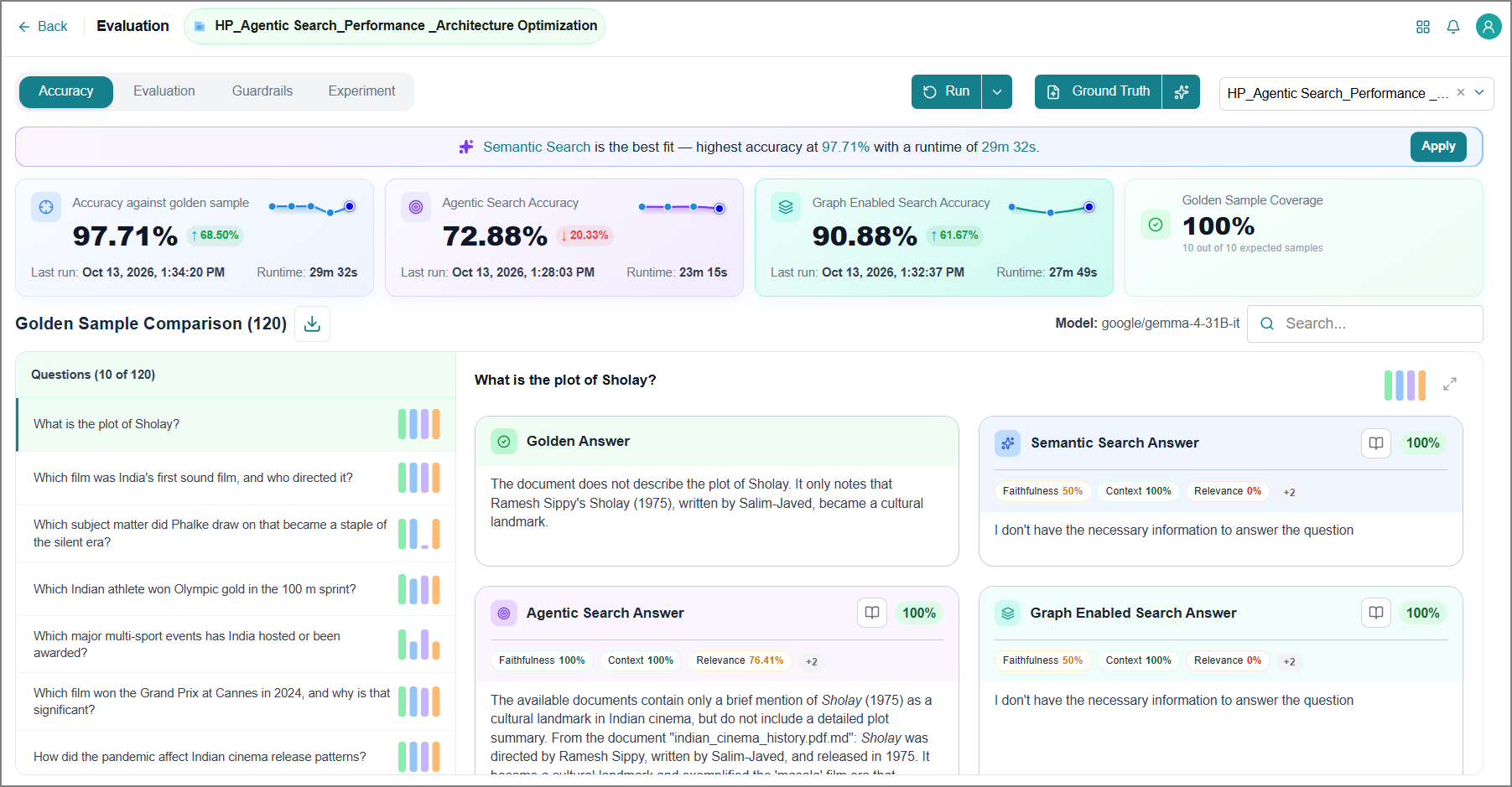
To know more, refer to Viewing the Accuracy in the User Guide.
LLM as Judge
Business AI Cloud adds LLM as Judge to the Knowledge Base evaluation process. A judge is a platform AI model that reads an answer and assigns it a score, indicating how good the answer is in your Knowledge Base. Each scheduled run selects a sample of questions from your recent evaluation jobs. The configured judges score every sampled question, and the platform compares their scores. Because the comparison repeats on a schedule, you can see how closely the judges agree over time.
Key Capabilities:
Score sampled answers automatically on a schedule, so quality checks do not depend on manual review.
Track agreement between judges over time to see how consistent the scoring is.
Draw samples from recent evaluation jobs, so the scores reflect current Knowledge Base behavior.
The LLM as Judge feature is available within Evaluation in Business AI Cloud’s Knowledge Layer.
To access it, go to the Home page > Knowledge > Evaluation > Evaluation tab.
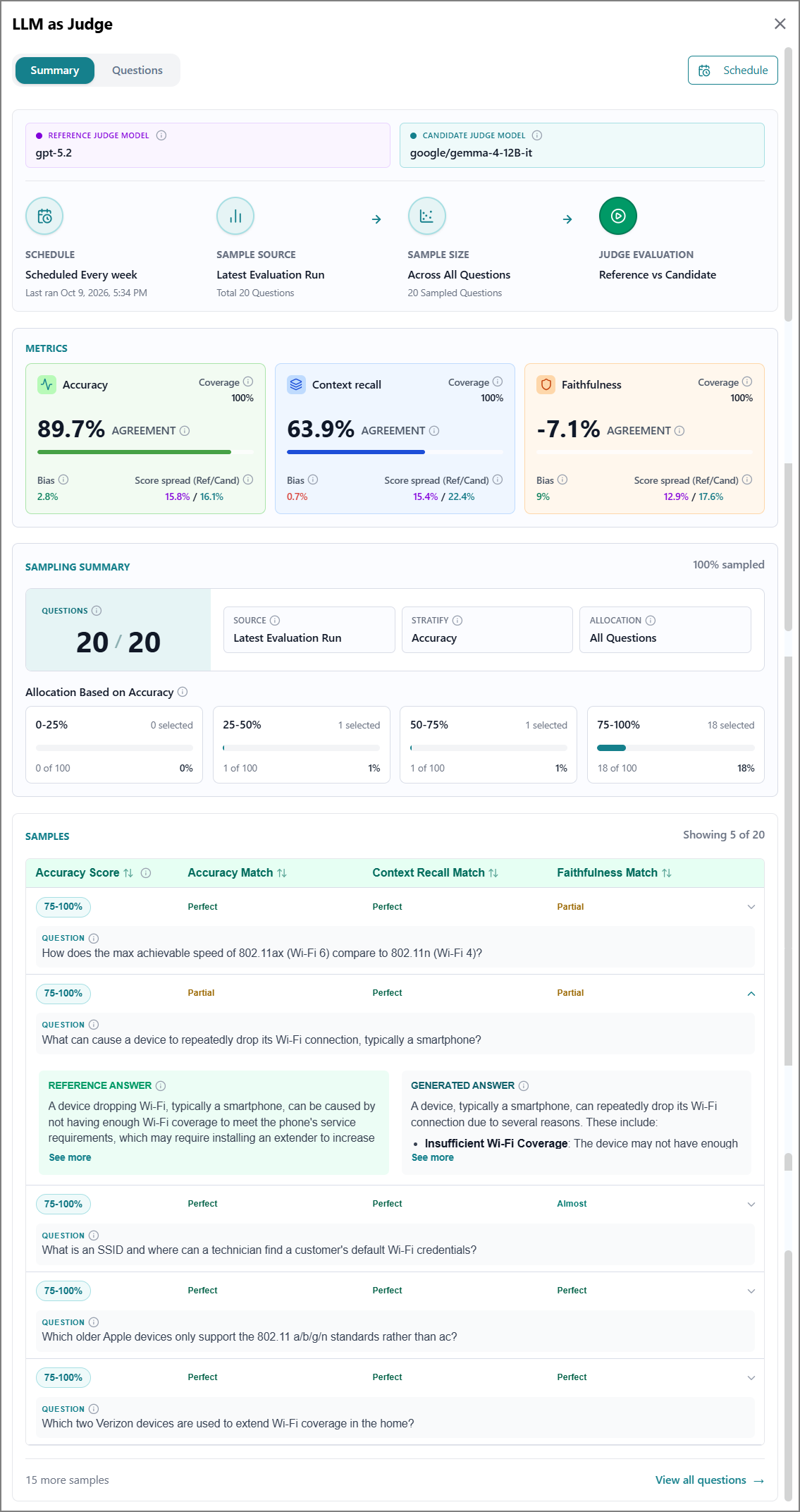 |
To know more, refer to Viewing the Evaluation in the User Guide.
Agent Tool Optimization
Business AI Cloud introduces Tool Optimization to improve the descriptions of the tools attached to your agent. An agent chooses a tool by reading its task description, so a vague description can lead the agent to pick the wrong tool. Tool Optimization evaluates your current tool descriptions against an experiment from Agent Evaluation, proposes clearer ones, and shows the results so you can decide which changes to apply. The optimization runs in the background, so you can leave the page while it works.
Key Capabilities:
Improve how accurately an agent selects tools by replacing vague descriptions with clearer ones.
Understand the outcome through a critique that explains how the candidate descriptions performed and why a change was or was not proposed.
Compare results before you decide, with scores before and after, the improvement, the number of traces evaluated, and the main failure type found.
Keep control by approving the proposed description for each tool separately, and keeping the current description for any tool that shows no improvement.
Tool Optimization is available within the Agent SDK in Business AI Cloud’s Agent Layer.
To access, go to the Home page > Agents > Agent SDK > select the agent > Optimize > Tool Optimization.
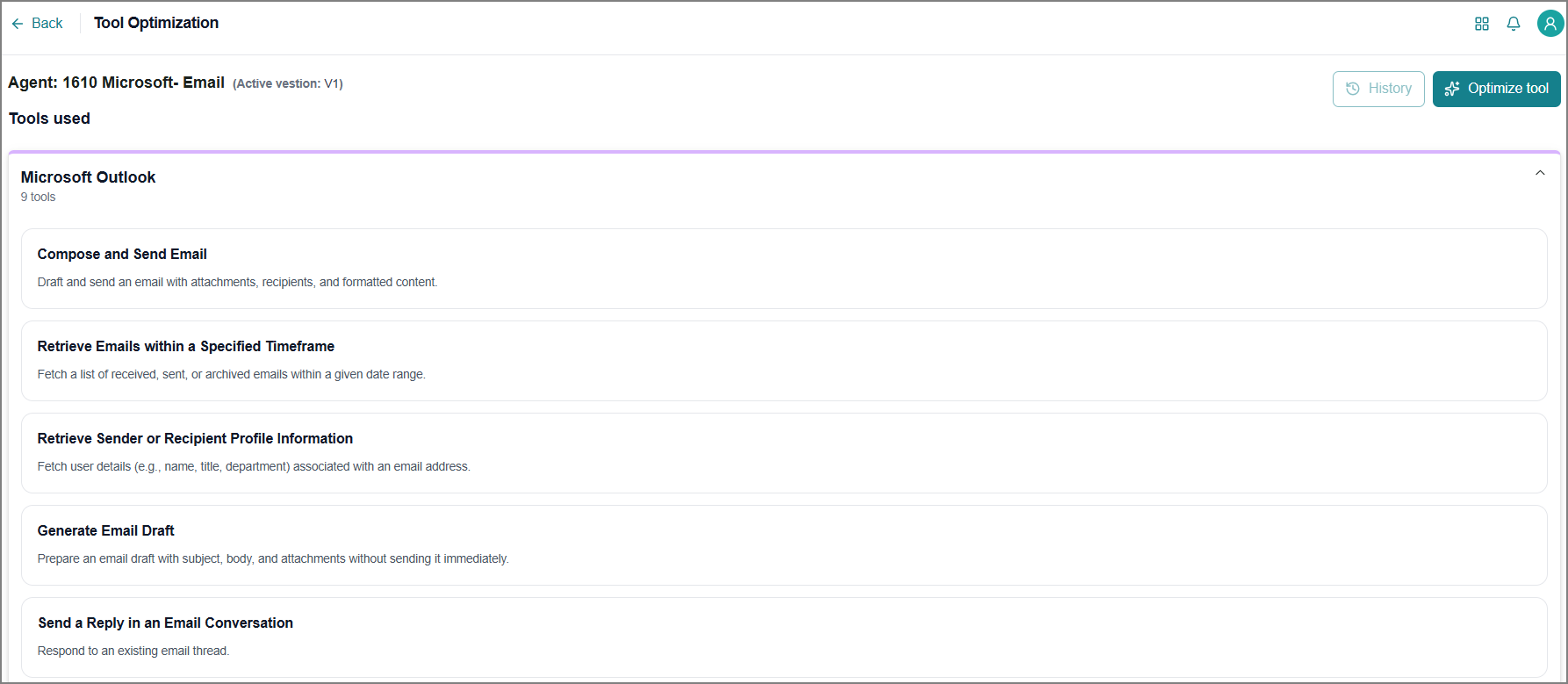
To know more, refer to Optimizing an Agent's Tools in the User Guide.
Migration Tools
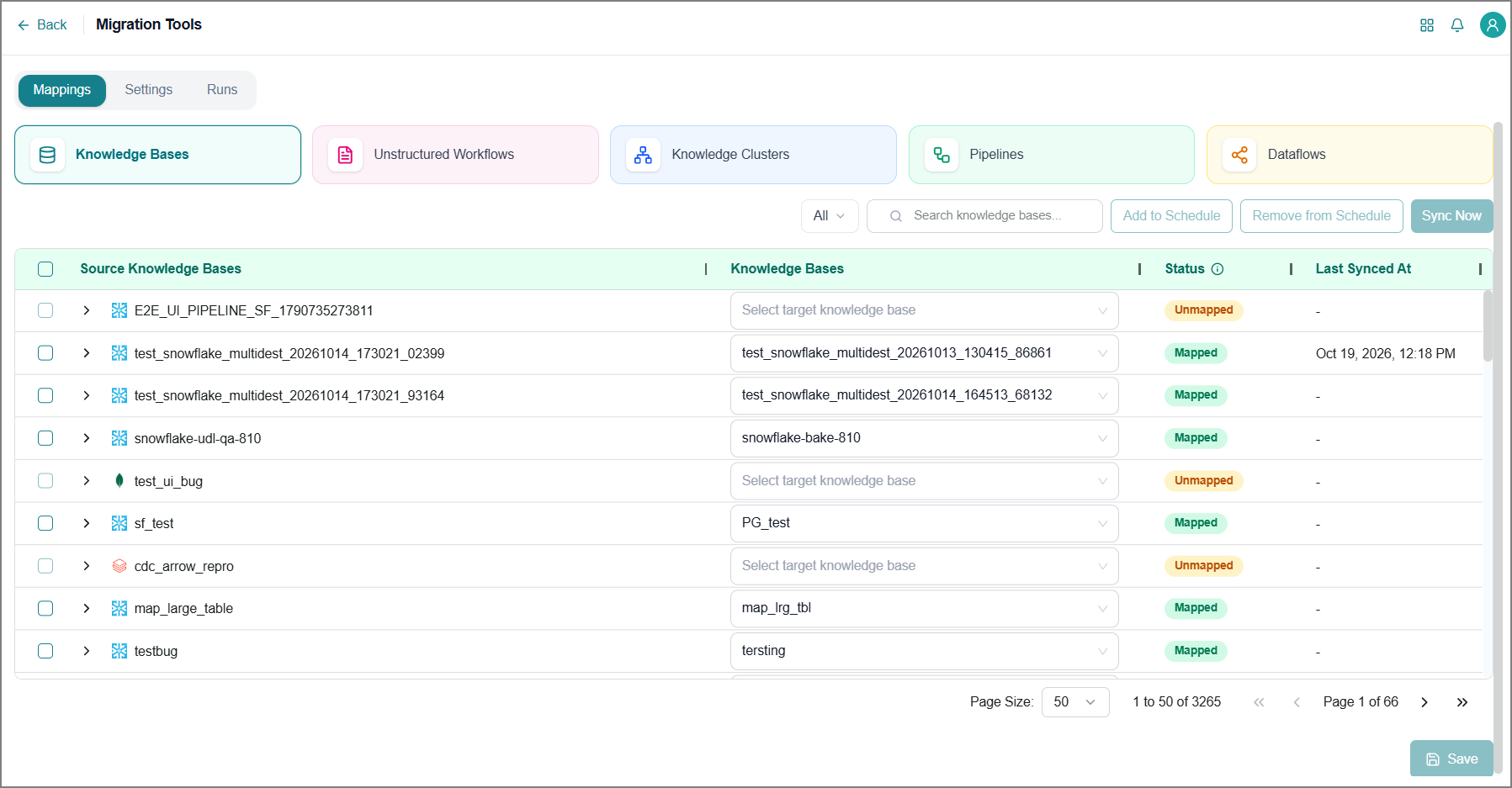
Business AI Cloud introduces an environment Migration tool to move artifacts between environments. Teams typically build and test their work in one environment before using it in another, and rebuilding each artifact by hand is slow and can introduce differences. Migration Tools treat the environment you are working in as the destination and the other environment as the source. You connect to the source environment once. Each artifact is then matched to its counterpart in the destination, which keeps the promoted work aligned with what was tested.
Key Capabilities:
Promote tested work to another environment without manually recreating it.
Reuse the saved source environment connection for later migrations instead of reconnecting each time.
Map each artifact to its counterpart, which keeps control over what each artifact becomes in the destination environment.
The Migration Tools feature is available in the Admin section of Business AI Cloud.
To access it, go to Home Page > Admin > Migration Tools.
For more information, refer to Migration Tools in the User Guide.
Enhancements
Knowledge Graph
Business AI Cloud extends the Knowledge Graph view to show the taxonomy and ontology details that sit behind the graph. Previously, the graph showed entities and their connections without the schema that shaped them. With the schema alongside the graph, you can see how individual graph elements relate to the classes and relationships defined for your domain.
Key Capabilities:
Trace graph elements back to the taxonomy and ontology that define them.
Check that the graph reflects the vocabulary you promoted.
The Knowledge Graph view is available within Data Ingestion in Business AI Cloud’s Data Layer. For more information, refer to Viewing Workflow Details in the User Guide.
Data Agent Instructions
Business AI Cloud refreshes the Instructions tab for Knowledge Bases and Knowledge Clusters with an updated interface and new editing controls. Instructions are always passed to the model on every call that references the resource, so their wording directly affects the quality of model responses. Clear, well-structured instructions matter more than for typical documentation text. The redesigned tab makes instructions easier to read and manage, gives you more control over when changes are saved, and adds platform AI support to improve wording.
Key Capabilities:
Review and manage instructions in an updated interface that is consistent across Knowledge Bases and Knowledge Clusters.
Save instructions manually, so you decide when a change is ready.
Use platform AI to rewrite an instruction for clarity, which reduces the effort of drafting precise wording.
See a quality score on every instruction save, with a warning and reasoning for instructions that need improvement. Low-scoring instructions (score ≤ 5).
To access Knowledge Base Instructions, go to the Home page > Data > Data Ingestion > Relational DB > View Metadata > Knowledge Resource tab > Instructions tab.
To access Knowledge Cluster Instructions, go to the Home page > Data > Data Agents > Data Discovery Agent > Knowledge Clusters tab > Instructions tab.
The Instructions tab is available within Business AI Cloud’s Data Layer. For more information, refer to Instructions Tab in the User Guide.
Data Agent Audits
Business AI Cloud expands the Audit tab to record all changes made at the Knowledge Cluster level. Knowledge Clusters affect how agents retrieve and combine data, so teams need a clear history of who changed what and when. The same audit experience also applies to the Knowledge Bases, Data Engineering Agent, and Data Orchestrator Agent. Filters help narrow long histories to the entries that matter.
Key Capabilities:
Capture all changes in a single record.
Use one consistent audit experience across the Knowledge Bases, Knowledge Cluster, Data Engineering Agent, and Data Orchestrator Agent.
The Audit tab is available in the Knowledge Bases, Knowledge Cluster, Data Engineering Agent, and Data Orchestrator Agent within Business AI Cloud’s Data Layer. For more information, refer to Audits Tab in the User Guide.
STTM Review with Copilot
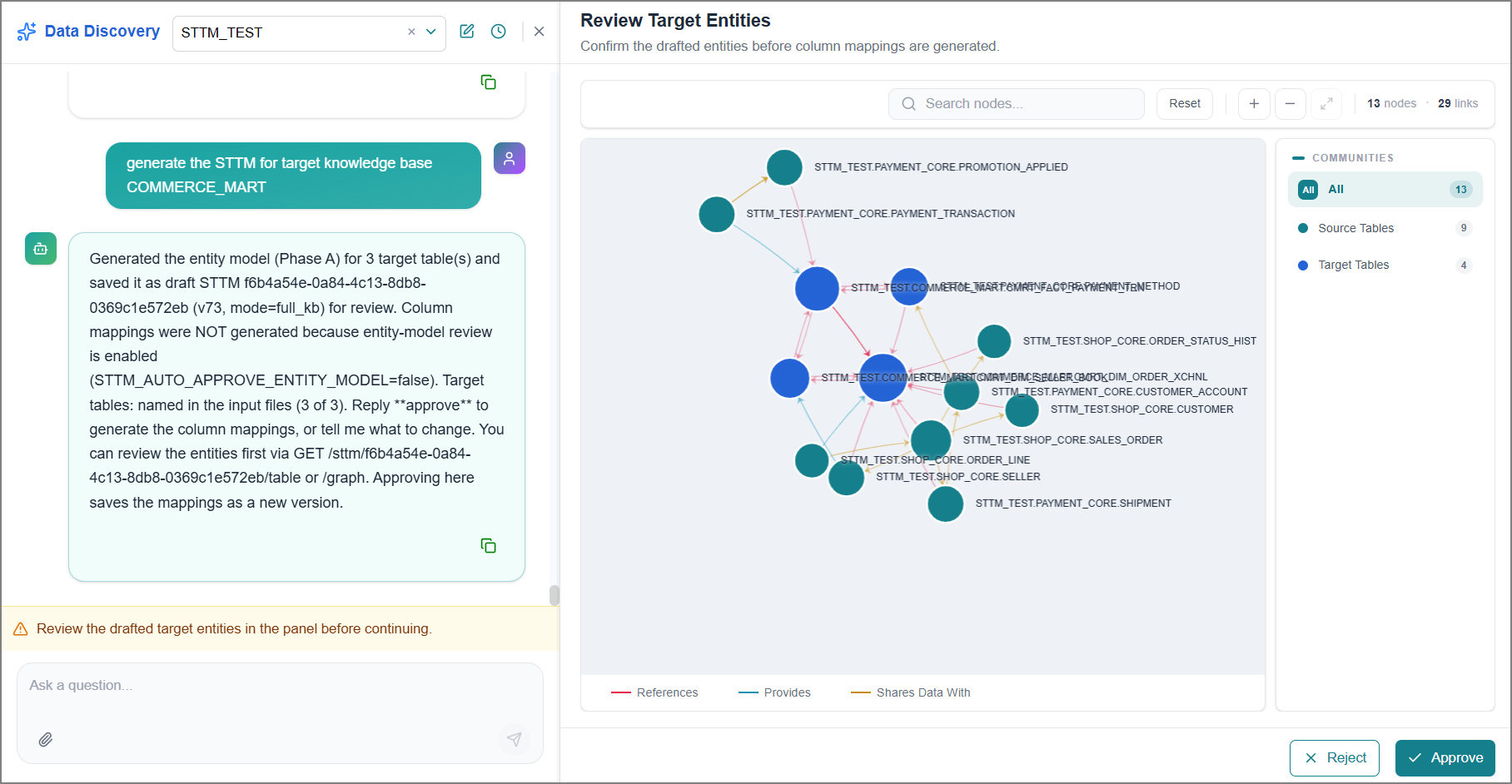
Business AI Cloud adds a tabular view to review target entities when the Data agent automatically creates STTMs. The agent analyzes your data based on your input prompt and proposes the mappings. If you have not properly set up the KC or KB, the agent will also display a disclaimer: due to incompleteness, the generated mappings may not be very accurate, prompting you to provide sufficient context. After the mapping is generated, you review the proposed target entities in the table and edit them as needed. You can add or remove target and source tables in the view, so the mapping reflects the tables you intend to use. After you approve, the platform creates the mapping. Reviewing at this stage helps you correct the tables before the mapping is created, avoiding rework later.
Key Capabilities:
Review the target entities that the Data agent proposes in a table format, which makes them easier to scan and compare.
Add or remove target and source tables before you approve, so the mapping uses the tables you intend to use.
Avoid rework by correcting tables before creating the mapping.
The STTM review is available in the Knowledge Cluster within Business AI Cloud’s Data Layer.
For more information, refer to Knowledge Resources Tab in the User Guide.
Synthetic Q&A Generation
Business AI Cloud adds filters to the Synthetic Q&A Generation section of Fine Tuning Studio. Synthetic Q&A sets can grow large and change over time as pairs are regenerated or retired. Filtering by status helps you review the training inputs that matter without scrolling through the full set.
Key Capabilities:
Filter Q&A pairs by Regenerated, Unchanged, or Deprecated status.
Review only the pairs that changed or were retired between runs.
The Synthetic Q&A Generation filters are available within Fine Tuning Studio in Business AI Cloud’s Knowledge Layer. To know more, refer to Viewing the Synthetic Q&A Generation in the User Guide.
Create Agent
Business AI Cloud refreshes the agent creation page and introduces a Reasoning setting. Reasoning controls how much the model reasons before it responds. Complex tasks benefit from more reasoning, while simple tasks do not. A setting for this lets each agent match its reasoning effort to its job. Higher levels can improve answers to complex tasks, but responses take longer and use more tokens.
Key Capabilities:
Balance answer quality against response time and token usage for each agent.
Control token costs by keeping reasoning low for simple, high-volume tasks, which reduces consumption as usage grows.
Improve answer quality for complex, multi-step tasks by assigning higher reasoning only to the agents that need it.
The Create Agent page is available within the Agent SDK in Business AI Cloud’s Agent Layer. To know more, refer to Creating an Agent in the User Guide.
App Builder
Business AI Cloud improves how you review Copilot activity in App Builder. The Copilot builds and refines an app through conversation, so each session records how the app took shape. Earlier sessions are often needed to continue work or to check why a change was made. The updated Copilot displays session history at the start, making earlier sessions easier to find. A conversation can also be replayed as a video, showing how the exchange unfolded rather than only the final transcript. This helps teams review, hand over, and share how an app was built.
Key Capabilities:
Find earlier sessions quickly, without searching through Copilot.
Replay any Copilot conversation as a video to review the full interaction in order.
The App Builder Copilot is available within the Agent SDK in Business AI Cloud’s Agent Layer. To know more, refer to Modifying the Custom App in the User Guide.
Agent Version Pinning
Business AI Cloud lets you choose which version of an agent a workflow runs. In an agent node, you can pin a specific agent version or select Latest. A pinned version keeps the workflow behavior unchanged, even if someone updates the agent later. The Latest option makes the node use the newest version of the agent each time the workflow runs. This gives you control over when a workflow picks up agent changes.
Key Capabilities:
Pin a specific agent version in a workflow agent node, so tested behavior stays stable in production.
Select Latest to always use the newest agent version, so improvements reach the workflow without manual updates.
Agent Version Pinning is available within Agentic Workflow in Business AI Cloud’s Agent Layer. To learn more, refer to Agents Category in the User Guide.
Mock Execution
Business AI Cloud lets you test a workflow in mock mode before you run it for real. You enable mock execution on the nodes you want to test, provide the outputs those nodes return, and run the workflow. The workflow uses your mock outputs instead of calling the real services. Agents also support mockTools during mock execution, so agent steps can be tested without calling the actual tools. This helps you check the flow of a workflow without side effects or the time and cost of live calls.
Key Capabilities:
Enable mock execution on individual nodes so you can test part or all of a workflow.
Provide mock outputs for the nodes, then run the workflow in mock mode to check how data moves between steps.
Reduce risk and cost during testing, because mock runs avoid live calls and their side effects.
Mock Execution is available within Agentic Workflow in Business AI Cloud’s Agent Layer. To learn more, refer to Working with Nodes in the User Guide.
Stop Process Discovery
Business AI Cloud lets you end a process discovery in Process Intelligence before it completes. Discovery can take time on large datasets, and a run may need to end early, for example, if it was started with the wrong data or settings. Without a stop option, you would have to wait for the run to finish before you could correct it.
Key Capabilities:
Free up time and platform resources by ending a run that you no longer need.
Correct a mistaken setup sooner, because you can restart discovery without waiting for the current run to complete.
The Process Discovery option is available within Process Intelligence in Business AI Cloud’s Data Layer. To know more, refer to Ingesting Data in the User Guide.
Workspace
Business AI Cloud adds access setup to the workflow creation page in the Process Intelligence Workspace. A workflow is only useful when the right people can reach it with the right level of permission. Previously, an admin had to complete the workflow creation and then configure its access separately. With access set up on the creation page, the admin defines who can use the workflow and what each group can do at the time of creation. This keeps the setup in one place and reduces the chance that a workflow stays unassigned or incorrectly shared after it is created.
Key Capabilities:
Assign user groups to a workflow during creation, so access is ready when the workflow is saved.
Tag roles to the assigned groups to control what each group can do.
The Workspace in Process Intelligence is available within Business AI Cloud’s Data Layer. To know more, refer to Workspace in the User Guide.
Evidence Linking
Business AI Cloud connects evidence and sources in Process Intelligence to the occurrences they belong to. You can use View Occurrence from a step detail on the Process Explorer detail page and from the source page slide-out. When the evidence or the source is associated with an occurrence, View Occurrence takes you to the occurrence detail page. This removes the need to manually search for the occurrence. Evidence and sources that are not associated with an occurrence do not show View Occurrence.
Key Capabilities:
Move from a step’s evidence to its occurrence detail page in one click.
Save time during process analysis by skipping manual searches for the right occurrence.
Avoid confusion because the button appears only when an occurrence is associated.
The View Occurrence is available within Process Intelligence in Business AI Cloud’s Data Layer. To know more, refer to Process Explorer in the User Guide.
Workspace Context Graph
Business AI Cloud adds a separate section to Process Intelligence that lets you view an interactive node graph for a selected process. The graph shows how the entities, steps, and processes relate to one another. A linear view shows the order of steps but not how the steps connect to data. The graph shows how each step connects to data entities and which relationships link them. By default, the section displays all process data. You can select a specific process from the dropdown to focus the graph.
Key Capabilities:
See how process steps connect to data entities rather than viewing the process only as a sequence.
Understand data dependencies and structural relationships within a process to assess the impact of a change.
Focus on one process by selecting it from the dropdown, or review all process data together.
The Workspace Context Graph is available within Process Intelligence in Business AI Cloud’s Data Layer. To know more, refer to Workspace Context Graph in the User Guide.
SOP Studio
Business AI Cloud enhances SOP Studio with an image editor for process steps and an Active Steps panel. When you select a step on the process map, the Active Steps panel opens and shows all active steps associated with that step. This gives you more detail without leaving the map. You can also change the steps and their images directly on the map, so the visual for each step stays accurate as the process changes.
Key Capabilities:
View all active steps associated with a selected step in the Activity Steps panel.
Add, update, or delete the activities and their images without leaving the process map.
Keep step visuals up to date so the process map stays clear for the people who follow it.
SOP Studio is available within Process Intelligence in Business AI Cloud’s Data Layer. To know more, refer to SOP Studio in the User Guide.
Constraints and Limitations
The following constraints and limitations exist for this release:
Item | Description |
|---|---|
Mock Execution in Agentic Workflow | The platform enables this feature for a limited number of nodes in the Agentic Workflow. It is not applicable to all nodes. |
Data Orchestrator Agent | In the Dataflow diagram, the decision node configuration shows a Model is required error even when a model is selected. The team is working on a fix. |