Fine Tuning Studio
Fine Tuning Studio is where you improve how a selected SLM responds to queries against a specific knowledge base. Using Retrieval-Augmented Fine-Tuning (RAFT), the platform trains the model with domain-specific data from your knowledge base, making its responses more accurate, contextually relevant, and suited to your business needs.
Key Capabilities
Improved Contextual Accuracy - Fine-tuning the model with your KB ensures it understands domain-specific terminology, structure, and content, leading to more precise answers.
Tailored for Business Needs - Tailor the model to align with your enterprise data, workflows, and compliance requirements, improving relevance and reliability in real-world scenarios.
Optimized Retrieval - RAFT integrates retrieval mechanisms during fine-tuning, optimizing how the model selects and uses context to respond to queries.
Improved User-Specific Relevance - Role-based fine-tuning ensures that the model's responses are not only accurate but also highly relevant to a user's specific job function.
Enhanced Performance - By training on real interactions and synthetic Question-and-Answer (Q&A) pairs or database queries, the model continuously improves response quality, making it better suited for production environments.
Fine Tuning Studio supports the following knowledge bases, with built-in training methods tailored to each:
Document RAG:
Q&A Usage Data - Fine-tune the model using real user interactions, allowing it to learn from actual queries and results.
Synthetic Q&A Generation - Fine-tune the model using synthetic Q&A pairs generated by a platform's default LLM.
Chunk Instruction Generation - Fine-tune the model using chunk-level instructional prompts to improve contextual understanding and response accuracy.
Relational Database RAG:
Queries Usage Data - Fine-tune the model using real queries submitted by users, allowing it to learn from actual queries and results.
Synthetic Queries Generation - Fine-tune the model using synthetic queries generated by a platform's default LLM.
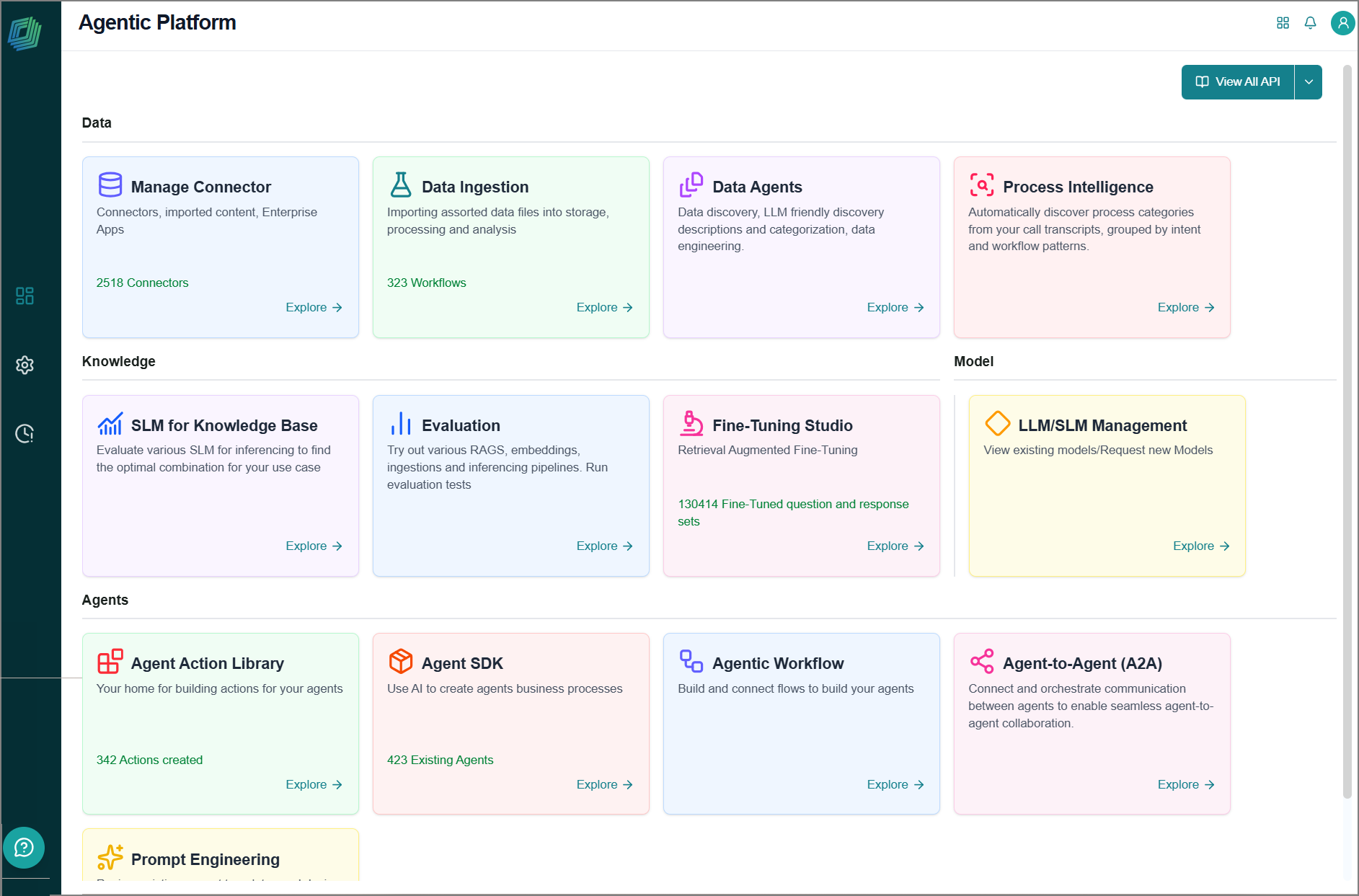
To access this feature, go to the home page > Knowledge > Fine Tuning Studio.
Triggering Fine-Tuning
The platform currently allows you to fine-tune the model using predefined settings available in its built-in fine-tuning methods. This fine-tuning process can be initiated manually or automatically. When a fine-tuning run is triggered, the platform automatically generates and combines training data from all available methods for the selected KB type.
Go to the home page > Knowledge > Fine Tuning Studio.
The Retrieval Augmented Fine Tuning page opens and displays the list of configured KBs and available fine-tuning methods on the Fine Tuning Generation tab.
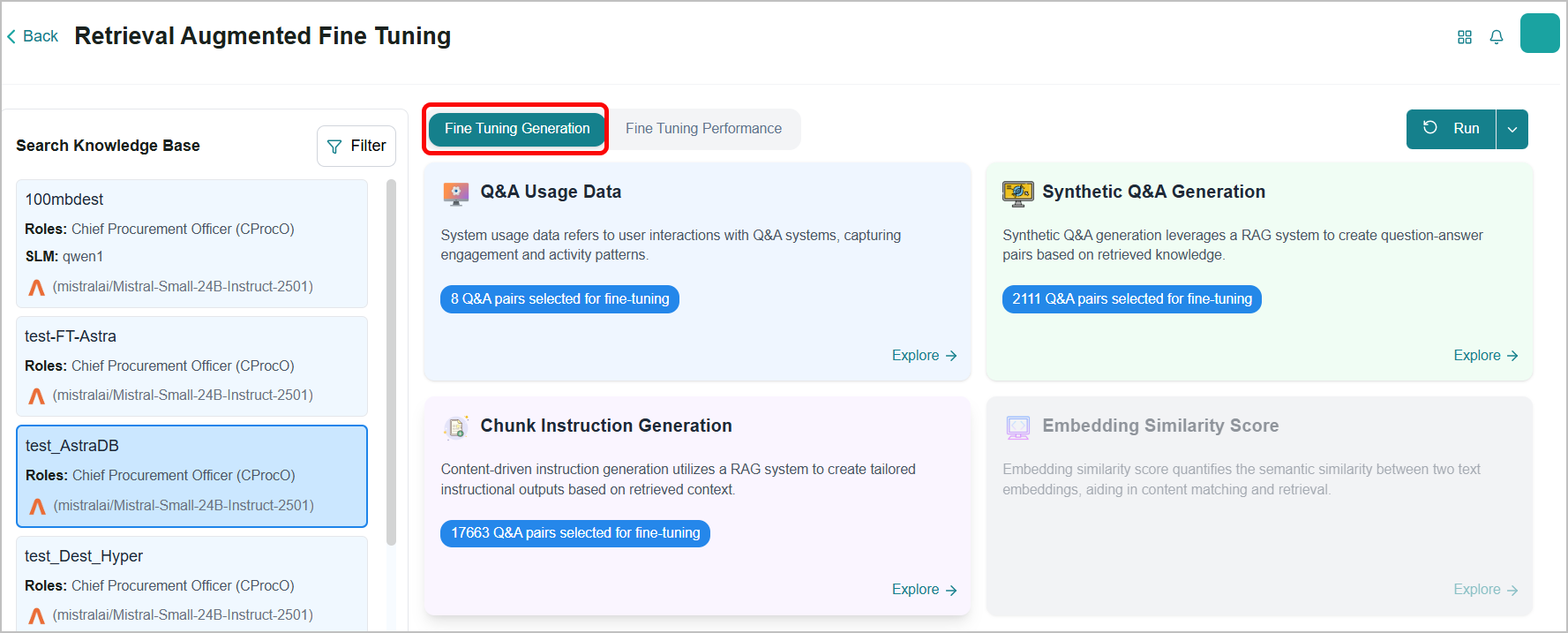
To filter the KB list, use the left panel.
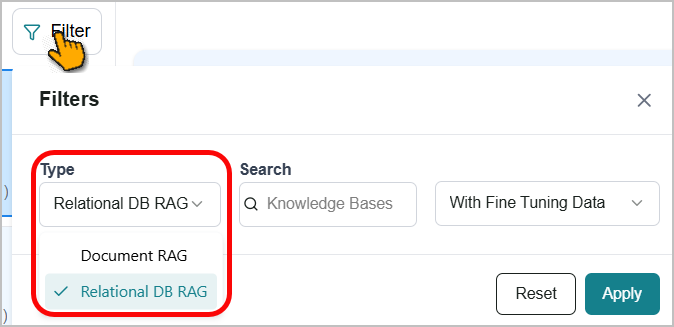
Click Filter.
The Filters pop-up window opens.
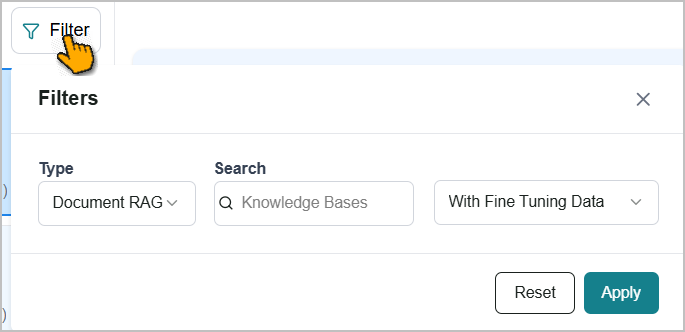
Set your filter criteria:
Type - Select the KB type from the dropdown: Document RAG or Relational DB RAG.
Search - Enter the KB name to locate a specific KB.
Select whether to view KBs With Fine Tuning Data, Without Fine Tuning Data, or All.
Click Apply to view filtered KBs.
Select the KB from the filtered list.
Tip
Use the Edit KB
 icon on the KB card to update the KB configuration. Refer to Modifying a Knowledge Base for more information.
To run fine-tuning immediately, click Run.
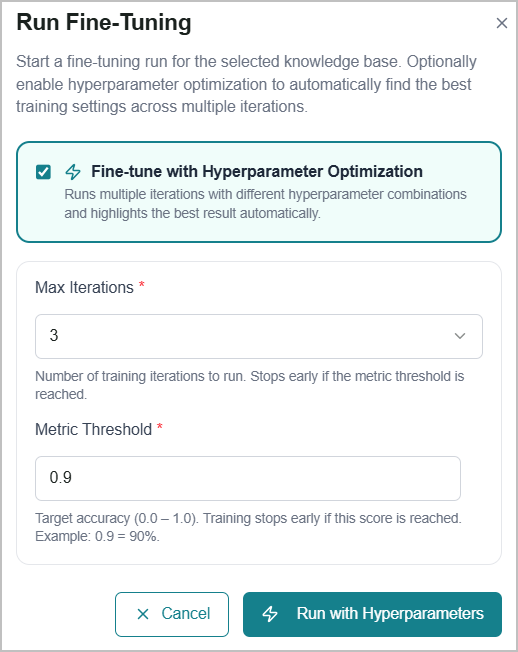
The Run Fine-Tuning dialog opens.
To run without hyperparameter optimization, click Run.
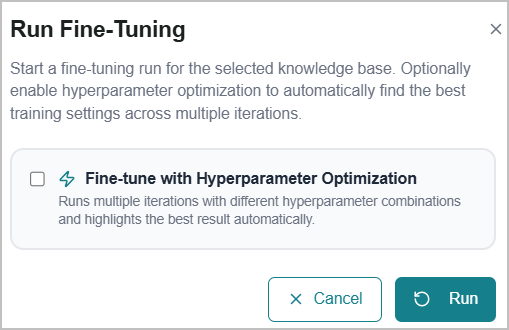
To run with hyperparameter optimization:
Select the Fine-tune with Hyperparameter Optimization checkbox. The following fields appear:
Field
Description
Max Iterations
Select the number of training iterations to run: 1, 2, or 3. The process stops early if the Metric Threshold is reached before all iterations are complete.
Default: 3
Metric Threshold
Enter the target accuracy score at which training should stop. Accepts a value between 0.0 and 1.0, where 0.9 = 90% accuracy.
Default: 0.9
Click Run with Hyperparameters.
A success message appears at the bottom of the screen, and the fine-tuning process is initiated in the background.
Note
If the platform has not completed a base evaluation, you will view the warning message: No base evaluation data available. Please run a base evaluation before triggering fine-tuning. Refer to RAG Evaluation for more information about base evaluation.
To schedule automatic fine-tuning:
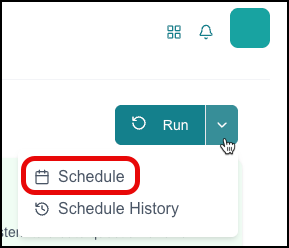
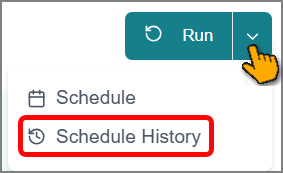
Click the dropdown next to Run.
Tip
Use the Schedule History option to view a complete list of schedulers and their execution details.
Click Schedule.
The Schedule dialog opens.
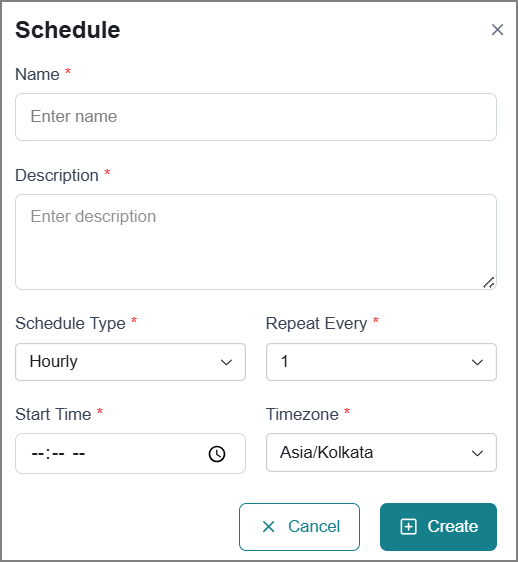
Enter relevant details in the fields.
Field
Description
Name
Enter a name for this schedule.
Description
Enter additional details about the purpose or scope of the schedule.
Schedule Type
Select how frequently the schedule should run:
Hourly
Daily
Weekly
Monthly
Yearly
Repeat Every
Specify the interval for the recurring schedule.
Hourly schedule - 1 to 23
Daily schedule - 1 to 31
Note
If the scheduler tries to start a new job while a previous one is still running, the system will cancel the new job to avoid overlapping executions.
Days of the week
Select one or more days of the week to run the schedule.
Available for a Weekly schedule only.
Day of the Month
Select the specific date of the month to run the schedule.
Available for Monthly schedules only (1 to 30).
Day and Month
Select the specific month and date to run the schedule.
Available for Yearly schedules only.
Start Time
Set the time when the schedule should begin.
Timezone
Select your timezone to ensure the schedule runs at the correct local time.
Click Create.
The scheduled evaluation run is created, and evaluations trigger automatically according to your selected schedule.
Note
Follow the same procedure to update the existing fine-tuning schedule.
After completing fine-tuning, you can view the data sets used to train the SLM in its respective method card. Refer to Fine-Tuning Methods - Document RAG and Fine-Tuning Methods - Relational DB RAG for more information.
Schedules History
The Schedules feature tracks the execution history of both automated and manual runs, and helps you monitor and manage your processes efficiently.
To access the Schedules page:
Click the Schedules icon in the left-side panel.
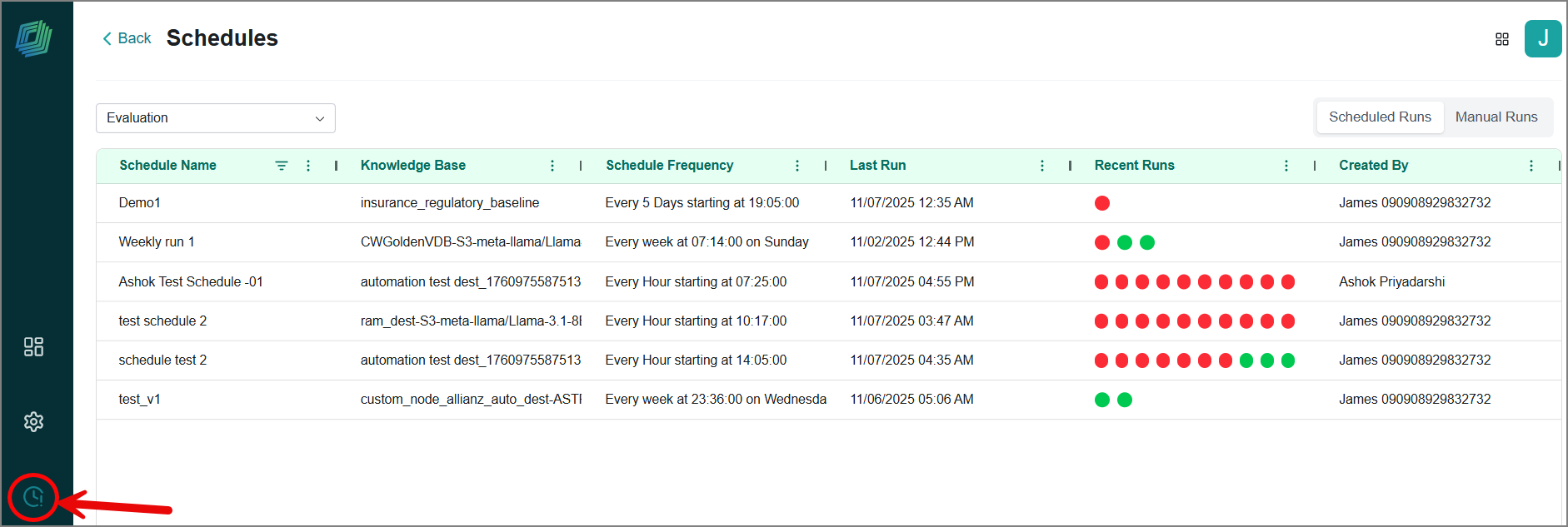
Alternatively, select the Schedule History option from the following sections:
Data Ingestion > Workflow
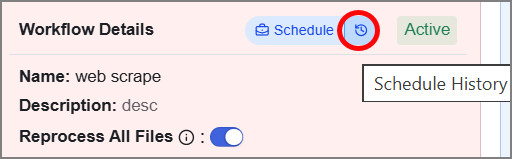
Data Agents, Evaluation, and Fine-tuning Studio
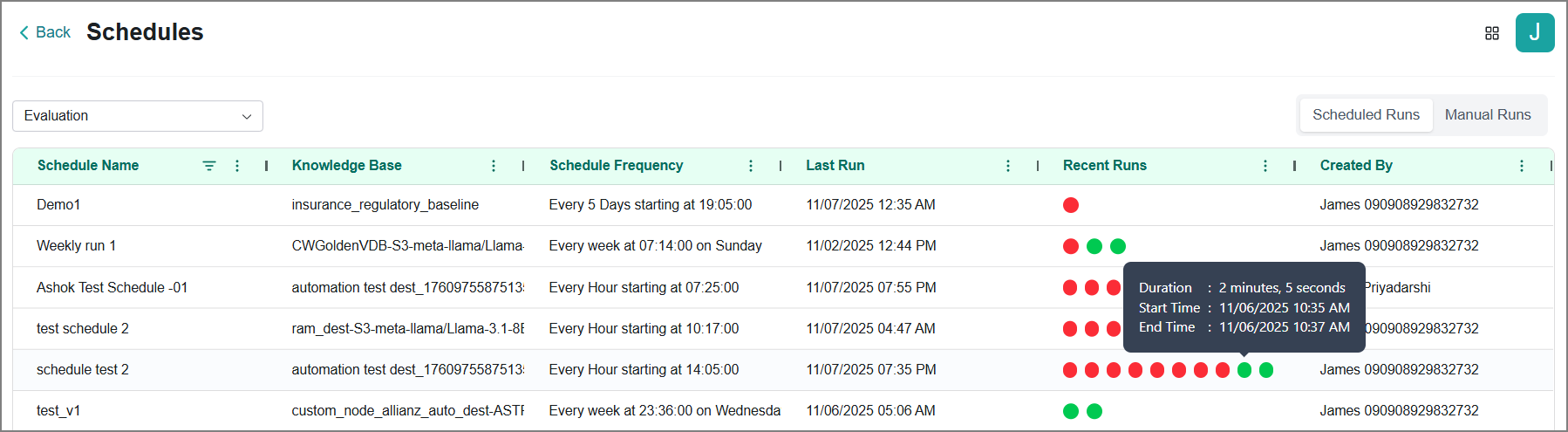
The Schedules page opens and displays execution details and historical data for all runs. The page is organized into two tabs:

Scheduled Runs tab - Displays the complete history of automated executions.
Agent
Classification Workflows
Data Engineering Agent
Data Orchestration Agent
Data Workflows
Evaluation
Fine-tuning Studio
Manual Runs tabs - Displays the complete history of manually triggered executions.
Agent
Data Engineering Agent
Data Orchestration Agent
Data Prep Workflows
Data Workflows
Evaluation
Fine-tuning Studio
Each item displays up to ten historical runs in the Recent Runs column. Status is indicated through color coding:
Green - Execution successful
Orange - Execution in progress
Red - Execution unsuccessful
Hover over the indicator to view its detailed information.
Filtering Runs
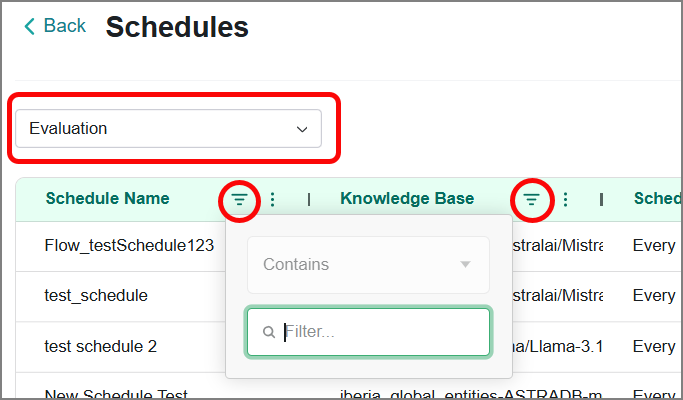
Use the top filters to find the required run:
Dropdown Filter – Click the dropdown and select a run category to narrow your results.
Search Box – Type the schedule name or knowledge base name to quickly find results.
Fine-Tuning Methods - Document RAG
This section describes the fine-tuning methods available for KBs that use a Document RAG data source. Use these methods to improve model accuracy when answering questions against ingested documents and files.
There are three fine-tuning methods:
Q&A Usage Data
Synthetic Q&A Generation
Chunk Instruction Generation
Viewing the Q&A Usage Data
This page displays real-time question-and-answer (Q&A) pairs from the Experiment section that received positive feedback. These pairs are used to fine-tune the model based on real-world usage patterns.
Note
If no data appears here, it means the SLM response for this KB has not yet been tested through the RAG Evaluation.
To view the page:
Go to the home page > Knowledge > Fine Tuning Studio.
The Retrieval Augmented Fine Tuning page opens, displaying the list of configured KBs and available fine-tuning methods in card view.
Filter and select the KB from the list.
Click the Q&A Usage Data card.
The Q&A Usage Data page opens, displaying positive feedback Q&A pairs from user interactions used as input for fine-tuning the SLM.
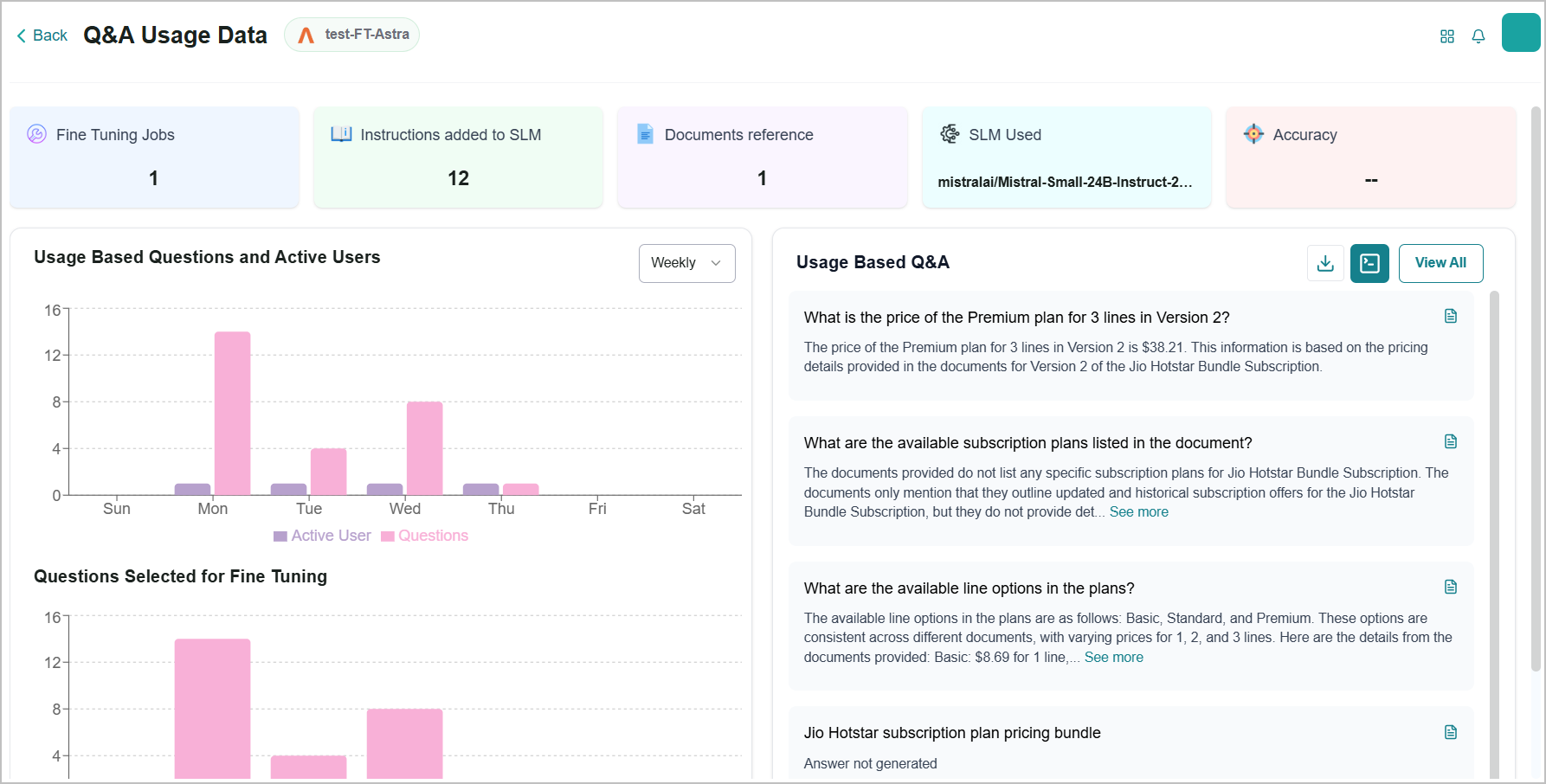
The platform provides a variety of insights on the page:
Fine Tuning Jobs - Displays the number of fine-tuning jobs triggered for the KB.
Instructions added to SLM - Display the number of Q&A pairs used for fine-tuning the SLM.
Documents reference - Displays the number of documents referenced in the KB for this fine-tuning.
Charts are available in weekly and monthly views.
Usage Based Questions and Active Users - Displays the count of active users contributing questions in the Experiment section and the total number of Q&A pairs that received high evaluation scores.
Questions Selected for Fine Tuning - Displays the number of high-scored Q&A pairs automatically selected for fine-tuning.
The platform provides a variety of controls on the page:
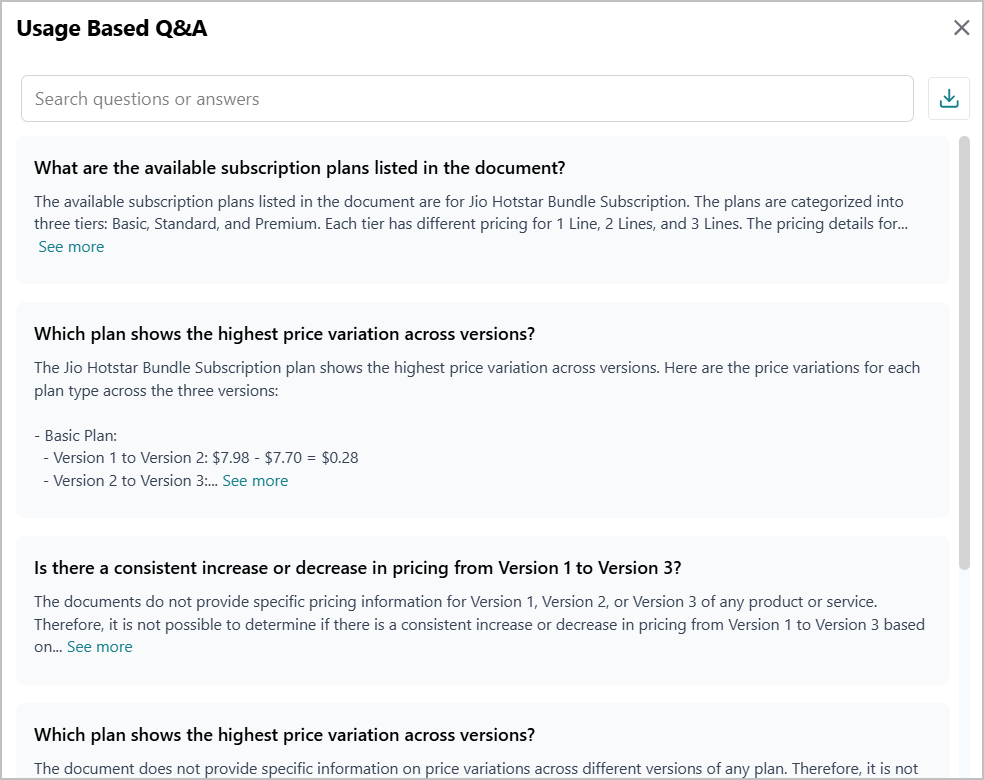
To view all Q&A pairs used for fine-tuning, click View All.
The Usage Based Q&A panel opens on the right and lists all available Q&A pairs. Use the Search field to find specific queries.
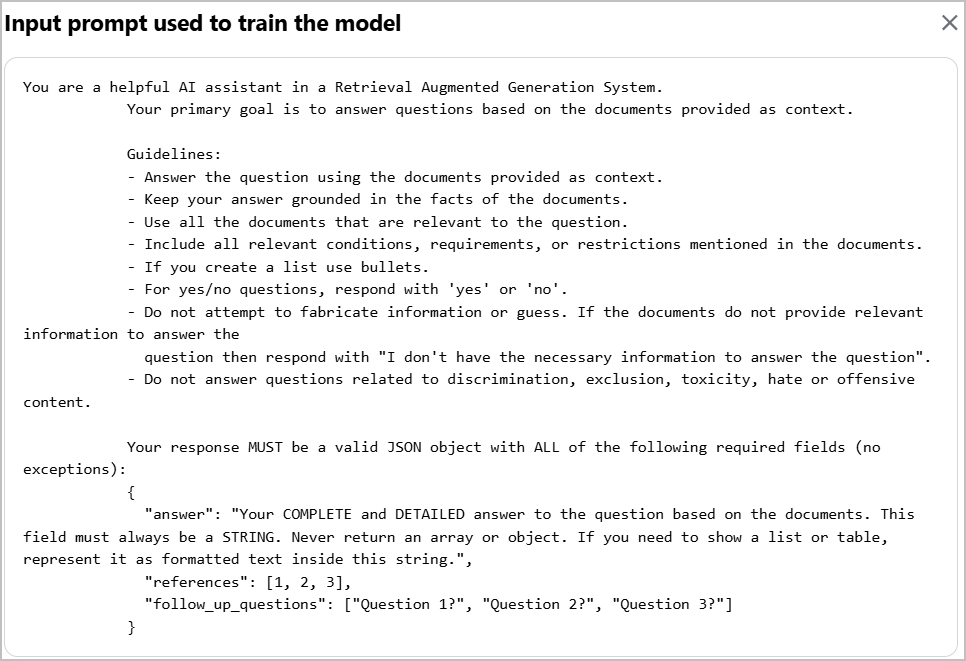
To view the input prompt used to train the model, click the Prompt
 icon.
icon.The Prompt panel opens on the right and displays the prompt details.
To export the Q&A pairs, click the Export
 icon.
icon.The data downloads to your local system.
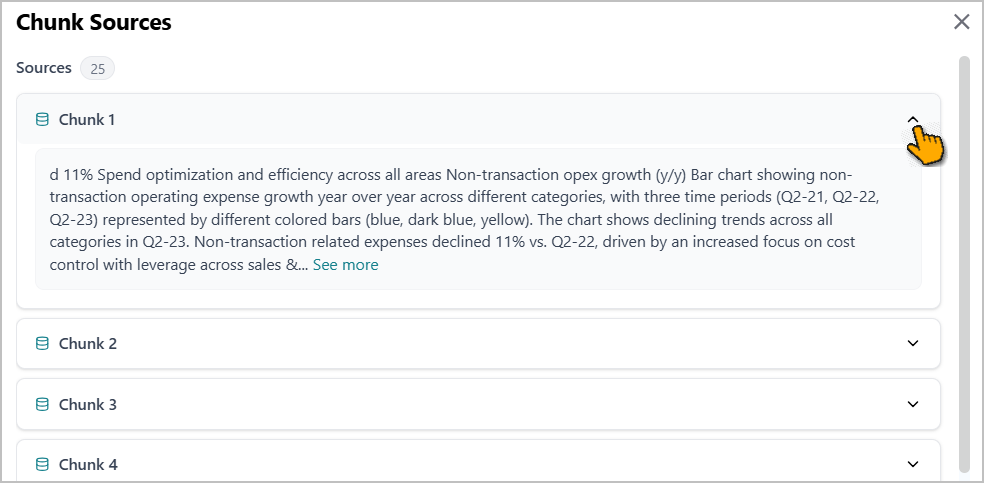
To view the chunks used to answer the questions, click the Chunks Source
 icon next to the question.
The Chunk Sources panel opens on the right, displaying the associated chunks. Expand each chunk to view more details.
Viewing the Synthetic Q&A Generation
Synthetic Q&A is a fine-tuning method that automatically generates Q&A pairs from your KB content when fine-tuning is triggered. The platform reads your KB and uses its AI model to generate realistic, diverse Q&A pairs that reflect the content of your documents.
This page displays synthetic Q&A pairs generated by the platform AI from the KB chunks and predefined roles, allowing the model to be fine-tuned using an AI-generated dataset.
To view the synthetic Q&A:
Go to the home page > Knowledge > Fine Tuning Studio.
The Retrieval Augmented Fine Tuning page opens, displaying the list of configured KBs and available fine-tuning methods in card view.
Filter and select the KB from the list.
Click the Synthetic Q&A Generation card.
The Synthetic Q&A Generation page opens, displaying all the AI-generated synthetic Q&A pairs used as input for fine-tuning the SLM.
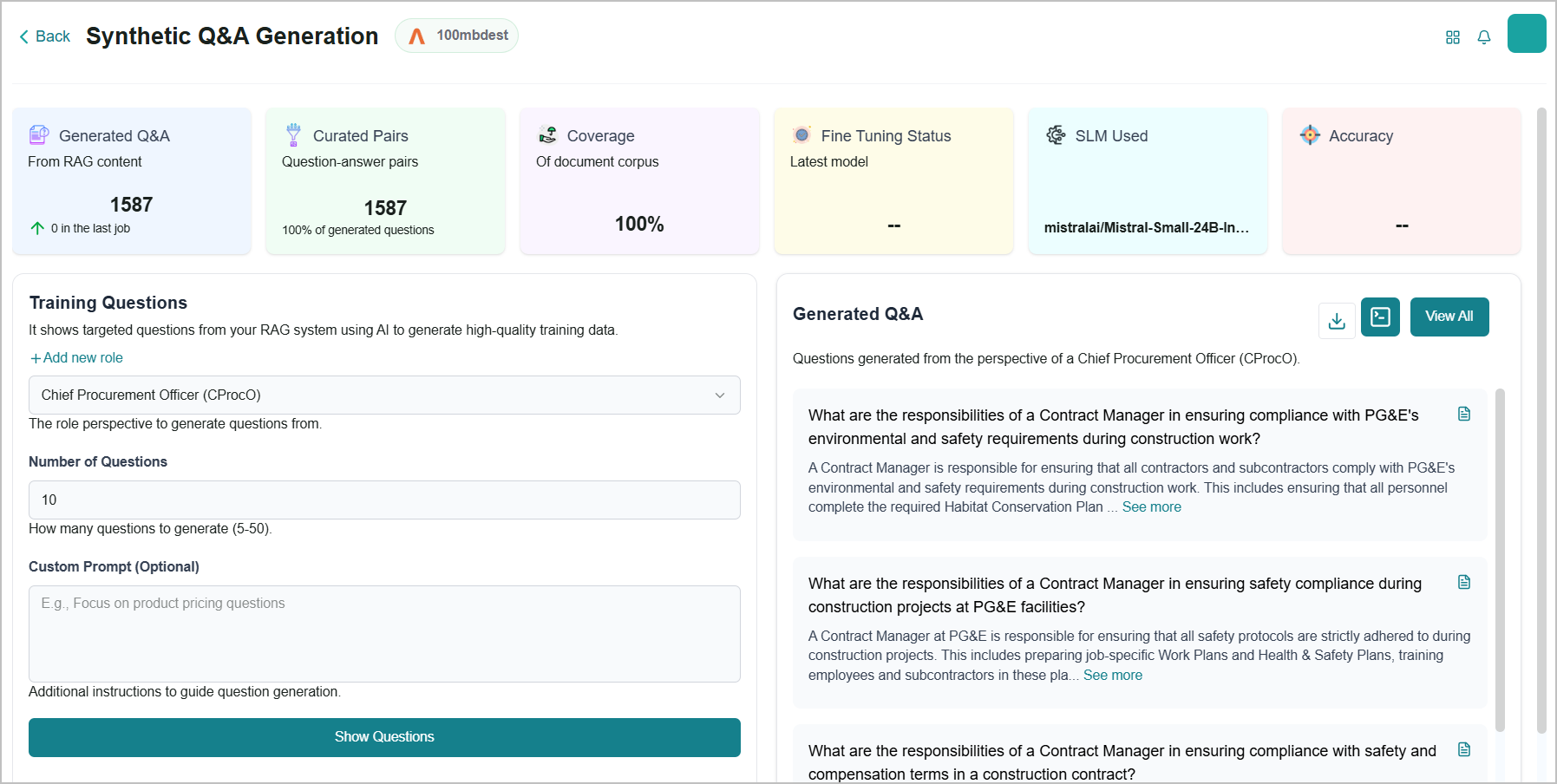
In the left panel, define the configuration for how you want to view the synthetic Q&A pairs to be created.
The platform provides a variety of insights on the page:
Generated Q&A - Displays the total number of Q&A pairs generated from the KB.
Curated Pairs - Displays the total number of Q&A pairs selected from the AI-generated Q&A pairs for fine-tuning.
Coverage - Displays the percentage of the document content that was used to generate Q&A pairs.
Fine Tuning Status - Displays the current status of the fine-tuning process.
The platform provides a variety of controls to filter and view the synthetic Q&A on the page:
To view the specific synthetic Q&A pairs, use the left panel, define the configuration, and specify how you want to view the synthetic Q&A.
Choose the role from the dropdown list, or you can add a new role:
Click + Add New Role.
The Add Roles dialog opens, displaying all existing roles.
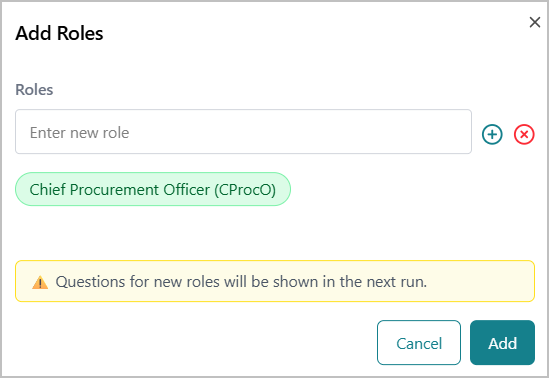
Click + Add New Role.
Enter a new role name in the box.
Click the Add
 icon to save the role.
You can add multiple roles in the same manner.
Click Add.
The newly added roles are part of the dropdown list.
Important
Questions for newly assigned roles are displayed in the next run.
Enter the number of questions to display in the panel on the right.
Enter additional prompt instructions to view Q&A pairs, if required.
Click Show Questions.
The relevant synthetic Q&A pairs appear on the right.
To view all Q&A pairs used for fine-tuning, click View All.
The Usage Based Q&A panel opens on the right and lists all available Q&A pairs.
To view the input prompt used to train the model, click the Prompt
icon.The Prompt panel opens on the right and displays the prompt details.
To export the Q&A pairs, click the Export
icon.The data downloads to your local system.
To view the chunks used to answer the questions, click the Chunks Source
icon next to the question.The Chunk Sources panel opens on the right, displaying the associated chunks. Expand each chunk to view more details.
Viewing the Chunk Instruction Generation
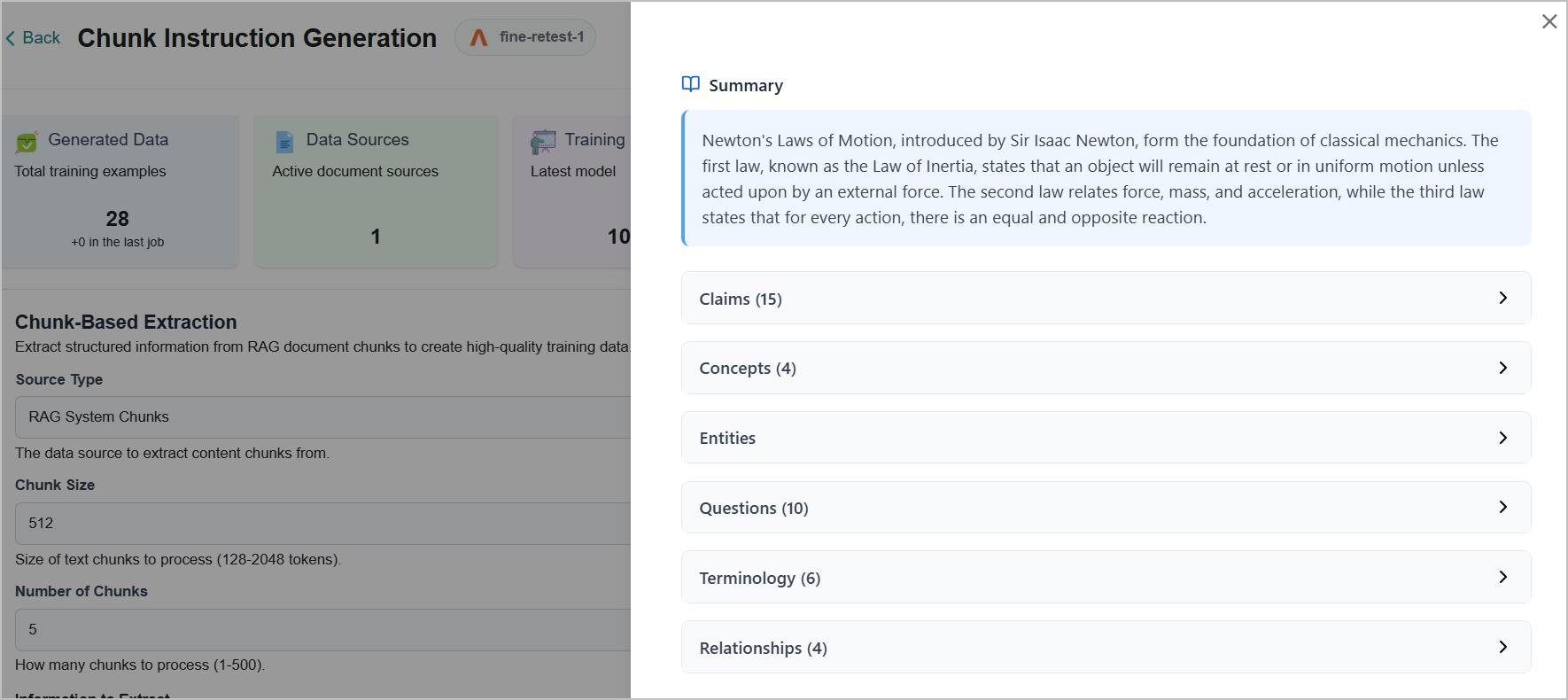
Chunk Instruction Generation is a fine-tuning method on the platform that automatically generates training data when fine-tuning is triggered. The platform reads each document chunk and generates structured metadata, including summaries, key entities, dates, relationships, terminology, and questions, that the SLM uses to learn from your KB content.
This page displays the chunk-processing questions the platform uses to extract structured data from KB chunks and build high-quality training data.
To view the page:
Go to the home page > Knowledge > Fine Tuning Studio.
The Retrieval Augmented Fine Tuning page opens, displaying the list of configured KBs and available fine-tuning methods in card view.
Filter and select the KB from the list.
Click the Chunk Instruction Generation card.
The Chunk Instruction Generation page opens, displaying the list of question templates the platform uses to extract structured data from KB chunks under Question Templates tab.
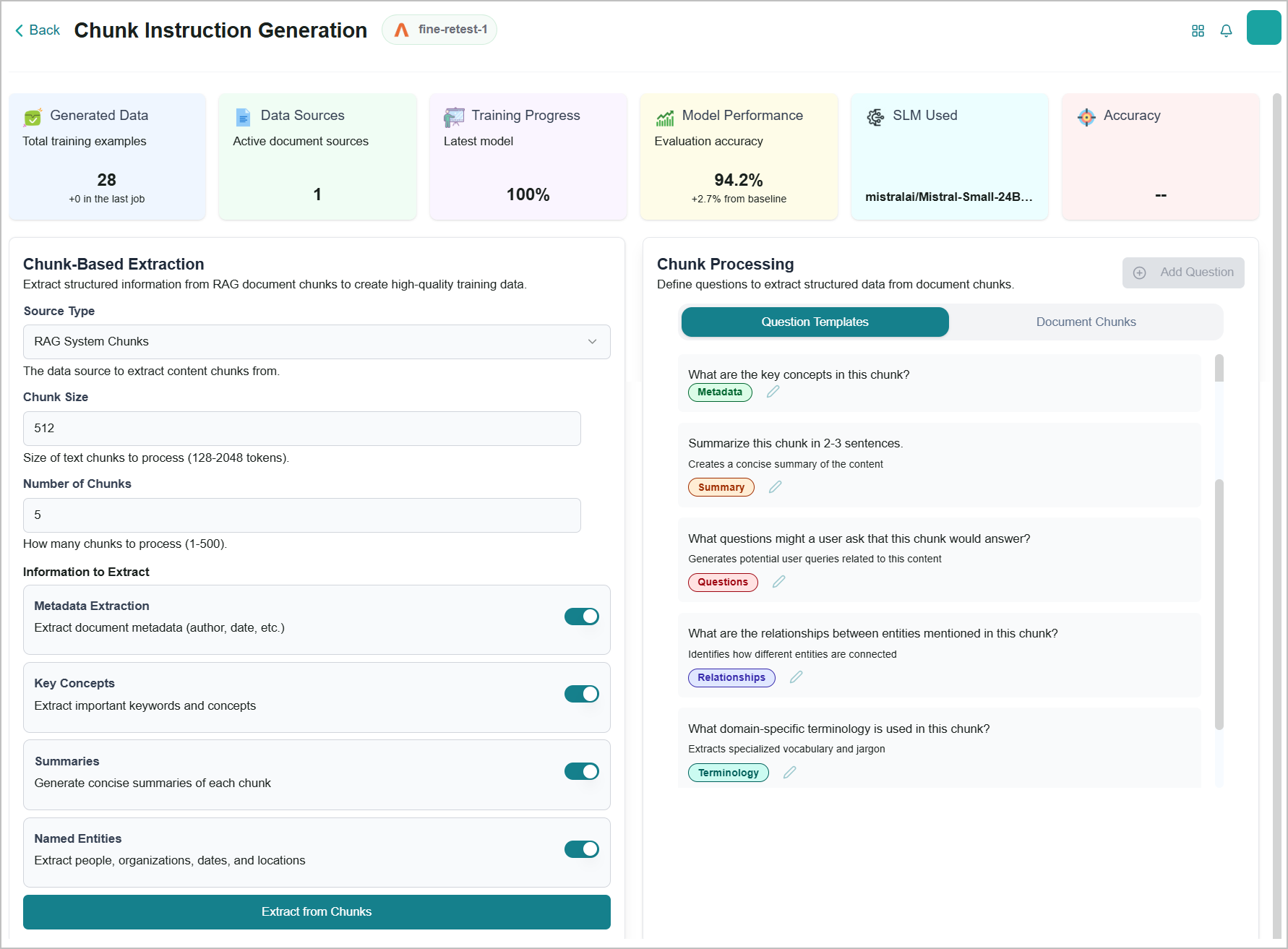
The platform provides a variety of insights on the page:
Generated Data - Displays the total number of training data generated using this technique.
Data Sources - Displays the number of KBs used in this data generation process.
Training Progress - Displays the percentage of model training completion.
Model Performance - Displays the model's accuracy relative to the baseline.
The platform provides a variety of controls to filter and view the chunks on the page:
To view the specific document chunks, use the left panel, define the configuration, and specify how you want to view the document chunks.
Configure the Chunk-Based Extraction settings on the left panel:
Field
Description
Source Type
Select the data source to extract content chunks from. Choose one of the following options:
RAG System Chunks - Extracts chunks from your RAG pipeline.
Raw Document - Extracts content directly from ingested documents.
Database Records - Extracts content from connected database records.
Chunk Size
Enter the size of each chunk to process. This value controls how much text the platform reads at a time.
Accepted range: 128 to 2048 tokens.
Number of Chunks
Enter how many chunks the platform processes in a single run.
Accepted range: 1 to 500.
Metadata Extraction
Enable this option to extract metadata from each chunk, including document properties and structural attributes.
Key Concepts
Enable this option to identify and extract important keywords and concepts from each chunk.
Summaries
Enable this option to generate concise summaries for each chunk.
Named Entities
Enable this option to extract named entities such as people, organizations, dates, and locations.
Click Extract from Chunks.
The platform displays the training data based on your configuration.
Switch to the Document Chunks tab to view all chunks generated from the KB.
The tab displays the list of document chunks the platform has processed, along with their associated metadata and extraction status.
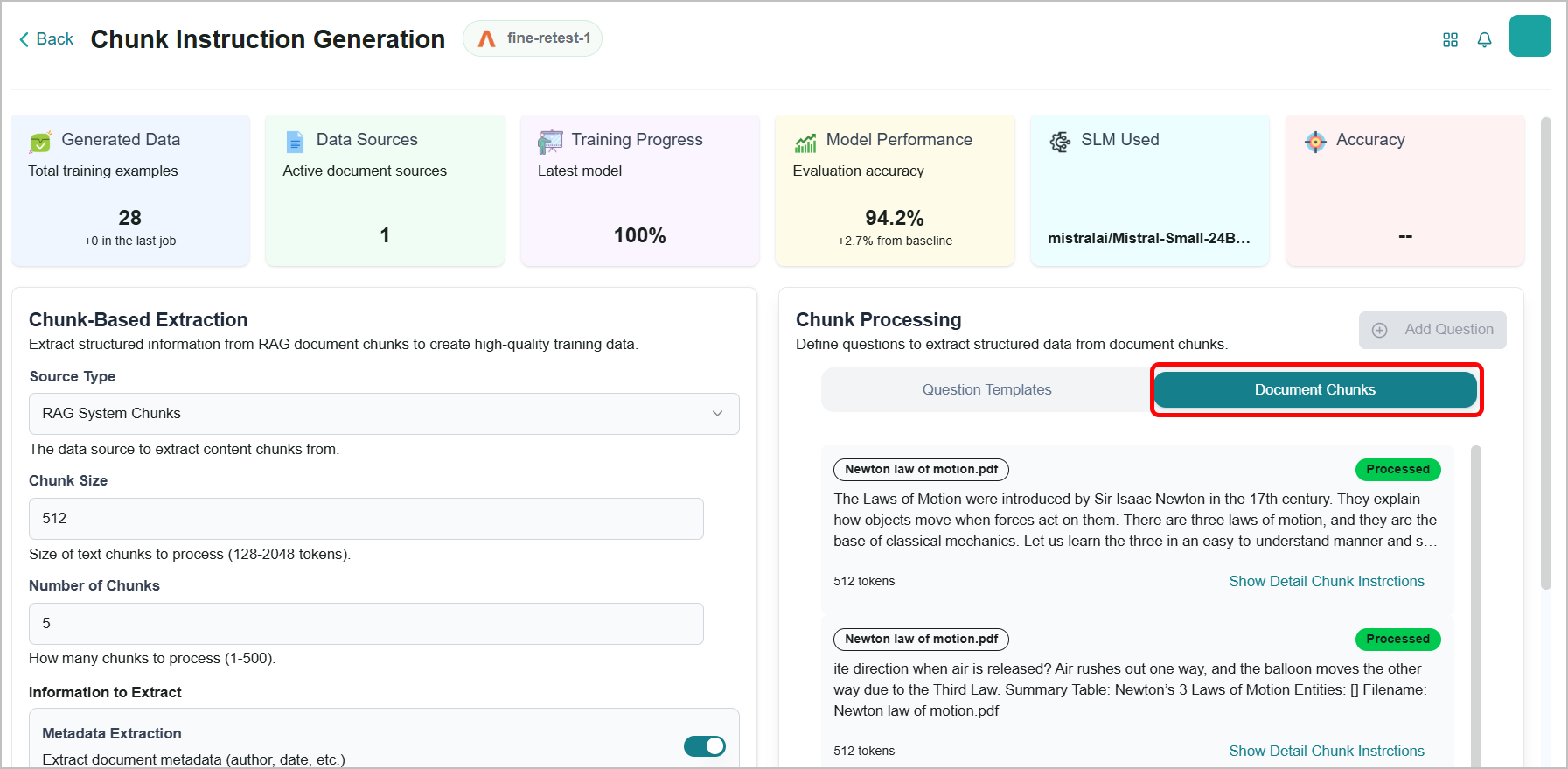
Click Show Detail Chunk Instructions on any chunk to view the full set of instructions used to generate that chunk.
Fine-Tuning Methods - Relational DB RAG
This section describes the fine-tuning methods available for KBs that use a Relational DB RAG data source. Use these methods to improve model accuracy when querying structured data.
There are two fine-tuning methods:
Queries Usage Data
Synthetic Queries Generation
Viewing the Queries Usage Data
This page displays queries from the Experiment section that received positive feedback. These queries help fine-tune the model based on real-world use cases.
Note
If no data appears here, it means the SLM response for this KB has not yet been tested through the RAG Evaluation.
To view the page:
Go to the home page > Knowledge > Fine Tuning Studio.
The Retrieval Augmented Fine Tuning page opens, displaying the list of configured KBs and available fine-tuning methods in card view.
Use the Filter to list the Relational DB RAG type of KBs.
Select the KB from the list.
Click the Queries Usage Data card.
The Queries Usage Data page opens and displays positive feedback queries from user interactions, which are used as input for fine-tuning the SLM.
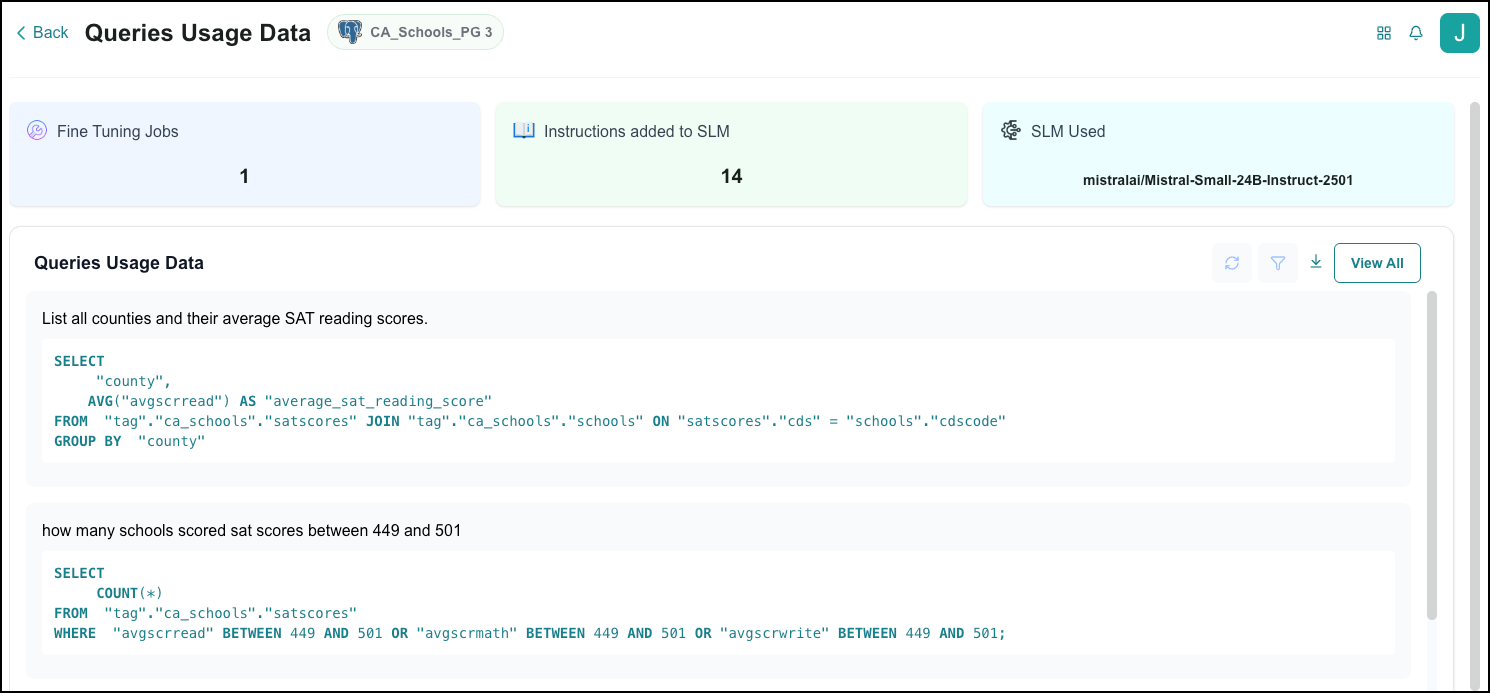
The platform provides a variety of insights on the page:
Fine Tuning Jobs - Displays the number of fine-tuning jobs triggered for the KB.
Instructions added to SLM - Display the number of queries used for fine-tuning the SLM.
SLM Used - Displays the paired SLM.
You can perform the following actions:
To view all queries used for fine-tuning, click View All.
The Queries Usage Data panel opens on the right. It displays all queries used for fine-tuning. Use the Search field to find specific queries.
To export the queries, click the Export
icon.The data downloads to your local system.
Viewing the Synthetic Queries Generation
This page displays synthetic queries generated by the platform AI from the KB chunks and predefined roles, allowing the model to be fine-tuned using an AI-generated dataset.
To view the page:
Go to the home page > Knowledge > Fine Tuning Studio.
The Retrieval Augmented Fine Tuning page opens, displaying the list of configured KBs and available fine-tuning methods in card view.
Use the Filter to list the Relational DB RAG type of KBs.
Select the KB from the list.
Click the Synthetic Queries Generation card.
The Synthetic Queries Generation page opens, displaying the AI-generated synthetic queries used as input for fine-tuning the SLM.
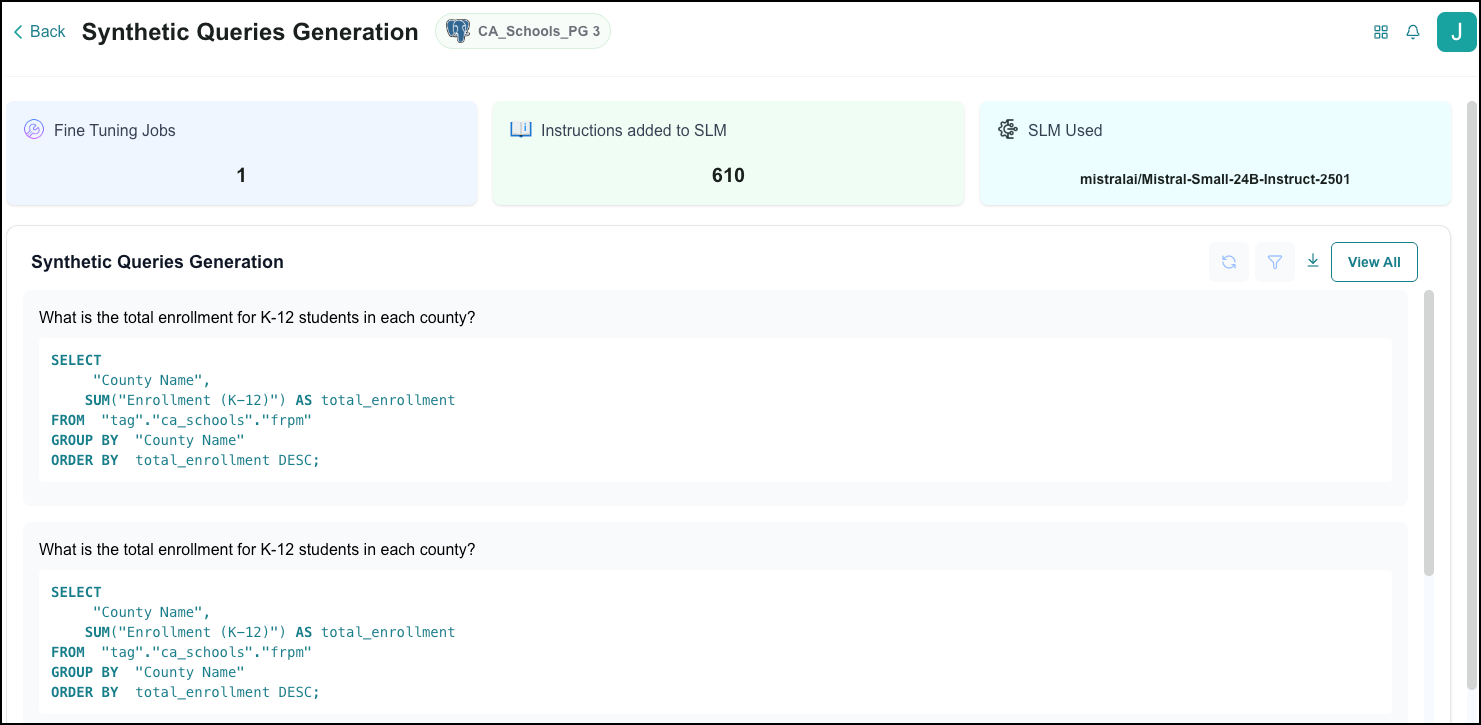
The platform provides a variety of insights on the page:
Fine Tuning Jobs - Displays the number of fine-tuning jobs triggered for the KB.
Instructions added to SLM - Display the number of queries used for fine-tuning the SLM.
SLM Used - Displays the paired SLM.
You can perform the following actions:
To view all queries used for fine-tuning, click View All.
The Queries Usage Data panel opens on the right. It displays all queries used for fine-tuning. Use the Search field to find specific queries.
To export the queries, click the Export
icon.The data downloads to your local system.
Viewing the Fine-Tuning Performance
This page provides a visual overview of SLM fine-tuning performance across each iteration and is available for both Document RAG and Relational DB RAG knowledge bases.
The following insights are available for review on the Fine Tuning Performance tab:
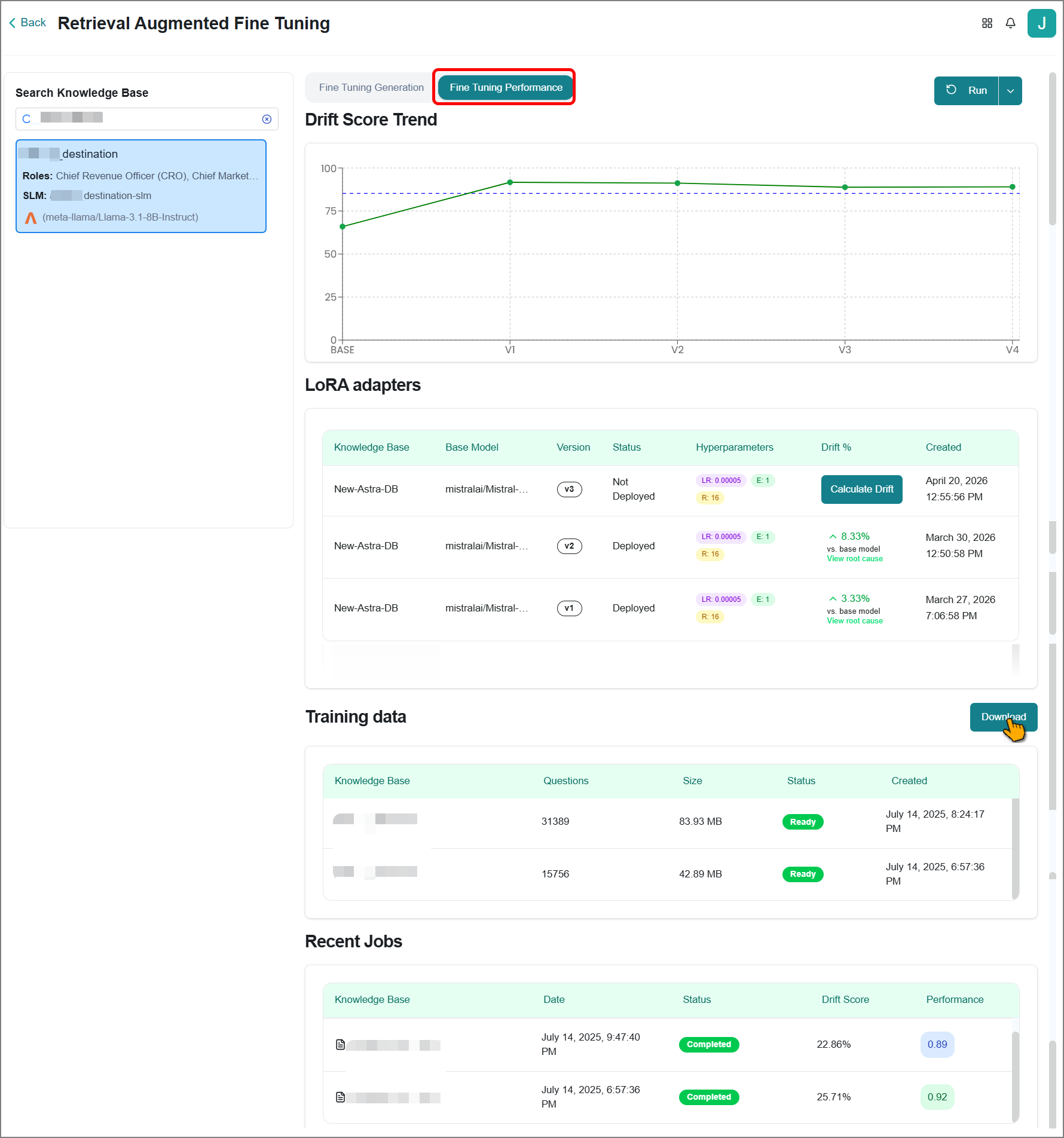
Drift Score Trend
Displays a graph comparing fine-tuning performance over time against platform-defined targets. Hover over it to view the values.
LoRA Adapters
Displays the fine-tuned versions of your base model, known as LoRA (Low-Rank Adaptation) adapters: lightweight model variants optimized for specific tasks by updating only a small subset of parameters, without modifying the base model. Review the accuracy metrics displayed here to compare each adapter's performance against the base model. The platform automatically identifies the best-performing adapter, deploys it, and promotes it for use in your KB.
The table includes the following columns:
Column | Description |
|---|---|
Knowledge Base | The KB associated with this adapter version. |
Base Model | The base SLM used for fine-tuning. |
Version | The adapter version number (e.g. v1, v2, v3). |
Status | The adapter's current deployment status.
|
Hyperparameters | The hyperparameter values used for this fine-tuning run are displayed as color-coded badges: LR (Learning Rate), E (Epochs), and R (LoRA Rank). Click the badges to view full hyperparameter details for that run. |
Drift % | The percentage change in model performance compared to the base model. Click View root cause to open the Root Cause Analysis panel. Refer to Viewing Root Cause Analysis for more information. |
Created | The date and time the adapter was created. |
Viewing Hyperparameter Details
To view this feature, click the hyperparameter badges in the LoRA Adapters table.
The Hyperparameter Details panel opens to the right.
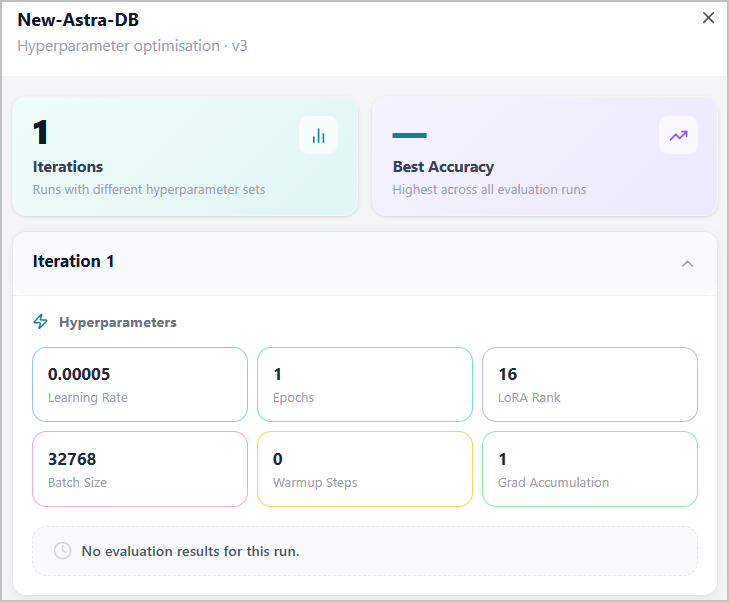 |
The panel displays the following:
Iterations - The number of runs completed with different hyperparameter sets.
Best Accuracy - The highest accuracy score achieved across all evaluation runs.
Each iteration is displayed in an expandable accordion section. Expanding an iteration reveals the six hyperparameter values used for that run:
Hyperparameter | Description |
|---|---|
Learning Rate | Controls how quickly the model updates its parameters during training. |
Epochs | The number of times the model passes through the full training dataset. |
LoRA Rank | Determines the size of the trainable matrices added to a model, directly impacting VRAM usage, training speed, and capacity to learn new information. |
Batch Size | The number of training samples processed in each step. |
Warmup Steps | The number of steps over which the learning rate gradually increases at the start of training. |
Grad Accumulation | The number of steps over which gradients are accumulated before updating the model weights. |
Each iteration also displays its evaluation results below the hyperparameter values. If the evaluation has not yet been completed, a "No evaluation results for this run" message is shown.
Viewing Root Cause Analysis
The Business AI Cloud provides a Root Cause Analysis (RCA) for all drift scores to help you understand what contributed to the performance change. It compares the current fine-tuned version against the base version (ground truth), breaking down which questions regressed and which improved, along with detailed diagnostic information for each.
To view this feature:
Click View Root Cause next to the drift score.
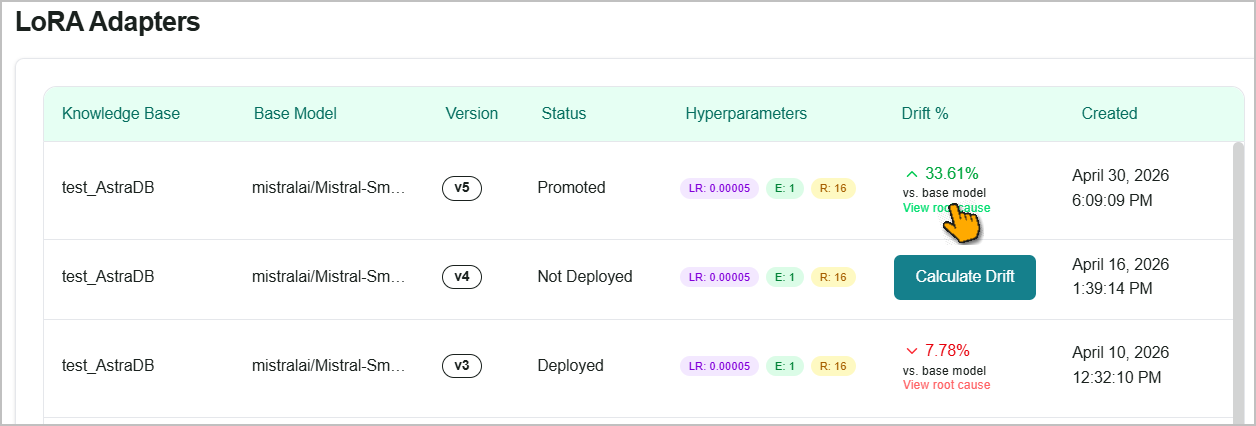
The Root Cause Analysis panel opens to the right.
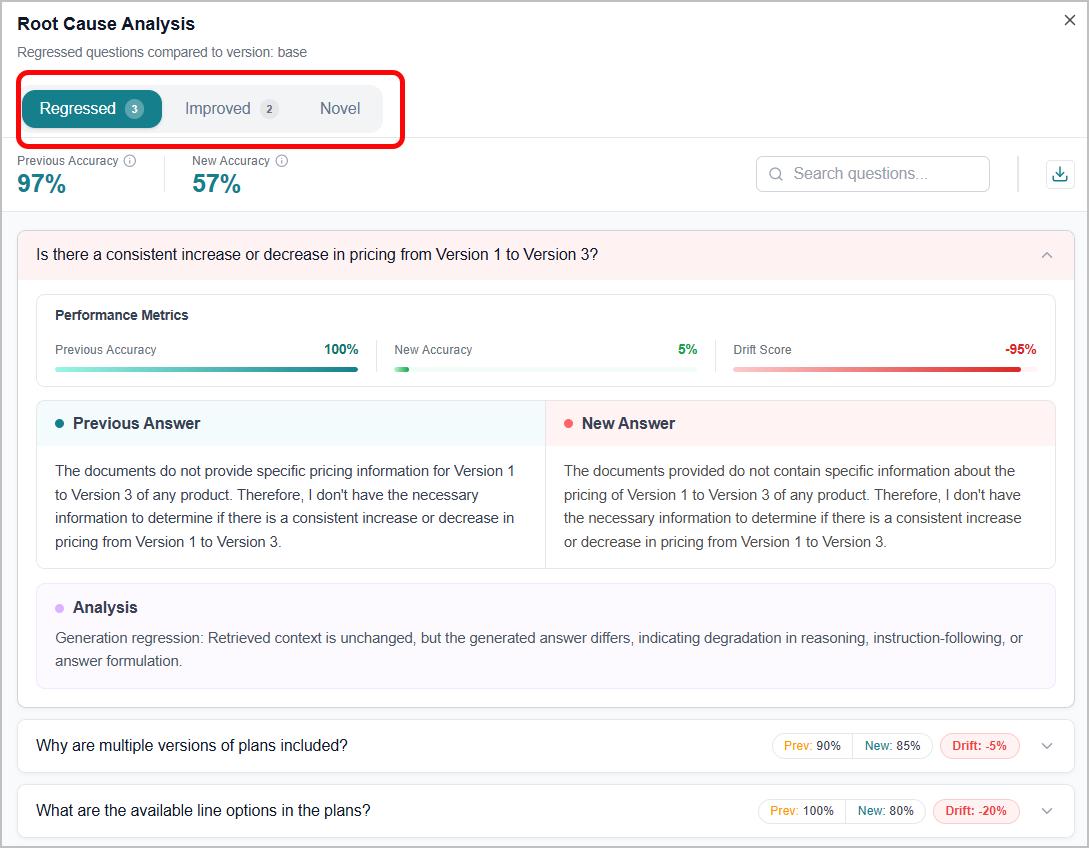
Regressed tab - View questions where the fine-tuned model performed worse than the base model. Review these questions to identify areas where fine-tuning may have reduced accuracy or introduced incorrect responses.
Improved tab - View questions where the fine-tuned model performed better than the base model. Use this tab to confirm that fine-tuning produced meaningful gains on the questions that matter most.
Novel tab - View questions that appear only in the fine-tuned model's evaluation and have no direct comparison to the base model. These questions were not part of the baseline evaluation, so no regression or improvement score is available for them.
Click a question to expand it and view question-level analysis details.
Enter a question in the Search box to locate it in the list.
Click the Download
icon to export all data as a CSV file to your local system.
Previous Accuracy - Baseline accuracy score for regressed questions, shown as an average or for an individual question.
New Accuracy - Fine-tuned adapter accuracy score for questions, shown as an average or for an individual question.
Drift Score - The drift score of the fine-tuned adapter for an individual question.
Previous Answer - The baseline adapter generated an answer for the question.
New Answer - The fine-tuned version generated an answer for the question.
Analysis - A diagnostic explanation of what changed.
For example: "Retrieval changed: The adapter retrieved a different context, which likely altered the context available for answer generation and caused performance degradation."
Training Data
Displays each fine-tuning version, the corresponding number of Q&A or queries, the training data size, and the fine-tuning date.
You can export this information to your local system in JSON format using the Download option for external analysis, archival, or integration with other tools.
Recent Jobs
Displays each fine-tuning version along with its drift score percentage, performance metric, fine-tuning status, and completion date.