Manage Users for Communication Recording Agent
While all Users are managed in Administration Platform, Communication Recording Agent provides additional features to help you manage your User's access to call data on a granular level using automated Access Policies, this topic aims to help Administrators understand and use the additional components when managing Users for Communication Recording Agent.
Note
For complete details on how to manage your Users in Administration Platform click here.
Communication Recording Agent Users - Components and Considerations
Communication Recording Agent makes use of the same user management tools provided on Administration Platform, including External Directory Services, Roles, Users, and an Organizational Hierarchy. In addition to these components, Communication Recording Agent also provides Access Policies for User account management, which are used to assign granular access permissions for Communication Recording Agent Users using Filters and Claims. For more information, see Access Policies below.
External Directory Services, Access Control Policies, and Roles provide for automated user creation and management. As users are added, updated, and removed in your External Directory Services, users are automatically added, updated, and removed as appropriate.
This mechanism provides a simpler account management model, as your User Accounts are automatically synchronized with your External Directory Services. After initial setup, you should keep on top of Role Management and Access Control Policies. If needed, Users can be added manually or by CSV import as well as deactivated and/or deleted manually in the system. For more information click here.
Communication Recording Agent Users - Organization Hierarchy
Within the Organization Hierarchy there are Users, Groups and Subgroups, these can be paired with Claims in Access Policies, to allow various access permissions to calls using specified Filters - See Access Policies below for more information on understanding and managing Access Policies.
Caution
If access policies are configured to provide access to Groups / Subgroups in your Organization Hierarchy (using Claims), adding Users to those groups automatically grants them access. While this provides powerful automated access control, Account Administrators should be conscious of the access they can grant by adding Users to Groups in the Organization Hierarchy.
For information on adding/removing Users, Groups, and Subgroups to/from your Organization Hierarchy, click here.
Communication Recording Agent Users - Roles
User Roles provide access permissions to users. In Communication Recording Agent, these Roles work together with Access Policies to provide granular permissions and access to specific calls. Where Policies are applied using call Filters and Claims to Users/Groups, Roles are given to individual users to provide the base access and permissions required for their day-to-day, such as a manager needing access to their Agent's calls. U-Capture utilizes the following Roles to help you delegate access permissions across your users:
Note
This is not a complete list of the Roles available in Administration Platform. The information provided below describes how each Role is used for Communication Recording Agent specifically. Other permissions may be granted by the Role if other applications are deployed. For information on all of the Roles available to Administration Platform Users and how they are used across all applications, click here.
Role | Description |
|---|---|
Account Administrator | Provides access to view and export all calls, and the ability to make changes to system configuration, including User information and Roles, Organization Hierarchy, all Policies, Annotation Headers, Endpoint, and Storage Locations. |
Customer Service Agent | Provides access to view and export their own calls. The following additional User Role Attributes can be configured for a User with this role:
|
Manager | Provides access to view and export all calls for their team. The following additional User Role Attributes can be configured for a User with this role:
CautionIf adding a manager (M2) to the User's (M1) Manager Role, the Agents/Managers under the added manager (M2) will be removed from that manager's (M2) reporting line. |
Compliance Admin | Controls Legal Hold functionality. Its permissions are limited to:
This role can only be granted by a tenant Owner. It cannot be self-assigned, and a standard Account Admin does not have permission to assign it. |
The above descriptions make reference to various Communication Recording Agent features. Use the following references for more information on each:
Communication Recording Agent Users - Access Policies
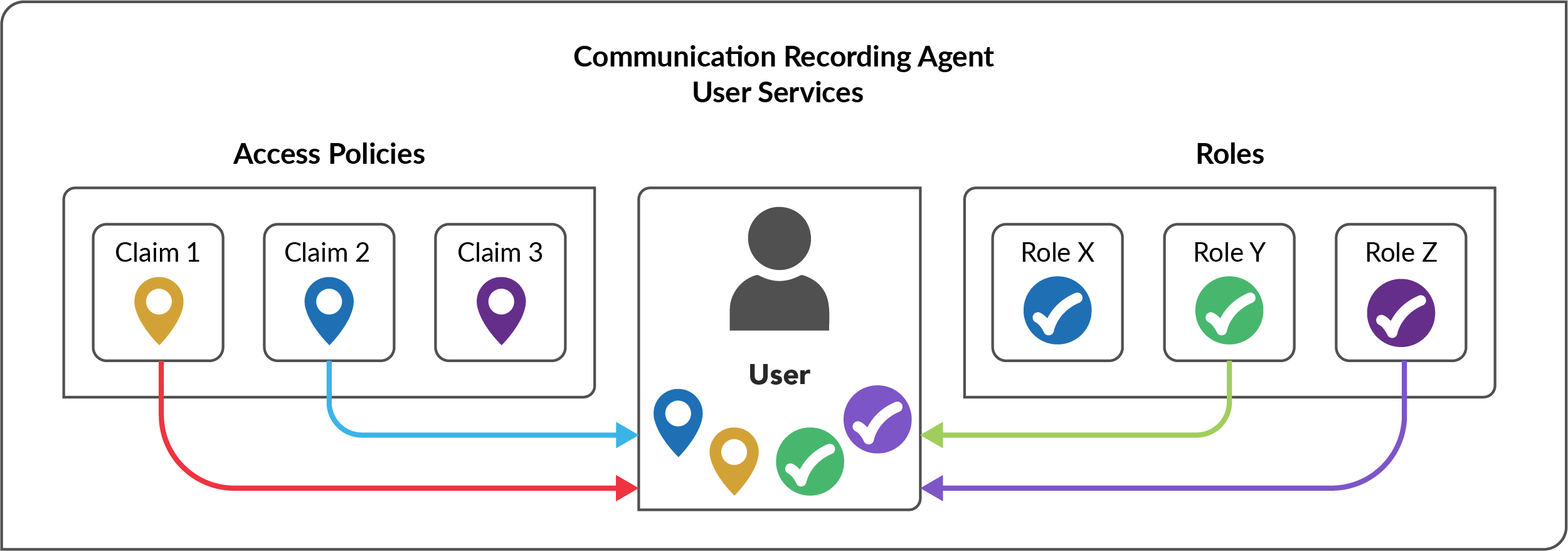
Use Access Control Policies to assign granular access permissions for your Users in Communication Recording Agent using call Filters (which calls) and Claims (which groups/users in your Organization Hierarchy).
Access control policies work together with User Roles to provide flexible control of your User access permissions. As mentioned above, these policies work on pairing call Filters and groups/users using Claims, these work on top of access permissions provided by the User's roles, for example a User could have the Manager Role with several Agents (granting the User access to the Agent's calls), this User could also be part of a wider sales team and could need access to the metadata for all sales calls, this could be provided using Access Policies.
Note
There are other types of Policies available in addition to Access Policies, see the full Manage Communication Recording Agent Policies guide for details on all the available Policies for Communication Recording Agent.
Manage Access Policies
Use Communication Recording Agent access control policies to assign granular access permissions for your Users.
Metadata and Media Playback Access: Combines the below policies to allow access to the media and metadata of your defined recordings.
To view Access Control policies, go to Configurations > Configure (under Communication Recording Agent) > Policies > Access Control. From here, you can see the list of existing Access Control policies, along with the Name, Type, Priority, and Status of each policy. To view a policy in more detail, click on the arrow to the right of the policy to open the policy properties panel.
Once a policy has been created, it can be Enabled and Disabled using the Status column.
Existing policies can't be edited, but can be duplicated by opening the policy and clicking Duplicate.
To delete a policy, click the Ellipsis
 menu and click delete. You are prompted for confirmation before the policy is deleted.
To review what recordings a policy applies to, open the policy and click either the Filters tab to see the filters for the policy, or click the Call Records tab to view the related calls.
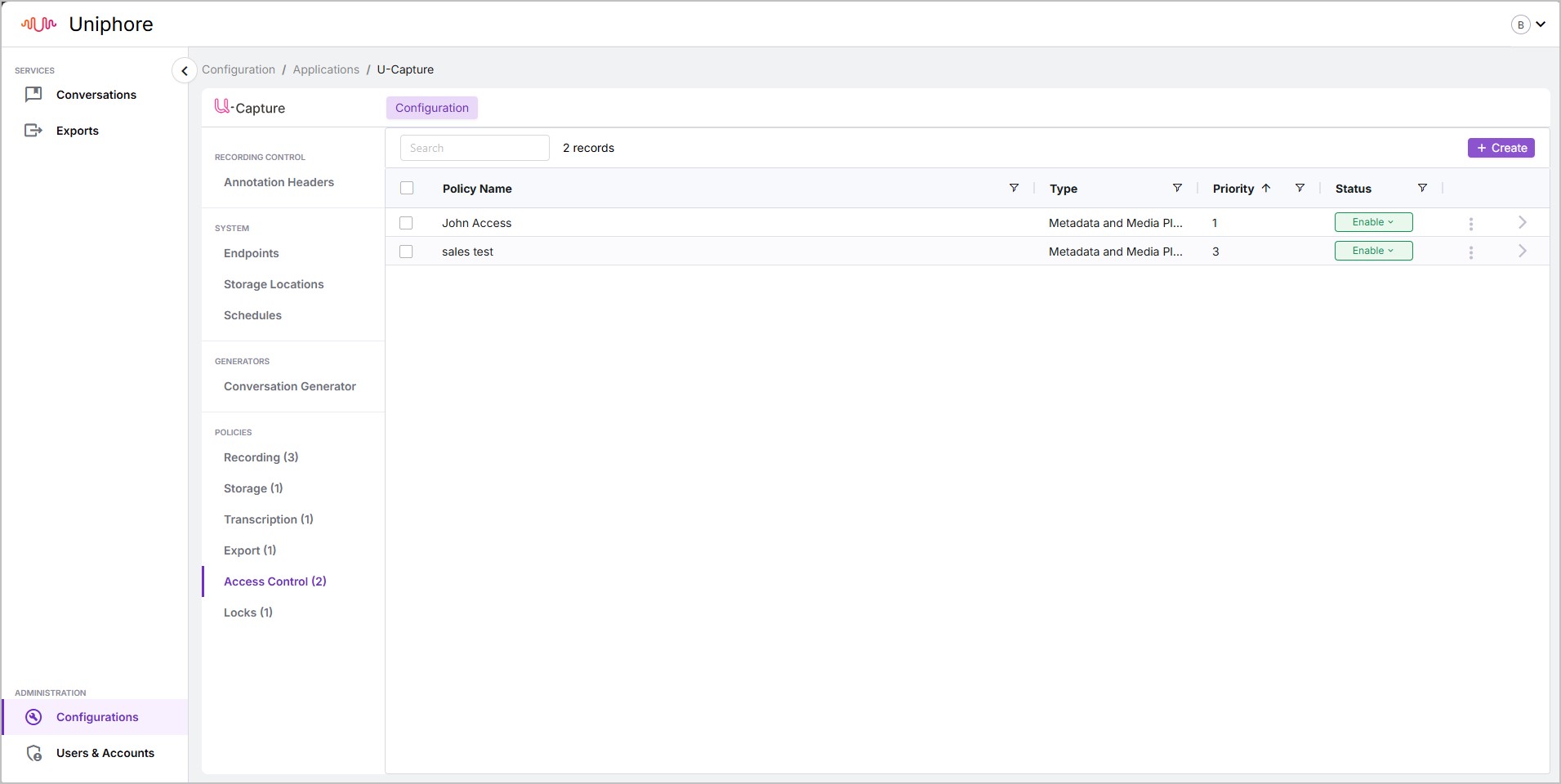
Go to Configurations > Configure (under Communication Recording Agent) > Policies > Access Control and click + Create.
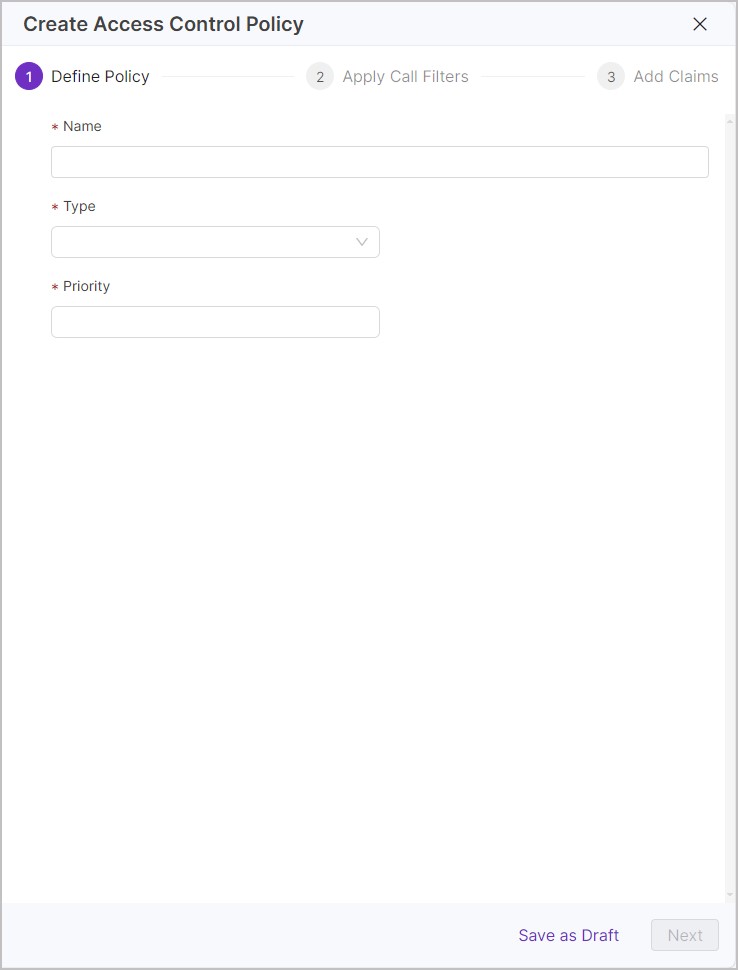
Enter a useful Name for the policy.
Choose the Priority of the policy (the order in which the policies are run), 1 being priority and 2 being second priority, and so on. When ready, click Next.
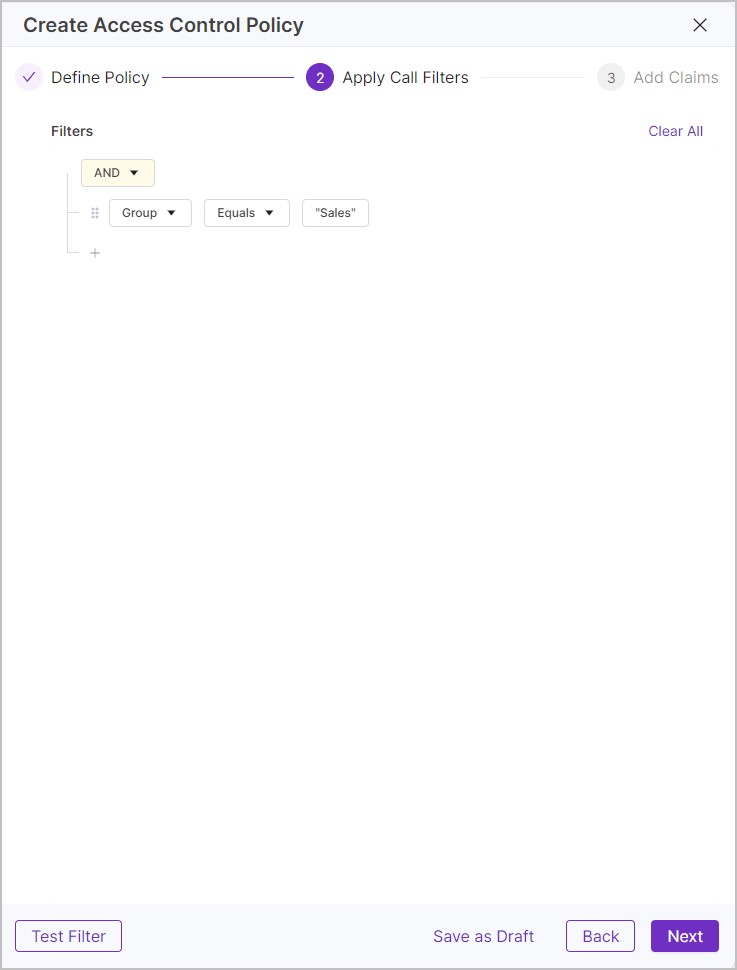
Create a Calls Filter – Add one or more metadata filters. The Calls Filter is used to define what recordings the policy applies to. Confirm that the policy applies to the correct calls, click Test Filter, then click Next. See Create a Calls Filter for more information on Calls Filters.
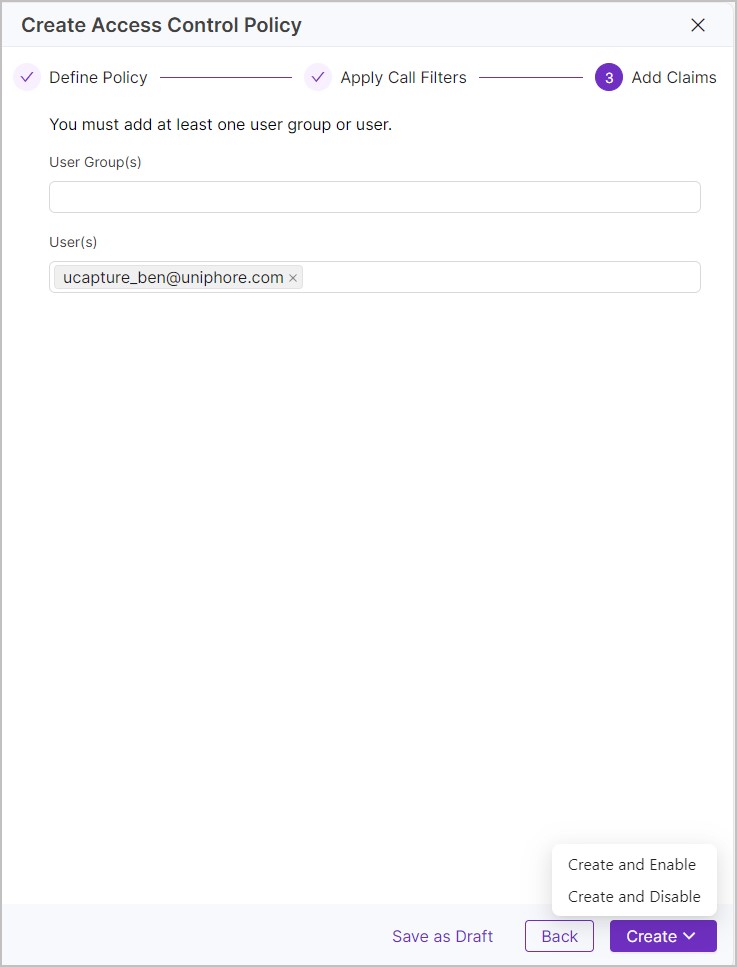
Decide what User Group(s) and/or User(s) to add a claim to. User groups and users listed here gain the level of access specified by the Type to the calls specified by the Call Filters.
Note
To view and edit your Users, go to Admin > Users.
To view and edit your User Groups, go to Admin > Organization Hierarchy.
Click Create and then select if you want the policy to be enabled (Create and Enable) or disabled (Create and Disable). You can enable or disable it later if needed.
 |  |  |