View and Create Storage Locations
To View Your Configured Storage Locations:
Go to Configurations > Configure (under Communication Recording Agent) > Storage Locations.
Here you can see a list of your configured storage locations, along with their Name, Host, Bucket, Region, and Folder (if set).
To view more details, click the > arrow to the right of the storage location to open the properties panel. Here you can see a summary of the storage location, the information provided in the list, as well as a Description, Folder information, the Access Key, and Secret Key for the bucket.
Additionally, from the properties panel, you can remove a storage location by clicking Delete and confirming, as well as create a copy of the storage location by clicking Duplicate and making any adjustments.
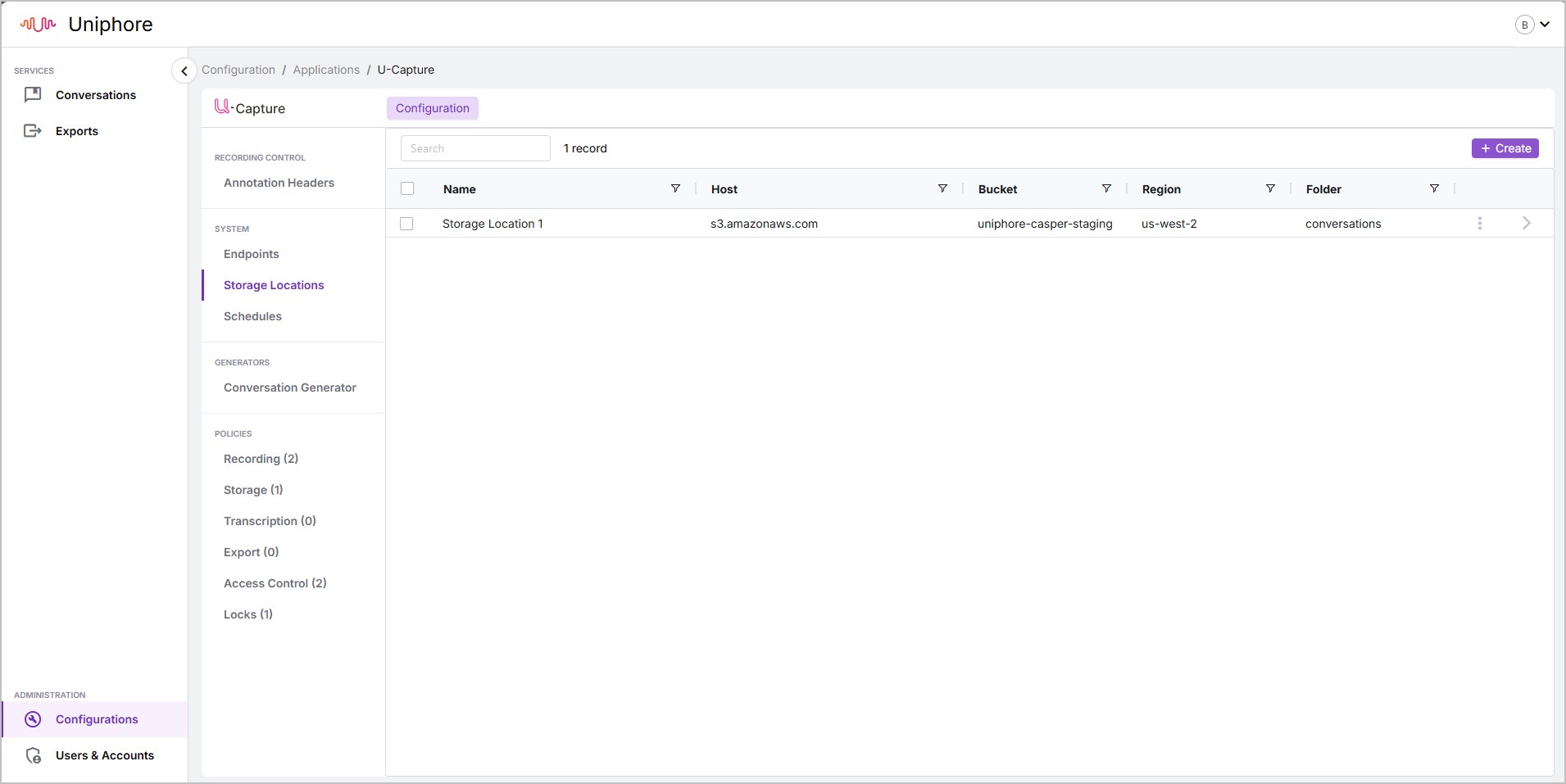
To Add a New Storage Location
Note
This article describes the steps to add an existing S3 bucket to your system, and does not cover the steps to create an S3 bucket. See the relevant S3 documentation from Amazon here.
A video has been created to demonstrate the steps required to create a new Storage location, see Storage Location Demo below.
Go to Configuration > Configure (under Communication Recording Agent) > Storage Locations.
Click + Create in the top right of the screen.
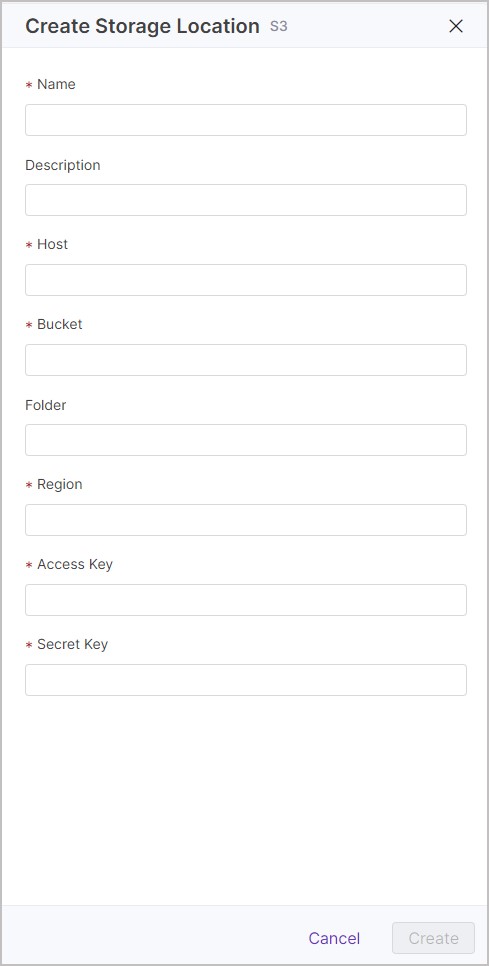
Add the following details:
Name - A friendly name for the storage location, required.
Description - A useful description for the storage location, optional.
Host - The host address of the S3 bucket, required.
Bucket - The name of the bucket to connect to, required.
Folder - A useful reference for the Folder that the bucket is part of, optional - you may or may not use folders for your S3 buckets, for more information, see the relevant documentation from Amazon here.
Region - Set to the Regional endpoint of the AWS instance. For example, eu-west-2. For a list of valid entries, see Amazon’s documentation on Regional endpoints.
Access Key - The Access Key ID for connecting to the S3 bucket.
Secret Key - The Access Secret Key for connecting to the S3 bucket.
When you're happy, click Create.
Tip
If you want to create a storage location similar to an existing storage location, you can select the existing storage location and click Duplicate in the properties panel.
 |
Storage Location Demo
The following video demonstrates how to add a new Storage Location:
Default Storage
To change your default storage location, where your captured calls are initially saved, use the /v1/media/external-storages APIs.
For detailed information on default storage APIs, including prerequisite information, essential considerations, and API request information, see the full Default Storage API documentation here.
Note
The default storage only stores captured media (audio and screen recording). Conversation metadata is stored in the Conversation Service regardless of the configured default storage.
Caution
Ideally, this configuration should be set as part of the initial deployment of Communication Recording Agent. However, if this configuration needs to be changed after initial deployment, there are important considerations to be made, including what happens to previously captured conversations and that changes are performed during maintenance windows. Please contact Uniphore support for guidance and assistance from the professional services team, and see the full Default Storage API documentation here.