Working with Knowledge Assist
Real-Time Guidance Agent leverages Uniphore's industry-leading Knowledge-as-a-Service (KaaS) platform to deliver real-time, LLM-based answers/responses to Agents during calls. This platform seamlessly integrates advanced conversational AI with powerful cognitive search capabilities to provide accurate, context-aware answers from the organization's existing knowledge base.
While a call is in progress, the Agent can get LLM-based responses for any relevant questions through the following methods:
Types of Knowledge Assist Questions:
Manual Questions – Questions entered by Agents manually.
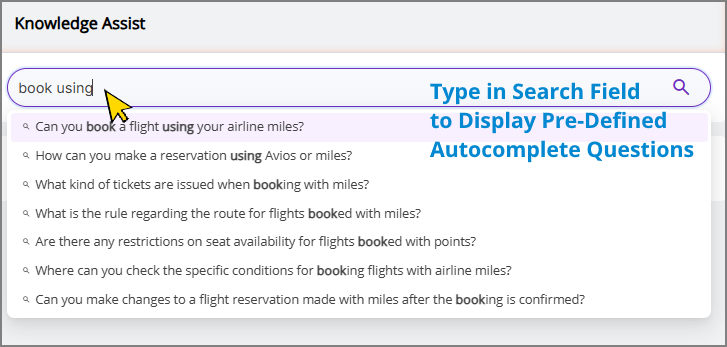
Autocomplete Questions - Questions from a list pre-defined by an Analyst for the relevant Experience, which appear automatically as Agents begin typing.
Intent-based Proactive Questions - Questions from a pre-defined list by an Analyst for the relevant Intent, which appear when the intent is detected.
For more information on adding an Intent-based Proactive Question, click here.
AI-Powered Proactive Questions - Automatically generated, context-aware, project-specific Proactive Q&A snippets for each conversation turn, based on real-time conversation analysis. For more information on AI-powered Proactive Questions, click here.
Note
Agents will have access to either Intent-based Proactive Questions or AI-powered Proactive Questions, based on the account-level settings. Please contact your Uniphore Support representative for these settings.
LLM-based responses to questions (manual or autocomplete) asked by Agents in the Knowledge Assist Questions and Answers panel are accurately generated from the specific Knowledge Base within the KaaS Platform, enhancing accuracy and reducing latency. For more details on how an Agent accesses and uses the Knowledge Assist Questions & Answers feature, click here.
In Real-Time Guidance Agent, an Analyst can assign each Experience to a unique set of Knowledge Base documents that Agents use to answer questions during a call. For more information on mapping an Experience to a Knowledge Base, click here.
Basic Workflow for Knowledge Assist
The typical workflow for setting up a KaaS account for Real-Time Guidance Agent and viewing responses at run time for manual, autocomplete and intent-based questions from the assigned Knowledge Base is as follows:
Ensure that an account is configured on the KaaS Platform for the specific Real-Time Guidance Agent account.
Note
KaaS and Real-Time Guidance Agent must be deployed in the same account.
Create an Experience in Real-Time Guidance Agent.
Ensure that a unique project exists in KaaS for each Real-Time Guidance Agent Experience and environment combination (e.g., Exp 1 dev, Exp 1 prod).
Ensure that one or more unique data sets are created for each project. Each data set must have a unique document type with specific pipeline configurations to generate the best search results.
Make sure that the data sets are promoted to a Knowledge Base (KB). The promoted KB will be referenced at runtime for answer generation.
In Real-Time Guidance Agent, map each Real-Time Guidance Agent Experience (in both Dev and Prod environments) to the respective projects (e.g., Exp 1 dev, Exp 1 prod) and associated Knowledge Bases.
At runtime, responses to Agent questions are automatically generated from the assigned Knowledge Base in the Knowledge Q&A panel of the AI Agent Assist application. Only the data sets promoted to the KB will be referenced for answer generation.
Mapping an Experience with a Knowledge Base in Knowledge-as-a-Service (KaaS) platform
When integrated with Uniphore's KaaS platform, an Account Admin or Business Analyst can assign each Experience to a unique project and its associated set of Knowledge Base documents that Agents use to answer questions during a call. In real time, LLM-based responses to questions asked by Agents in the Knowledge Assist Questions and Answers panel are accurately generated from the assigned Knowledge Base, improving accuracy and reducing latency.
For example, the tenant of an insurance company might have two unique Experiences: Claims Management and New Policies. Claims Management refers to documents 1 to 5, while New Policies refers to documents 6 to 10. This ensures that responses in the Agent application are based on documents specific to each process.
Note
Before moving the Experience Configuration from the TEST to the PROD environment, comprehensive regression testing must be performed using Knowledge Base-related questions.
Whenever a new document is added, questions based on that document must be tested along with regression testing for questions based on existing documents. These testing steps must be completed before the Experience in the PROD environment begins responding to questions from the new document. This ensures that Agents continue to receive accurate, real-time LLM-based responses.
Important
A unique project will be created in the KaaS account for each combination of Real-Time Guidance Agent Experience and environment.
From the Real-Time Guidance Agent menu section in the X-Console, select Experiences. The Experiences page will be displayed.
Locate and click the name of the Experience for which you want to assign the Knowledge Base. The activity cards for that Experience will be displayed.
Click Knowledge Assist. The Knowledge Base Mapping page for the current Experience will be displayed.
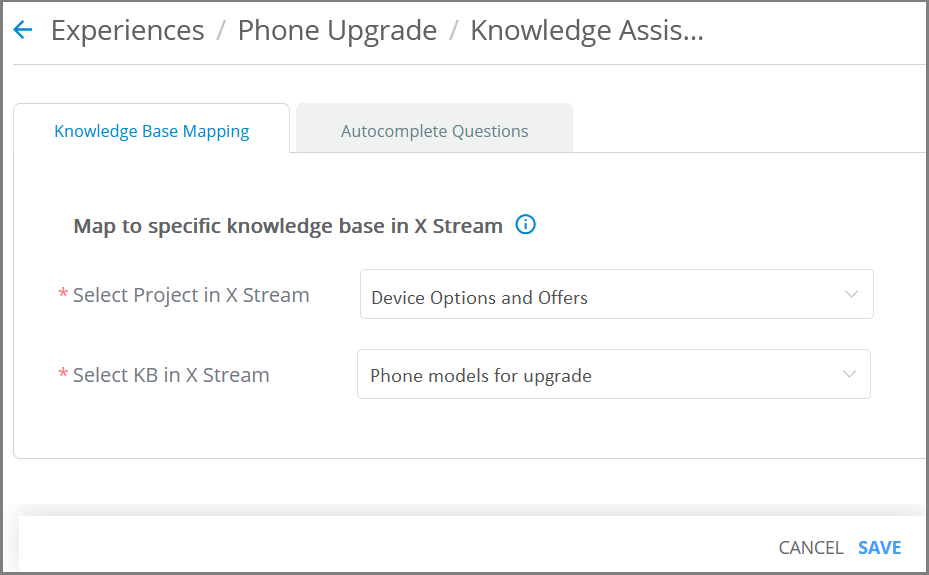
Select a Project relevant to the Experience from the dropdown. All projects created for the specific account will be listed in the dropdown.
Select the specific Knowledge Base to be referenced for real-time answer generation from the dropdown. Only the Active Knowledge Bases (i.e., datasets promoted to Knowledge Bases) for the selected project will be listed in the dropdown.
Add Proactive Questions for Each Intent
The Knowledge Assist Q&A panel, a component of the AI Agent Assist application, can provide answers to questions based on the currently detected customer Intent. During a call, LLM-based answers to pre-defined questions will be auto-generated and displayed to the Agent in real time as soon as the Intent is recognized.
The Business Analyst can optionally pre-define proactive questions in a relevant Intent using the X-Console. For complete details, click here.
Add Autocomplete Questions for Each Experience
Each Real-Time Guidance Agent Experience can maintain a large collection of general, searchable questions that will be quickly available for the Agent while a call is in progress. Questions will be displayed in the Knowledge Assist Q&A panel in response to searches performed by the Agent, as shown below. When an Agent clicks a question in the list, an LLM-based answer is generated from the assigned relevant Knowledge Base.
 |
Knowledge Assist general questions must be pre-defined by the Analyst by adding them directly to their associated Experience using the X-Console.
From the Real-Time Guidance Agent menu section in the X-Console, locate and click the name of the Experience for which you want to pre-define general questions. The Experiences page will be displayed.
Click Knowledge Assist. The Knowledge Assist page for the current Experience will appear:
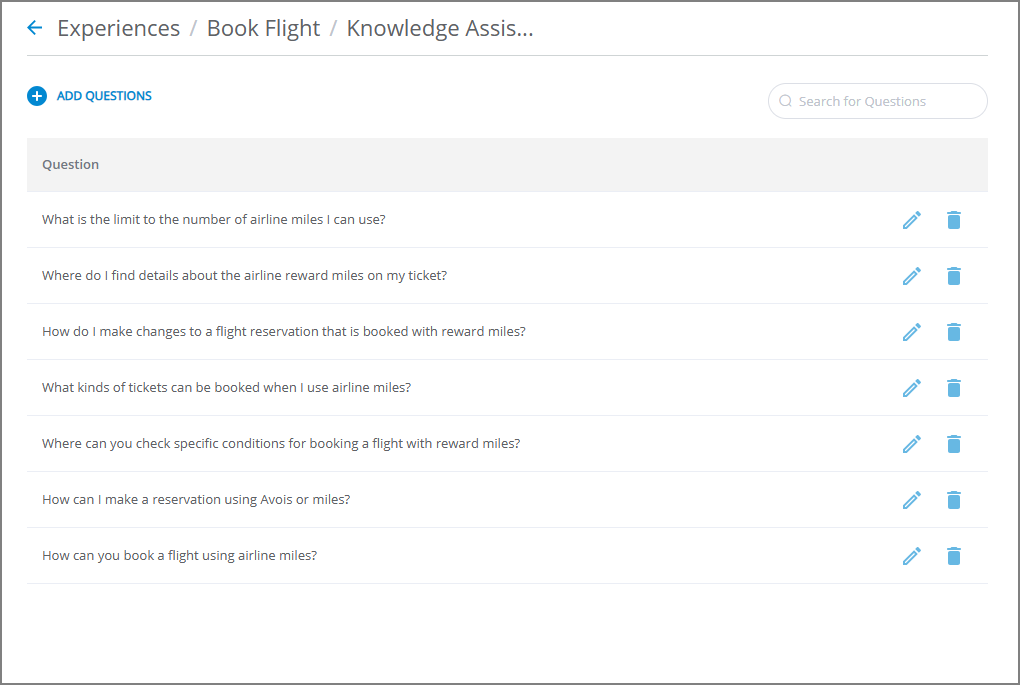
All questions that currently exist for the Experience are displayed. When the list is long, you can locate a specific question by entering a few letters from its details in the Search box found at the upper right of the page.
To add a new question, at the upper left of the page, click
 Add Question. The Add Question dialog box will appear: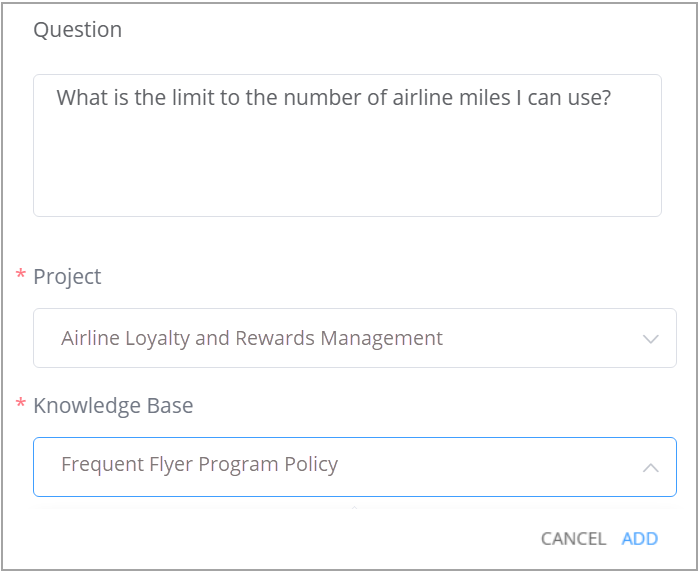
Enter the desired question.
Note
Currently, up to 300 unique questions can be predefined for each Experience.
Select a Project relevant to the question from the dropdown. All projects created for the specific account will be listed in the dropdown.
Select the specific Knowledge Base to be referenced for real-time answer generation from the dropdown. Only the Active Knowledge Bases (i.e., datasets promoted to Knowledge Bases) for the selected project will be listed in the dropdown.
Click Add. The new question will be added to the existing list of general questions maintained with the Experience.
You can change an existing question by clicking the Edit  icon on the right side of the question.
You can delete an existing question by clicking the Trash  icon on the right side of the question.
How Autocomplete Questions Are Managed
When configuring an Experience, the Analyst can add relevant questions for it that will appear in the Knowledge Assist panel of the AI Agent Assist application during a call. These questions, together with their answers generated from the specific Knowledge Base, are managed using a cache in order to make them available quickly for searches by the Agent at runtime. When a cache is cleared periodically, it may result in a short delay at runtime when displaying an answer.
Note
During a conversation, if the same question is asked by an Agent across different environments or even different Experiences, the cached answer will appear instantly in the Knowledge Assist Questions & Answers panel of the AI Agent Assist application.
Assigning a Knowledge Configuration Template to an Experience
Real-Time Guidance Agent leverages customized, project-specific Knowledge Templates created in the Administration Platform to automatically generate relevant, proactive, AI-powered questions and answers for Agents during live interactions. These Q&A responses are dynamically generated based on real-time conversation analysis.
An Account Admin or Business Analyst can assign each Experience to a unique Knowledge Template and its corresponding version, which Agents use to respond to questions during live interactions.
Knowledge Templates are powered by Large Language Models (LLMs), supporting multiple languages and enabling customization across various client workflows and intents. Multiple versions of Knowledge Configuration Templates can be created and maintained within an account based on the customer's requirements.
For more information about defining the Knowledge Template in the Administration Platform, click here.
Note
To use a customized Knowledge Template from the Administration Platform for your account, please contact your Uniphore Support representative.
From the Real-Time Guidance Agent menu section in the X-Console, select Experiences. The Experiences page will be displayed.
Locate and click the name of the Experience for which you want to assign the customized Knowledge Template. The activity cards for that Experience will be displayed.
Click Knowledge Assist and select PKAAS Mapping tab. The PKAAS Mapping panel for the current Experience is displayed.
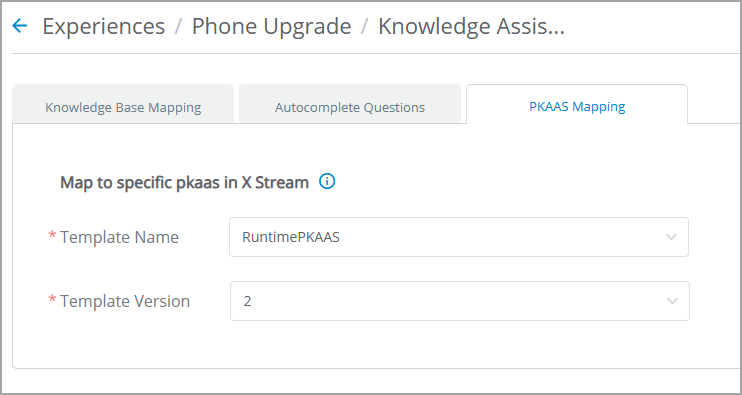
From the Template Name dropdown list, select the relevant Knowledge Configuration Template that uses this Experience. The list displays all available Configuration Templates for the selected account.
From the Version dropdown list, select the desired Configuration version. The list displays all available versions for the selected Configuration.
Click Save to save the Knowledge Configuration mapping to the selected Experience. A confirmation message is displayed. To exit at anytime without saving changes, click Cancel.
AI-Powered Proactive Q&A
Real-Time Guidance Agent leverages AI-powered Configuration Templates created in the Sentient Agent Design Tool on the Administration Platform to generate context-aware, project-specific, Proactive Q&A snippet for each conversation turn whenever knowledge assistance is needed based on real-time conversation analysis. This eliminates the need for searching manually or relying on pre-mapped intent triggers, enabling Agents to save time, build trust in AI assistance, and enhance customer experience.
A key benefit of AI-powered Proactive Q&A is the delivery of context-aware, project-specific information from the Q&A cache associated with the Configuration Template, based on real-time conversation analysis. To avoid multiple suggestions, only one Q&A pair is shown per conversation turn.
Basic Workflow for AI-Powered Proactive Q&A
The typical workflow describes how AI-powered proactive questions are generated from a conversation turn when needed, and how responses are retrieved in real time from either the Q&A cache or the Knowledge-as-a-Service (KaaS) platform:
Natural Conversation - As the call progresses, each conversation turn is transcribed in real time.
Knowledge-Seeking Detection – The Question Necessity Classifier LLM analyzes real-time conversations and automatically determines whether the turn requires a knowledge lookup.
Smart Question Generation – When knowledge is required, the LLM Question Generator generates an appropriate question.
Answer Retrieval
The LLM Question Generator first checks a Q&A cache for a matching Q&A pair.
If no suitable match is found, it queries the KaaS platform for the best answer.
Newly retrieved Q&A pairs are added to the cache for faster future responses.
Knowledge Assist in AI Agent - A single Q&A snippet is presented in the Knowledge Assist panel of the AI Agent Assist application, with the option to dismiss it.
For viewing AI-powered Proactive Questions in real-time, click here.
How Proactive Q&A Works During Run Time
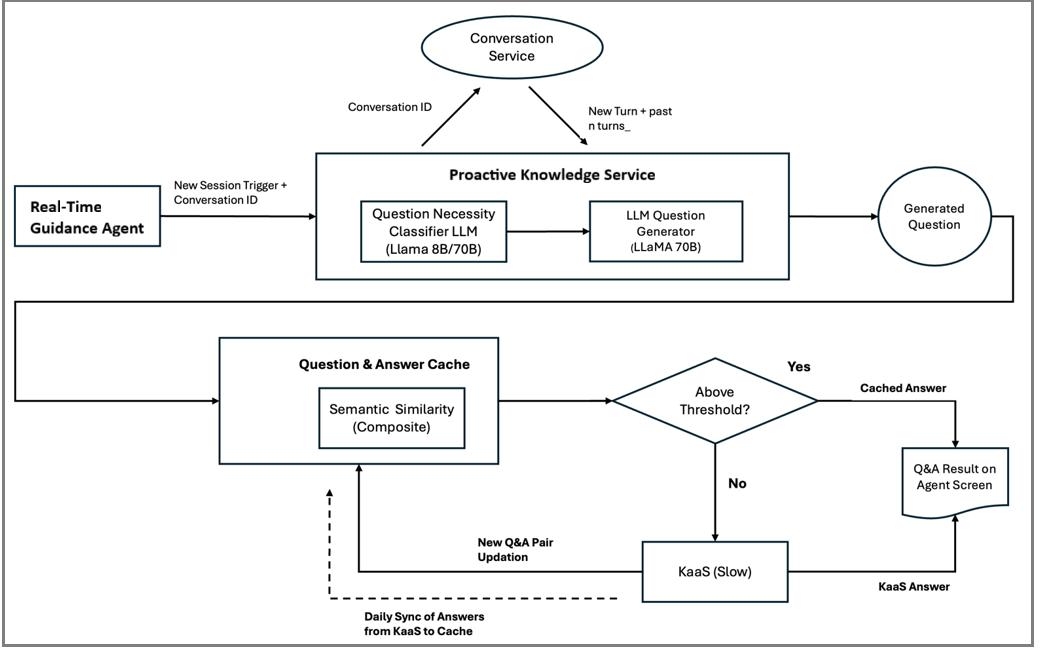
The Proactive Q&A leverages an LLM service to generate questions in real-time.
Service Initiation - When a new session begins, Real-Time Guidance Agent triggers the Proactive Knowledge Service with the conversation ID, Template ID, and Version. The service then retrieves new turn transcripts from the conversation service.
Question Filtering - To avoid repeated suggestions, the Question Necessity Classifier LLM component ensures that subsequent turns in the same session do not generate duplicate questions. It accomplishes this by saving and comparing previously generated questions.
LLM Question Generator - A GPT/LLaMA-based model converts each conversation turn into a clear, standardized question.
Semantic Similarity Model - A composite similarity algorithm compares the generated question with the Q&A cache associated with the Template.
Cache Bank - A collection of Q&A pairs associated with a template. The Proactive Knowledge Service checks the cache first before calling KaaS.
Threshold Check - The generated question is compared with the questions stored in the Q&A cache or knowledge base. Based on the predefined similarity threshold, a matching result is determined.
Above Threshold - Return the best cached answer.
Below Threshold - Use KaaS for a more accurate answer.
Cache Update - If KaaS is called, the new Q&A pair is added to the cache for future use.
Final Output - A single Q&A is displayed non-intrusively in the AI Agent Assist application.
Initial Setup for Customer Onboarding
Note
Please contact your Uniphore Support representative to initialize the Proactive Q&A feature for your account.
Understand Client Workflows and Intents
An Analyst will:
Understand project requirements, workflows, key use cases, and user intents from organization's historical conversation data.
Generate Q&A pairs from historical conversation data using AI tools.
Review and validate the generated Q&A pairs.
Create Configuration Templates
Create Knowledge Configuration Templates tailored to the client’s projects and use cases.
Configure the following:
Project-specific Q&A cache with validated question–answer pairs
Knowledge base integration to ensure coverage for fallback scenarios
Language preferences
LLM instructions that define the tasks and behavior of the selected LLM model
Semantic matching thresholds to control when cached responses are used
Organize templates by use case, workflow, or business function for better manageability.
Tune LLM parameters and thresholds
Tune LLM instructions and semantic threshold to ensure that responses are accurate, and contextually appropriate with project requirements.
Publish a Knowledge Configuration Template
Publish the Configuration Template to make it available for use in Real-Time Guidance Agent or other production applications.
Set Up in Real-Time Guidance Agent
The Uniphore Support representative will:
Ensure that an account is provisioned for Real-Time Guidance Agent.
Configure account-level settings to enable AI-powered Proactive Questions using the assigned Configuration Template. This setting applies to all experiences under that account.
The Uniphore Support representative will regularly review the performance metrics of the Proactive Knowledge Service and gather Agent feedback to ensure that it improves call efficiency and customer satisfaction.
Best Practices for Managing Proactive Knowledge Service
Knowledge Quality - Maintain high-quality, up-to-date knowledge corpus.
Gradual Rollout - Implement the feature in phases to ensure smooth adoption.
Agent Feedback - Encourage consistent agent feedback to support continuous learning.
Regular Reviews - Schedule periodic assessments of the Proactive Knowledge Service's performance and relevance.
Iterative Improvement - Use performance data to continuously refine the Proactive Knowledge Service.
Frequently Asked Questions (FAQs)
How can Proactive Q&A be improved over time?
Proactive Q&A improves through regular updates to the Q&A cache, refining LLM instructions, adjusting thresholds, and incorporating Agent feedback.
Will agents see multiple suggestions at once?
No. The LLM Question Generator displays only one Q&A per turn to minimize distraction and avoid clutter.
Does this replace agent training?
No. It complements training by providing agents with real-time, context-aware support.