Creating Projects
In the platform, a project represents an approved use case for a Gen AI application that an enterprise wishes to implement.
Go to the top menu and click .
The Projects page displays a list of existing projects as cards, if any.
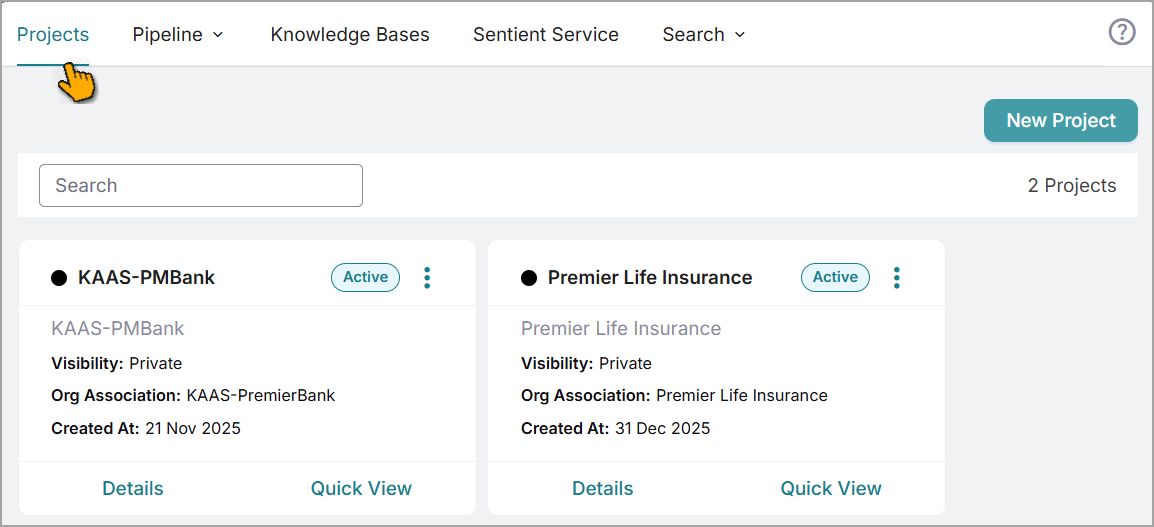
Click .
The New Project window opens.
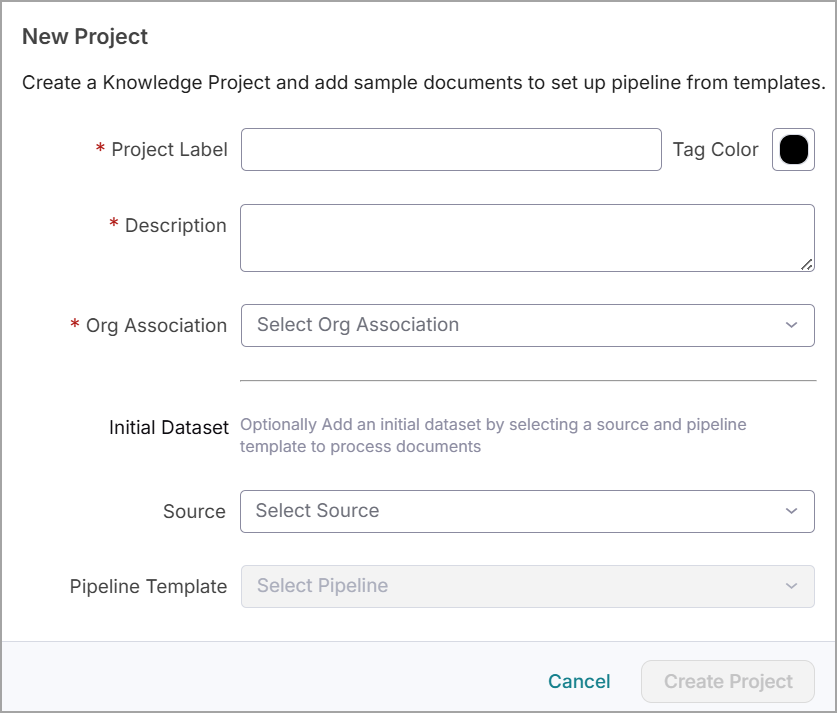
Enter a name for the Project Label.
Black is the default project tag color, but it can be changed as needed.
This helps visually distinguish between the different projects.
Enter a Description for the project.
Select the Org Association (User Group) from the dropdown list that needs access to the Project.
Note
The Org Association functionality is currently unavailable on the platform.
Optionally, configure a default dataset for the project.
Select a Source from the dropdown list.
The dropdown list displays the pipelines configured on the Data Integration page.
Select a default Pipeline Template from dropdown list to process data ingested from the source.
The available templates may vary based on the selected source. To create a new pipeline template, refer to Creating Pipeline Template.
Click .
The new project is created and available on the Projects page.
Project Quick View
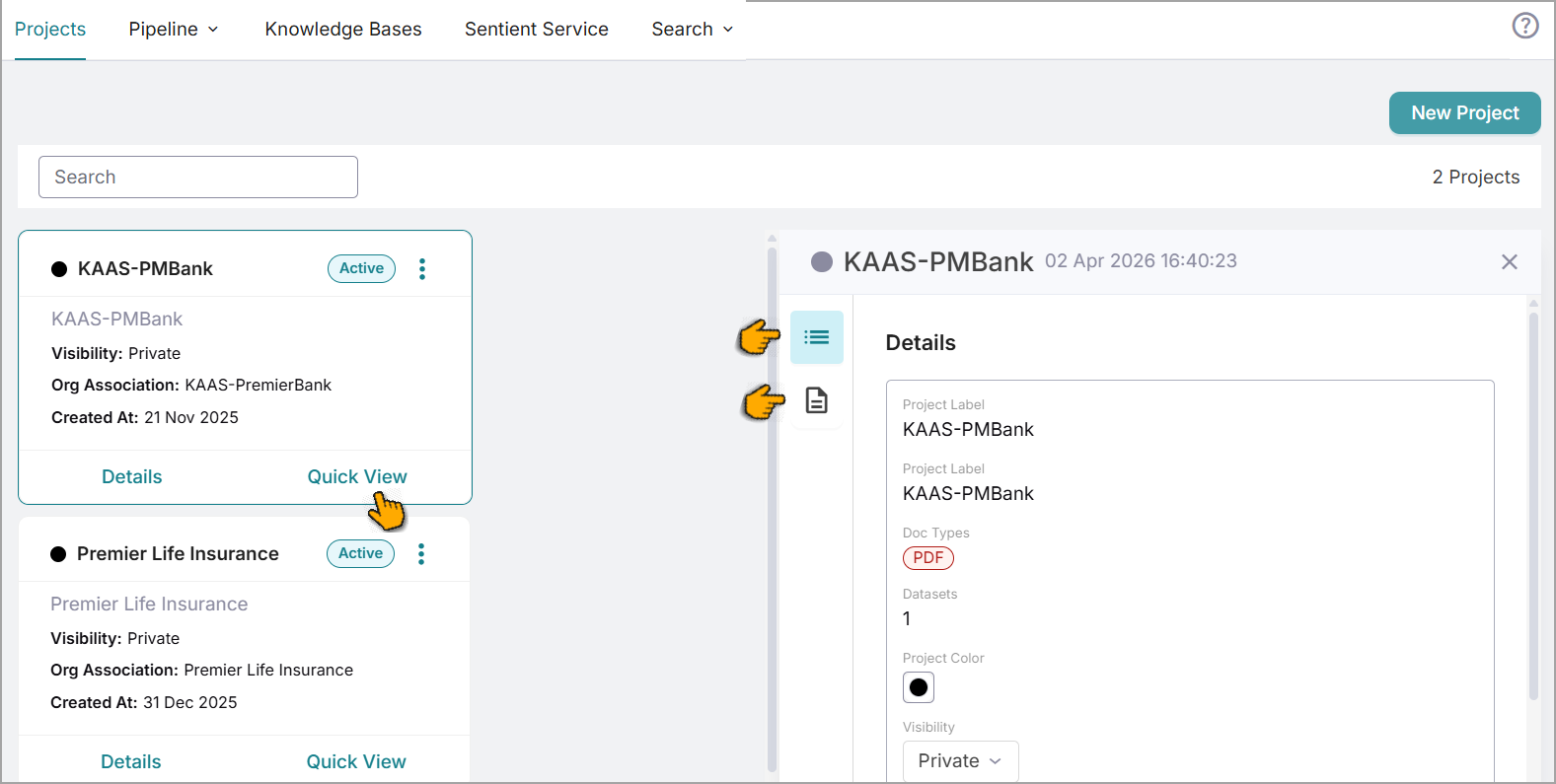
Use this feature to view the project card and project details side by side on the same page for easier project management.
On the Projects page, select for the desired project.
The side panel opens, displaying the project details:
icon
 : Displays detailed information about the project.
icon
 : Displays dataset information related to the project and allows you to perform a limited set of actions.