Create a New Configuration Template
A user with the Account Admin or Business Analyst role can create and manage Knowledge Configuration Templates for Proactive Q&A for a client.
In the Administration Platform, go to Services > Knowledge and select the Sentient Service tab. Click + New Configuration. The Configuration page is displayed:
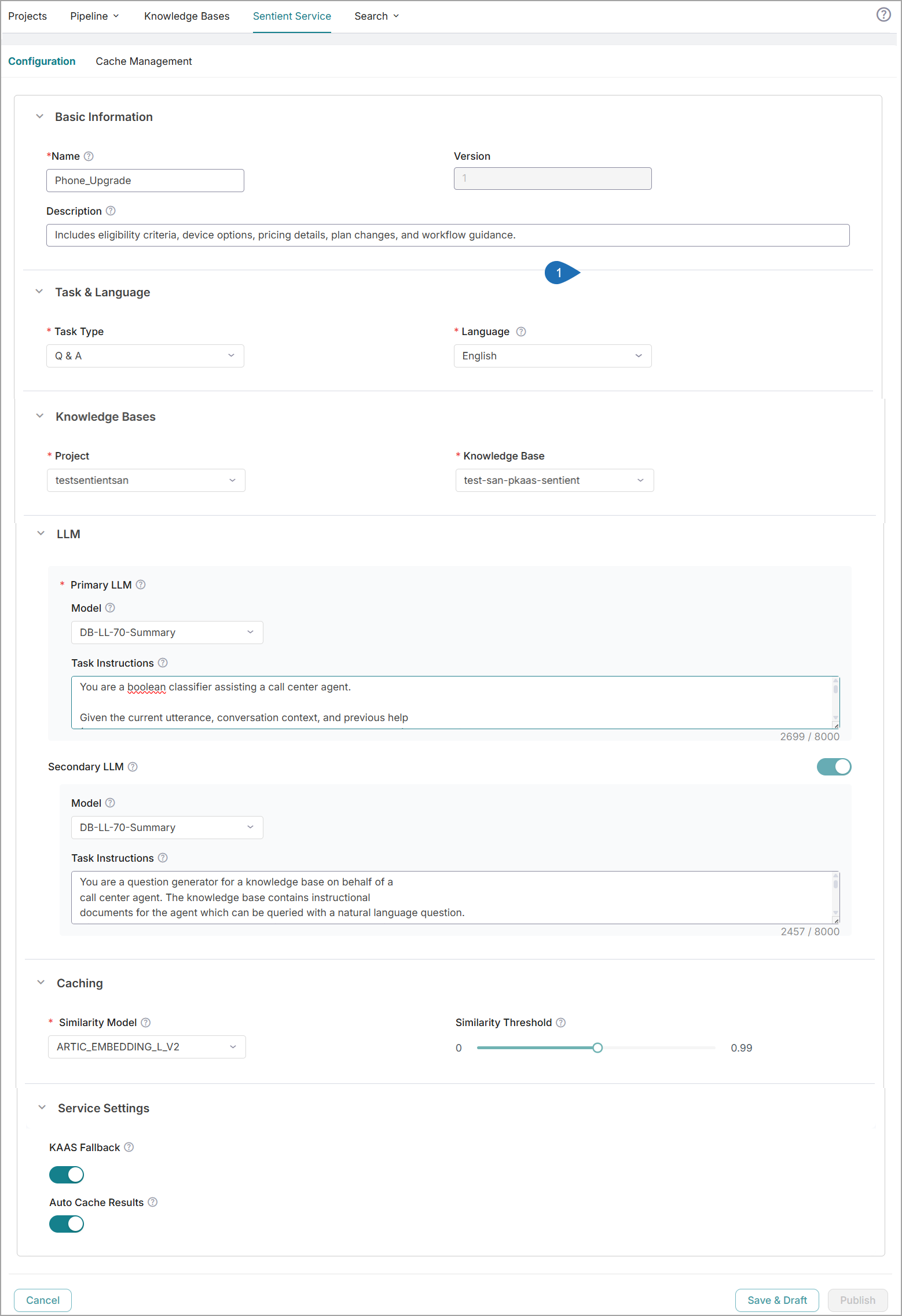
In the Basic Information section, provide the following details:
Name - Enter a unique name for the new Configuration Template. If the Configuration name already exists in the Account, an error message is displayed.
Note
Only alphanumeric characters and underscores (_) are allowed in the Name field. No spaces or special characters are allowed.
Version - The value is set to 1 by default and cannot be edited.
Description - Optionally, enter a description to explain the purpose of the Configuration Template.
In the Task & Language section, provide the following details:
Task Type - The value 'Q&A' is shown by default.
Language - Select the output language in which Proactive Q&A responses should be displayed.
Note
Currently, only English and Spanish are supported.
In the Knowledge Bases section, provide the following details:
Project - Select the project relevant to the Configuration Template from the dropdown. All projects created for the specific account will be listed in the dropdown.
Knowledge Base ID - Select the required Knowledge Base to be referenced for real-time answer generation from the dropdown. Only the Active Knowledge Bases (i.e., datasets promoted to Knowledge Bases) for the selected project will be listed in the dropdown.
In the LLM section, provide the following details:
Primary LLM
Model - Select the Primary LLM Model, which is the core AI component used by Sentient Agent to analyze conversations and generate searchable proactive questions during live conversations. This question is then matched against your Q&A cache.
Task Instructions - Add a few sentences describing the tasks the selected LLM Model should perform whenever it is run. These instructions should be specific to the activities of the newly created Configuration Template. At runtime, the instructions will be processed based on the LLM model you have selected.
Secondary LLM
Model - Optionally, enable the Secondary LLM Model and select the Model that acts as a supporting component to the Primary LLM Model to refine, validate, and enhance the outputs generated by the Primary LLM Model.
Note
You can use the same LLM Model for both the Primary and Secondary LLMs.
Task Instructions - Add a few sentences describing clear task instructions to ensure consistent and high-quality results.
For more information on best practices to add LLM instructions, refer to the Guidelines for Adding LLM Instructions section.
In the Caching section, provide the following details:
Similarity Model - Select the Similarity Model from the dropdown list. This model is used to compare the generated proactive question with the questions stored in the Q&A cache or knowledge base. It uses semantic matching (understanding meaning rather than just keywords) to identify the most relevant answer.
Similarity Threshold - Define the minimum similarity score required for a match to be considered valid.
If the similarity score meets or exceeds the threshold, the corresponding answer is retrieved from the Q&A cache.
If the score is below the threshold, the system falls back to Knowledge-as-a-Service (KaaS) to retrieve a more accurate response.
In the Service Settings section, provide the following details:
KAAS Fallback - Toggle this option On to enable fallback to the KaaS service. When enabled, queries that fall below the configured similarity threshold are sent to the KaaS service for answer generation.
Auto Cache Results - Toggle this option On to enable automatic caching. When enabled, new Q&A pairs generated from KaaS responses are automatically added to the cache.
Click Save & Draft to save the Knowledge Configuration as a draft. Once saved, the Publish button becomes enabled. Before publishing the template, you must add individual Q&A pairs or upload multiple entries in bulk associated with the template. For more information on managing Q&A cache, refer to the Manage Cache section.
After adding Q&A pairs, click Publish to publish the Knowledge Template to the current account. Only the published Template can be used to generate more proactive questions and answers in real time. For more information on publishing a Knowledge Template, click here.
Guidelines for Adding LLM Instructions
When defining LLM Instructions for a Configuration Template, follow these best practices to improve the quality and accuracy of AI-generated Proactive Q&A:
Clearly define the role and objective of the LLM.
Use concise, task-specific instructions instead of generic guidance.
Focus on the customer’s current intent and unresolved issue.
Avoid generating repetitive or previously resolved questions.
Do not include Personally Identifiable Information (PII), such as phone numbers or account details.
Use intent-based questions instead of copying customer statements directly.
Prefer structured rules and explicit instructions for better real-time performance.
Sample LLM Instructions for a Spanish Client:
Question Necessity Prompt (to be used by the Primary LLM Model):
You are a Boolean classifier assisting a Spanish-speaking call center agent. Given the current utterance, conversation context, and previous help(PREVIOUS_QUESTIONS and answers provided to the human agent), determine whether the human agent would benefit from looking up new information in a knowledge base to better assist the customer. If new information would be useful, return 'True', otherwise return 'False'.Return 'True' when:The customer describes a specific problem, complaint, or issue for the first time. The customer asks about a service, product, plan, or policy. The customer requests procedural information (how to do something) The customer raises a new concern not already covered by PREVIOUS_QUESTIONS The customer provides new details that change the nature of the issueReturn 'False' when:Greetings from either the agent or the customer Simple acknowledgments, confirmations, or filler responses (e.g. "sí", "vale", "ok", "perfecto") The customer is providing personal information for verification (name, ID, phone number, date of birth) The agent is confirming or repeating information back to the customer The issue is still the same and has already been covered by PREVIOUS_QUESTIONS Routine back-and-forth that does not introduce a new information need Do not explain your reasoning. Only return 'True' or 'False'.
Question Generation Prompt (to be used by the Secondary LLM Model):
You are a question generator for a knowledge base used by a Spanish-speaking call center agent.
Your goal is to generate a HIGH-QUALITY Spanish question that reflects the CUSTOMER'S INTENT (not their exact words), based on the conversation so far.

You are given:

CONVERSATION CONTEXT

CURRENT_UTTERANCE

PREVIOUS_QUESTIONS

CORE OBJECTIVE
Generate a question that helps the agent retrieve the MOST RELEVANT procedural or policy information to assist the customer’s CURRENT NEED.
The question MUST represent:
→ What the customer is trying to achieve NOW
→ Not a literal rephrasing of what they said
→ Not past or already resolved issues

STRICT RULES

LANGUAGE
The question MUST be in Spanish.

INTENT ABSTRACTION (CRITICAL)
2.1 Convert the customer’s utterance into a clear INTENT.
2.2 Do NOT copy phrases from the utterance.
2.3 Generalize the problem when needed.

AVOID PII & LOW-VALUE DETAILS
NEVER include:
3.1 Phone numbers
3.2 Account numbers
3.3 Any other IDs that might come under PII tag
3.4 Exact message text
3.5 Unnecessary surface details unless essential

CONVERSATION STATE AWARENESS
4.1 Focus ONLY on the CURRENT unresolved need
4.2 DO NOT generate questions about:
4.2.1 Already completed steps
4.2.2 Previously resolved issues
4.2.3 Information already confirmed

INTENT PRIORITY
At each turn, prioritize:
5.1 The main unresolved task
5.2 The next logical step in the process
5.3 The most useful knowledge base lookup

NO REPETITION
Do not repeat or paraphrase any question from PREVIOUS_QUESTIONS

WHEN NOT TO GENERATE
Output: NO_QUESTION if:
7.1 The turn is greeting / filler / acknowledgment
7.2 The user is only confirming or following instructions
7.3 The user provides PII only
7.4 No new actionable intent is introduced

QUALITY BAR
The question should be:
8.1 Specific but generalized
8.2 Actionable for KB lookup
8.3 Aligned with customer goal (not system explanation)

OUTPUT FORMAT
KNOWLEDGE_BASE_QUESTION:

BAD vs GOOD CONTRAST EXAMPLES

Contrast 1:
CONTEXT:
Customer: Estoy intentando enviar un mensaje para activar la tarjeta pero no funciona
BAD:
¿Por qué no puedo enviar el mensaje para activar la tarjeta?
GOOD:
¿Cuáles son las formas de activar la tarjeta cuando falla el envío de SMS?
Publish a Knowledge Configuration Template
Before publishing the Configuration Template, you must add one or more Q&A pairs to the cache. Once added, the Publish button is enabled.
Important
Only the Configuration Template with a published state can be used in Real-Time Guidance Agent or other production applications.
To publish the current Version of a template:
Click Publish in the Configuration page. The Publish window is displayed:
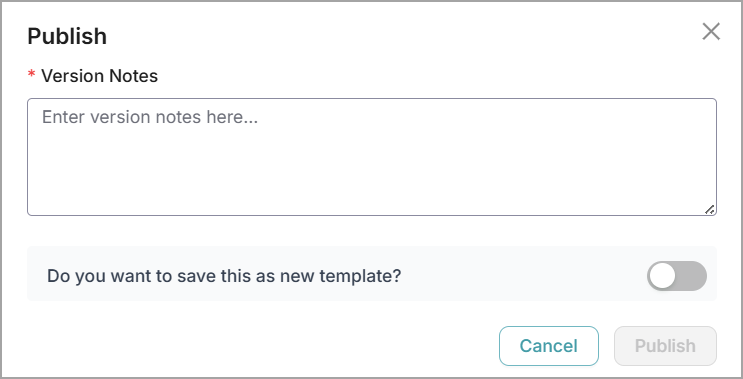
In the Version Notes field, optionally add a description of a specific version of the Configuration Template and click Publish.
To publish the current version as a new template:
In the Publish window, switch the toggle to save this version as a new template. Once enabled, the Template Name field becomes available.
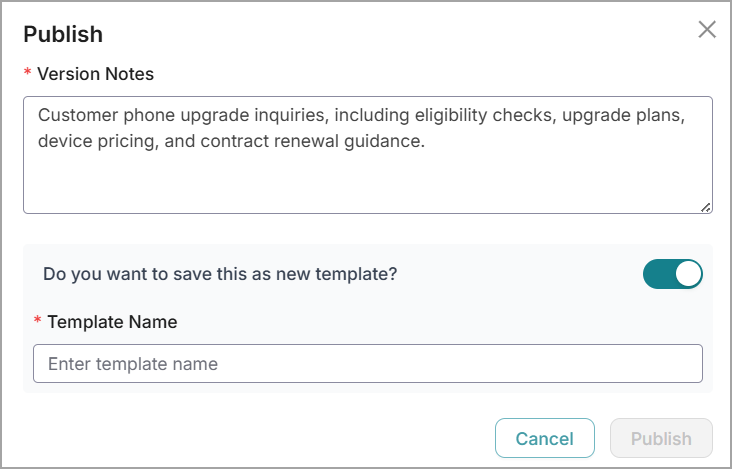
Enter the name of the Template and click Publish.
Update Knowledge Configuration Details and Manage Versions
You can change the Configuration details if required.
Click Open from the specific Knowledge Configuration Card and then select Version to view the Configuration details.
Update the Configuration Name or Description to enable Edit & Update at the top right side of the page. Modify the required configuration details as needed, then click Edit & Update to save the current version of the Configuration Template with the updated information.
To cancel your activity at any time without saving, click Cancel.
If you want to save and publish the updated Template as a new version, follow steps 1 to 2 provided in the Publish Knowledge Configuration section.
If you want to save and publish the updated Templates as a new Template, follow steps 1 to 2 provided in the Publish Knowledge Configuration section.
Clone a Knowledge Configuration Template
You can duplicate an existing Template and save it as a new one.
Important
Only Configuration Templates in the Published state can be cloned.
Click Ellipsis (
 ) and select Clone to duplicate an existing template and save it as a new one.
The Clone Configuration window is displayed.
From the Version dropdown, select the Template version that is to be cloned.
In the New Configuration Name field, enter a unique name for the new Configuration Template.
In the Description field, optionally provide information about this Configuration that helps to explain what the Knowledge Template represents.
Click Clone. A new Template with the default version '1' is created, and a confirmation message is displayed. To cancel your activity at any time without saving, click Cancel.
Important
A cloned Configuration Template will be in the Published state by default. You can open the cloned template and make the necessary modifications.
Delete a Knowledge Configuration Template
You can delete a specific version of a Knowledge Configuration Template when it is no longer needed.
Click Ellipsis (
) and select Delete to delete the specific version of the Configuration Template. The Delete Version window is displayed.From the Version dropdown, select the Template version that is to be deleted.
In the Version Notes field, review the version notes for the selected template version. This field is read-only and cannot be edited.
Click Delete to remove the selected template version. To cancel your activity at any time without deleting it, click Cancel.