Data Analyst Agent
The Data Analyst Agent democratizes data analysis across your organization. You can now ask complex analytical questions in plain English without technical expertise in SQL or database structures. The agent serves as your intelligent data interpreter, bridging the gap between business questions and technical data systems.
Leveraging Table Augmented Generation (TAG) and Retrieval Augmented Generation (RAG), the agent delivers insights in two powerful formats: narrative summaries that explain findings in business terms and interactive visualizations that reveal patterns and trends. By understanding business context rather than just executing queries, it transforms vast datasets into actionable intelligence that drives better decision-making.
Note
The data analyst agent is model agnostic. You can configure models based on your preference and deployment setup.
Key Capabilities
Simultaneously queries structured and unstructured datasets, reducing latency while preserving context completeness.
Leverages a knowledge graph to traverse relationships across structured and unstructured sources, enabling accurate answers to multi-domain queries.
Correlates results using entity links to generate coherent, end-to-end answers grounded in both data and business context.
Generates immediate insights through both text summaries and visual data representations.
To access this feature:
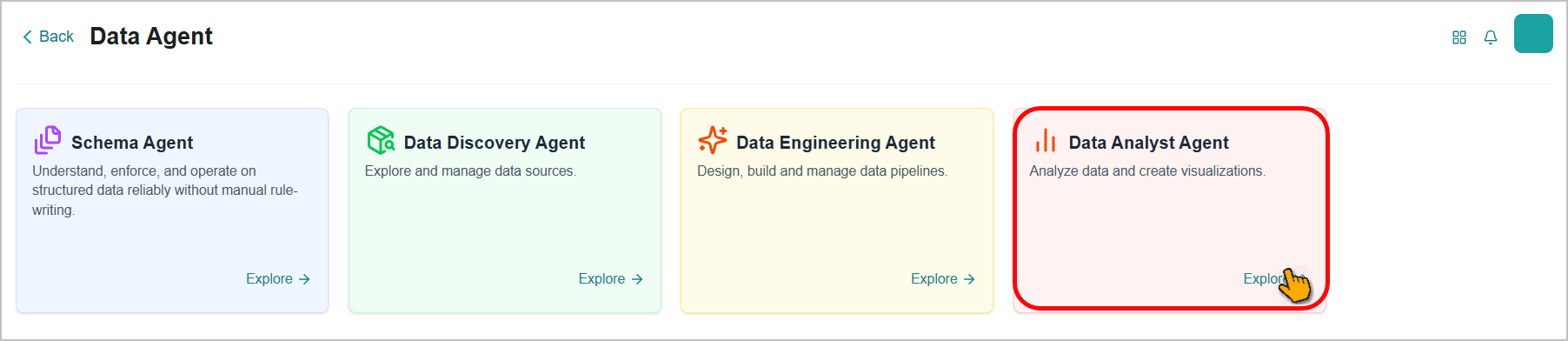
Go to the Home page > Data Agent > Data Analyst Agent.
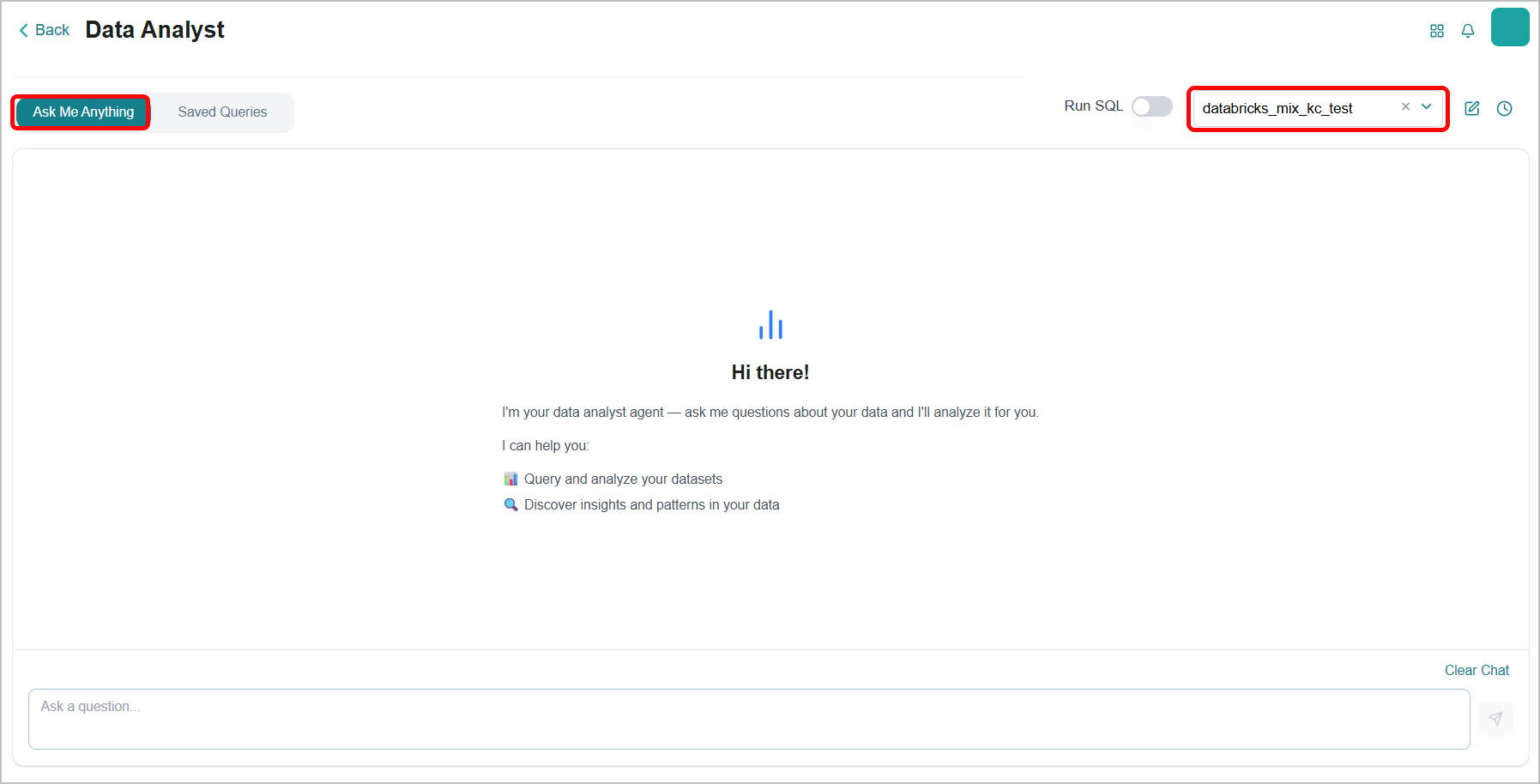
The Data Analyst page opens with the Ask Me Anything tab selected.
Select the target Knowledge Cluster from the top-right dropdown.
Important
Only Knowledge Clusters you have already created appear in the dropdown. If the list is empty, create a Knowledge Cluster first. Refer to Knowledge Clusters for more information.
Enable the Run SQL toggle to automatically execute the Agent-generated SQL and display query results inline. If this toggle is disabled, the agent generates the SQL only; results are not returned until you run the query manually.
Enter your query in the text box.
Tip
To ensure relevant responses, it's best to ask clear and appropriate questions based on the selected KC. This helps the system generate outputs that meet your expectations.
Press Enter while the cursor is in the text box, or click the Submit
 icon.
icon.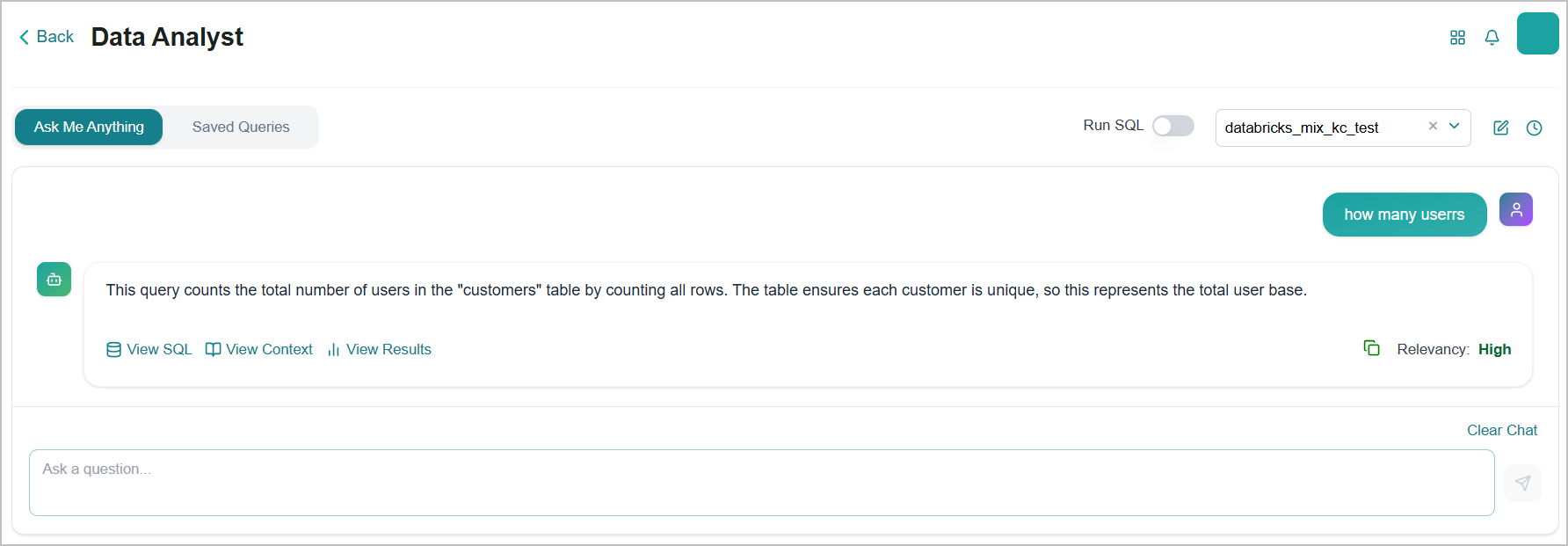
The agent processes the input and generates the appropriate SQL. The response appears below your query, based on a relevance score automatically calculated by the platform using predefined internal thresholds.
High relevance - The response is displayed immediately below your query.
Medium relevance - The agent asks you to confirm before retrying a deeper analysis to achieve a good result.
Low relevance - The agent automatically retries with deeper analysis to achieve a better result.
Click View SQL to open the SQL Query tab in the right panel. The agent-generated SQL for the submitted query is displayed.
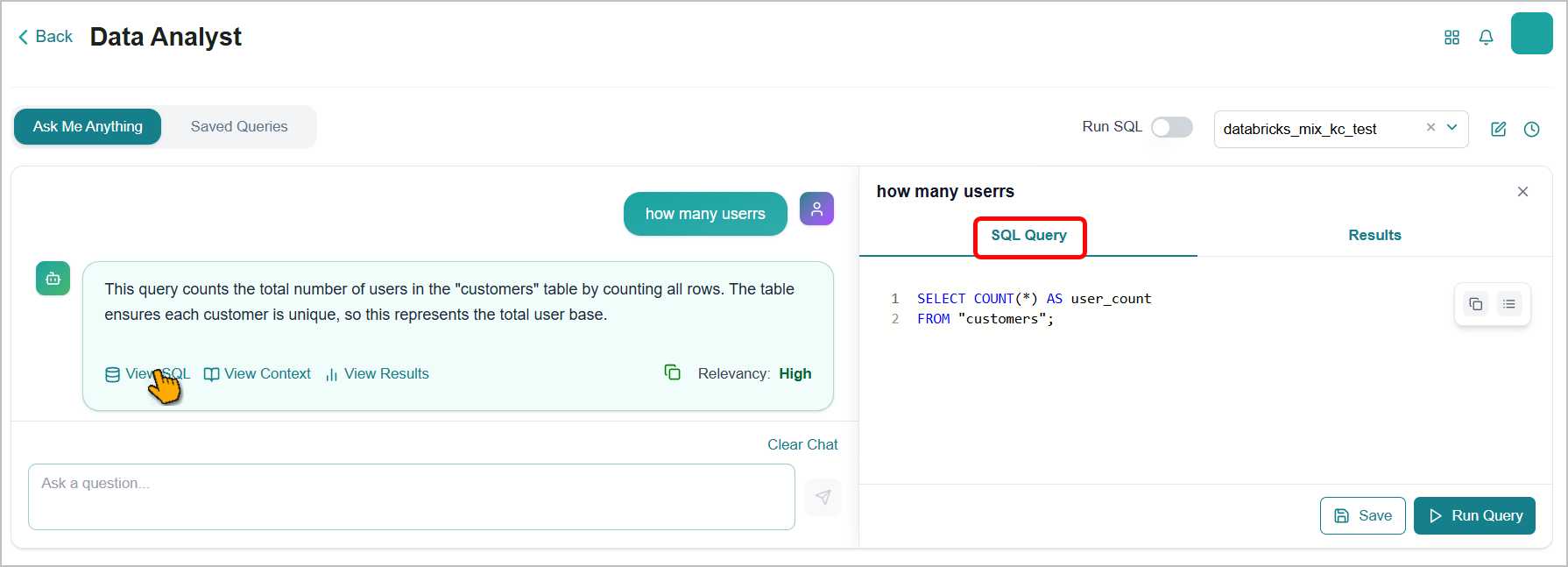
You can edit the SQL directly in the panel. Your edits are auto-saved.
Use the following controls to manage the SQL:
Copy
 icon - Copies the SQL query to the clipboard
Format
 icon - Applies standard SQL formatting to improve readability
Click Save to add the query to the Saved Queries list for the selected Knowledge Cluster.
Click Run Query to execute the SQL manually and return results to the Results tab.
Click Cancel to stop the query while it's running.
Notice
If the query is nearly finished when you select Cancel, cancellation may not succeed. A message indicates that the cancellation was unsuccessful, and the results still appear in the Results tab.
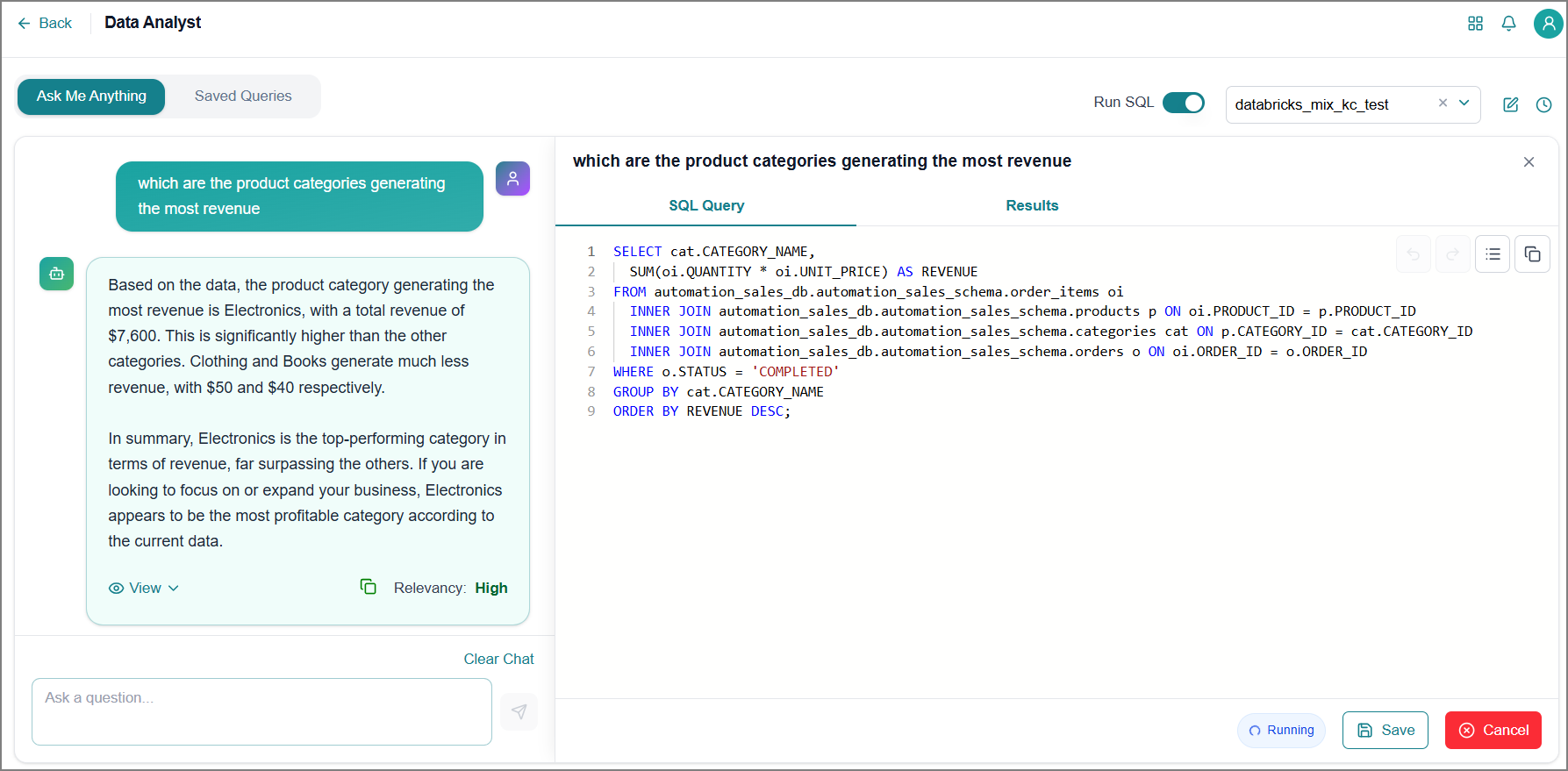
Click View Results in the left panel to open the Results tab.
Results are available in two display modes:
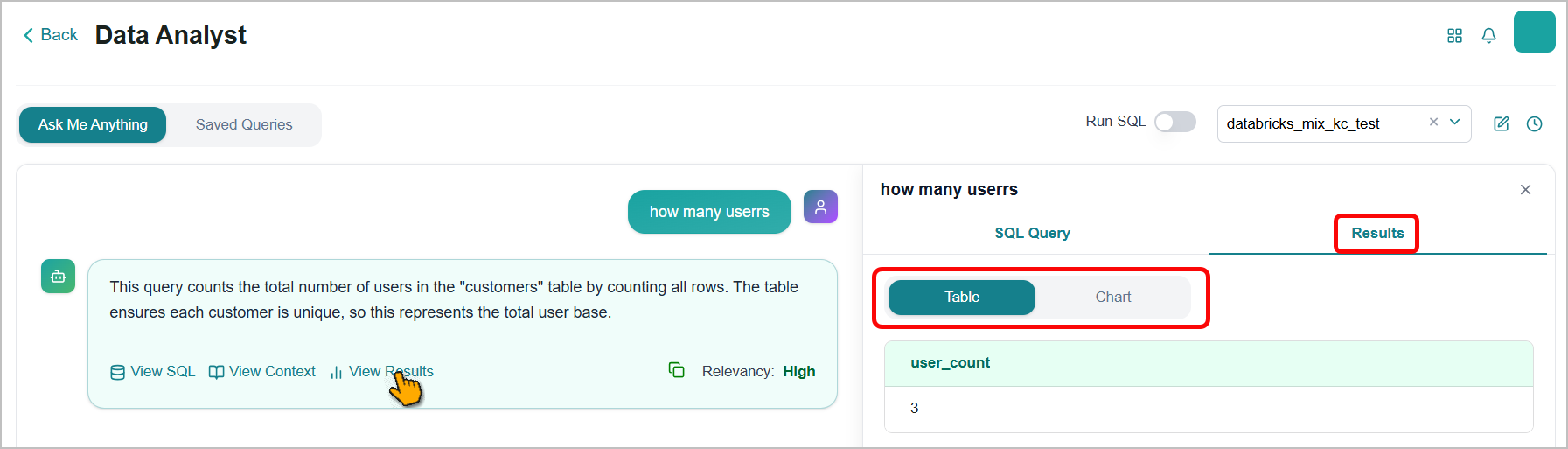
Table tab - Displays query output in a structured tabular format.
Chart tab - Displays query output as a visual chart, suitable for identifying trends and distributions.
Click the Pie
 chart icon to view your data as a pie chart.
Click the Bar
 chart icon to view your data as a bar chart.
Click the Line
 chart icon to view your data as a line chart.
Click the Gauge
 chart icon to view your data as a gauge chart.
Click the Data
 icon to view the underlying data instead of a chart.
Click the Save
 icon to download the chart image as an SVG file to your computer.
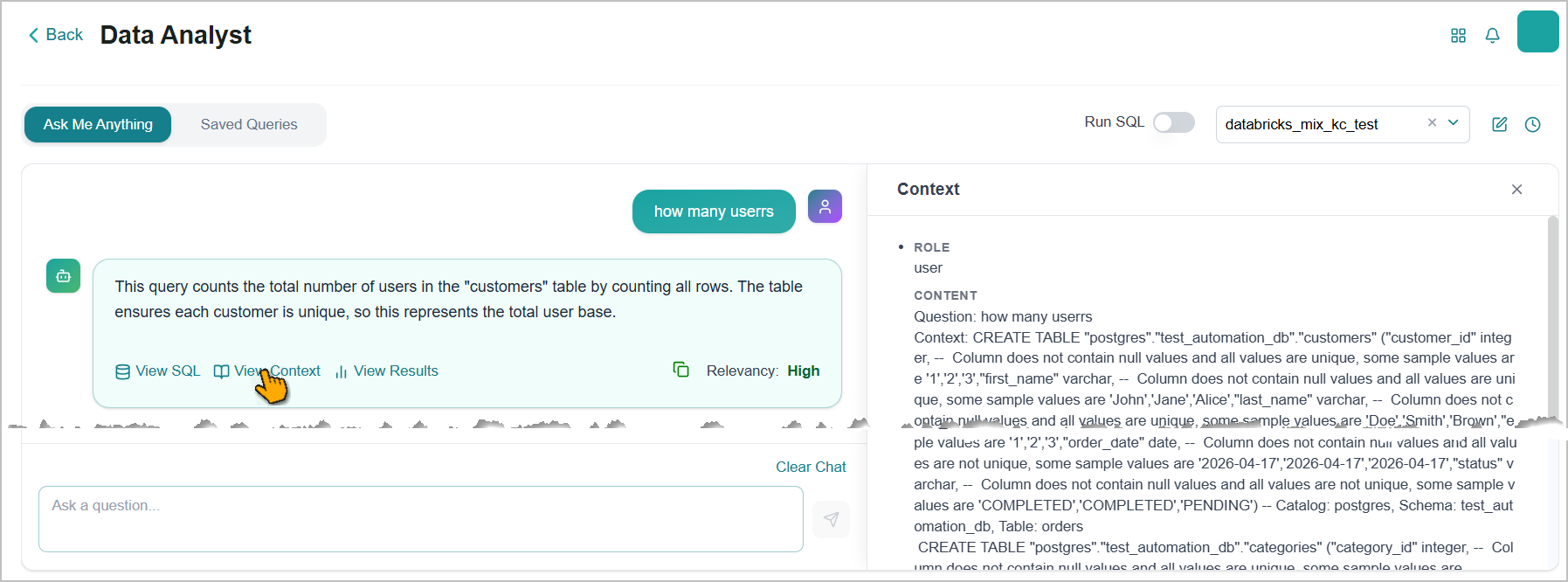
Click View Context to inspect the contextual chunks used by the agent to construct the SQL query and generate the response.
This provides full traceability between the agent's output and the underlying data sources.
Use the available agent controls to manage your session:
New Conversation
 icon - Begins a new, separate chat session with the agent.
Session History
 icon - Lets you view and resume past conversations.
+ New Chat - Begins a new, separate chat session with the agent.
Delete Session
 icon - Lets you remove a session history from the list.
Clear Chat - Clears the current conversation for a fresh start.
Copy
 icon - Copies the generated agent response to the clipboard.
Managing Saved Queries
The Saved Queries page displays a list of queries specific to the selected Knowledge Cluster (KC). Use this page to review, edit, and run queries to retrieve the results you need.
Switch to the Saved Queries tab to view the list of all queries associated with the selected KC.

Click a query to open its full details. The query text, configuration, and available actions are displayed.

You can edit the SQL directly in the panel. Your edits are auto-saved.
Click Run to execute the query.
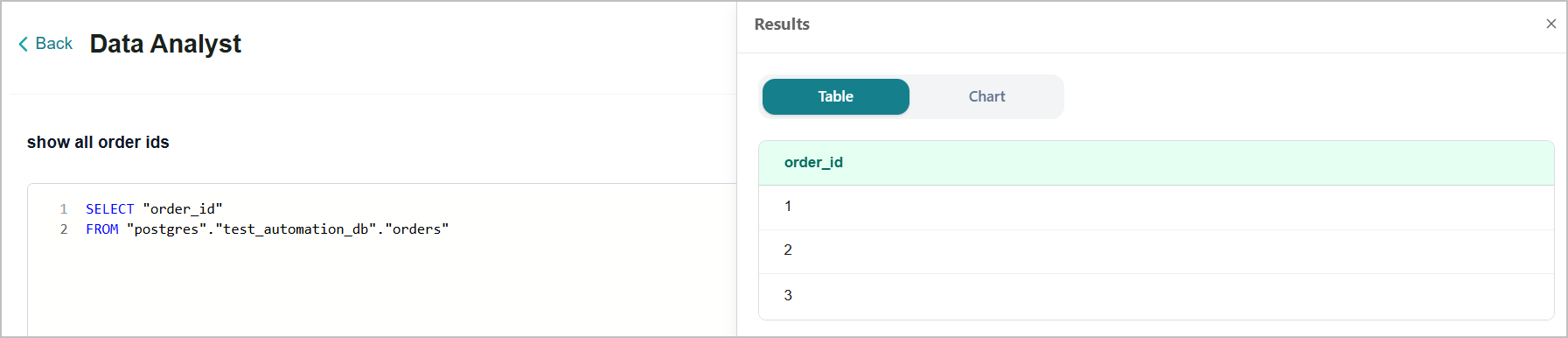
The query results appear within two tabs from the right panel.
Tip
Review the results before promoting the query. This helps confirm that the query returns the expected output.
Click Cancel to stop the query while it's running.
Notice
If the query is nearly finished when you select Cancel, cancellation may not succeed. A message indicates that the cancellation was unsuccessful, and the results still appear in the Results tab.
Important
The Cancel button is only available while a query is running.
Promoting a Query to Golden SQL
You can promote a query to a Golden SQL, making it available as a trusted reference for agents.
Click Add to Golden SQL.
The Add to Golden SQL window opens.
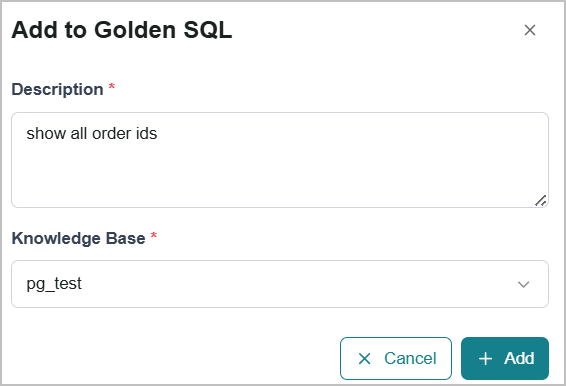
Update the description as needed.
Select the Knowledge Base from the Knowledge Cluster that the SQL query belongs to.
Click Add.
The SQL query is added to the selected Knowledge Base's Golden SQL list.
Deleting Saved Queries
You can remove a saved query from a KC at any time.
Note
Deleting a saved query is permanent and cannot be undone.
To delete a saved query:
Find and select the query you want to remove.
Click the Delete
icon next to the query.A confirmation dialog box opens.
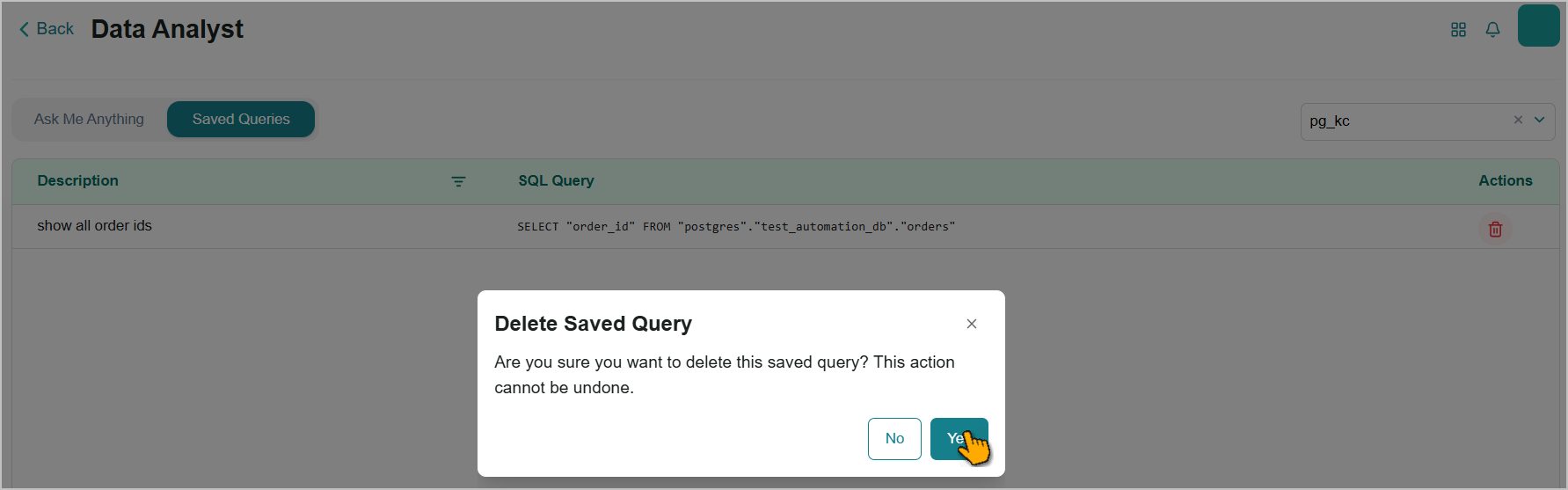
Click Yes to confirm.
The SQL query is removed from the list.