ASR Configuration
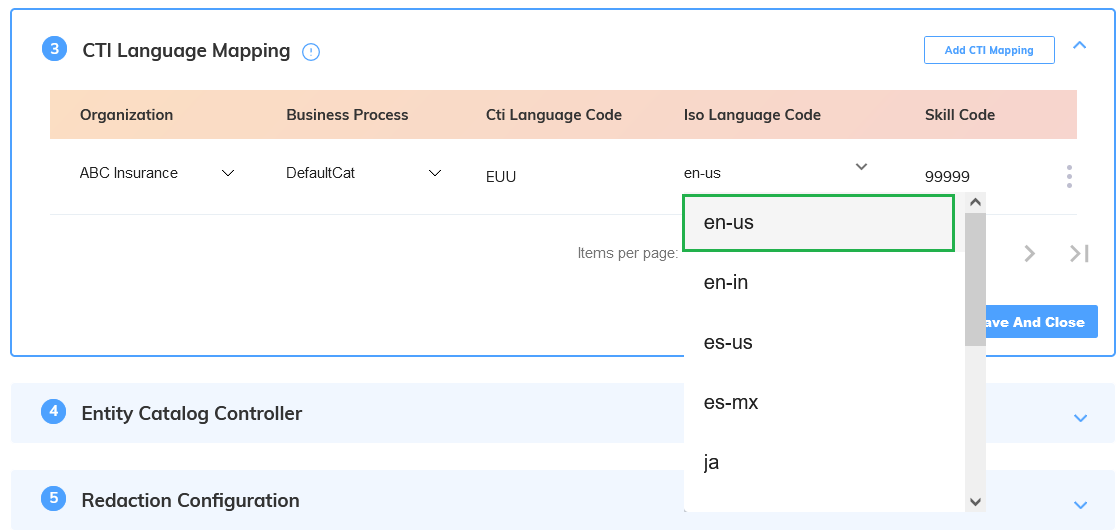
After mapping the necessary CTI language and Skill Code to the specific business process in the CTI Language Mapping section of the U-Assist ACW Admin portal, the ASR Configuration should be completed in the Administration Platform.
The System Admin can map the ASR Engine with the same Language and Skill Code mentioned in the CTI Language Mapping section.
Note
If the ASR Engine mapping is not added in the Administration Platform, the transcript for the associated Organization and Business Process will not be displayed.
In the Administration Platform, click Admin (
 ) icon from the left side Toolbar and select Accounts tab to view current account details.
Double click the desired Account or click the Right Arrow (
 ) on the right side of the relevant Account to view the specific Account Details page.
Click the Integration (
 ) icon from the left side Toolbar and click Edit Integration.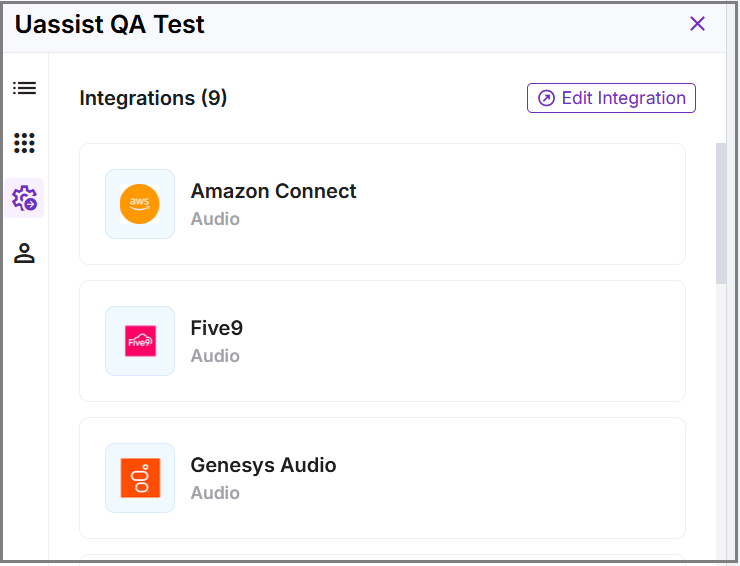
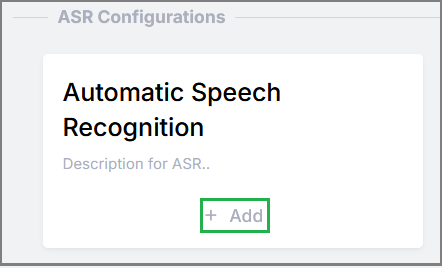
In the ASR Configurations section, click Add to add the corresponding ASR Engine and Skill Code.
From the Application drop-down, select U-Assist AfterCall.
From the Language drop-down, select the language which corresponds to the ISO language code selected in the CTI Language Mapping. For more information U-Assist supported languages, click here.
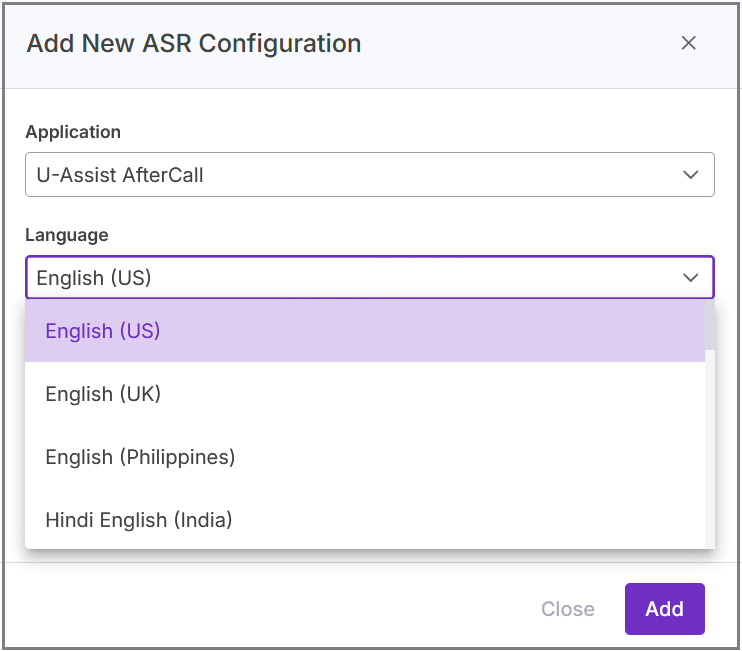
Based on the selected language, the supported ASR Engines will be listed in the ASR Name drop-down. Select the corresponding ASR Engine.
Note
If the ASR Engine 'Uniphore UAPC Generic E2E' is available for the selected language, it is recommended to select the same. Please contact your Uniphore Support team to select the specific ASR Engine.
In the Skill Code field, mention the same Skill Code provided in the CTI Language Mapping. Each Business Process will require it’s own CTI Mapping Skill code and ASR Configuration.
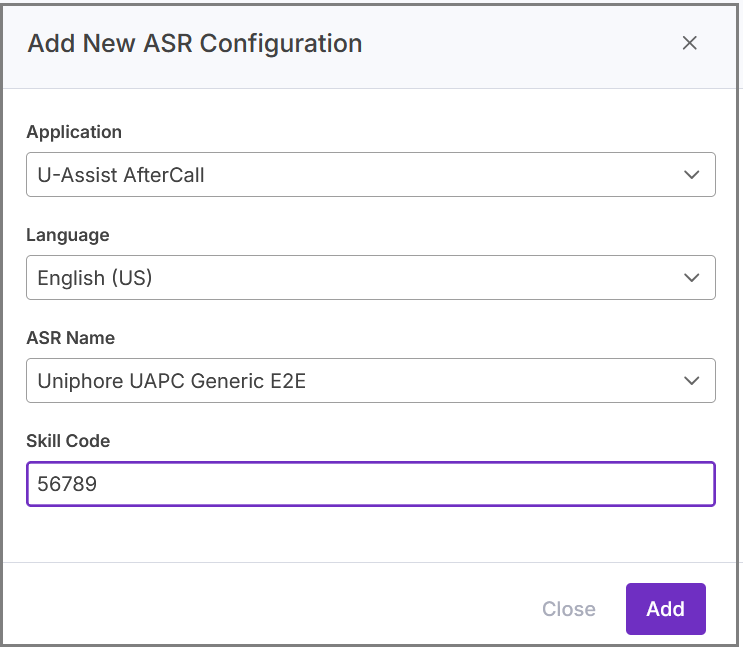
Click Add to add the ASR Engine. To cancel your activity at anytime without saving, click Cancel.