Top Ribbon – General
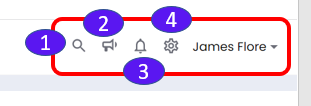
1. Global Search
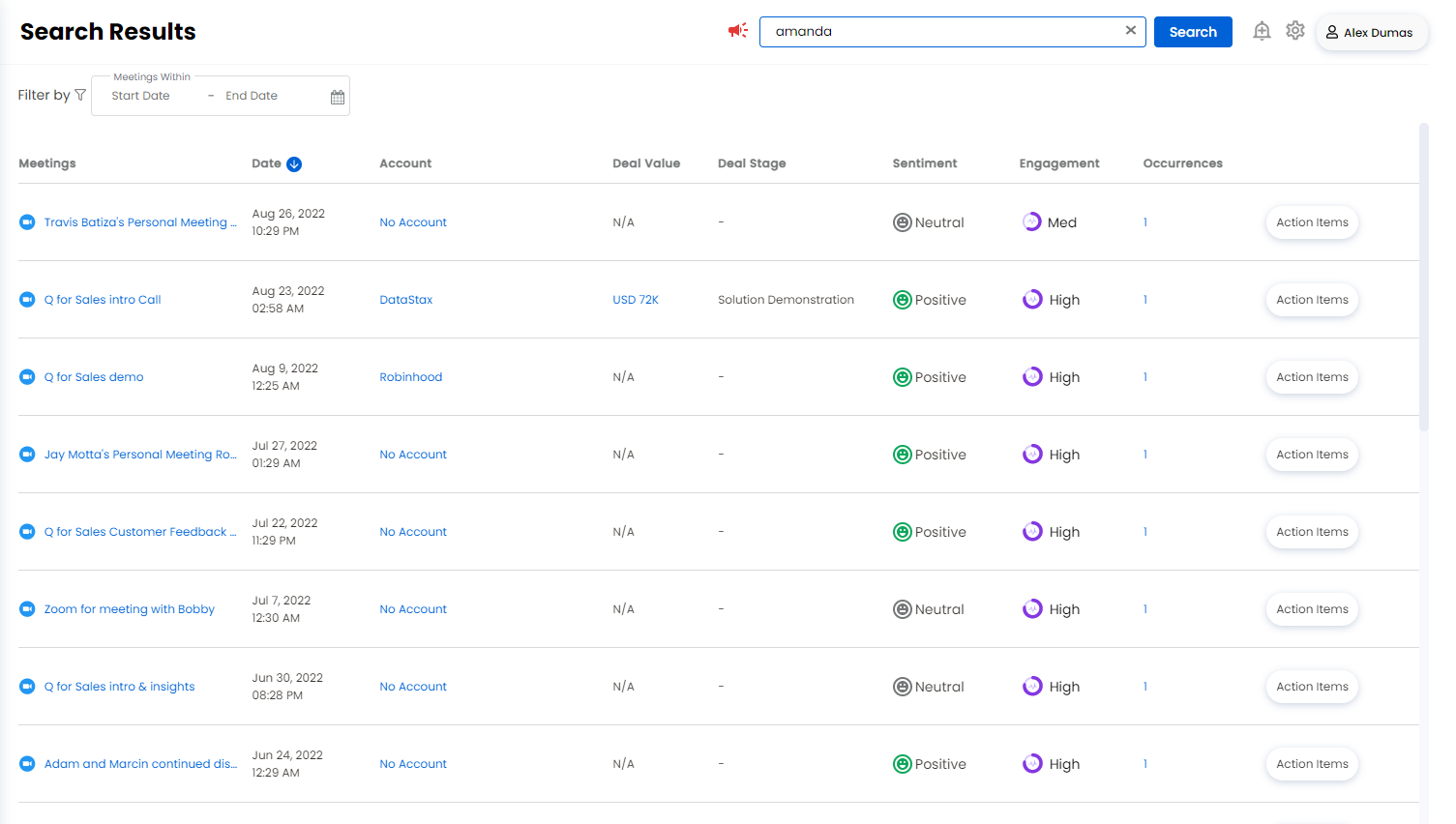
Provides an in-depth search of sales conversation based on the transcript content. Click on the search icon to search for a key word/phrase in the transcript content. Clicking on the search icon transforms it into a search box.

Key in the key word/phrase you want to search. The search results are displayed as shown below. Click the meeting name to view the Meeting Replay page. Click the account name or the deal value to view the Overview (Deal View) page.
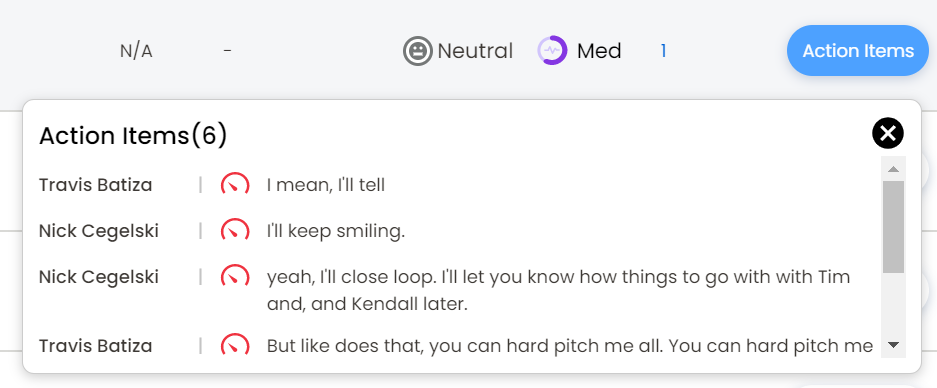
Click Action Items to view the action items of that meeting. An action items pop out is displayed as shown below.
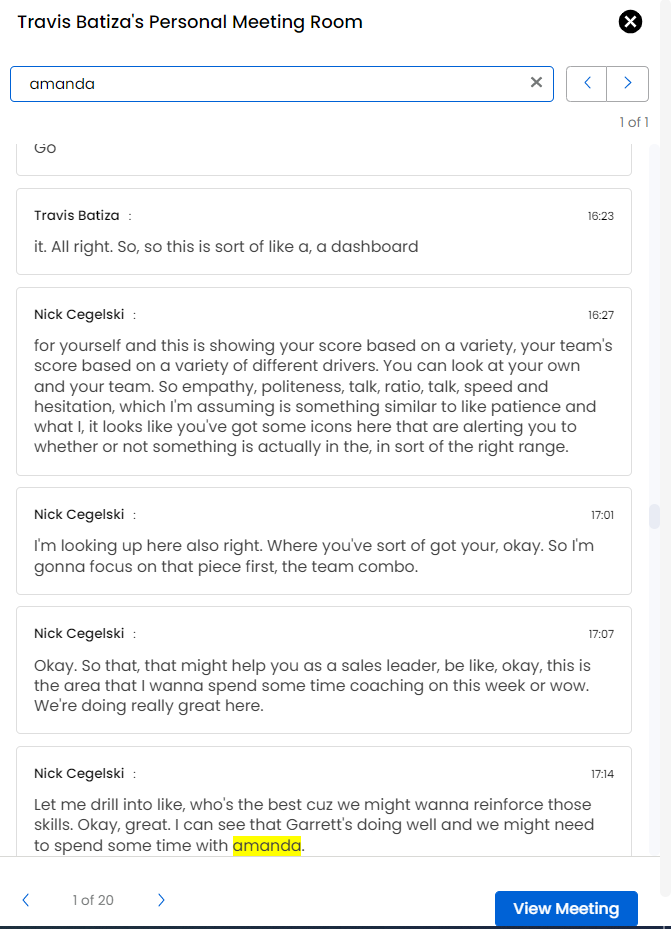
The number of occurrences of the key word/phrase are shown in the occurrences column. Click on an occurrence to view the meeting transcripts where the searched key word/phrase has occurred. Click on View Meeting button at the bottom right corner to view the Meeting Replay page of the meeting where the searched key word/phrase has occurred. You can navigate to the next/previous transcript by clicking the left/right navigation arrows at the bottom left corner.
2. Announcement - New Features
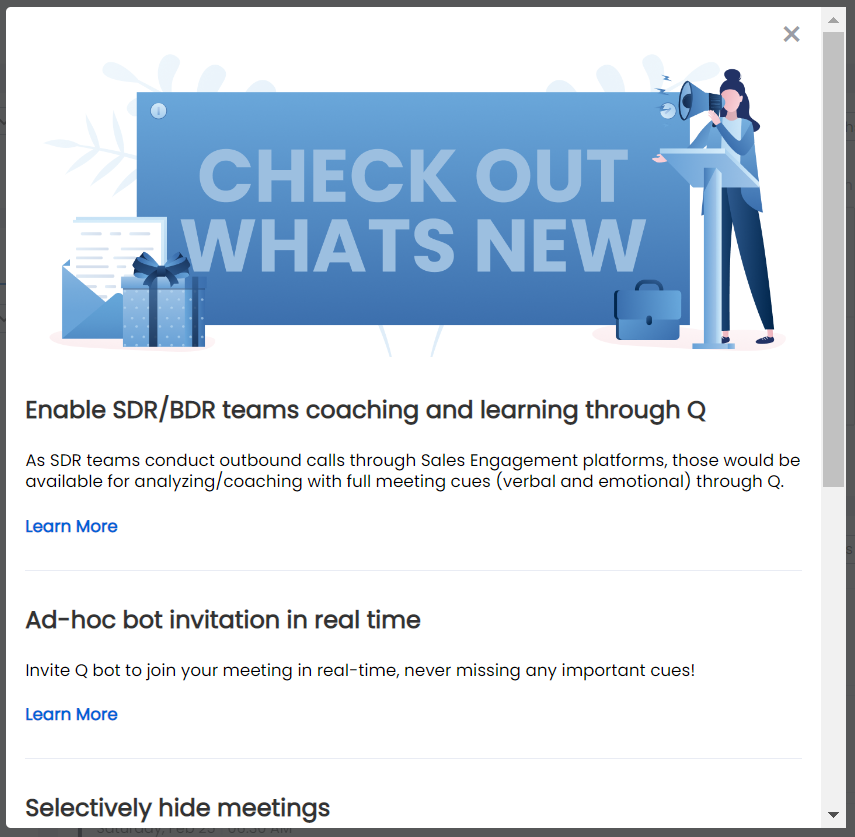
Click on this icon to view the announcement of new features. Click on the X icon at the top right corner or the Done button at the bottom center to close this pop out.
3. Notifications
Notifications will appear in the situations that follow:
Meeting processing status update for all the attendees
When a user is tagged in comments
Negative customer sentiment is detected.
4. My Settings
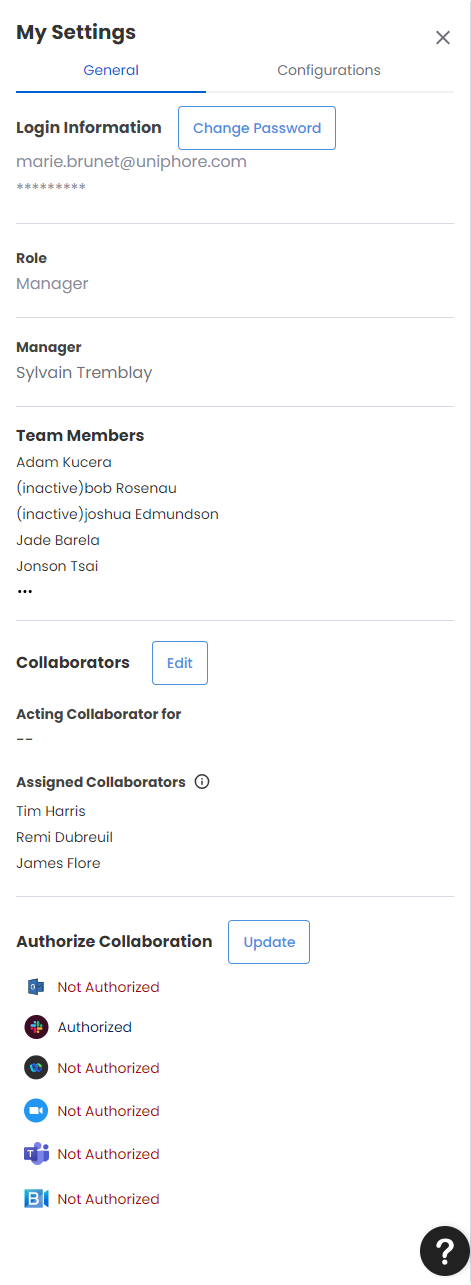
It consists of two tabs: