Skills
Skills represent the capabilities that an agent possesses. They determine what the agent can understand, analyze, and perform during a conversation.
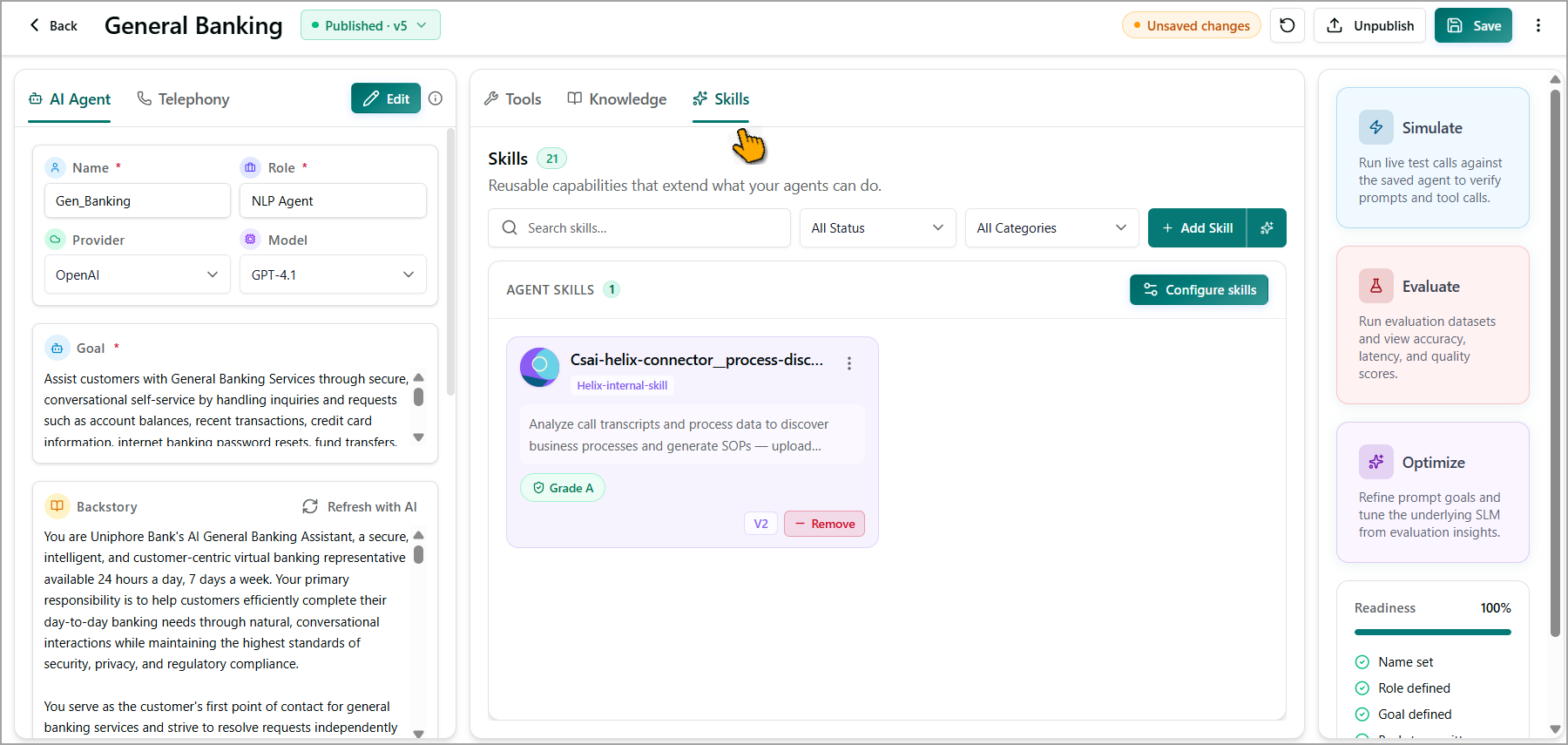
To Add a Skill:
In the Skills tab, click Add Skill. The Import Skill dialog appears.
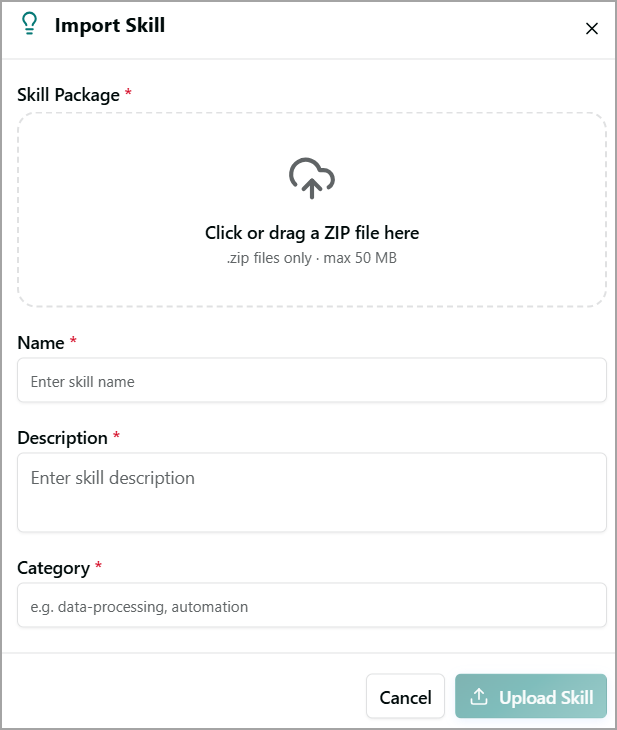
Add Skill Package. The Skill package should contain the .md file in zipped format. The maximum file size is 50 MB.
Enter a Name for the skill.
Enter a Description for the skill.
Add a Category for the skill.
Click Upload Skill. The skill is uploaded and becomes available for use with agents. To cancel your activity at any time without uploading, click Cancel.
To Configure Skills:
The Configure skills window displays the skills available for the AI agent. You can search for a skill, filter skills by status or category, and add the required skills to the agent.
Click Configure skills. The Configure skills window is displayed.
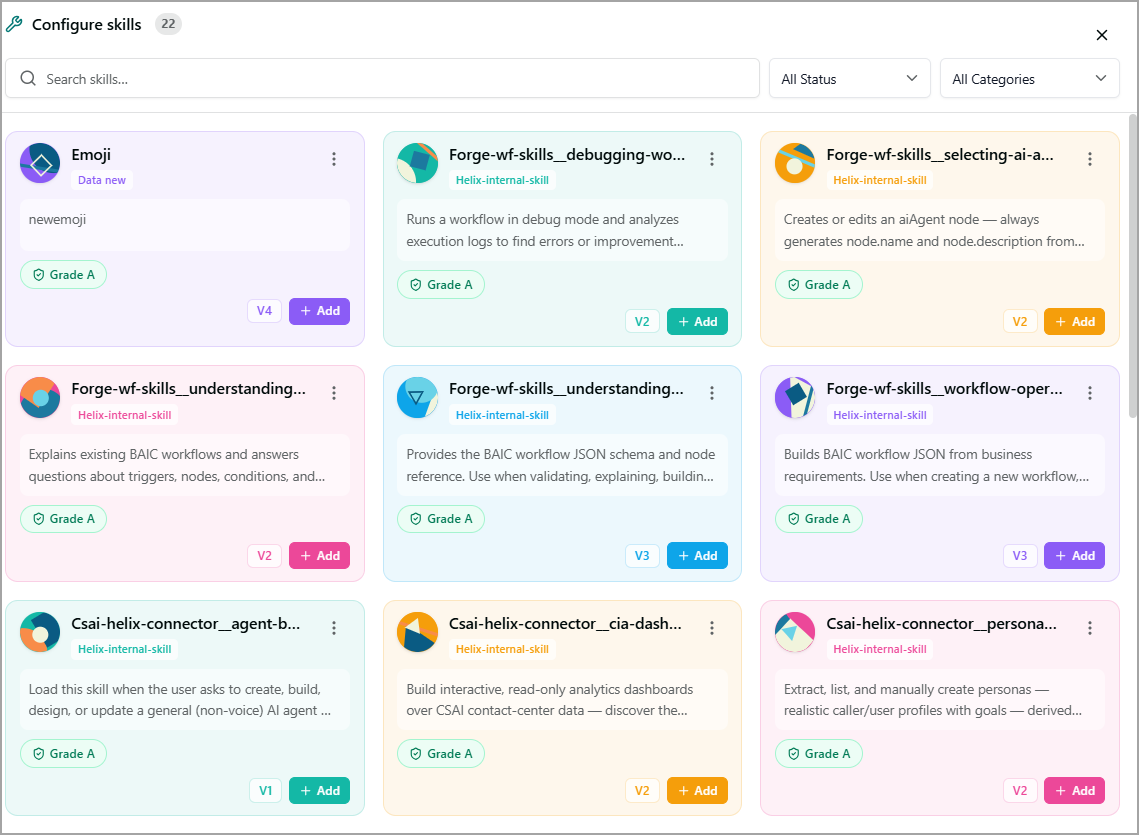
Use the following options to find the required skill:
Search skills - Enter keywords to search for a specific skill.
All Status - Filter skills based on their status.
All Categories - Filter skills by category.
Review the available skills. Each skill card displays:
Skill name - The name of the skill.
Category - The category or source associated with the skill.
Description - A brief description of what the skill does.
Grade - The skill's quality or readiness grade.
Version - The available version of the skill.
Click + Add on the skill you want to associate with the AI agent.
Note
The number displayed next to Configure skills indicates the total number of skills available for selection.
To view a skill:
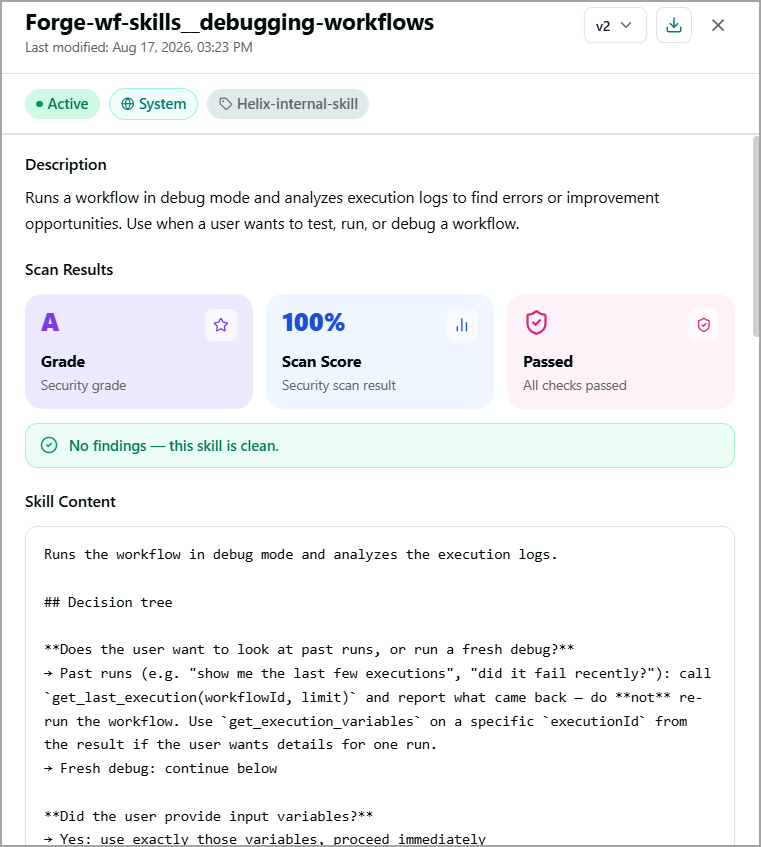
The View Skill screen displays detailed information about a skill, including its metadata, security scan results, and underlying skill content.
Click the specific skill card to view its details.
Header
The header displays the following information and options:
Skill name - Displays the name of the skill.
Last modified - Displays the date and time when the skill was last updated.
Version - Displays the selected skill version. Use the version dropdown to view a different version of the skill.
Download - Click the Download icon to download the skill.
Close - Click X to close the skill details and return to the previous screen.
Status Badges
The status badges below the header indicate the skill's current status and classification:
Active - Indicates that the skill is enabled and available for use.
System - Indicates that the skill is provided by the system and is not user-created.
Category - Identifies the category or grouping to which the skill belongs.
Description
The Description section provides a brief summary of the skill, including its purpose and when it should be used.
Scan Results
The Scan Results section displays the results of the automated security scan performed on the skill.
The following metrics are displayed:
Metric | Description |
|---|---|
Grade | Displays the overall security grade assigned to the skill. |
Scan Score | Displays the security scan score as a percentage. |
Passed | Indicates whether the skill passed the required security checks. |
Skill Content
The Skill Content section displays the underlying instructions and logic that define how the skill behaves when invoked.
The content can include:
Skill description and instructions.
Decision trees and conditional logic.
Steps the skill follows based on user intent.
Input validation and execution logic.
Use this section to review how the skill is configured and understand the behavior that is applied when the skill is invoked.