Create Agent
Customer Service AI is categorized into Telephony, Guidance, and AI agents.
An AI Agent is an LLM-powered entity defined by instructions, tools, skills, and capabilities.
A Telephony Agent provides the phone-channel interface that connects an AI Agent to a live phone call.
A Guidance Agent is a voice agent that listens to live contact center calls and provides real-time assistance and suggestions to human agents during the call.
AI Agent
In Customer Service AI, the AI Agent is the LLM-powered intelligence layer that drives conversation logic for telephony and guidance agents. An AI Agent thinks, reasons, follows SOPs, uses tools, and determines what happens on a call. Each AI Agent is configured with:
SOP: The operational playbook defines responsibilities, business rules, escalation logic, and compliance requirements.
Tools: A set of executable functions that the agent can invoke during a conversation, such as transferring or ending calls, looking up CRM records, creating support tickets, or processing payments.
Knowledge Bases: Documents the agent can search for answers
Guardrails: Rules that govern what the agent can receive as input and produce as output, ensuring interactions stay safe, compliant, and within defined boundaries.
Versions: Each time the agent is saved, a new version is recorded, enabling teams to track changes, roll back to a previous state, or audit the agent's evolution over time.
Lifecycle of the AI Agent
Once created, the AI Agent moves through a managed lifecycle.
Stage | Purpose |
|---|---|
Configure | Define the prompt, tools, knowledge, and guardrails for the AI agent. |
Simulate | Perform quick manual tests using different personas. |
Evaluate | Run batch tests using user-simulator scenarios and measure performance using defined metrics. |
Fine-tune | Train a new model variant using call traces to improve the agent's performance. |
Optimize | Connect the AI agent to a voice agent and prepare it for deployment to live telephony. |
To Create an AI Agent:
An AI Agent can be created using SOP Document, Process Discovery, and Prompt.
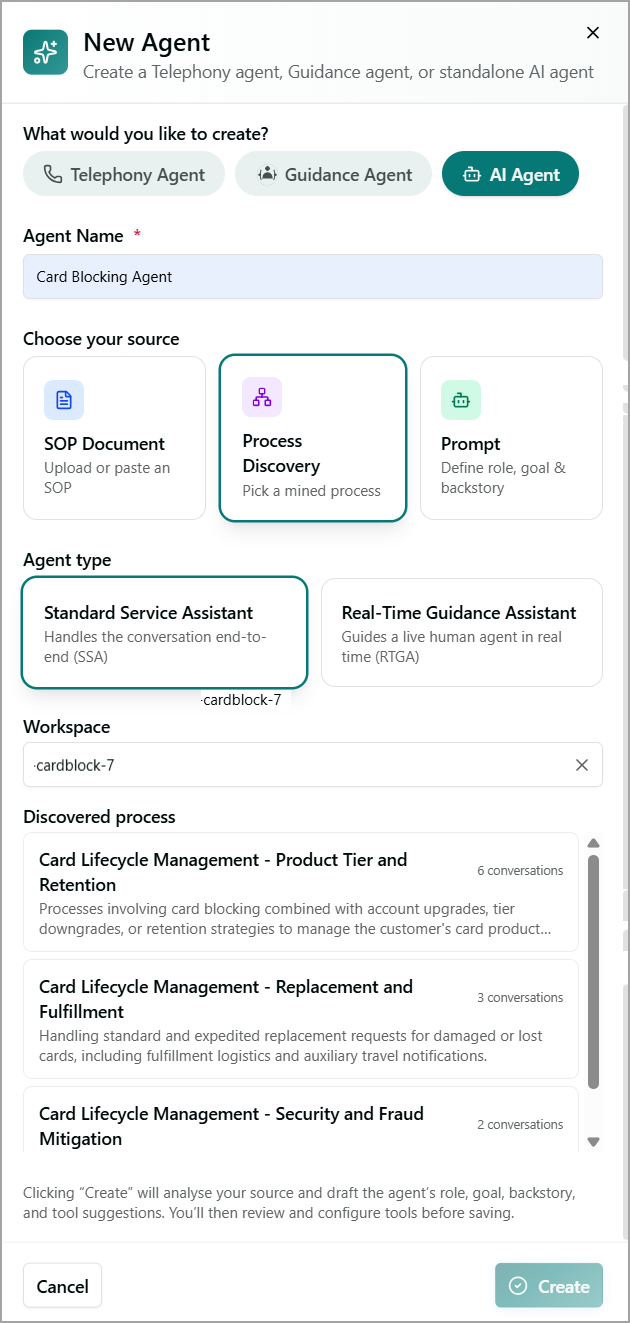
Enter the Agent Name. Give your AI Agent a unique, identifiable name.
Using Choosing a Source, select how the agent should be created. There are three options:
SOP Document: Upload a Standard Operating Procedure file (.txt, .pdf, or .docx) or paste its contents directly as text. The agent will use this document as its knowledge base.
Process Discovery: Build the agent from previously mined conversation processes. Select a Workspace from the dropdown. The system lists the processes already discovered for that Workspace. Choose the one most relevant to your use case. The real call transcripts are analyzed, processes are discovered, and agents are auto-generated with pre-populated SOPs.
Prompt: Build the agent by pasting instructions directly. Manually define the agent's behavior using text prompts. This option also lets you enable the Intent Orchestrator Agent, which allows your agent to coordinate tasks across multiple sub-agents. When using Prompt as the source, you'll also need to define the agent's identity using the following fields:
Role: Specify what role this agent plays (e.g., Support Specialist, Data Analyst).
Goal: State the agent's primary objective. What it is ultimately trying to accomplish.
Backstory: Provide context about the agent's background, expertise, experience, and communication style to shape how it thinks and responds.
Enable the Intent Orchestrator Agent to define the AI agent as a Supervisor Agent. Once defined, multiple sub-agents can be mapped under the Supervisor Agent. For example, if the Credit Card is configured as the Supervisor AI agent, you can create specialized sub-agents such as Check Balance, Block Card, Card Stolen, and Rewards, each designed to handle a specific customer request.
Note
Applicable only when the Prompt option is selected under Choosing a Source.
Select the Agent Type. This field is applicable to SOP Document and Process Discovery. The agent types are:
Standard Service Assistant: Handles the conversation end-to-end (SSA)
Real-Time Guidance Assistant: Guides a live human agent in real time (RTGA)
Click Create to launch your AI Agent.
For an AI agent created using an SOP Document and Process Discovery, the agent's goal and backstory are automatically generated based on the content of the uploaded SOP document or the processes discovered through Process Discovery.
After the AI Agent is created, you can configure its tools, knowledge, and skills. For more information, click here.
Telephony Agent
A Telephony Agent is the voice-channel deployment layer for an AI Agent.
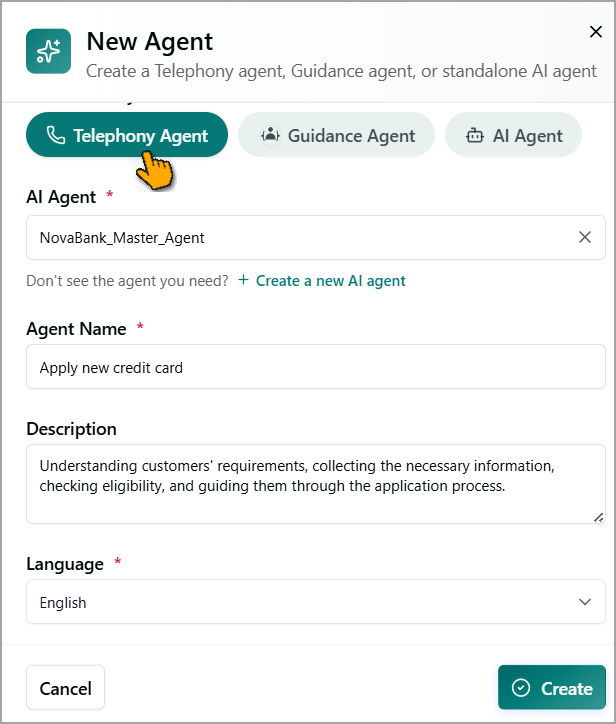
To Create a Telephony Agent:
Select the AI Agent from the dropdown. AI Agents with Published status are only displayed. In case you don't see the agent, click + Create a new AI agent, create, configure, and publish the agent.
Enter the Agent Name for the Telephony Agent.
Add the Description of the agent.
Select the Language from the dropdown. Currently supports English only.
Click Create.
The Configure Required Tools dialog appears. The dialog shows the missing tool that is required for voice call handling. You can modify the Description as needed. Click Update. The tools include Call Transfer, Call Terminate, and Adaptive Voice Settings.
After creating the Telephony Agent, you can configure the agent, customize Customer Experience settings, map phone numbers for call routing, and configure speech settings. The System tools - Call Transfer and Call Terminate are added by default. For more information, click here.
Guidance Agent
The Guidance Agent acts as an AI copilot for contact center agents during live customer interactions. While the human agent is on a call, the Guidance Agent listens to the live conversation in real time and provides next-best actions, compliance alerts, and sentiment insights on the agent's desktop. It also provides pre-call context before the interaction begins and displays live transcripts and AI-generated guidance throughout the conversation.
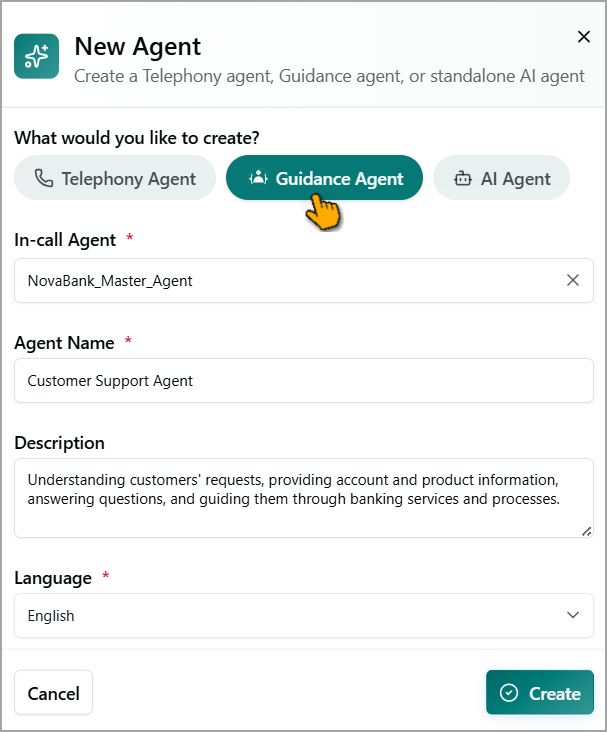
To Create a Guidance Agent:
Select an In-call Agent from the existing AI Agent list. The selected AI Agent runs continuously throughout the customer interaction.
Enter the Agent Name.
Enter a brief Description about the Agent.
Select the Language from the dropdown. Currently supports English only.
Click Create.
After creating a Guidance Agent, you can configure its properties, capabilities, tools, knowledge, and supporting AI agents. For more information, click here.