Configure a Guidance Agent
After creating a Guidance Agent, configure its properties, capabilities, tools, knowledge, and supporting AI agents to define how it assists contact center agents during customer interactions. For more details about real-time assistance during customer interactions, refer to About Agent Assistant.
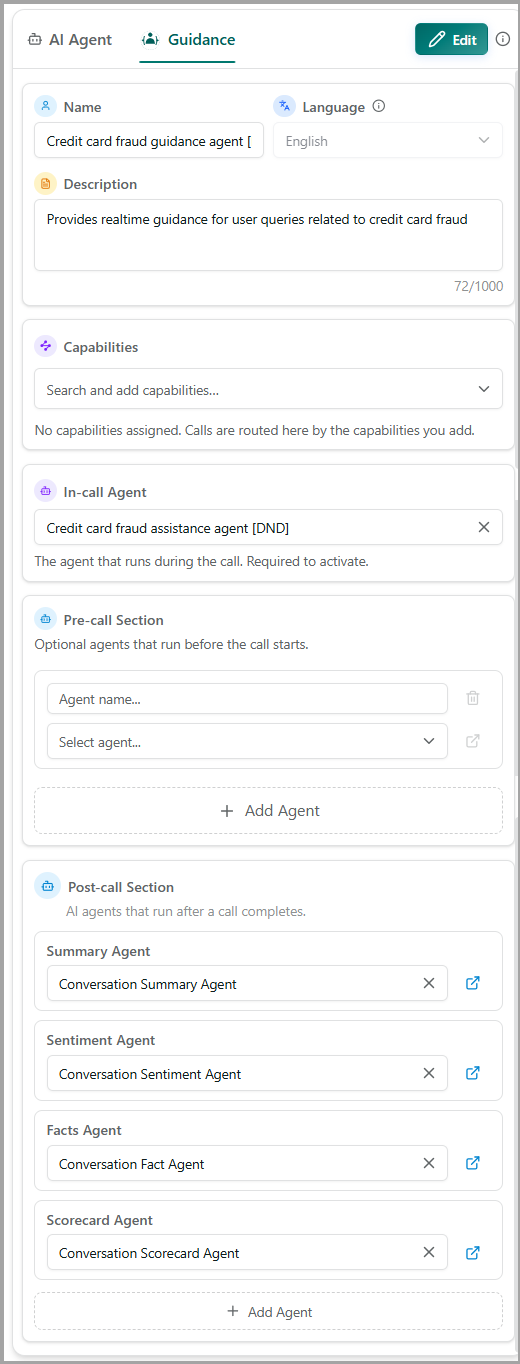
To Configure Guidance Agent:
Upon creating a Guidance Agent, the configuration page opens. Otherwise, you can also select a Guidance agent from the Agent studio and click Configure.
Ensure the Guidance tab is selected.
Configure the following details:
Field
Description
Name
Displays the name of the Guidance Agent. You can modify the agent name if required.
Language
Select the language used by the Guidance Agent. Currently, only English is supported.
Description
Enter a brief description of the Guidance Agent.
Capabilities
Add one or more capabilities that define the Guidance Agent's functional expertise. A capability consists of one or more routing metadata key-value pairs that identify the type of customer interaction. For more details, refer to Capability Routing.
In-call Agent
Select the AI Agent that runs continuously throughout the customer interaction. This field is required before the Guidance Agent can be activated.
Pre-call Agents
Optionally select one or more AI agents to run before the customer interaction begins. These agents retrieve and present contextual information to the contact center agent before the call starts.
Post Call Section
Select one or more post-call AI agents to execute automatically after the customer interaction ends. These agents can perform tasks such as generating conversation summaries, analyzing sentiment, extracting key facts, and evaluating interactions using scorecards.
Click Save in the top-right side of the page to save the guidance agent configuration.
Configure In-Call Agent
The In-call Agent is an AI Agent that runs continuously throughout a live customer interaction. It processes the conversation in real time and provides contextual guidance to contact center agents based on the ongoing conversation. Depending on the detected intent, it can display recommendations, next-best actions, compliance guidance, and other actionable information on the agent desktop.
You can configure one or more In-call Agents to address different business scenarios or customer intents during the same interaction.
Note
AI Agents with Published status are only listed for selection.
Configure Pre-Call Agents
Pre-call Agents are optional AI agents that run before a customer interaction begins. They retrieve relevant customer information and context, enabling contact center agents to start the conversation with the information they need. You can configure one or more Pre-call Agents for a Guidance Agent.
In the Pre-call Agents section, click + Add Agent.
Enter a unique Agent Name to identify the pre-call agent.
Select an AI Agent from the dropdown.
Note
To view the configuration details of the selected AI Agent, click Open agent config (
 ) next to the Select agent dropdown.
To remove a Pre-Call Agent from the Guidance Agent configuration, click Delete (
 ) next to the Agent name field.
Configure Post Call Agents
Post-Call Agents are AI agents that run after a customer interaction is completed. You can configure one or more Post-Call Agents for a Guidance Agent to process the completed conversation and generate relevant outputs, such as summaries, sentiment analysis, facts, or scorecards.
By default, the Post Call Section includes the following agent types:
Summary Agent - Generates a summary of the completed conversation.
Sentiment Agent - Analyzes the sentiment of the conversation.
Facts Agent - Extracts relevant facts from the conversation.
Scorecard Agent - Evaluates the conversation based on configured criteria.
Select the required AI Agent for the applicable post-call agent type.
To configure an additional post-call agent, click + Add Agent.
Enter a unique Agent Name to identify the post call agent.
Select the required AI Agent from the dropdown.
Agent Assistant in Agent Desktop
Agent Assistant is a docked side panel in Agent Desktop that provides real-time AI assistance during customer interactions. It works alongside your CRM application, so you can continue working with customer records, policies, and other business information without leaving the call.
The Agent Assistant panel provides the following information and assistance during a call:
AI guidance - Provides contextual recommendations based on the configured AI Agent and Guidance Agent.
Knowledge and assistance - Uses the configured knowledge, skills, and tools to help you address the customer's request.
Customer insights - Displays relevant AI-generated insights from the customer's previous interactions to help you understand the customer's history and provide more contextual assistance.
Call information - Displays call details and the live transcript so you can follow the conversation in real time.
Post-call insights - Provides an AI-generated post-call summary based on the capabilities configured for the post-call agents.
For more details about real-time assistance during a live conversation, refer to About Agent Assistant.