Agent Studio
Agent Studio is a comprehensive platform in Customer Service AI for building, managing, evaluating, and deploying AI agents across their entire lifecycle. These agents can handle customer service, sales, compliance, and operations tasks across voice, chat, email, and assisted channels.
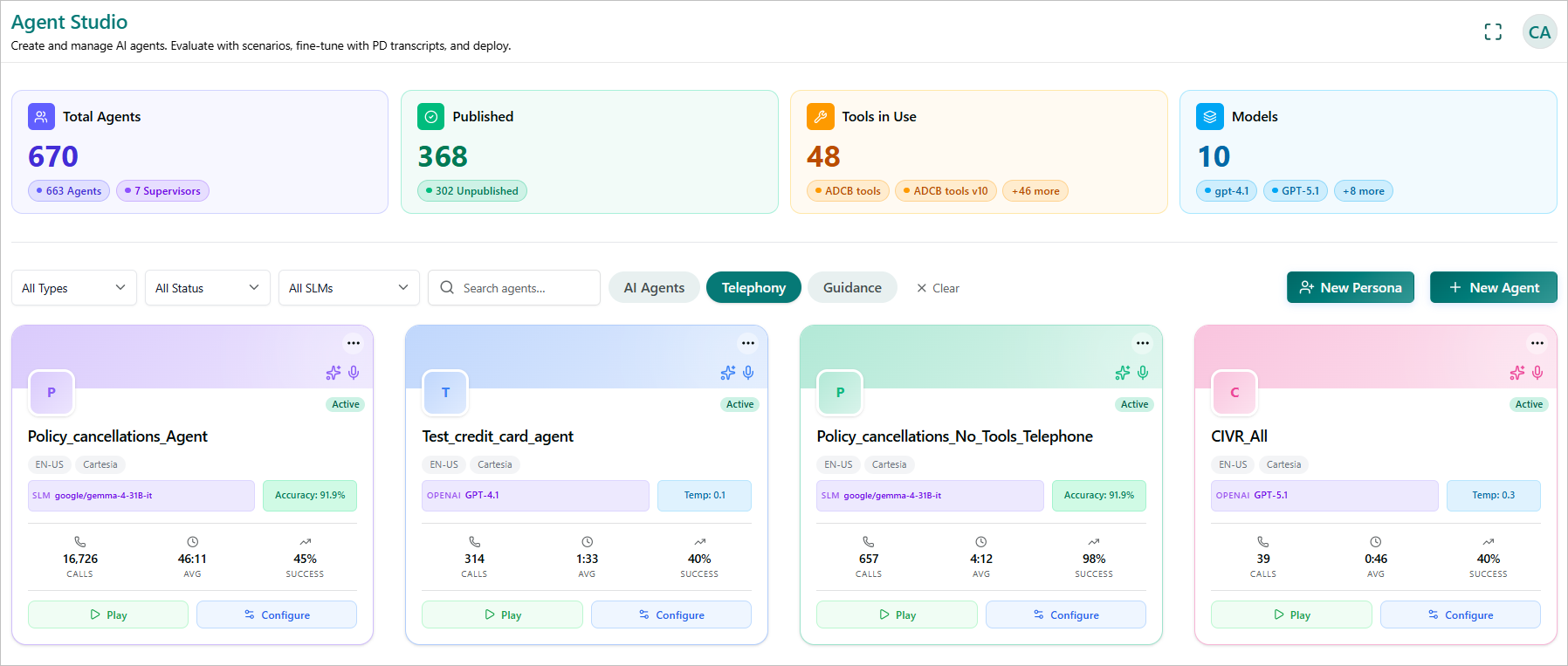
To access this page, navigate to the home page and select Agents from the left pane.
Widgets: In Agent Studio, you can view widgets showing the total number of AI agents, the total number of published AI agents, the number of tools in use, and the number of models used by AI agents.
Filters: You can filter by types, status, and SLMs.
Types: Filter by Agent or Supervisor.
Status: Filter by Published or Unpublished AI Agents.
SLMs: Filter by Small Language Models.
From this page, you can create a New Persona and a New Agent.
AI Agent Widget
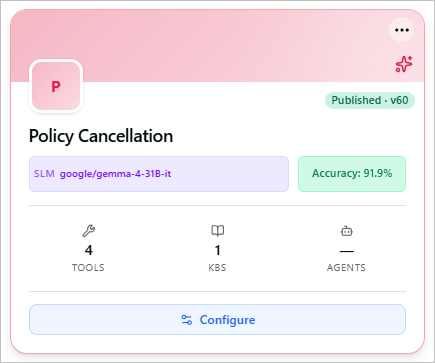
The AI Agent widget represents the summary of the AI agent. It displays the following:
SLM powering the agent's inference.
Name of the AI agent.
Name of the language model provider and the model name.
Agent's performance accuracy.
Number of tools linked to this agent.
Number of Knowledge Bases linked, used for retrieval-augmented responses.
Number of sub-agents, orchestrated by the AI agent.
Click to configure the agent, where you can update its model, tools, knowledge bases, prompts, and create new versions.
Agent's publish status and version number.
Click the ... icon to view the Delete option, which allows you to delete the agent.
The
 icon indicates that the agent is an AI Agent.
Telephony Agent Widget
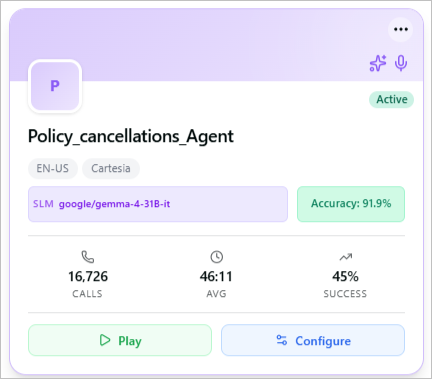
The Telephony Agent widget provides a summary of the telephony (voice) agent. It displays the following information:
Name of the Telephony agent.
Languages supported by the agent.
TTS provider configured to the agent.
Name of the language model provider and the model name.
Accuracy or Temp, depending on the configured metric.
Accuracy - Represents the success rate of the telephony agent, such as the percentage of calls that successfully achieved the configured outcome.
Temperature - Controls how deterministic or varied the AI agent's responses are. Lower values produce more consistent and predictable responses, while higher values allow greater variation.
Number of calls (conversations) received by the agent.
Average duration per call.
Success metric for the telephony agent
Current status of the agent, such as Active.
The microphone icon shows that the agent is a Telephony agent.
Additional Actions
Click the ... icon to view the Conversations and Delete options. Select Conversations to view the agent's call details, or select Delete to delete the telephony agent.
Click Play to listen to the voice agent and verify the configured TTS settings.
Click Configure to set up and manage the voice agent configuration.