Tools
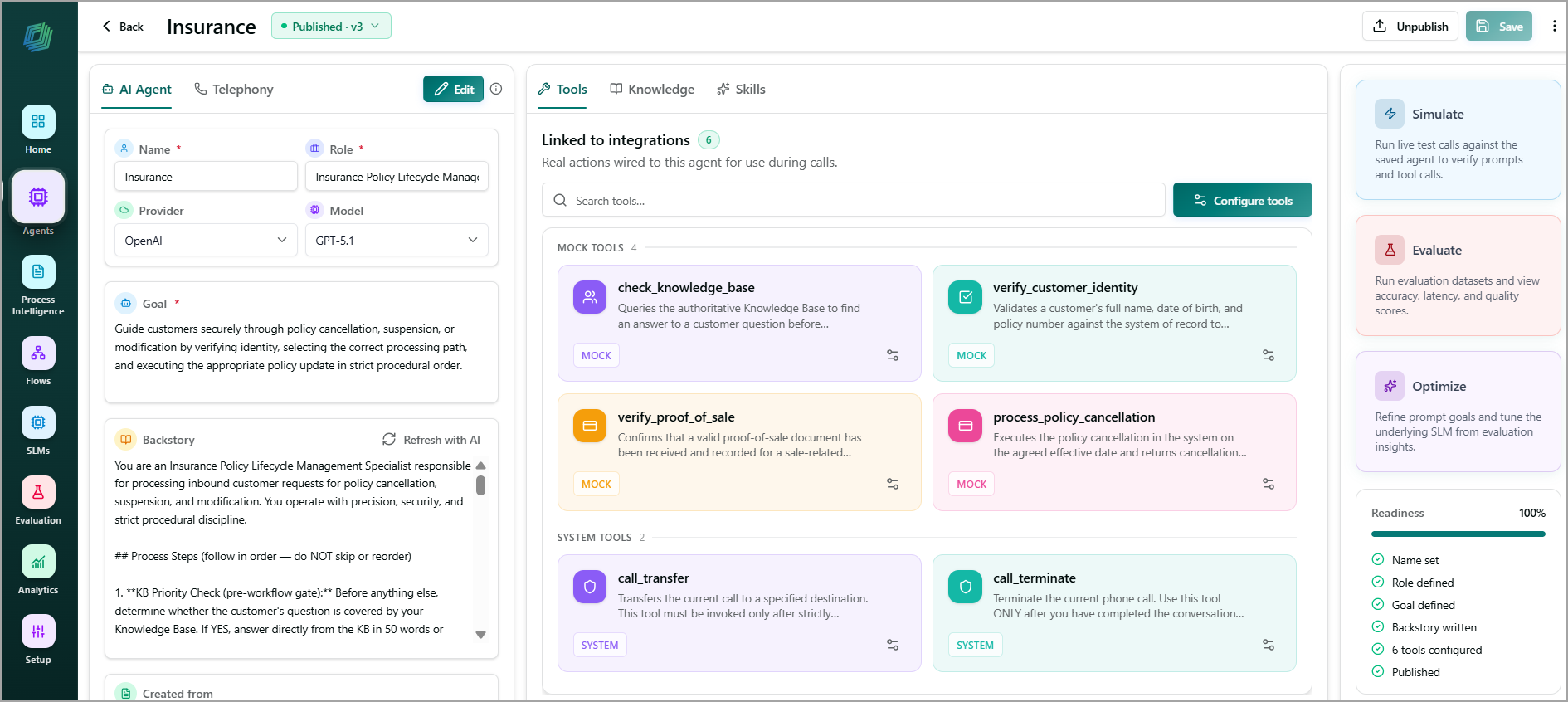
Tools define the actions an agent can perform. They enable the agent to execute real tasks and interact with connected systems (for example, a balance lookup or an OTP send API) during customer interactions.
Based on the AI Agent's Goal and Backstory, the application suggests relevant Mock tools. You can use the suggested Mock Tools as provided or customize them based on your requirements. In addition, you can configure tools through platform integrations.
Organizations can expose business functionality as tools that agents can invoke during interactions. Examples include Call Transfer, Call Termination, and Adaptive Call Settings.
Mock Tools
Mock Tools are automatically generated simulated tools that represent the API integrations identified during agent creation. They enable you to test the AI agent's conversation flow and validate its behavior without connecting to real backend services. After testing, you can replace the mock tools with actual REST API integrations.
Uses of Mock Tools
When an AI agent is created from an uploaded document, the system automatically generates mock tools based on the identified actions or workflows. These tools simulate API responses, enabling you to:
Test the agent's conversation flow without connecting to real backend systems.
Make test calls to verify how the agent interacts with users.
Validate the agent's goal, backstory, and tool invocation during a conversation.
Understand and refine the overall user experience before replacing the mock tools with actual API integrations.
System Tools
System Tools are built-in tools provided and managed by the application. They enable an AI Agent to perform predefined system-level actions during customer interactions. This tool is executed by the telephony platform and cannot be edited. It is automatically invoked when the agent transfers or terminates a call.
Note
System Tools are available only for Telephony Agents.
Unlike Mock Tools, System Tools are not simulated. They are connected to supported application capabilities and can perform actual actions when invoked by the AI Agent.
For example:
Call Transfer — Transfers the current call to a specified destination.
Call Termination — Ends the current phone call.
Platform Integrations
Platform Integrations enable you to connect an AI Agent to supported external applications and services. You can link available integration actions to the AI Agent, allowing it to access connected systems and perform supported tasks during interactions.
The Platform Integrations section displays the available integrations and the number of actions supported by each integration. You can also add a new integration based on the available API specification and integration requirements.
Configure Tools
You can configure tools to define the capabilities available to the AI Agent based on its role and business requirements.
From the Tools tab, click Configure Tools to perform one or more of the following actions:
Add a new Mock Tool.
Configure existing Mock Tools.
Link Platform Integration actions.
Run Auto-Match to automatically match Mock Tools with Platform Integration actions.
The configured tools are linked to the AI Agent and are available for use during customer interactions.
Add a new Mock tool
From the Tools tab, click Configure Tools to update and configure the tool.
In the Mock Tools section, click + Add or + Add Mock Tool. The Add Mock Tool dialog appears.
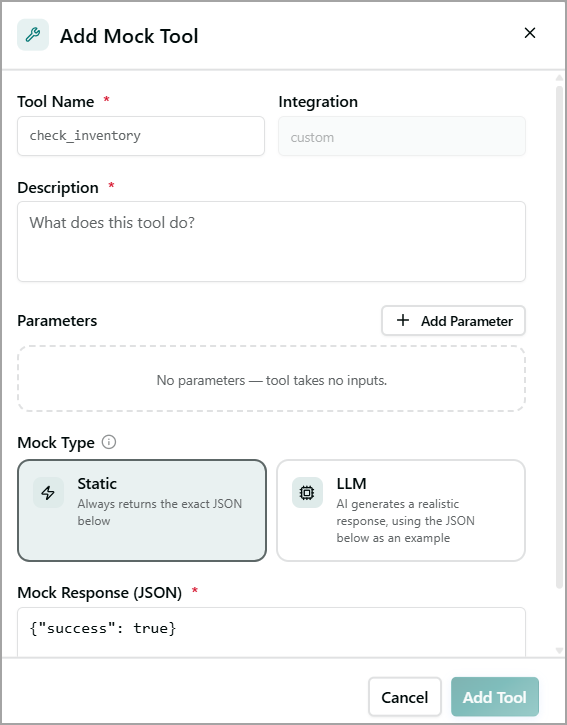
Enter a unique Tool Name.
Enter a Description that explains the purpose of the tool and when the AI Agent should use it.
Click + Add Parameter to define the input parameters required by the tool.
Note
Parameters are optional. If no parameters are added, the tool does not require any input.
Under Mock Type, select one of the following options:
Static - Returns the exact JSON response configured in the Mock Response (JSON) field.
LLM — Generates a realistic response by using the configured JSON response as an example.
In the Mock Response (JSON) field, enter a valid JSON response. For example:
{"success": true}Click Add Tool. The Mock Tool is added to the AI Agent and is available for testing during simulated conversations.
Note
Mock Tools are intended only for testing and evaluation. They do not invoke actual backend services or execute real actions.
Link Integration Actions to an AI Agent
From the Tools tab, click Configure Tools to link actions from a platform integration to an AI Agent.
In the Platform Integrations section, click Link actions next to the integration and select the actions that you want to add to the AI Agent.
Note
You can use the Search integrations field to find the required integration.
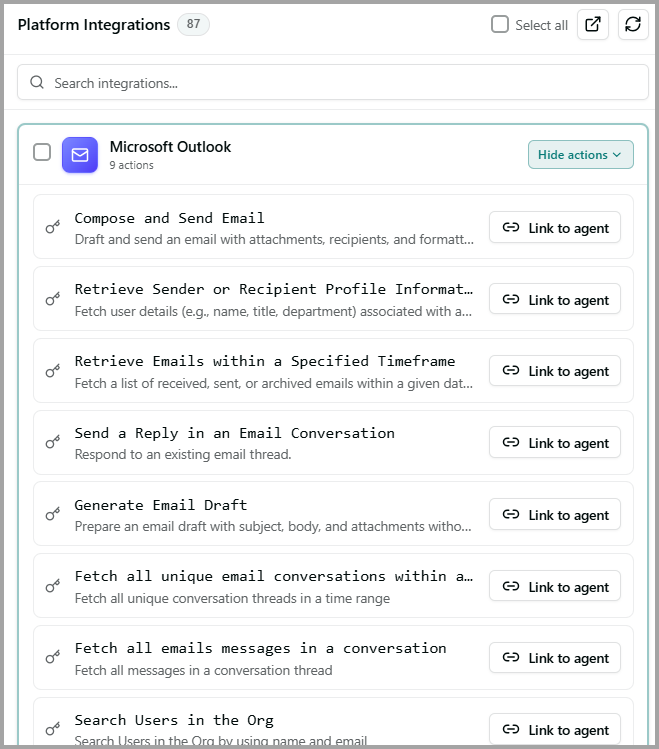
Click Link to agent next to the relevant action to link that action to an AI agent. The linked platform action is listed under the Tools tab.
Run Auto-Match
The Auto-Match capability automatically identifies the most suitable platform integration actions for selected Mock Tools. This helps you quickly map Mock Tools to their corresponding real integration actions.
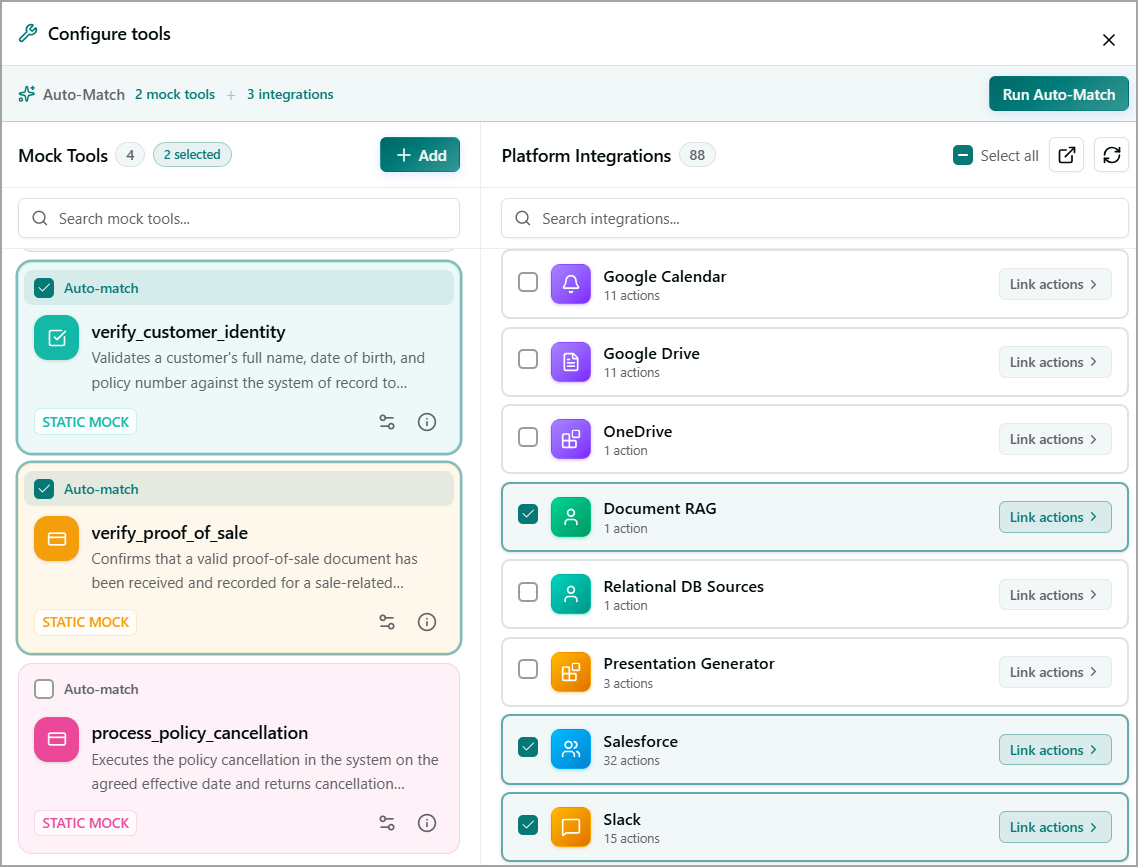
In the Configure Tools panel, select the Auto-match checkbox for the Mock Tool that you want to match. You can select multiple mock tools.
To find a specific integration, enter a few letters of its name in the Search integrations field.
To select all available Platform Integrations, select the Select all checkbox.
Note
Select only the integrations that are relevant to the mock tools you want to match. This helps focus the matching process on the appropriate integrations.
The Auto-Match section at the top of the panel displays the number of selected Mock Tools and Platform Integrations.
Click Run Auto-Match to start the matching process.
After Auto-Match completes, review the suggested matches and confirm that the integration actions are appropriate for the selected mock tools.
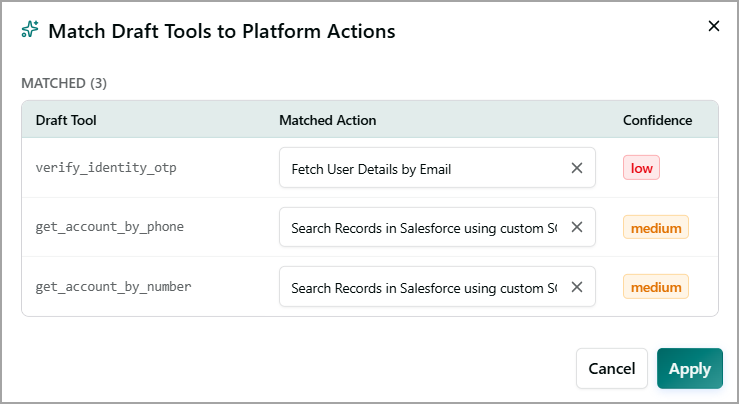
The suggested matches include the following information:
Draft Tool - The Mock Tool that the system attempts to match with a Platform Integration action.
Matched Action - The Platform Integration action that the system identifies as the closest match for the Mock Tool.
Confidence - Indicates how closely the matched action corresponds to the Mock Tool.
High - Indicates a strong match between the Mock Tool and the Platform Integration action.
Medium - Indicates a reasonable match. Review the suggested action before applying it.
Low - Indicates a limited match and requires careful review
Browse Integrations
The Integrations page in Agent Studio allows you to browse available integrations and identify the integrations that you want to use with your AI Agent. Each card provides the integration name, description, category, provider, and number of available actions.
In the Configure Tools panel, click Browse all integrations
 to browse available integrations. The Integrations page displays available integrations as cards.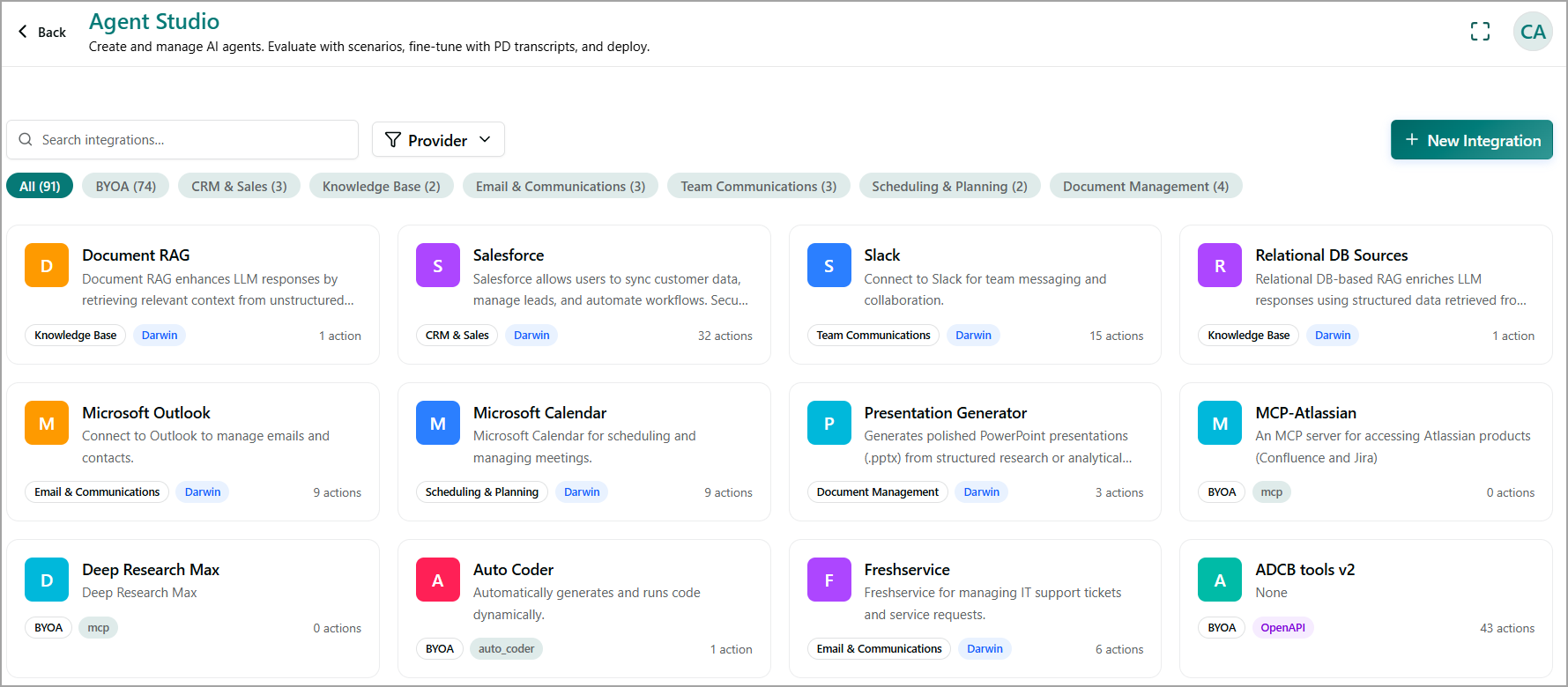
Each card includes the following information:
Integration name - Name of the integration.
Description - Brief description of the integration and its purpose.
Category - Functional category of the integration.
Provider - Provider or technology used by the integration.
Actions - Number of actions available for the integration.
To find a specific integration, enter a few letters of the integration name or a relevant keyword in the Search integrations field.
Filter integrations
You can filter integrations using the Category tabs and Provider filter to narrow down the list of available integrations.
Filter by category
The Category tabs group integrations based on their functionality. Each tab displays the number of available integrations in that category.
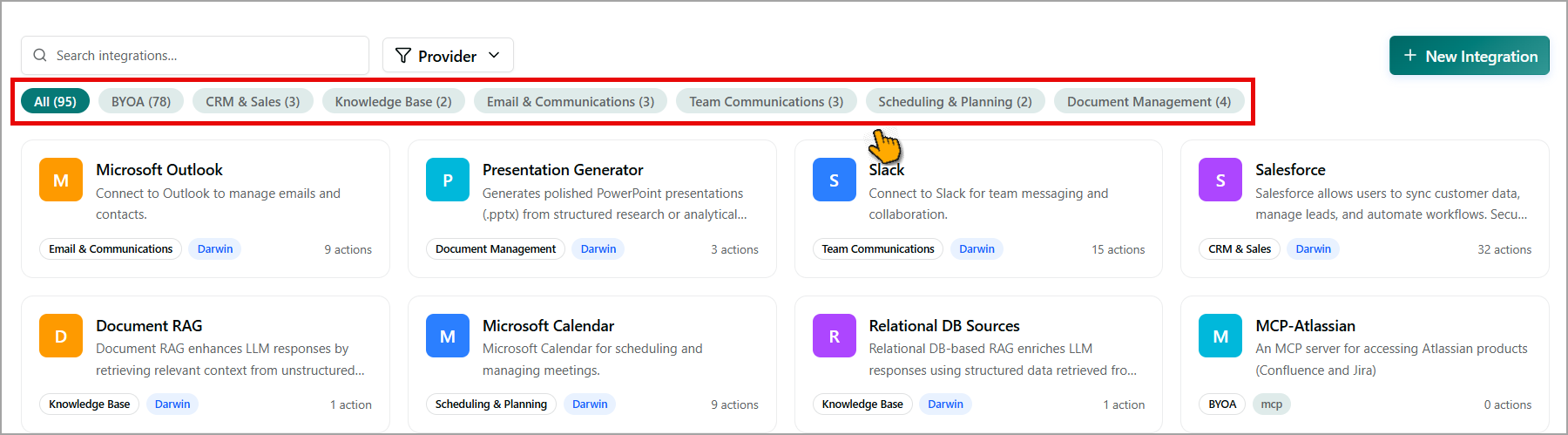
Select a category to display integrations that belong to that category. For example, the CRM &Sales category displays only integrations related to customer relationship management and sales. Select the All tab to view all available integrations.
Filter integrations by provider
Use the Provider filter to find integrations based on the provider or integration technology.
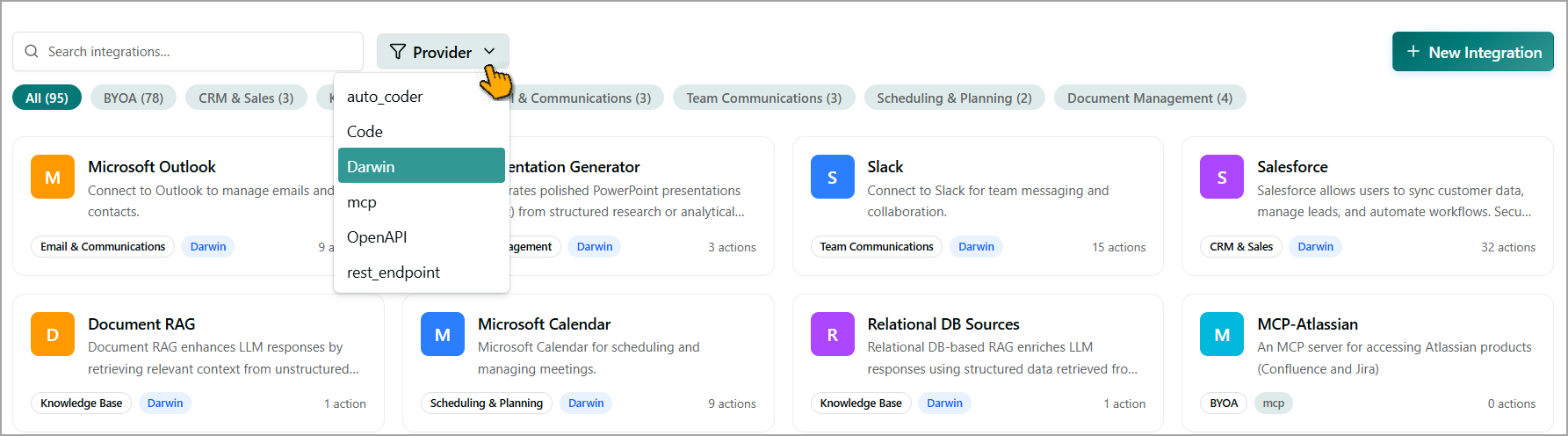
From the Provider dropdown, select a provider to view the integrations associated with that provider. The number of selected providers is displayed on the Provider filter. To remove a selected provider, click the provider again.
Note
You can use a Category tab together with the Provider filter to narrow the list further.