Conversations
The Conversations page provides a complete view of calls and chat sessions handled by a selected AI Agent. Use this page to monitor conversation activity, identify trends, and review individual conversations in detail.
The page provides a summary of activity for a selected date range, a daily breakdown of conversation outcomes, and a searchable list of individual conversations.
View Conversations
From the Telephony or Guidance Agent widget, click the Ellipsis
 icon and select Conversation to view the conversation summary and review the overall activity.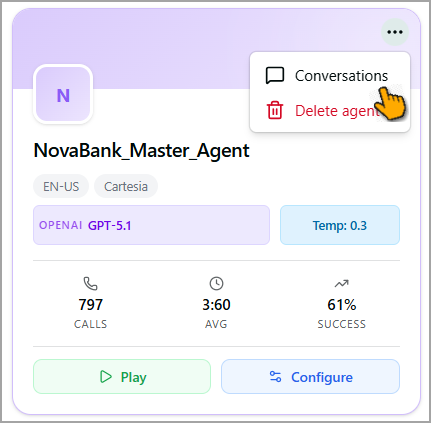
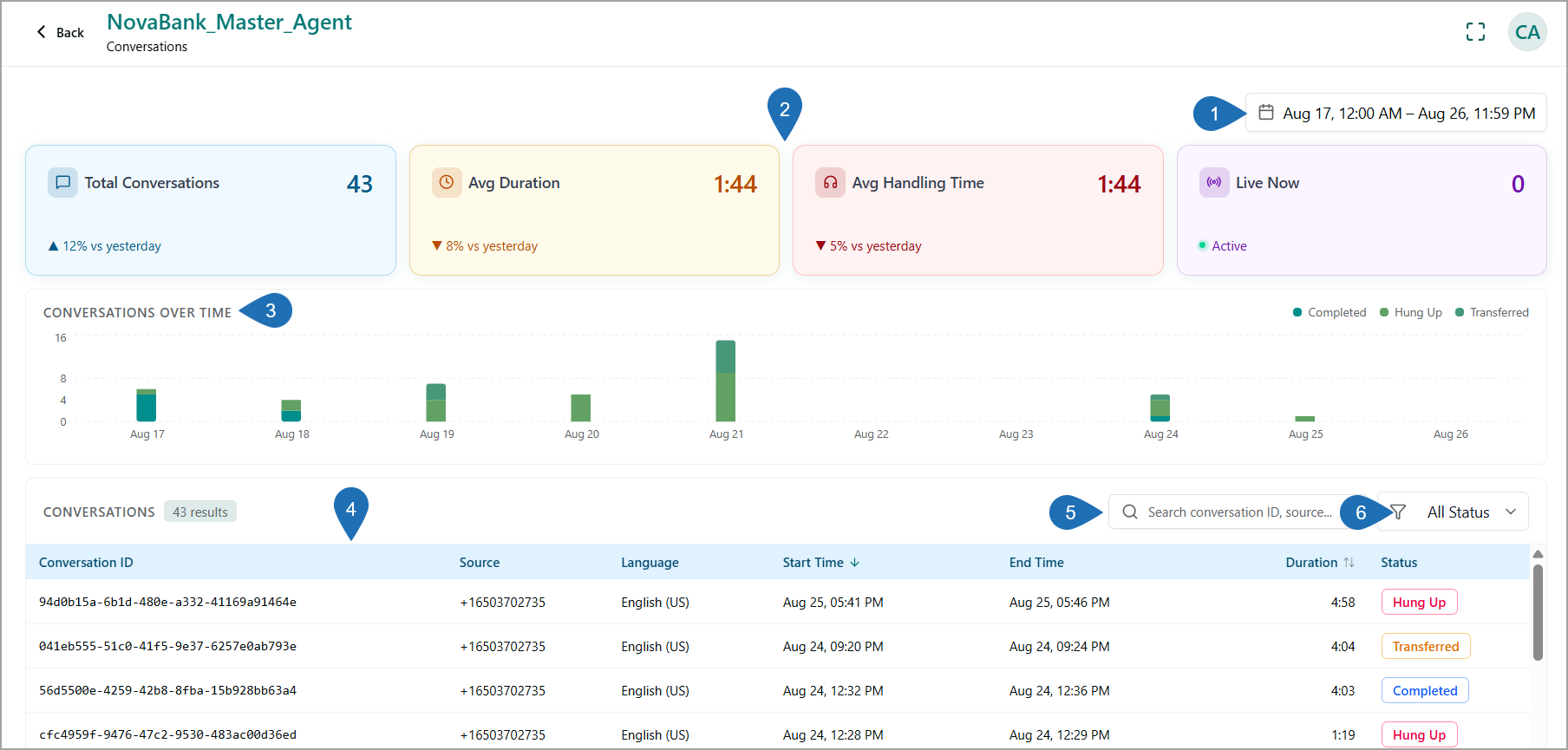
The Conversation page includes the following details:
Item
Feature
Description
1
Date Range Selector
Displays Today by default. Select a different date range to update all metrics, charts, and conversation results on the page.
2
Conversation Summary Cards
Four cards summarize activity for the selected date range:
Total Conversations – The total number of conversations handled in the selected range, with a percentage change compared to the previous day.
Avg Duration – The average length of a conversation from start to end, with the change versus the previous day.
Avg Handling Time – The average time the Agent spent actively handling a conversation, with the change versus the previous day.
Live Now – The number of conversations currently in progress, with an Active status indicator.
3
Conversations Over Time Chart
A stacked bar chart showing daily conversation volume across the selected date range, broken down by outcome: Completed, Hung Up, and Transferred. Use this chart to spot days with unusually high volume or a high proportion of hung-up or transferred conversations.
4
Conversations List
A table listing every conversation in the selected date range, with a result count shown next to the section title (for example, 43 results). Each row includes:
Conversation ID - The unique identifier for the conversation.
Source - The phone number or channel through which the conversation originated.
Language - The language used during the conversation, such as English (US).
Start Time and End Time - When the conversation began and ended. The list is sorted by Start Time by default. Select the column header to change the sort order.
Duration - The total length of the conversation, shown in minutes and seconds. Select the column header to sort by duration.
Status - A color-coded badge indicating the conversation outcome: a color-coded badge showing how the conversation ended: Completed (blue), Hung Up (red), or Transferred (orange).
Completed – The conversation was completed successfully.
Hung Up – The customer ended the conversation.
Transferred – The conversation was transferred to another destination, such as a human agent.
Live - Indicates that the conversation is currently active and in progress.
On Hold - Indicates that the conversation is temporarily paused and is waiting to resume.
5
Search Box
Enables searching the list by entering the conversation ID or the source (phone number).
6
Filter
Use the All Status dropdown to filter the conversation list by a specific outcome: Completed, Hung Up, or Transferred.
Click the Conversation ID to open and view the details of the selected conversation. For more details, refer to Conversation Details.