Configuration
This topic contains detailed configuration guidelines to enable call recording for Five9:
Step | Reference | Description |
|---|---|---|
1 | On Uniphore's Cloud Admin portal, deploy the Five9 Media Integration for the customer account. | |
2 | Create the VoiceStream Subscription on the Five9 Administrator Console, most of the hard work is done automatically via API. | |
3 | Edit the VoiceStream Subscription to specify which calls to capture. |
Also see Five9 Recording Control to determine recording control once the integration has been configured.
Note
This topic provides a number of setup and configuration steps using Five9 admin tools and processes. These are subject to regular changes and although the configuration steps covered here will be maintained to ensure the correct process is followed, there may be some differences present.
Deploy the Five9 Media Integration
Communication Recording Agent cloud integrations must be deployed in Uniphore's Cloud Admin portal, this will make the integration available in the tenant and enable call recording for Five9.
Go to Uniphore's Cloud Admin portal and log in with super-admin credentials.
Go to Accounts on the left and then click on the customer's Account Name to open the account.
Click the Integrations tab and click the + Configure button under Five9.
Under Protocol select GRPC from the drop-down.
Under five9Component.defaultLanguageCode select EUU from the drop-down for the language code en-us.
Under five9Component.environment select Prod from the drop-down.
When you are happy with the above settings, click Save to deploy the media integration for Five9. The URLs will automatically be entered as part of the automatic authorization flow during the VoiceStream Subscription creation process.
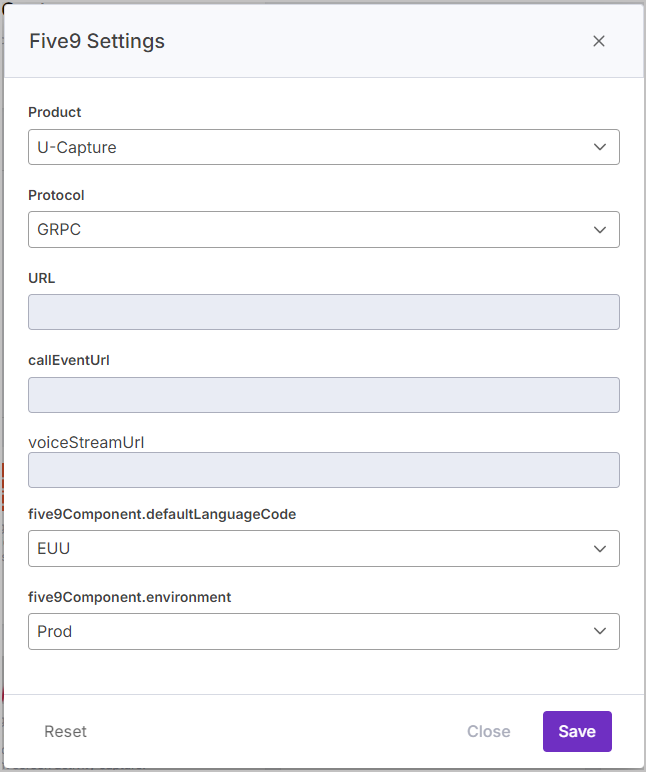 |
Create VoiceStream Subscription
Following the Media Integration configuration steps in the Uniphore admin portal (see Deploy the Five9 Media Integration) you can now configure the VoiceStream Subscription.
Caution
It is essential that you get to the Five9 admin page via the SETUP VOICESTREAM button as described below, going to the Five9 page manually will fail to configure Media integration and authorization flow.
To Create the VoiceStream Subscription:
|
Note
Which calls are captured is determined within the VoiceStream Subscription settings on the Five9 Admin Portal, this is editable during or after the VoiceStream Subscription is created under Streaming Filter, however it's recommended to edit the filter after the VoiceStream Subscription is configured to avoid duplication of work in the unlikely case the authorization flow fails.
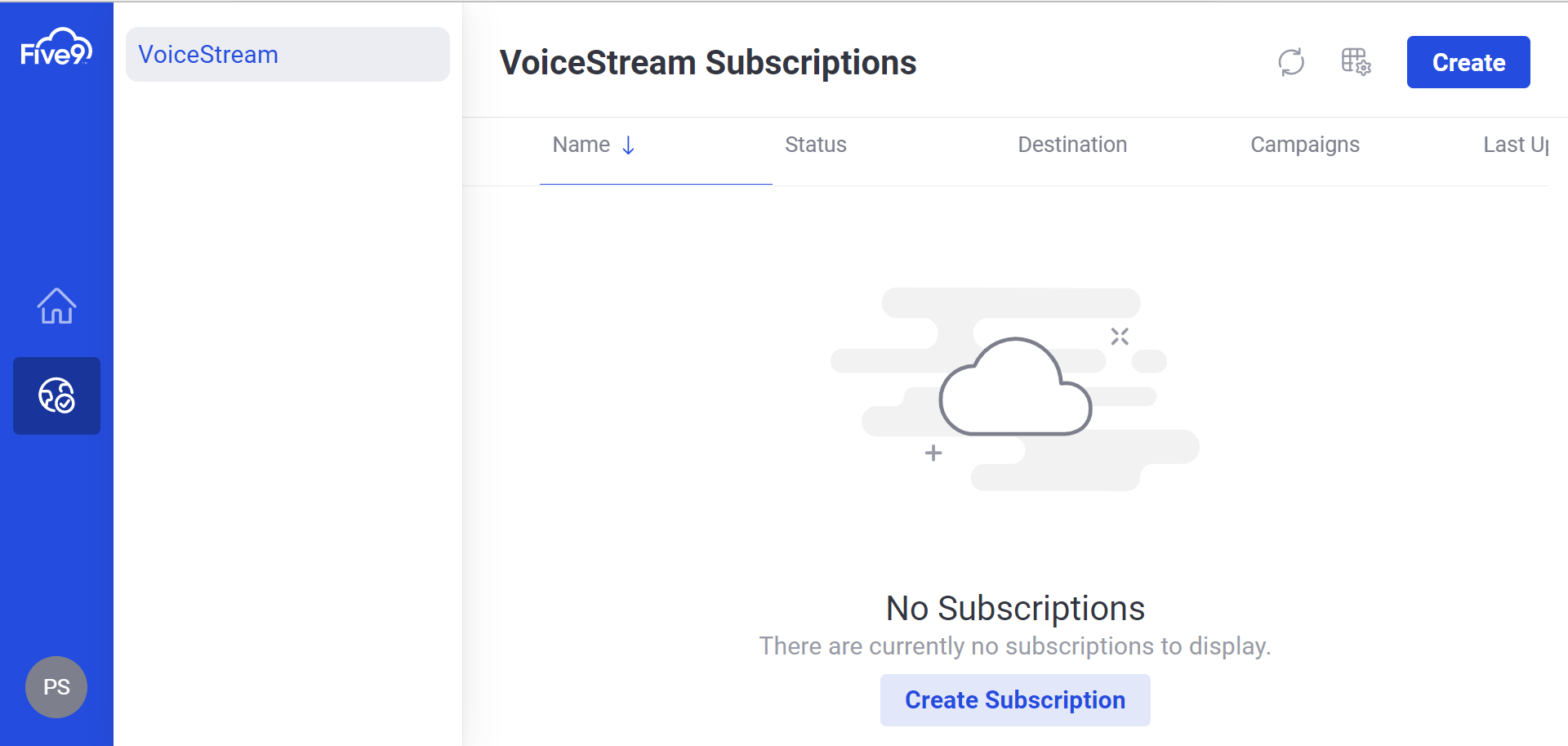 |
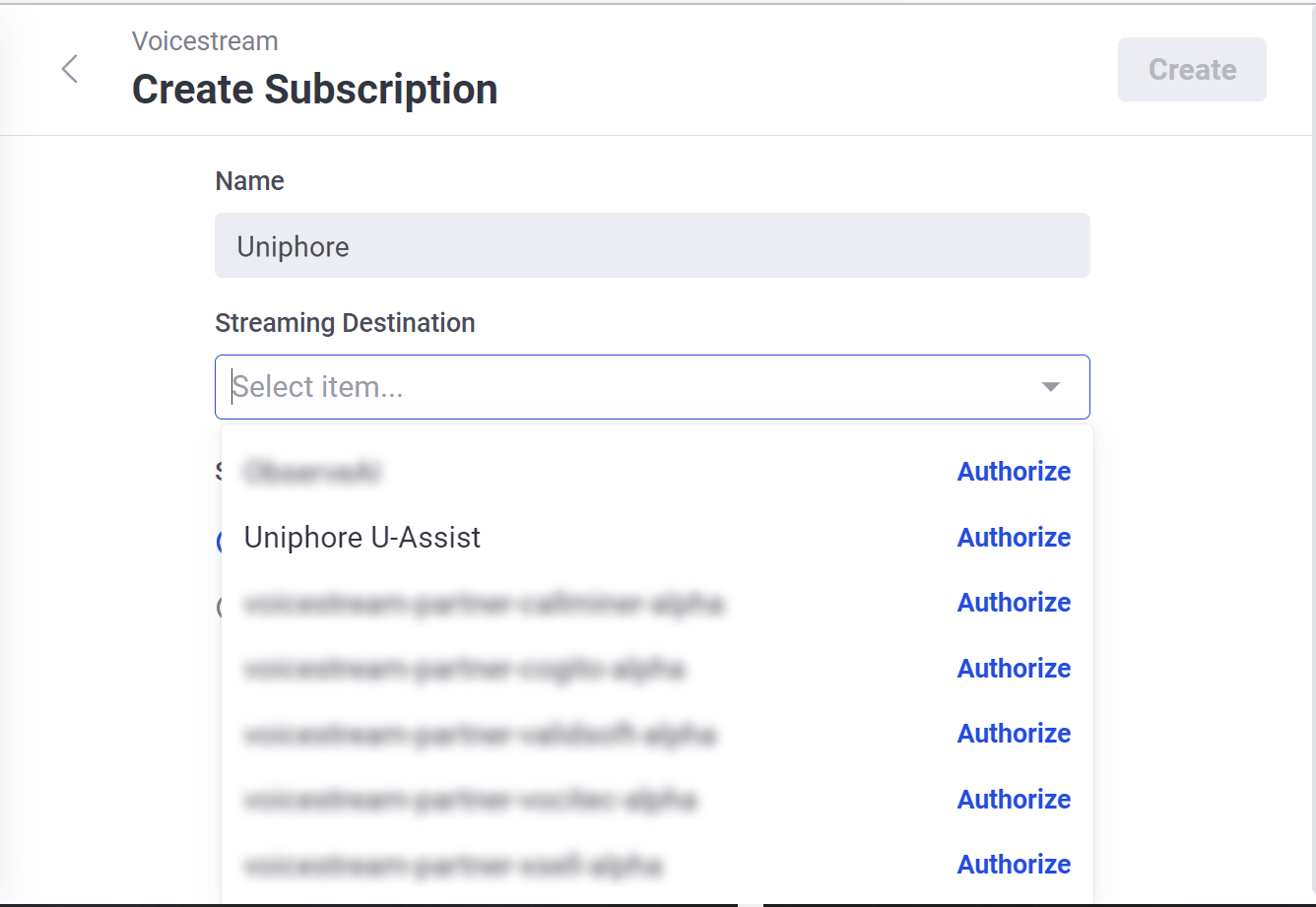
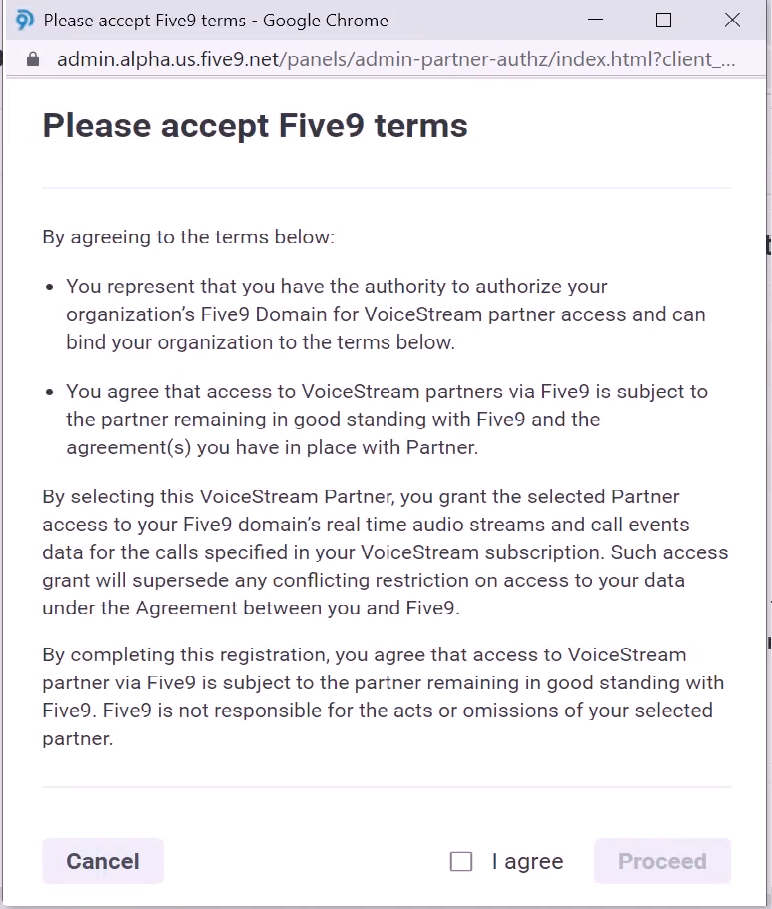 |
 |
 |
Determine Which Calls to Capture
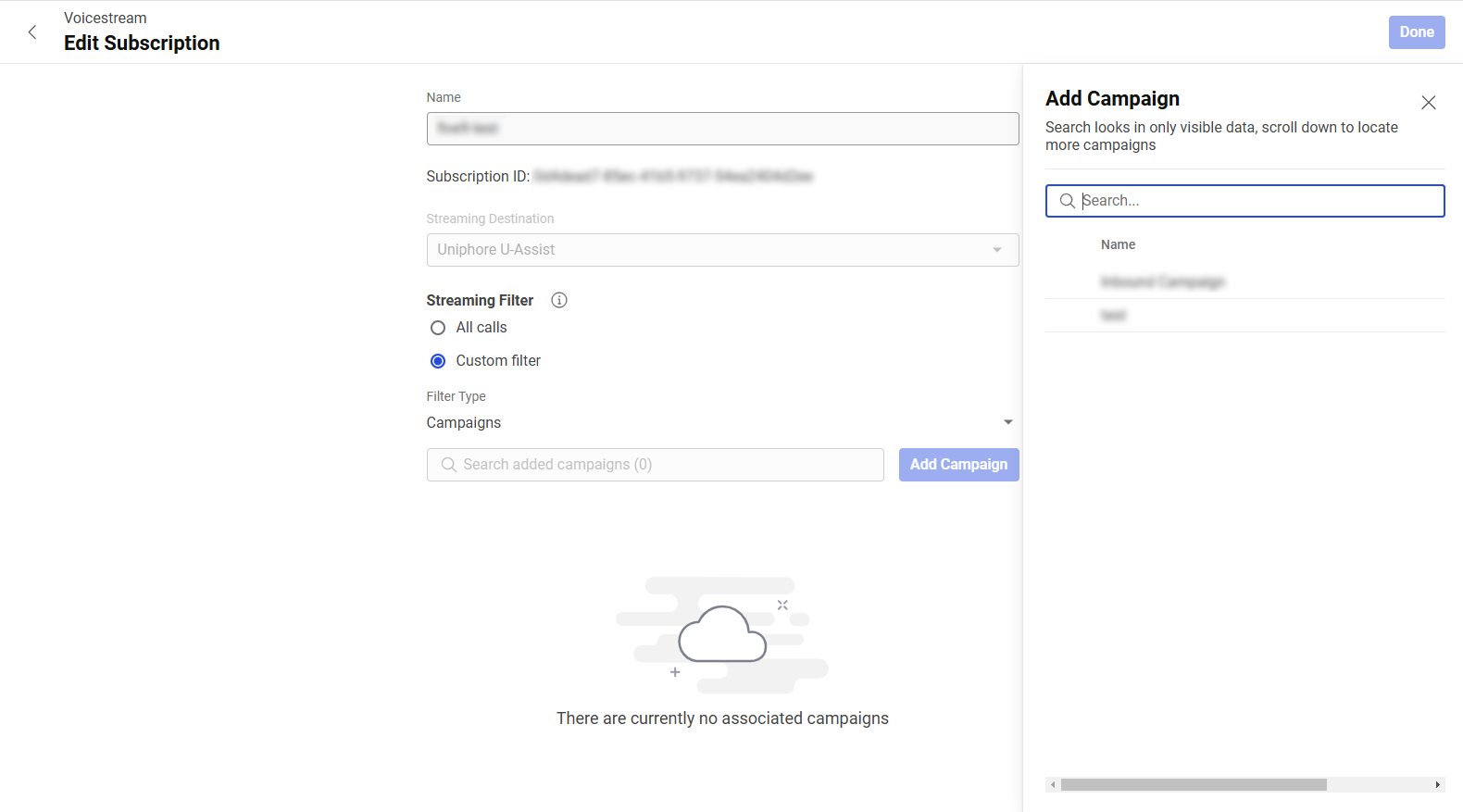
Which calls are captured is determined within the VoiceStream Subscription settings on the Five9 Admin Portal under Streaming Filter.
The below details how to edit the VoiceStream Subscription to determine which calls will be streamed to the Audio Connector.
Note
For an agents calls to appear in the Communication Recording Agent application, the agent must also be configured in the tenant, see Manage Users for Communication Recording Agent.
To Edit Which Calls are Captured:
|
For more information on editing VoiceStream Subscriptions, see the Five9 documentation on Creating Subscriptions for Partners here.
Five9 Recording Control
Recording Control Policies
Use Recording Control policies to control which call recordings are discarded and retained. Recording Control policies do not impact live calls so they can continue to be monitored. Blocklisting a call does not disable the call for recording and instead simply discards the call after the call has ended.
For more info on Recording Control Policies and further direction on adding, editing, and deleting Recording Control Policies, see Manage Recording Control Policies.
Blocklist: Blocklist policies can be used to provide fine control of what recordings are discarded. All calls outside the scope of the Blocklist are retained.
Allowlist: Allowlist policies are the reverse of a Blocklist. An Allowlist can be used to specify calls to be retained that would otherwise be discarded. All calls outside the scope of the Allowlist are discarded).
Add and Remove Users
Typically once the Communication Recording Agent / Five9 integration has been fully configured and initial setup is complete, new Five9 agents can be recorded, however which calls are streamed to the Audio Connector is determined within the Five9 VoiceStream Subscription under Streaming Filter, see Determine Which Calls to Capture for more information and configuration steps to determine which calls are streamed to the Audio Connector, additionally see the Five9 documentation on creating subscriptions for partner apps here.