Canned QA
Canned Q&A lets you configure sets of predefined question-and-answer pairs for a Guidance Agent. Each set is saved as a skill that you can assign to one or more Guidance Agents.
Note
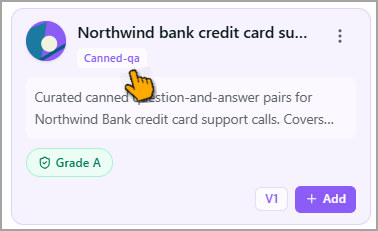
To distinguish Canned Q&A skills from other skills, they are labeled with the canned-qa category or source.
For more information about assigning skills to an agent, refer to Skills.
During a live call, the Guidance Agent uses its assigned Canned Q&A skills to identify relevant questions and answers for each conversation turn based on real-time conversation analysis. This helps human customer support agents access consistent, predefined answers and respond efficiently.
Important
To display Q&A in real time in Agent Assistant, specify in the agent's backstory how the Q&A title and question-and-answer content should be displayed. Otherwise, the Q&A will not appear in Agent Assistant.
Accessing Canned Q&A
From the left navigation pane, go to Setup > Canned QA to view all canned Q&A created for Real-Time Guidance.
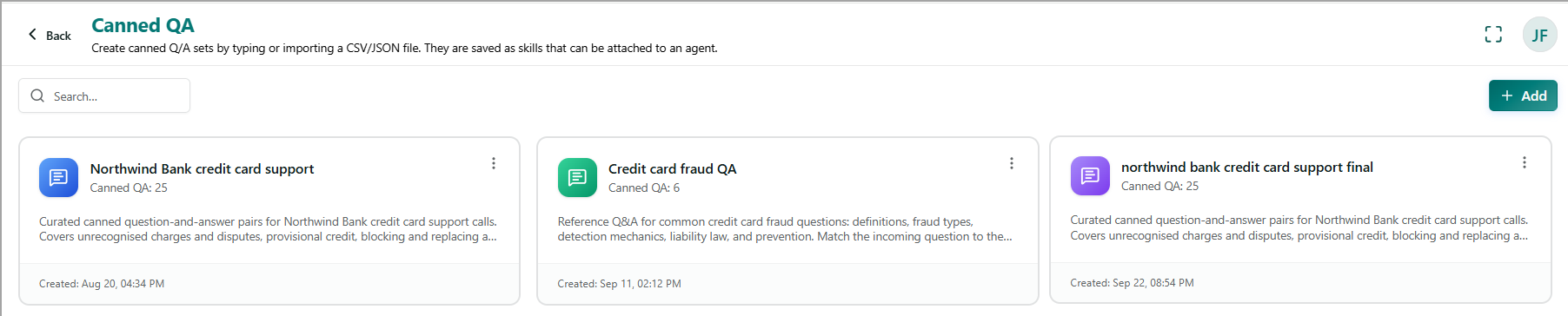
Each canned Q&A card includes the following information:
The name given to the Canned QA set.
The number of Q&A pairs in that set
A short description of what the set covers.
Date and time the set was created
When the canned Q&A set list is long, use the search bar at the top to find a specific set by name.
Create a Canned Q&A Set
Click + Add in the top-right corner. The Add Canned Q/A dialog appears.
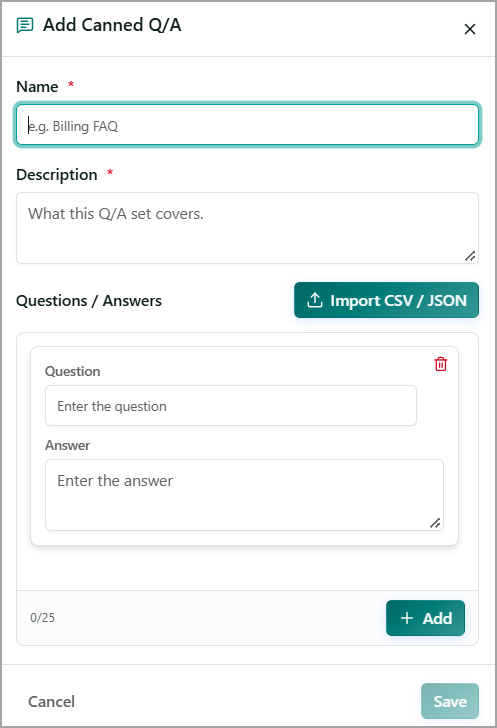
In the Name field, enter a descriptive name for the set, such as Billing FAQ. This name helps you identify the set when assigning it to a Guidance Agent.
In the Description field, describe what the Q&A set covers.
Under Questions / Answers, add the Q&A pairs using one of the following methods:
Enter manually - Enter a question in the Question field and its corresponding response in the Answer field. To add another pair, click + Add at the bottom of the section.
Import a file - Click Import CSV / JSON and select a file containing the predefined question-and-answer pairs. Ensure that the file follows the required format.
To remove an individual pair, click Delete
 associated with that pair.
Verify the number of Q&A pairs displayed at the bottom of the section. You can add up to 25 pairs to a set.
Click Save to create the set. To cancel your activity at any time without saving, click Cancel.
Edit an Existing Canned Q&A Set
Click Ellipsis
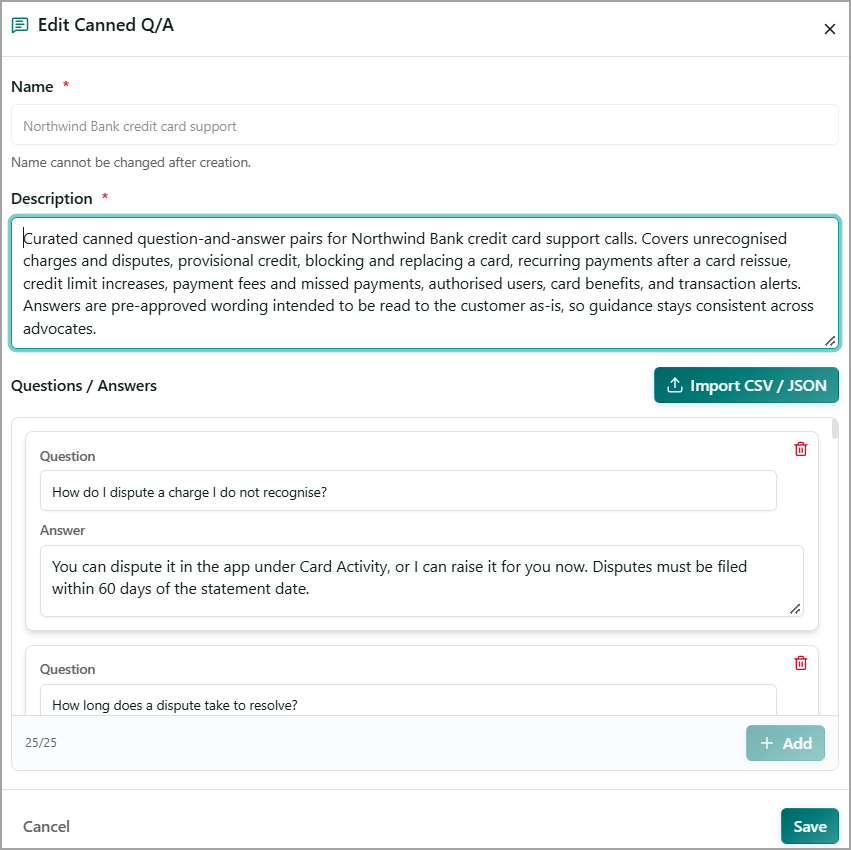
 on the specific Q&A set card and select Edit to modify the required question-and-answer details, as described in Create a Canned Q&A Set.
Note
The Canned Q&A set name cannot be edited.
Delete a Canned Q&A Set
Click Ellipsis
on the specific Q&A set card and select Delete to permanently delete the Q&A set.