Accessing Conversation Details
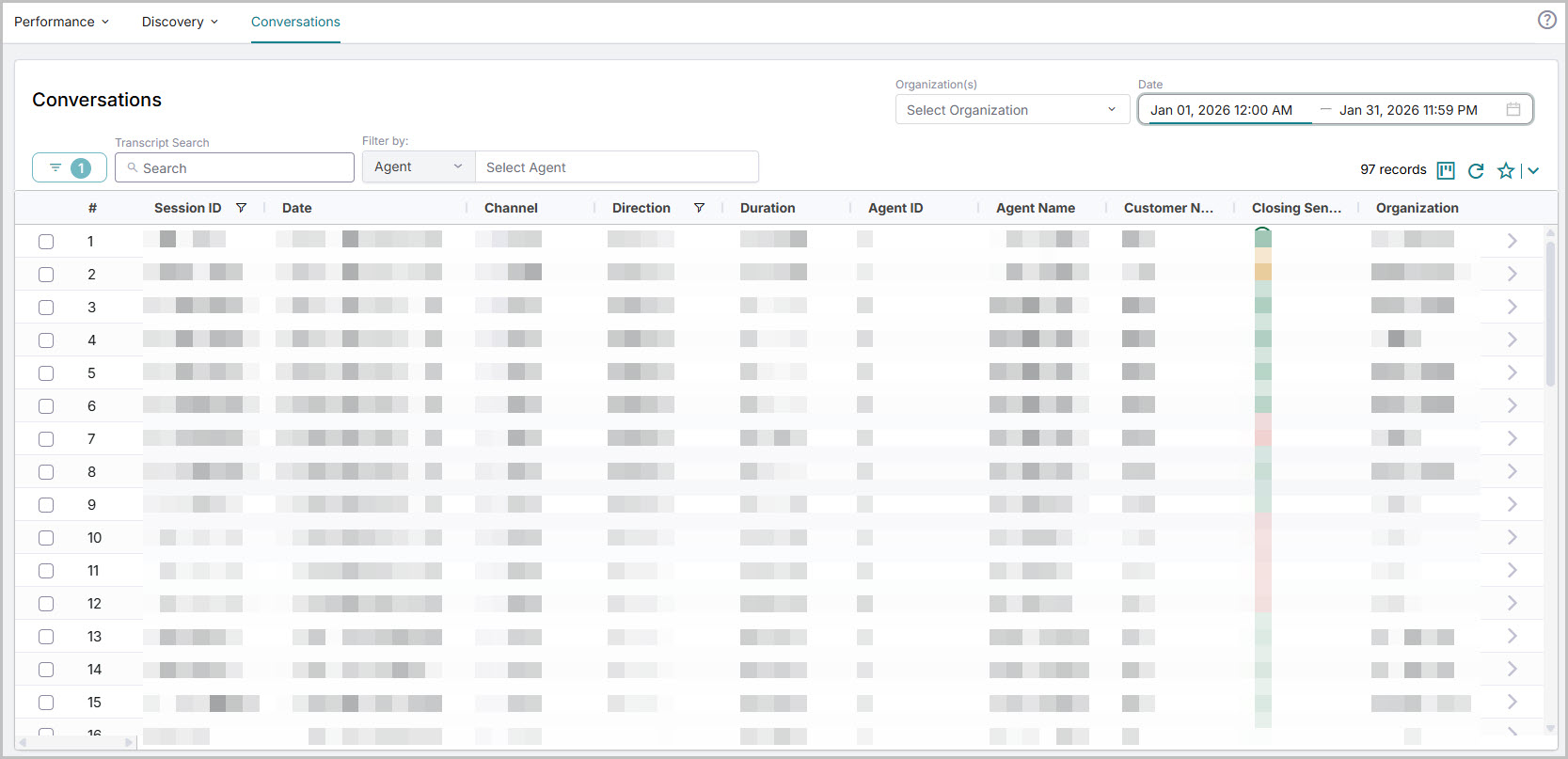
All processed conversations are listed on the Conversations Page. To view the conversations, navigate to Analytics>Conversations. By default, the list of conversations available for the last 7 days is displayed. You can select filters to modify the list.
Date range (Required): Select a date range to list conversations according to that time frame. The default filter is the last 7 days. You select
Organization (Optional): Select Organization to filter data based on the Organization and its hierarchy.
Agent/Supervisor (Optional): Filter by Agent(s) or Supervisor. This filter is also available in All Filters.
Filter by Agent(s): When you select the Agent option from the dropdown, both Agent ID and Agent Name are displayed. 10 Agents are displayed by default. To list the next set of 10 Agents, click Load more at the end of the dropdown. To find an Agent, enter the Agent's name in the box. This retrieves the Agent details even if they are not available in the currently loaded list. You can select up to 10 agents to filter the data.
Filter by Supervisor: When the Supervisor option is selected from the dropdown, the list of supervisors with their Name and Email ID is displayed. Selecting a supervisor displays their dashboard data, including conversations from all Agents, regardless of the supervisor to which they are assigned. The results also show the total number of mapped Agents and their names. Only one Supervisor can be selected at a time.
Note
The Agent(s) filter will not be displayed when the user is logged in as an Agent, as agents can only access their own data.
The Supervisor Filter is applicable to Administrators, Analysts, Quality Analysts, and Managers (Supervisors).
Transcript Search: When you enter a phrase in the transcript search box, all conversations containing that phrase are listed. Click > at the end of the conversation row to view the conversation details. In the conversation details page, select Transcript to see the search phrase highlighted wherever it appears.
Note
You can search conversation transcripts for a date range of up to 90 days.
Click the Column Reorder (
 ) to include columns to be displayed. You can include Auxiliary Metadata fields as columns.
Click
 to apply filters and view the data based on selected filters. The All Filters shows the selected filters and the number of filters applied. For example, when two filters are applied, 2 is displayed.
Agent/Supervisor (Optional): Filter by Agent(s) or Supervisor. This filter is also available outside All Filters.
Facts (Optional): Filter by Fact. Boolean facts and List Facts that are mapped to the selected Scorecard and Evaluation are displayed. When a Boolean Fact is selected, you can set the value to True or False. When a List Fact is selected, you can select one of the available values. The List Facts does not show the predictive values in the dropdown.
Note
You cannot use List Fact filtering with System Facts.
Scorecard (Required): Filter by Scorecard. By default, the scorecards are arranged alphabetically, with the first scorecard selected.
Scorecard Evaluation (Required): Filter by the scoring method used for the Scorecard - Auto/Manual.
Evaluation Score (Optional): Filter by Evaluation Score for the selected Scorecard and Evaluation. You can select the operator and enter the Score. To filter by Auto Fail, select the Auto Fail only option. When Auto Fail is selected, Score cannot be applied.
Direction (Optional): Filter by Call direction: Inbound/Outbound.
End of Call Sentiment (Optional): Filter by End of Call Sentiment. The available options are Positive, Negative, and Neutral. The data is displayed in the dashboard based on the selected option.
Conversation Duration (Optional): Filter by the duration of the Conversation. Select the operator and enter the time in seconds.
Channel (Required): Filter by Channel: All, Voice, Chat. The Call Duration is available for both Chat and Voice Conversations in the Conversation List and Details page.
Status (Required): Filter by Processing Status: Processed, Not Processed, or All. The default value is All.
Auxiliary Metadata fields (Optional): Filter by Auxiliary Metadata fields of the Conversation. Up to 20 Auxiliary Metadata fields are listed in the dropdown, of which any 15 fields can be used as filters. Select an Auxiliary Metadata field from the dropdown and add one or more values, separated by a semicolon. Click
 to add a field and
  to delete a field.
Note
Any filter applied outside of All Filters is automatically reflected within it, and changes made in All Filters is also reflected in the respective filters.
Reach out to your Uniphore Support Representative to include the set of Auxiliary Metadata fields for the filter.
Important
Conversations with fewer than two utterances are excluded from the Closing Sentiment calculation. As a result, the Closing Sentiment for these conversations appears as NA in the Conversation listings.
To Save a View
Apply any desired filters.
Click the star icon in the top-right corner.
In the Save View dialog, enter a name for the view and click Save.
To access saved views, click the down arrow next to the star icon.
To delete a saved view, click the delete icon next to the view name.
View Conversation Details
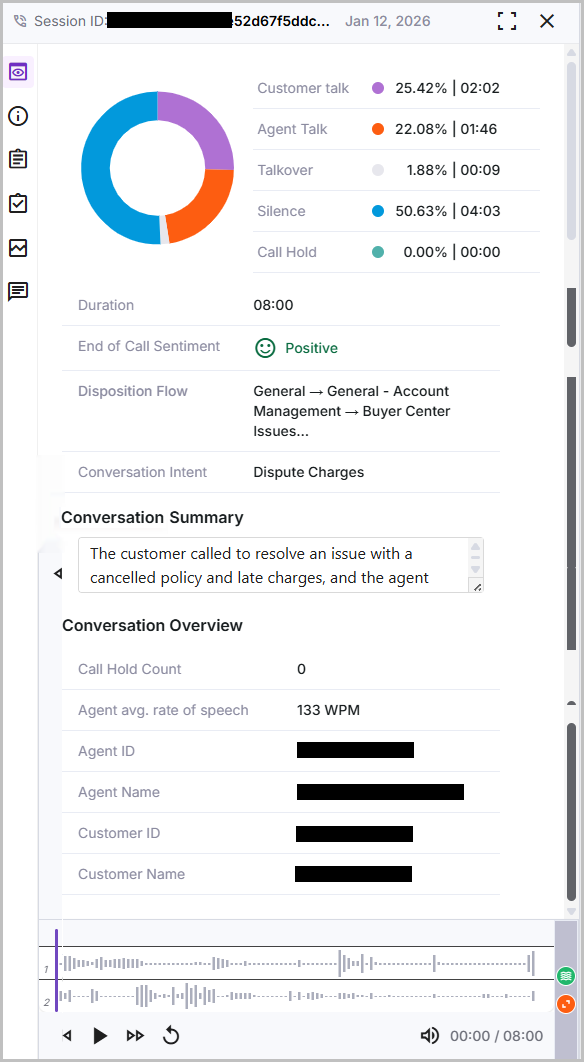
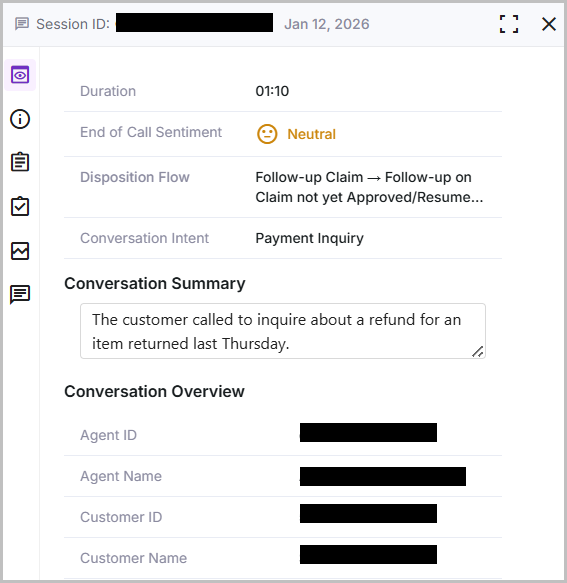
To open the Conversation Details window, either double-click the Conversation or click the > icon at the end of the conversation row.
Default View of Voice Conversation Details
 |
Default View of Chat Conversation Details
 |
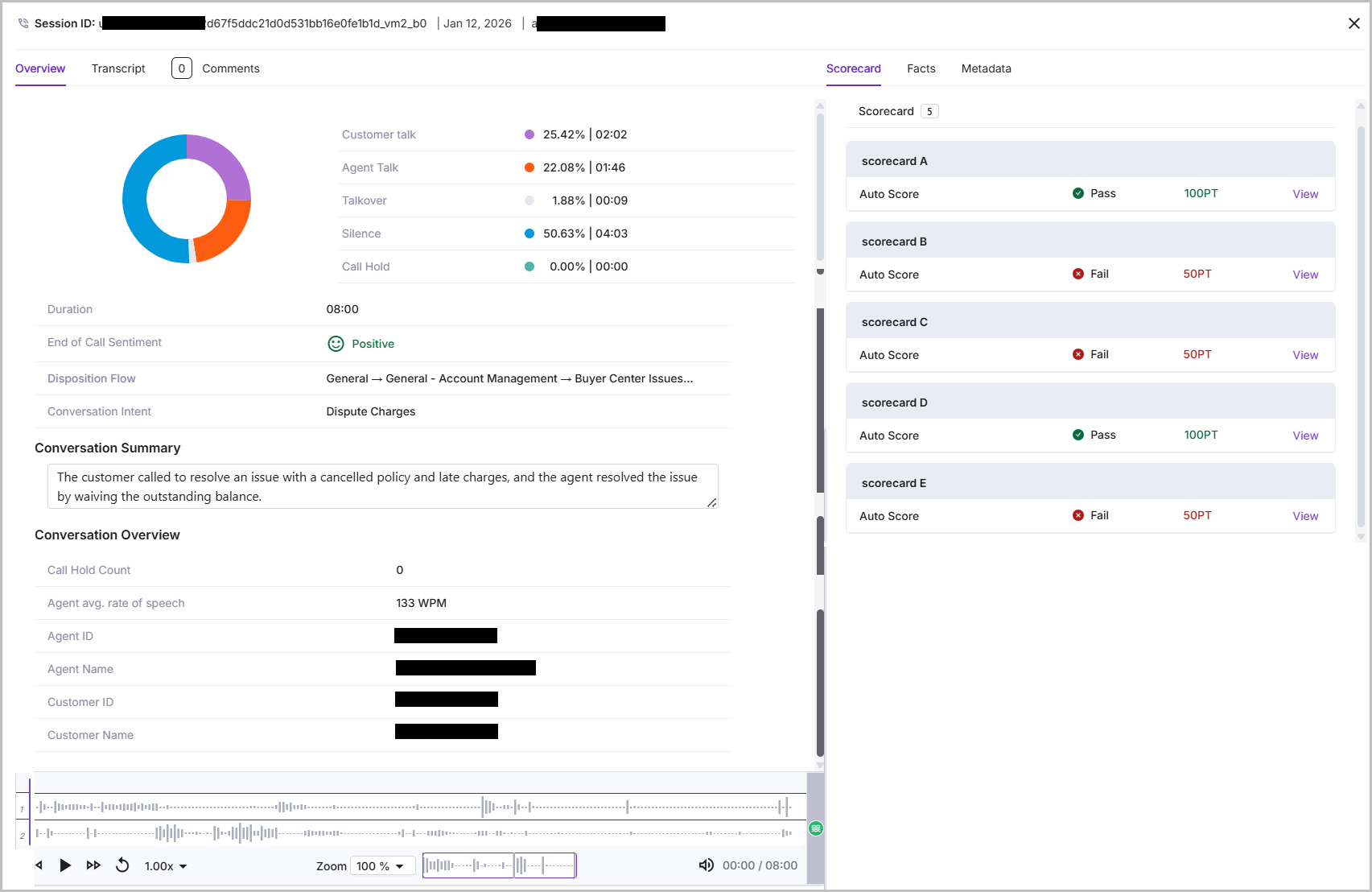
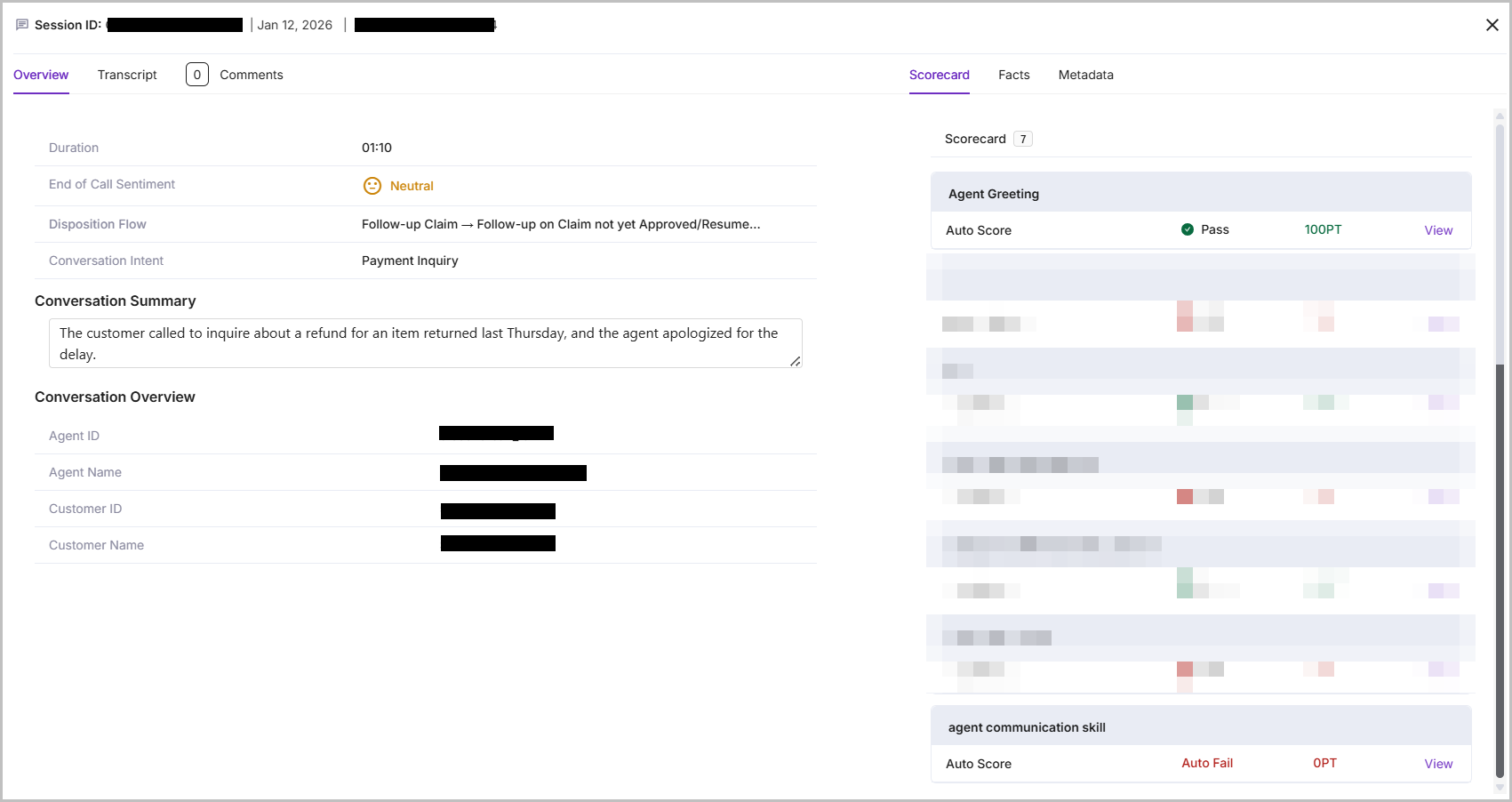
In the Call Details page, use the icons on the left to view specific details. To enlarge the view, click the Enlarge icon  . After you click, Theater mode opens, displaying the conversation details organized under different tabs.
Note
You can select up to 5 Conversations to view in Theater mode.
Enlarged View of Voice Conversation Details
 |
Enlarged View of Chat Conversation Details
Indication | Name | Description |
|---|---|---|
| Summary or Overview | Provides a high-level overview of the conversation. The donut chart displays the audio components of the call, with each component represented as a percentage of the total call duration. The legend depicts each audio element along with its value in both percentage and duration. Customer talk: The duration of time when only the customer was speaking. Agent talk: The duration of time when only the agent was speaking. Talkover: The duration of time when the agent and the customer were speaking at the same time. Silence: The duration of time when no speech or audio was detected. Call Hold: The duration of time the caller was put on hold by the Agent. NoteTalkover, Silence, and Call hold are applicable only to Voice conversations. NoticeThe Voice Conversations from Self-Service Agent do not display value for Audio elements, as the voice calls are transcribed and analyzed based on the transcripts. |
Duration | Duration of the Conversation. | |
End of Call Sentiment | Displays the customer's overall sentiment at the end of the conversation. The sentiment is depicted using different colored emojis:
NoteEnd of Call Sentiment is based on Voice conversations only. | |
Disposition Flow | Displays the disposition hierarchy identified for the Conversation. | |
Conversation Intent | Provides the purpose of the call identified from the conversation. | |
Conversation Summary | Provides a summary of the conversation. | |
Conversation Overview | Shows the Call Hold duration, Agent’s Average Rate of Speech, Agent ID, Agent Name, Customer ID, and Customer Name. | |
Audio Player | Enables you to play, pause, and replay the call. Click the Green icon to hide or show the sentiments. Click the Orange icon to expand or shrink the call panel (not available in the enlarged window). Click the Speaker icon to adjust or mute the volume for the entire call or per speaker. Click on the audio to highlight the related part of the transcript. NoteApplicable for Voice conversations only. | |
| Displays the transcription with timestamps for each speaker. Click the transcript timestamp to jump to that point in the audio. | |
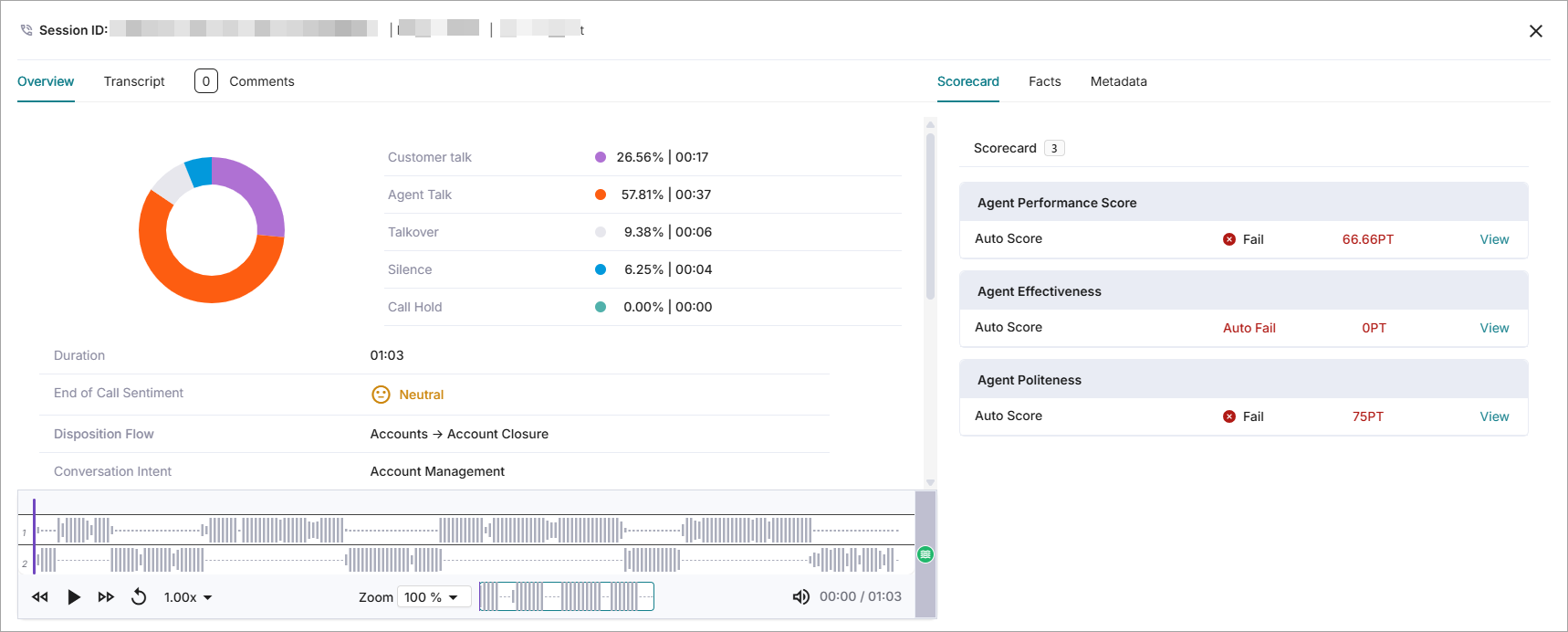
| Lists the scorecards associated with the call, including their scores, status, and Conditions (if applied). Click View to see the details of each scorecard. | |
| List the Facts associated with the conversation. Click the > icon to view the Query, Result, Where Detected, and Explanation. To learn more about these components, click here. NoteClicking Where Detected highlights the relevant text in the transcript and the corresponding section in the audio player. | |
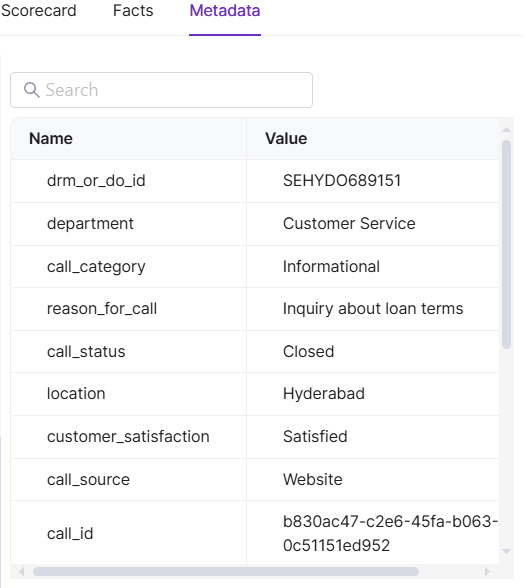
| Displays all metadata types and their associated values for the Conversation. | |
| Comments | Displays the comments added to the conversation by the Account Administrator, Analyst, Quality Analyst, and Manager. These users cannot add comments to their own conversations. The user who added the comment can alone modify or delete that comment. ImportantComments from the Quality Analyst on the Evaluation page prior to the 2025.03 release will not be displayed. |







Transcript in Conversation Details
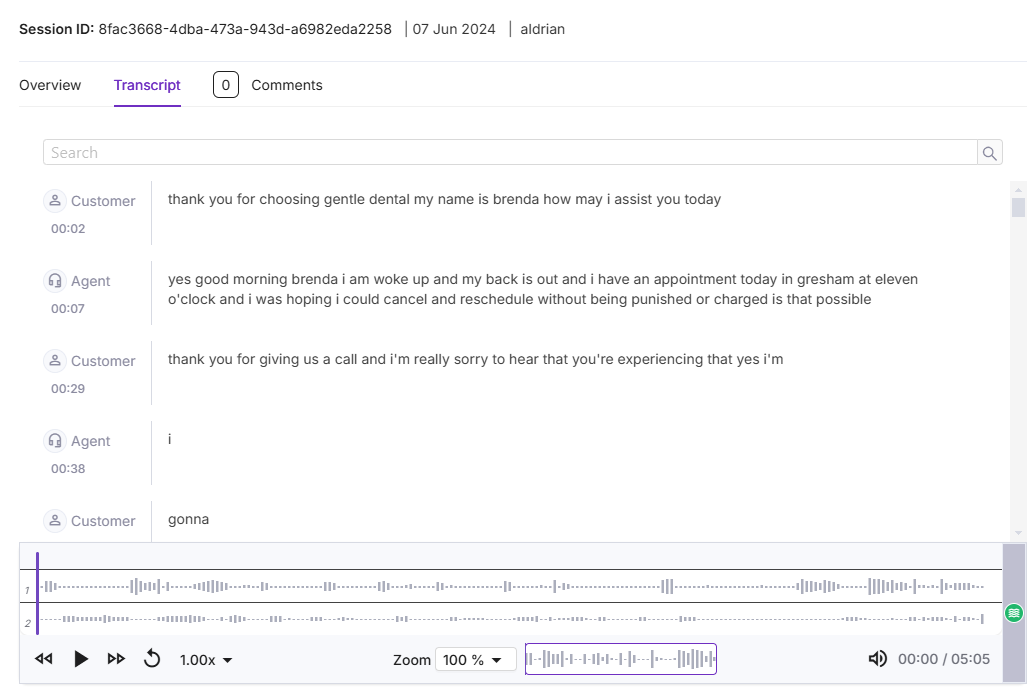
A transcript is a written record of the spoken dialogue from an audio recording, capturing all words spoken by the customer and the agent.
The transcript displays each speaker's turn in the conversation along with timestamps. For audio files, the audio player is displayed. You can use the audio player to adjust or mute the volume for the entire call or for individual speakers.
Enter the phrase you want to find in the transcript using the search bar. All occurrences of that phrase in the transcript will be highlighted.
Click the transcript timestamp to jump to that point in the audio, and then click on the audio to highlight the related part of the transcript.
Click the Green color icon in the audio player to see the sentiment of the conversation. The sentiment is available for Voice conversations only.
Data Redaction masks or hides sensitive information, such as Personally Identifiable Information (PII) data in transcripts.
Scorecard in Conversation Details
All Scorecards associated with the chosen conversation are shown. Click "View " to see the details of the score, sections, questions, and evidence, including timestamps and explanations. When a Scorecard is mapped to a Composite Fact, the Evidence includes the Composite Fact's Criteria and all Facts that are part of it. To learn more about Scorecards, click here.
 |
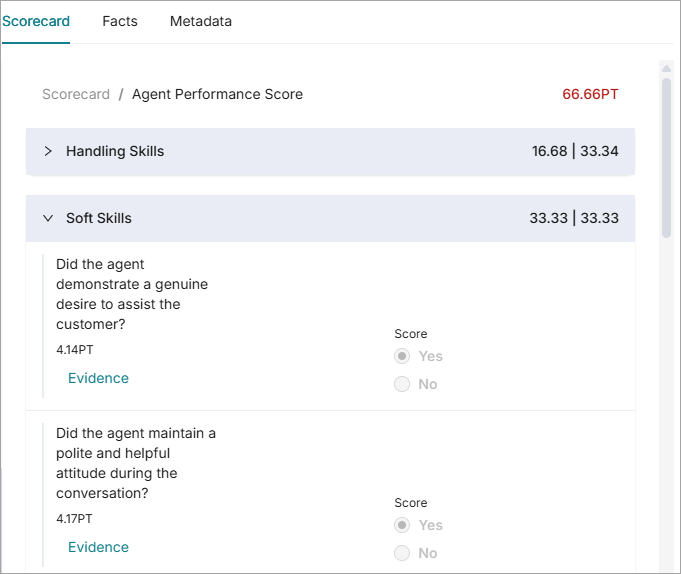 |
Conversations Not Processed
Scorecards are not processed in Conversations with fewer than two turns.
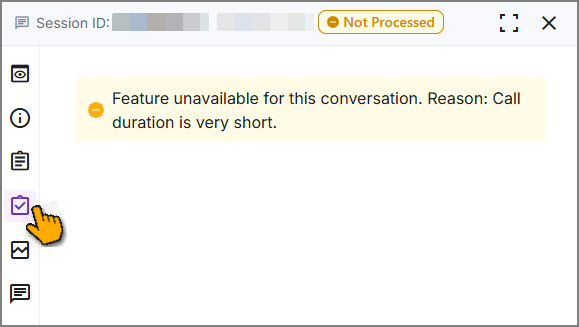 |
When Call exclusion filters are applied, the conversations that match the filter criteria are excluded from processing. The Scorecard section displays Not Processed status and a message stating that the conversation is excluded from processing, including the filter criteria.
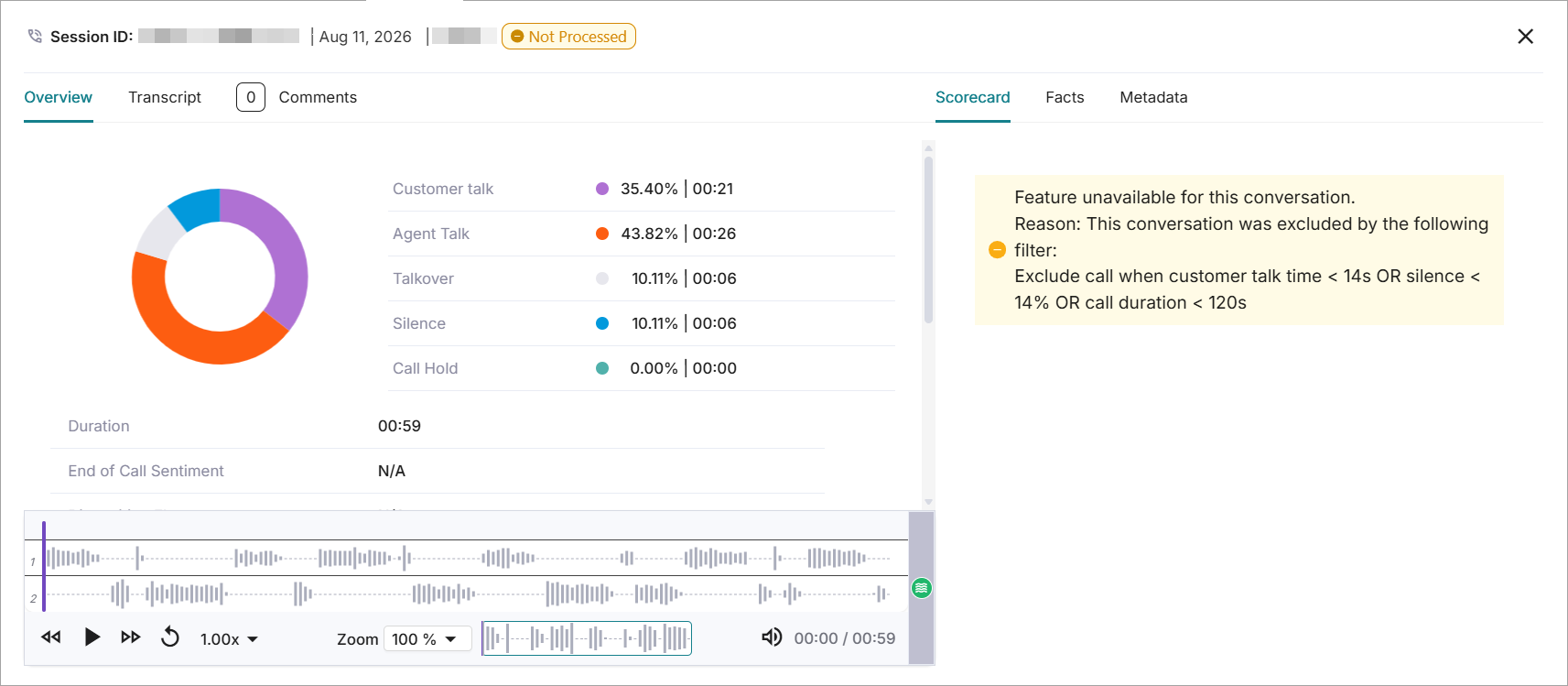
Facts in Conversation Details
In the Conversation details, the Facts section lists all Facts that are evaluated for the specific conversation. The Facts are listed by group. Click > to open a group, and the associated facts are displayed alongside the results. Click > at the end of the Fact to view the following details.
Fact: Name of the Fact
Query: Query written for the fact while creating. This is the prompt sent to the LLM to evaluate the Fact.
Result: Outcome of the Fact based on the Fact.
Where Detected: Timestamp(s) of query results in the Conversation.
Explanation: An AI-generated description that explains the Fact being evaluated and the reasoning behind the evaluation result.
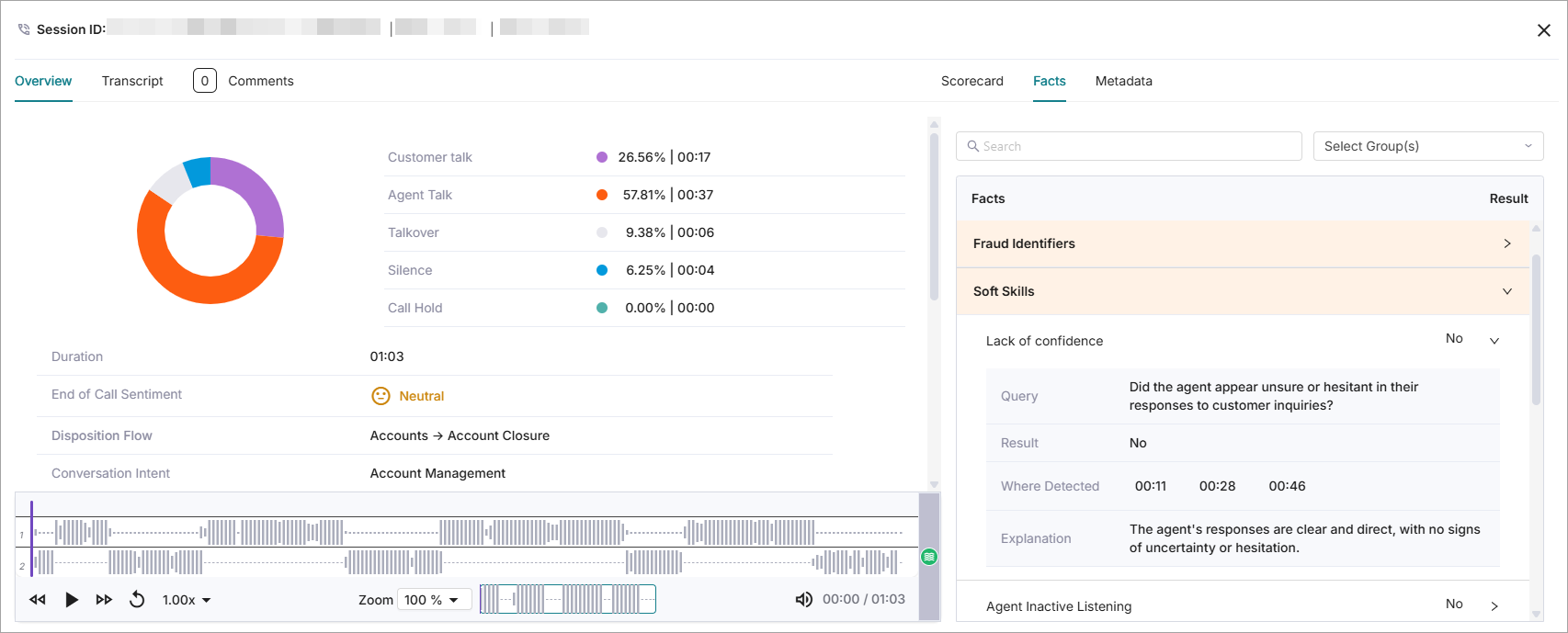 |
Conversations Not Processed
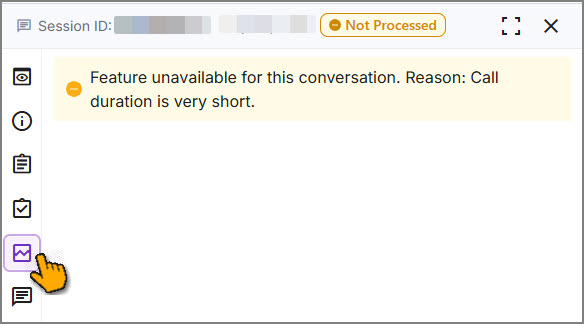
When Facts are not processed in conversations with fewer than two turns. The following error message is displayed.
 |
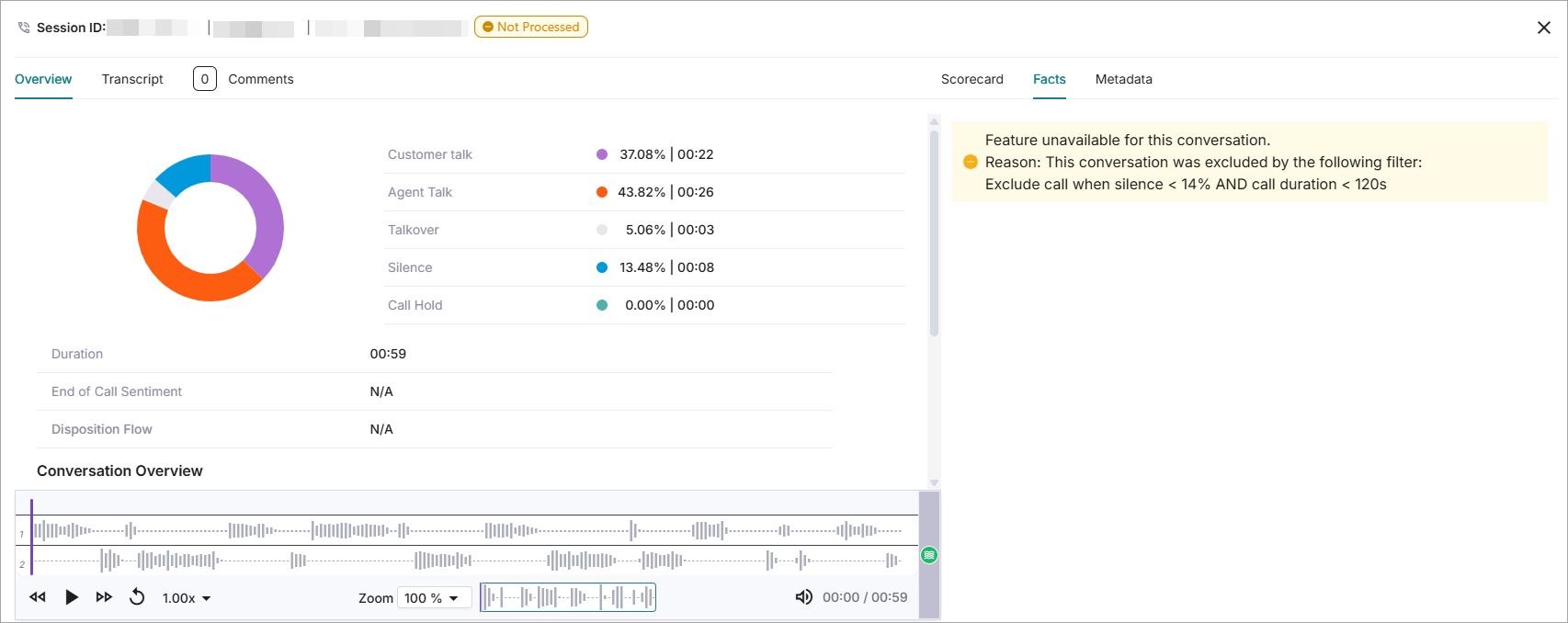
When Call exclusion filters are applied, the conversations that match the filter criteria are excluded from processing. The Fact section displays Not Processed status and a message stating that the conversation is excluded from processing, including the filter criteria.
To learn more, refer to Call Exclusion Filters APIs.
Metadata in Conversation Details
Metadata provides additional information describing the various attributes of a conversation that were uploaded and stored for processing. It displays the list of metadata attributes and their values that are defined for a conversation in the Create Voice Conversation API.
Audio Redaction
PII data is redacted by default from audio files, replaced with silence blocks, and not stored in logs or databases. Users can listen to the audio with redacted PII data.
PII data is automatically redacted from audio files as PII data redaction is enabled by default. When redaction is disabled, the PII data can be heard in the audio file and displayed in the transcript.
You can download the audio file as available, or the PII data in the audio file can be redacted using the Download Conversation API.
Note
Limitation: In some clusters, short audio segments (around 4–5 seconds) may not be redacted and could still be audible.