Test Knowledge Configuration Templates
Sentient Agent Design Environment includes a built-in feature that allows users to test in a sandbox environment. It enables them to run tests on templates using call transcript datasets to validate how proactive questions and answers are generated in real time before deployment. This helps identify gaps, fine-tune the Configuration Template, and export results for team review.
It also allows users to track test history, filter and sort test results, and download the results in an Excel (.xlsx) format for validation, ensuring that the Templates meet specific requirements and references.
About the Test Configuration Page
The Test Configuration page provides high-level test history details and testing status updates for a specific Configuration Template. It enables users to download a test template (.xlsx) and perform tests using sample transcripts, allowing easy iteration for template optimization.
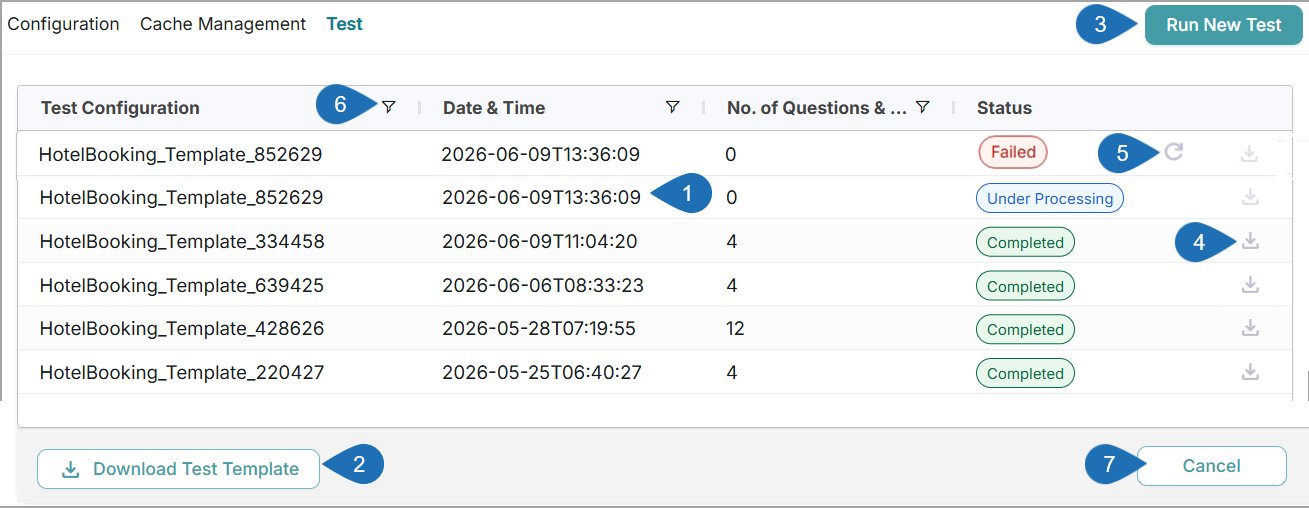
Item | Feature | Description |
|---|---|---|
1 | Test Results List | Displays the list of test results performed for the current Configuration Template. Each test result includes the following details:
|
2 | Download Test Template | Click Download Test Template to download the Configuration Test Template (.xlsx). |
3 | Run New Test | Click Run New Test to run a test with sample call transcripts. For more information on testing call transcripts, click here. |
4 | Download | For completed tests - Click Download to retrieve and validate the auto-generated Questions & Answers results. For failed tests - Click Download to view the error details and identify the reasons for failure. |
5 | Retry | Click Retry to rerun tests for Knowledge Configuration Templates only for test records with a Failed status. This icon is available only for test records with a Failed status. |
6 | Filter | Click Filter ( For more information on filtering test results, click here. |
7 | Cancel | Click Cancel to navigate to the Summary Builder page. |
Upload and Test Transcript Files
Users with the Account Admin or Business Analyst role can upload and test sample transcript files (.xlsx) using the Knowledge Configuration Template for an account.
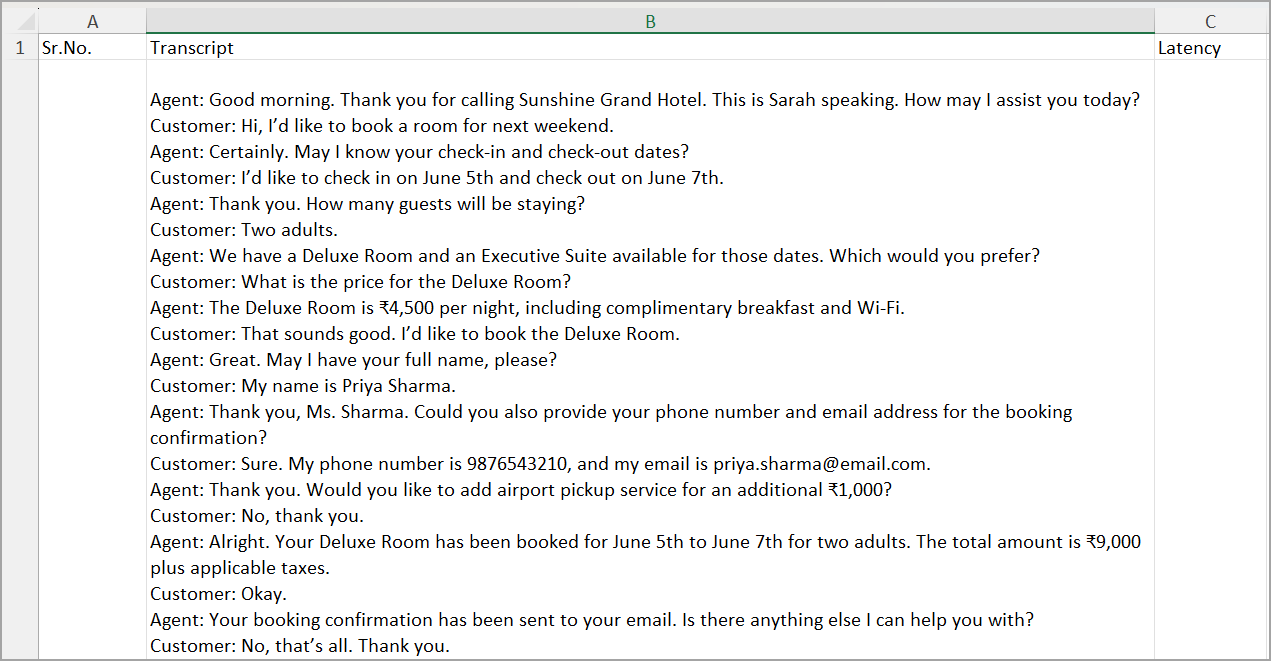
Click Download Test Template to download the Knowledge Configuration Template (.xlsx).
In the downloaded template, enter the sample call transcripts and save the file in your desired location.
You can add any number of call transcripts.
Sample Test Template
Click Run New Test in the top right corner of the page. The Run Test window appears.
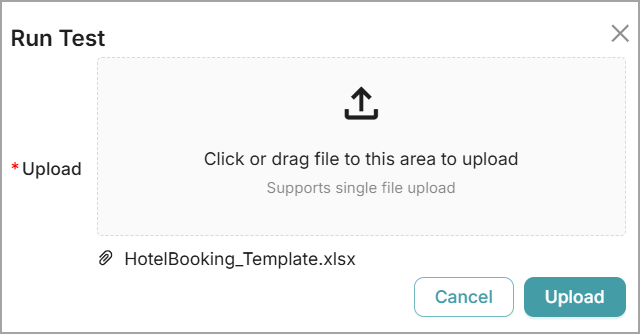
To upload a Knowledge Configuration test file in the Upload section:
Click Upload (
 ). The window to select a file will open. Select and upload the Knowledge Configuration test file, or
Drag and drop the test file into the designated upload area.
After successful uploading, the name of the uploaded Knowledge Configuration test file appears.
Note
If the test file is invalid or contains empty rows, the upload will fail, and an error message will be displayed.
Click Upload to validate how Questions and Answers are generated using the selected Configuration Template. During execution, the status is displayed as 'Under Processing ' in the Status column.
Refresh the page or navigate away and return to the Test page to view the updated status (Completed or Failed). When the test is completed, the generated Questions & Answers results file is available for download.
Click Download (
 ) in the respective rows where the test is completed to validate the generated Questions & Answers results and refine the Configuration Template, if required.
Sample Auto-generated Questions & Answers Results:
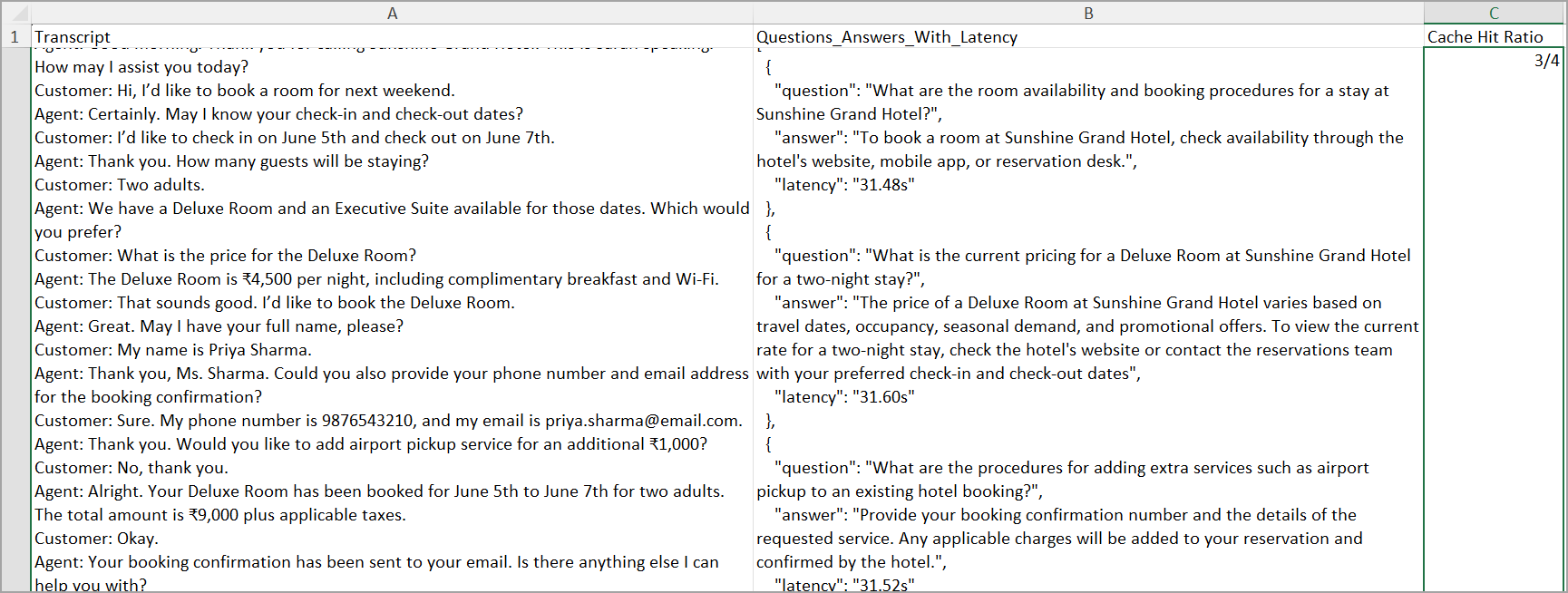
In the Questions_Answers_With_Latency column, you can view the generated Questions & Answers along with the total processing time (latency) for the test transcript file.
In the Cache Hit Ratio column, you can view the proportion of answers retrieved from the cache relative to the total number of questions.
Note
You can re-run a test with a refined template to validate how summaries are generated using the updated Configuration Template.
Filter and Sort Test Results
To help users focus on test results that meet specific criteria, the columns in the Test page can be filtered or sorted.
Click Filter (
 ) in any of the columns (Test Configuration, Date & Time, or No. of Questions & Answers) to display a pop-up with the relevant filter options for that column. To filter the list, select a specific condition, enter the desired characters or values, and then click Apply. To remove a filter, click Reset.
You can also use the AND or OR operator to combine two conditions.
Filter Test Configuration column:
The following options are available to filter the Test Configuration column:
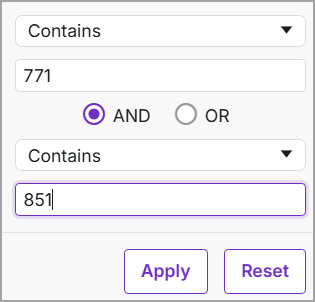
Contains - Displays labels that contain the mentioned characters.
Does not contain - Displays labels that do not contain the mentioned characters.
Equals - Displays labels that exactly match the mentioned characters.
Does not equal - Displays labels that do not match the mentioned characters.
Begins with - Displays labels that begin with the mentioned characters.
Ends with - Displays labels that end with the mentioned characters.
Blank - Displays records with no label value.
Not blank - Displays records that contain a label value.
Filter Date & Time column:
Date & Time
Equals - Displays records that match the specified date exactly.
Does not equal - Displays records that do not match the specified date.
Before - Displays records with a date earlier than the specified date.
After - Displays records with a date later than the specified date.
Between - Displays records that fall within a specified date range.
Blank - Displays records with no date value.
Not Blank - Displays records that contain a date value.
Filter Number of Questions & Answers column:
The following options are available to filter the Number of Questions & Answers column:
Equals - Displays values that exactly match the specified number.
Does not equal - Displays values that do not match the specified number.
Greater than - Displays values greater than the specified number.
Greater than or equal to - Displays values greater than or equal to the specified number.
Less than - Displays values less than the specified number.
Less than or equal to - Displays values less than or equal to the specified number.
Between - Displays values that fall within a specified range.
Blank - Displays records with no value.
Not Blank - Displays records that contain a value.
Click any of the column headers (Test Configuration, Date & Time, or No. of Questions & Answers) to cycle the list order between ascending, descending, and unsorted. Only one column can be sorted at a time.