Manage Cache
The Q&A Cache is the library of pre-approved question-and-answer pairs that the system checks before falling back to KaaS. A user with the Account Admin or Business Analyst role can create, manage, and maintain the Q&A cache used by the Proactive Knowledge Service. The cache stores validated question-and-answer pairs to provide fast and accurate responses during live interactions.
Users can manually add individual Q&A pairs or upload multiple entries in bulk. Cached entries can also be exported in Excel (.xlsx) format for validation and review. Additionally, filtering and sorting capabilities are available to efficiently manage cache entries.
About the Cache Management Page
The Cache Management page provides a high-level view of cached questions and answers associated with a specific Configuration Template.
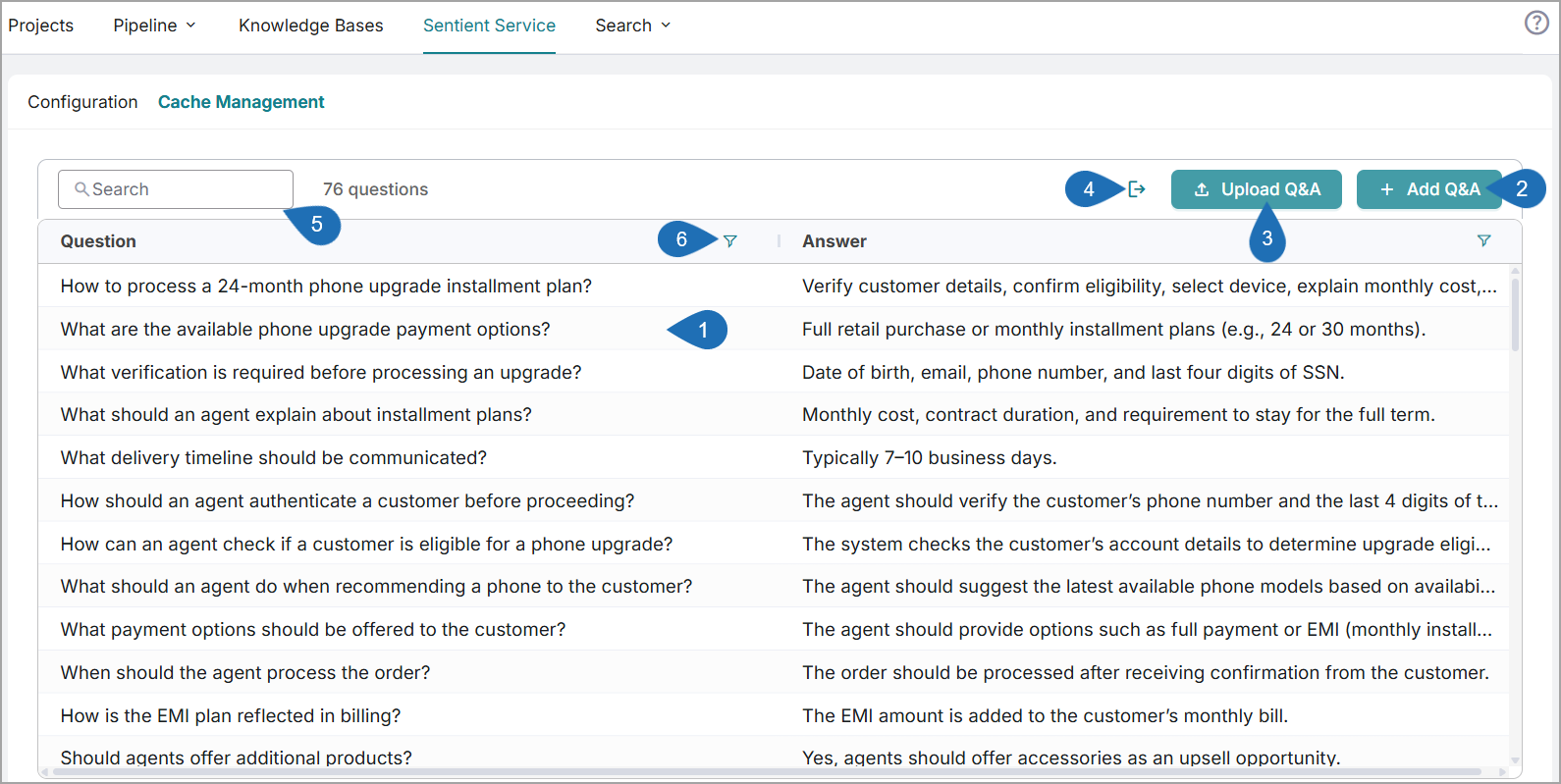
Item | Feature | Description |
|---|---|---|
1 | Questions and Answers List | Displays the list of questions and answers added to the cache for the current Configuration Template. |
2 | Add Q&A | Click Add Q&A to add a new Q&A pair to the cache. For more information on adding new Q&A, refer to the Add New Question section. |
3 | Upload Q&A | Click Upload Q&A to bulk upload multiple Q&A pairs to the cache. For more information on uploading Q&A pairs, refer to the Upload Bulk Q&A Pairs section. |
4 | Export | Click Export to download cached questions and answers as a CSV file for validation or to share data offline with your team. For more information on exporting questions, refer to the Export Cached Questions and Answers section. |
5 | Search Box | Enables searching the list for any question-and-answer pair that matches the details you provide. |
6 | Filter | Click Filter ( For more information on filtering cached Q&A, refer to the Filter and Sort Cached Questions and Answers section. |

Add New Question
From the Cache Management page, click Add Q&A. The Add New Question window is displayed:
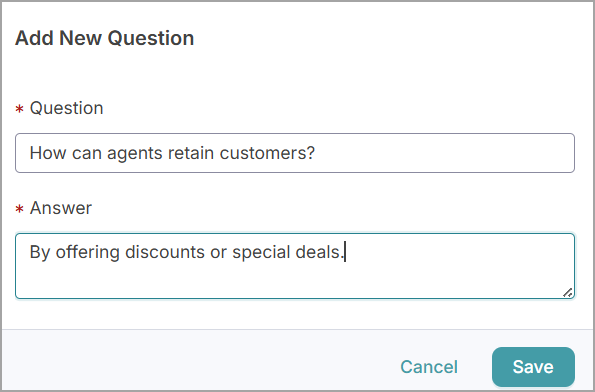
In the Question field, enter the question in relation to real customer queries.
In the Answer field, enter accurate and concise answers.
Click Save to add the new question to the cache. To cancel your activity at any time without saving, click Cancel.
Upload Bulk Q&A Pairs
From the Cache Management page, click Upload Q&A. The Add New Question window is displayed:
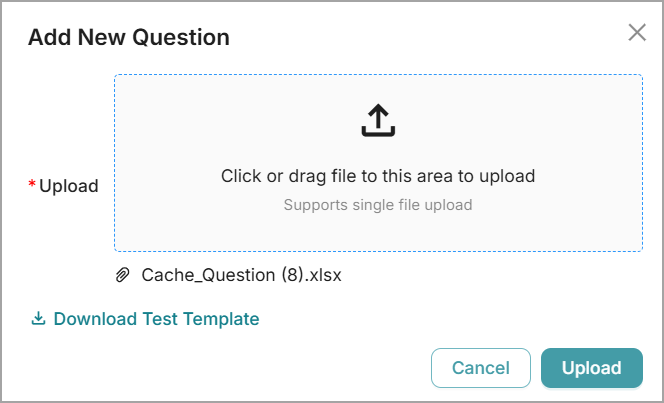
Click Download Test Template to download the Cache Questions & Answers Sample Template (.xlsx).
In the downloaded template, enter the required questions and answers, and save the file to your desired location.
You can add any number of question-and-answer pairs in the template.
To upload bulk Q&A pairs in the Upload section:
Click Upload (
 ). The window to select a file will open. Select and upload the updated Q&A file (.xlsx), or
Drag and drop the Q&A file into the designated upload area.
Once the file is added, the file name is displayed.
Click Upload to upload all the questions and answers to the cache. After a successful upload, a confirmation message appears. To cancel your activity at any time without uploading, click Cancel.
Note
If the Q&A file is invalid or contains empty rows, the upload will fail, and an error message will be displayed.
Export Cached Questions and Answers
From the Cache Management page, click Export (
 ). The cached questions are exported successfully as an .xlsx file to your Downloads folder.
Use the exported file for backup and validation.
Edit Cached Questions and Answers
In the Cache Management page, double-click on the specific Q&A row. The Question Details window appears.
Click Edit (
 ) to modify the question or answer.
Place the cursor in the Question or Answer box and make the required updates.
After completing the updates, click Approve (
 ) to save the changes. If you want to cancel the updates without saving, click Discard (
 ).
).
Filter and Sort Cached Questions and Answers
To help users focus on Q&A that meet specific criteria, the columns in the Cache Management page can be filtered or sorted.
Clicking Filter (
 ) in a column displays a popup of all current values available for that column. To filter the list, enable the checkboxes for the values you want to include and click Confirm. To remove a filter, click Reset.
Clicking Sort in a column cycles the list order between ascending
 , descending
  , and unsorted lists. Only one column can be sorted at a time.