Search and View Transcriptions
Use the optional Transcription service from Uniphore to convert speech within a recorded call into a text conversation. This means you can view the text conversation and listen to the call audio.
You may want to check with your system administrator to see which calls are transcribed within your system, as transcription is a configurable option. The Clipboard flag in the search results indicates that a call has been transcribed.
To View Transcribed Calls:
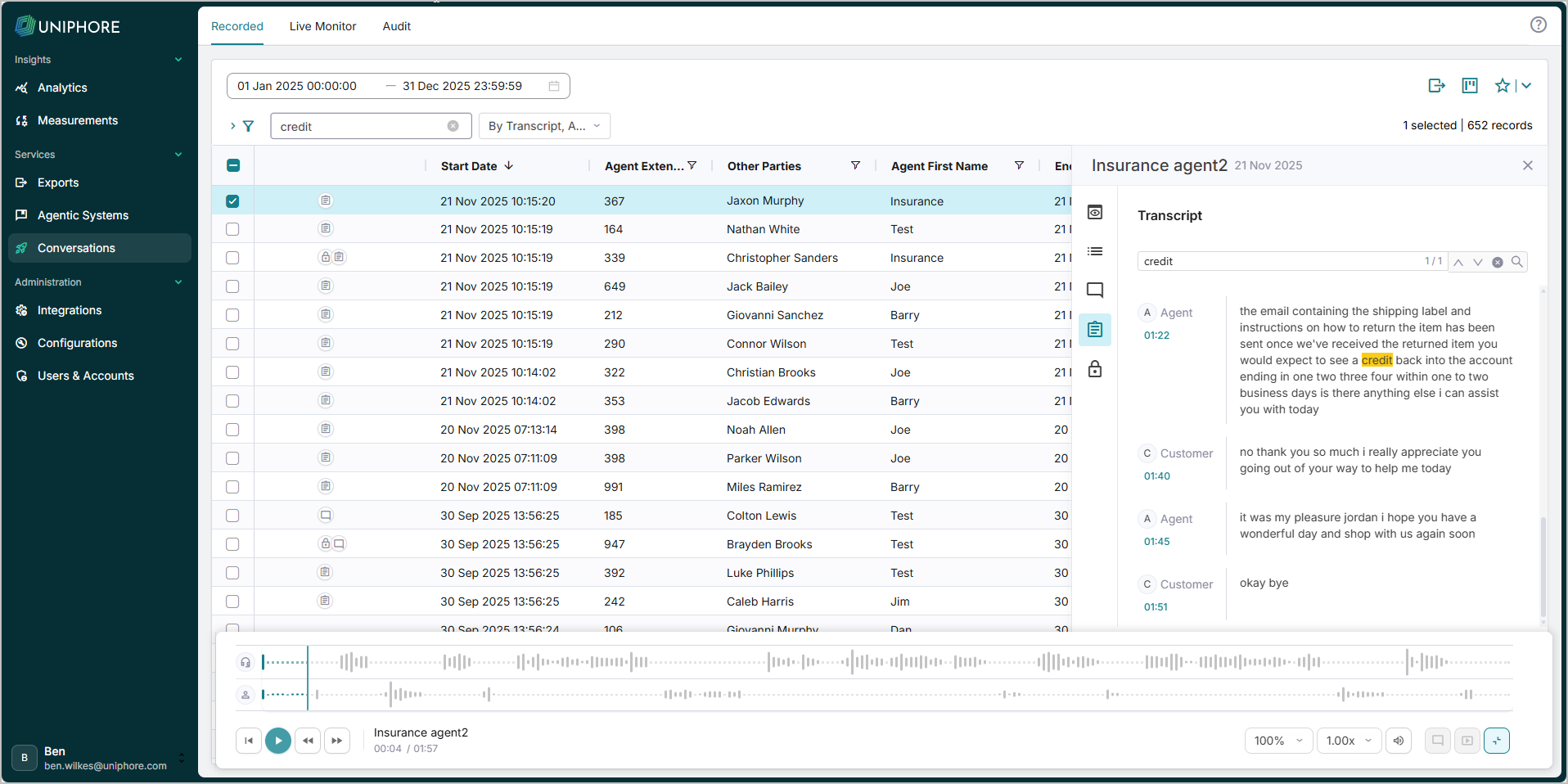
Highlight the call in the Results panel and click the Transcription tab in the Properties panel. Remember, only calls with the Clipboard transcription flag have been transcribed in your system.
The tab shows an IM-style view of the conversation, and if your system allows it, you’ll also see each caller or speaker.
To find a specific word or phrase in the conversation transcript, enter text into the Search bar and click Enter or press the search icon. The transcript jumps to the first instance of the searched word or phrase and highlights all matching occurrences.
Either scroll through the transcript to see highlighted matches or use the up and down arrows to jump between them.
Note
Use filters to search for specific calls as needed, then use the Transcription flag to see if the calls have been transcribed. Use the search bar along with the adjacent dropdown set to by Transcript, Annotation & Lock Reason to search across all calls or your filtered results for specific words or phrases in transcriptions and annotations.
For more information on using filters, see Using Advanced Search Filters.
Filter your conversations for specific words or phrases using the conversation Search bar. This filters for occurrences of your entered test across metadata, annotations, and transcripts.