Phone Integration
The Phone Integration enables administrators to manage the Direct Inward Dialing (DID) number pool used by AI agents. You can add phone numbers, map them to AI agents, search and filter DID numbers, and view the SIP configuration required to integrate your telephony infrastructure with Customer Service AI.
Access Phone Integration
Navigate to Setup > Phone Integration. The Phone Integration page displays all configured DID numbers and their associated AI agents.
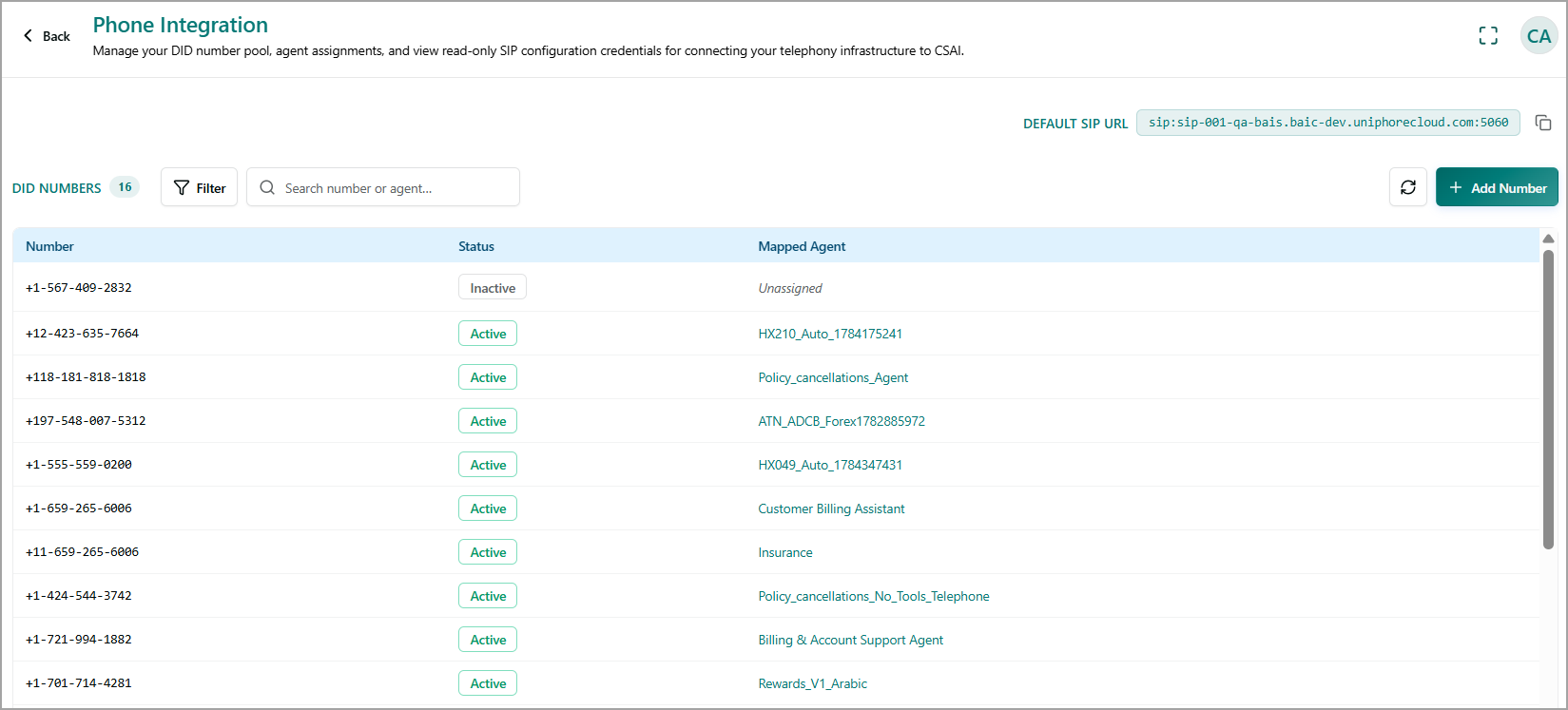
The page includes the following components:
Component
Description
DID Numbers
Displays the total number of configured DID numbers.
Filter
Filters DID numbers based on their mapping status.
All – Displays all configured DID numbers.
Mapped – Displays only DID numbers that are assigned to an AI agent.
Unmapped – Displays only DID numbers that are not assigned to an AI agent.
Search
Searches for a DID number or mapped AI agent.
Number
Displays the configured DID phone number.
Status
Indicates the current status of the DID number.
Active - Indicates that the DID number is assigned to an AI Agent.
Inactive - Indicates that the DID number is not assigned to an AI Agent.
Mapped Agent
Displays the AI agent currently assigned to the DID number. If no AI Agent is assigned, the field displays Unassigned.
Default SIP URL
Displays the read-only SIP endpoint used to connect your telephony provider to Customer Service AI.
Copy

Copies the Default SIP URL to the clipboard.
Refresh

Refreshes the DID number list to display the latest information.
+ Add Number
Opens the Add Number dialog to configure a new DID number.
Add a DID Number
In the Phone Integration page, click + Add Number.
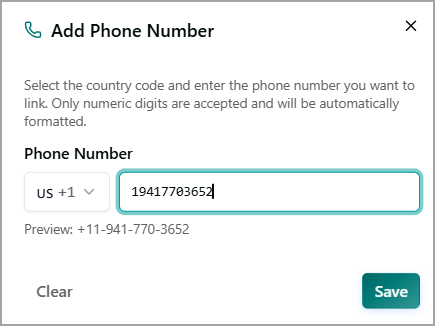
In the Phone Number field, select the country or region, and enter the phone number that you want to associate with the AI Agent.
For more information about assigning a DID number to the AI agent, refer to Configure Telephony Agent.
Verify the formatted phone number displayed below the input field. This preview shows how the phone number appears after you save it. For example, +11-941-770-3652.
Click Save to add the phone number.
Delete a DID Number
You can delete only a DID number that is not assigned to an AI Agent (i.e., a DID number with an Inactive status).
Hover over the row for the DID number that you want to remove.
Click Delete
 to remove the DID number.