TTS Engine Configuration
The TTS Engine enables you to select and customize text-to-speech (TTS) voices used by AI agents during voice interactions. It provides access to premium voices with configurable speech characteristics, helping you create natural, engaging, and personalized conversational experiences.
The TTS Engine supports both Uniphore Voices and Custom Voice Providers, allowing you to choose the voice that best fits your organization's requirements while configuring telephony agents.
For more details about configuring telephony agents, refer to Configure Telephony Agent.
Access the TTS Engine
Navigate to Setup > TTS Engine.
Select one of the following tabs:
Uniphore Voices – Browse and configure voices provided by Uniphore.
Custom Voice Providers – Browse and configure voices from supported third-party providers.
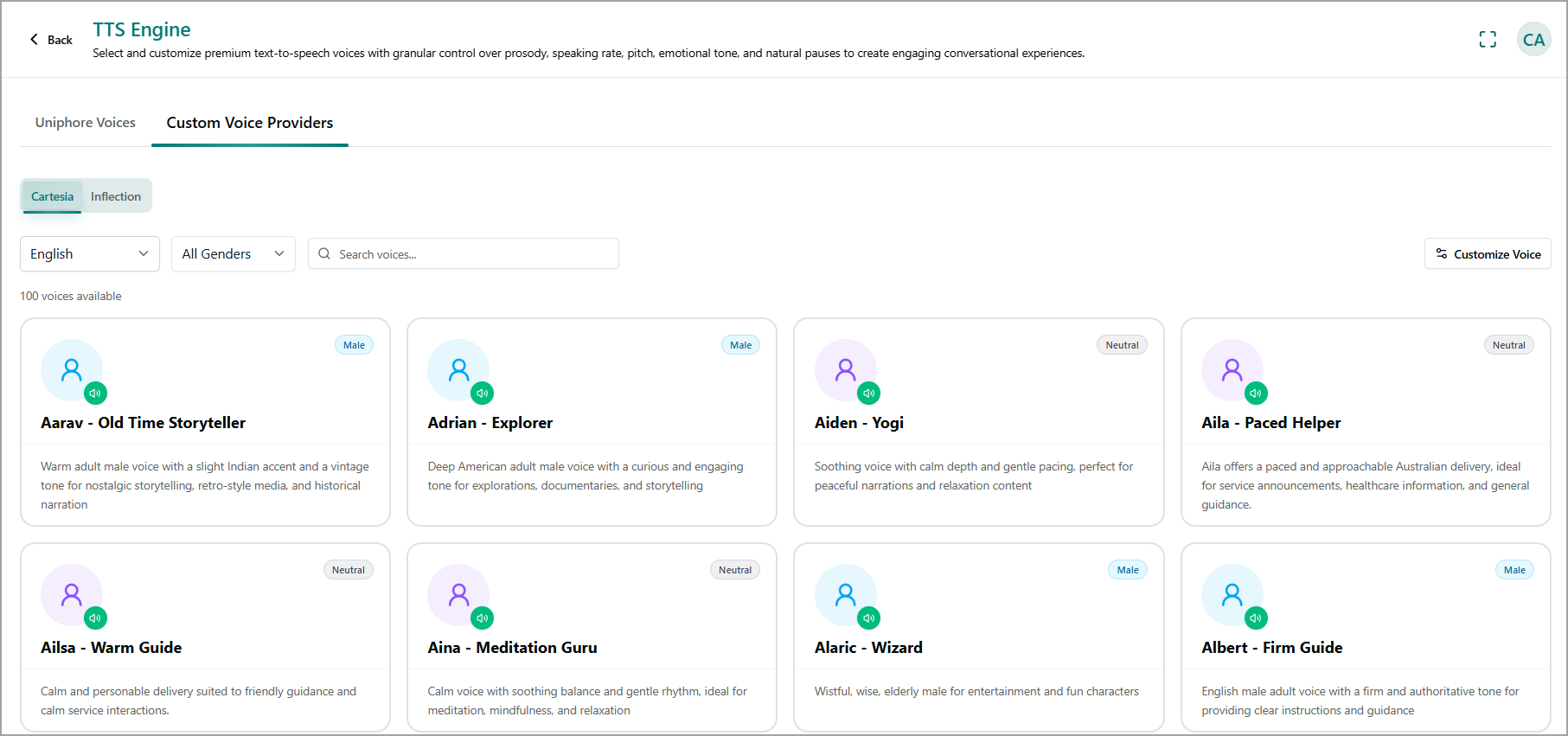
Browse Available Voices
The TTS Engine page displays all available voices for the selected provider. You can use the following options to find a suitable voice.
Option | Description |
|---|---|
Voice Provider | Select the supported voice provider. Currently, Cartesia is the only supported voice provider. |
Language | Filters voices by the selected language. |
Gender | Filters voices by gender. |
Search Voices | Searches for voices by name. |
Available Voices | Displays the total number of voices that match the selected filters. |
Each voice card displays the following information:
Field | Description |
|---|---|
Voice Name | Displays the name of the voice. |
Voice Style | Indicates the speaking style or persona associated with the voice. |
Description | Describes the characteristics and recommended use cases for the voice. |
Gender | Indicates the voice gender or classification, such as Male, Female, or Neutral. |
Preview (Speaker icon) | Plays a sample audio clip to help evaluate the voice before using it. |
Customize a Voice
The Customize Voice feature allows you to configure the voice preview by modifying the preview transcript and adjusting voice characteristics. You can use these settings to evaluate how a voice sounds before assigning it to an AI agent.
Click Customize Voice at the top right side of the page. The Customize Voice dialog box appears.
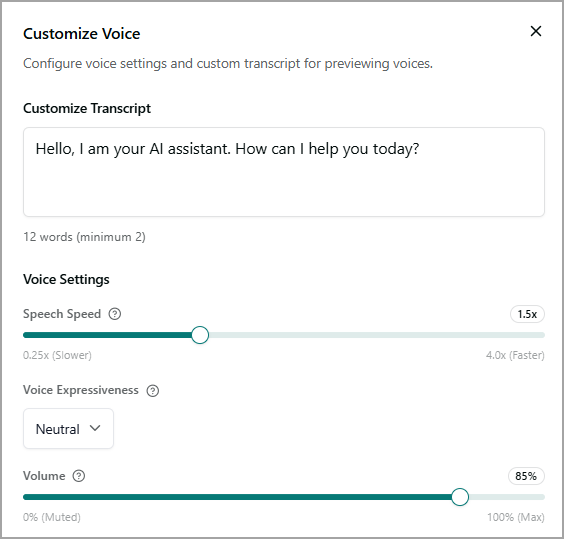
In the Customize Transcript box, enter the text that will be used to generate the voice preview. The transcript must contain at least 2 words.
In the Voice Settings section, configure the following options:
Speech Speed - Adjust the playback speed of the generated speech. Move the slider to decrease or increase the speaking rate. The supported range is 0.25x (Slower) to 4.0x (Faster).
Voice Expressiveness - Select the desired speaking style for the voice. Available options include Neutral, Calm, Content, Excited, and other styles supported by the selected voice provider.
Volume - Adjust the playback volume for the voice preview. The supported range is 0% (Muted) to 100% (Maximum).
Preview the voice to verify that the configured settings produce the desired output.