Past
The Past Meetings section is now completely revamped and is renamed as Past. A top ribbon above the filters is introduced that contains the shortcuts to various meeting categories. This helps in searching the past meetings for review and analysis thereby reducing the overall effort involved in search to analyze the meetings. The Meeting Replay section is now accessible from the Attended tab that also contains a Preview button.
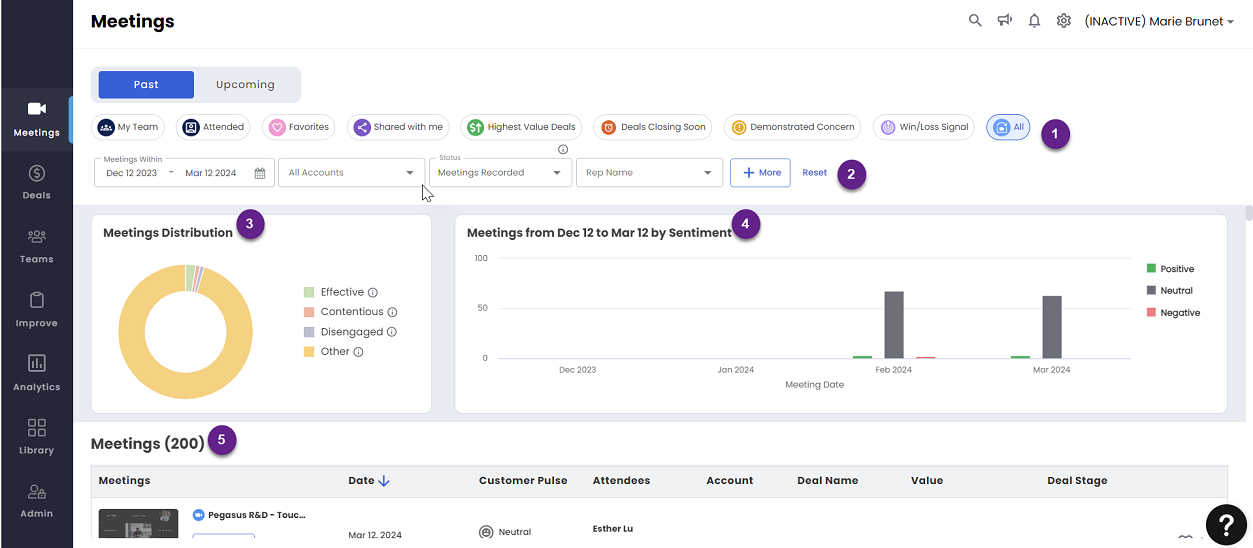
1. Shortcuts
Shortcuts to various meeting categories. Provides faster ease of access to past meetings that are categorized per their relevance.
The meeting category shortcuts are as follows:
My Team (Default): This is the default selection when you navigate to the past meetings page. It lists all the sales meetings attended by your team.
Attended: It lists all the sales meetings that you have attended.
Favorites: It lists all the sales meetings that you have marked as favorites. See 5. Meetings on how to add a meeting to favorites.
Shared with me: It lists all the sales meetings that are shared with you by others.
Highest Value Deals: It lists all the high value sales meetings of you and your team sorted by their deal values
Deals Closing Soon: It lists all the sales meetings that are about to be closed soon.
2. Filters
Contains the filters for meetings that were recorded and processed by default. If the recording bot was not admitted or removed from a meeting, that meeting will not be processed and won't be listed here. You need to select the All Meetings All Meetings option to view the meetings that were not recorded or processed.
You can apply various filters listed below to view the meetings:
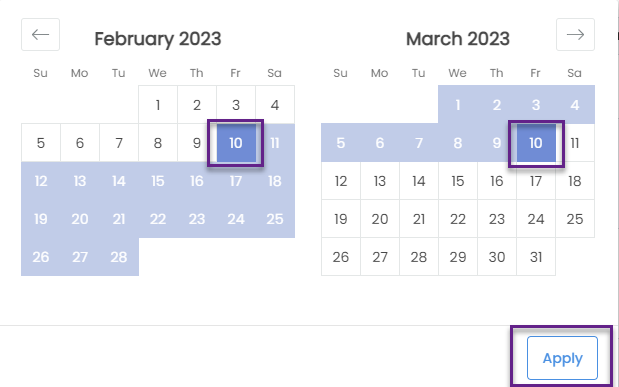
Meetings Within: View meetings within a specific date range. Select the from date from the month on the left and the to date from the from the month on the right of the calendar drop down and click Apply to select a specific date range.
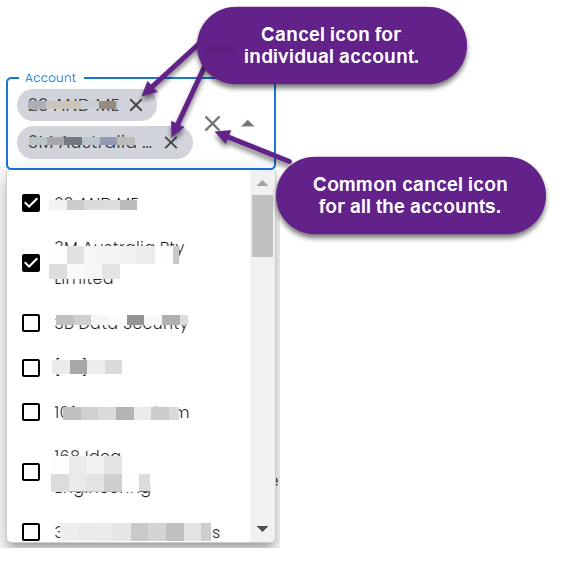
Account: Select the check box of a specific account or accounts from the drop-down list to view the meetings of a specific account or accounts. Unselect the check box of a specific account or accounts from the drop-down list to remove from the meetings list. Alternately, you can click the cancel icon on the right of the selected account name to remove an account or click the cancel icon at the left of the drop-down arrowhead to remove all the selected accounts.
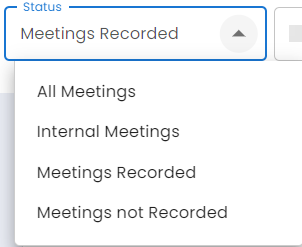
Status: Filters the recorded meetings per their status. The recorded meetings can have the status that follow:
All Meetings
Internal Meetings
Meetings Recorded
Meetings not Recorded.
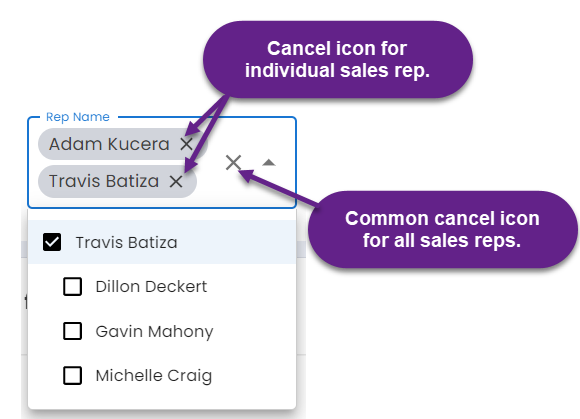
Rep Name: Select the sales rep or reps to filter their recorded meetings. Unselect the check box of a sales rep or reps from the drop-down list to remove from the meetings list. Alternately, you can click the cancel icon on the right of the selected sales rep to remove the sales rep's meetings or click the cancel icon at the left of the drop-down arrowhead to remove all the selected sales rep's meetings.
Deal Info: Click on + More to view the deal info filters. Here you can filter by Deal Value and/or Deal Stage. Click the check box to select/deselect the filter.
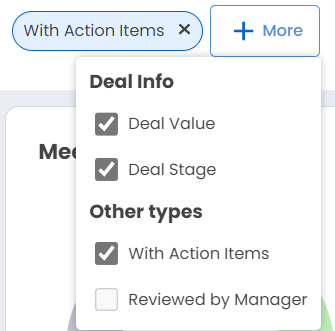
Other types: Click on + More to view the other types of filters. Here you can filter by With Action Items. The Reviewed by Manager filter is currently inactive and will be made active soon. Click the check box to select/deselect the filter.
You can click the Reset button to reset all the filters in one go.
3. Meeting Distribution
Presents a pie chart of the meetings in terms of sentiment and engagement. Here, the meetings are classified as follows:
Effective: These are the meetings with a highest positive sentiment and a high level of engagement.
Disengaged: These are the meetings with low engagement that include both positive and negative sentiment.
Contentious: These are the meetings with highest engagement but with a negative sentiment.
Other: These are the meetings that are not covered in any three of the above classifications.
4. Meeting Sentiment
Displays a colored bar graph of the meetings sentiment that are shown as Positive (Green), Neutral (Grey) or Negative (Red).
5. Meetings
Displays the meetings attended that vary depending on the shortcut that is selected.
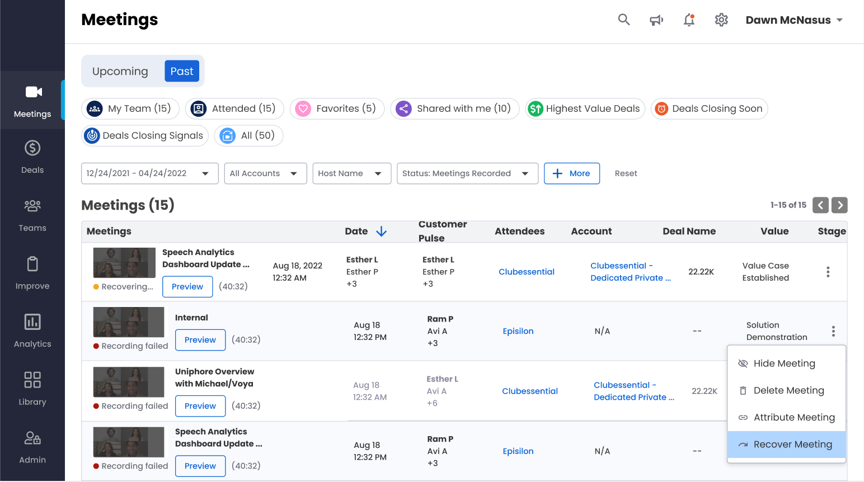
Click on the video screen, meeting name, Date, Customer Pulse, Attendees, Account, Deal Name, Value, or the Deal Stage to view the Meeting Replay page
Click on the Preview button to view the meeting preview on the right side. Here you can preview the various meeting related information listed below.
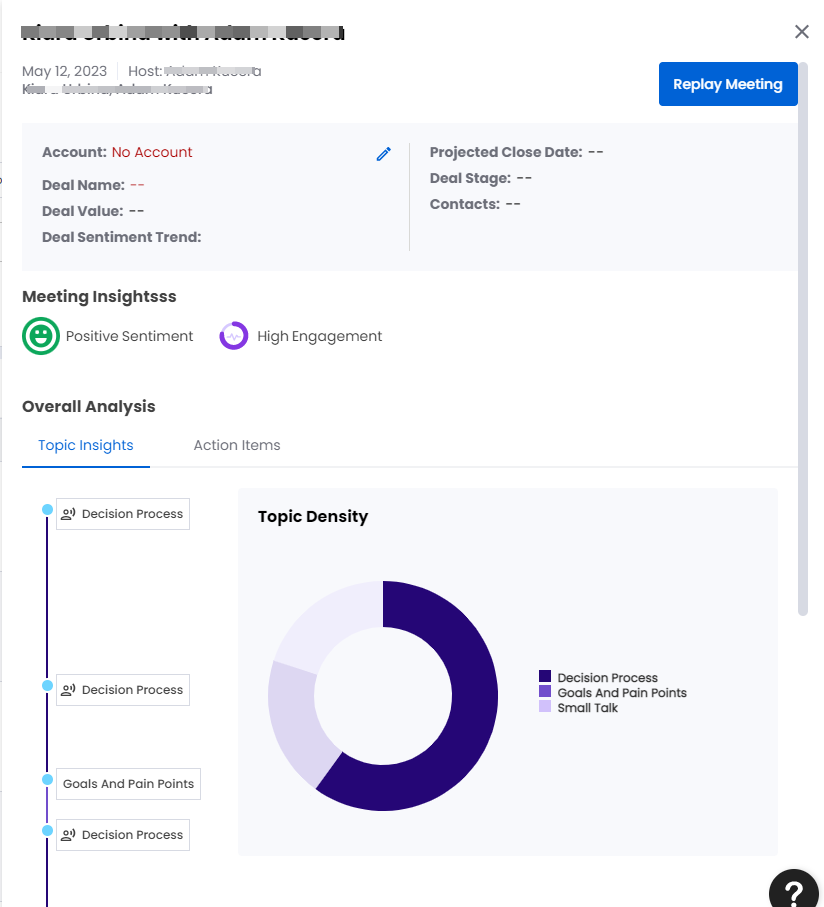
General Information: Account, Deal Name, Deal Value, Deal Sentiment Trend, Projected Close Date, Deal Stage, and Contacts.
Replay Meeting: Click this button to view the Meeting Replay page.
Meeting Insights: Shows the sentiment and engagement.
Overall Analysis: Consists of two tabs Topic Insights and Action Items.
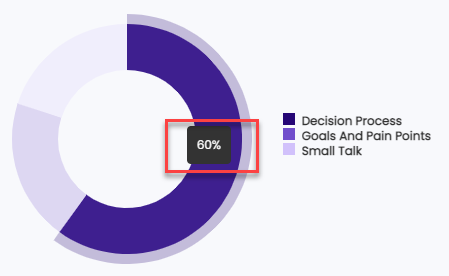
The Topic Insights shows a pie graph of various topics discussed in the meeting. The various topics can be classified as Decision Process, Goals and pain Points, and Small talk. Hover above the colored zones of the pie graph to view the percentage of the topic discussed.
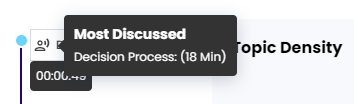
A vertical timeline is shown on the left that depicts the timings of the topics discussed. Hover above a topic name to view the pop outs of timings at which the topic was discussed. The most discussed topics have an additional pop out that displays the topic name and the total duration of the discussion.
The Action Items tab displays the conversations that contain promises made by the sales reps and therefore need further action by the reps. Click on the check mark on the left of an action item to mark it as completed.

Once marked as complete the action item is removed from the Action Items list and can't be again listed as an action item.
Click the heart icon to mark a meeting as favorite. The heart icon to mark a meeting as favorite is available in the Meeting Replay as well as shown in below screen shot.
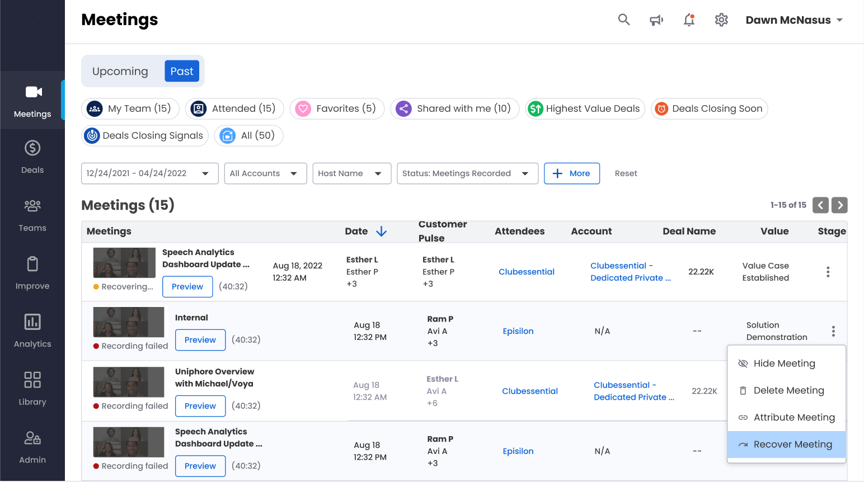
Click the vertical ellipsis to view the
Hide Meeting - Allows you to hide a meeting.
Delete Meeting - Allows you to delete a meeting permanently.
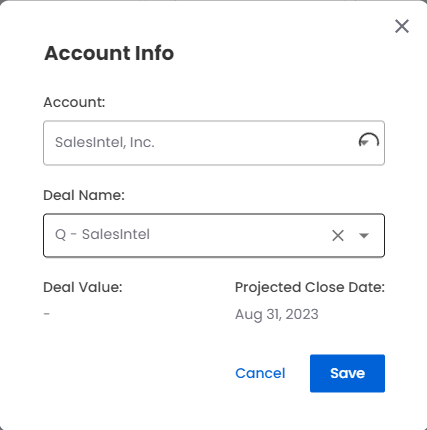
Attribute Meeting - Allows you view the Account Info.
Recover Meeting - Allows you to recover a failed meeting.
After selecting the desired options from the drop-down lists click Save to save the account info or Cancel to discard the changes.
Now Sales Interaction Agent can process not only the video conferencing calls but also the audio calls that are recorded by the platform called Outreach. These calls are usually one to one audio calls. Q can now integrate with Outreach to download the calls that are recorded in Outreach. All such meetings have Outreach as prefix, within brackets, to the meeting name.

Search
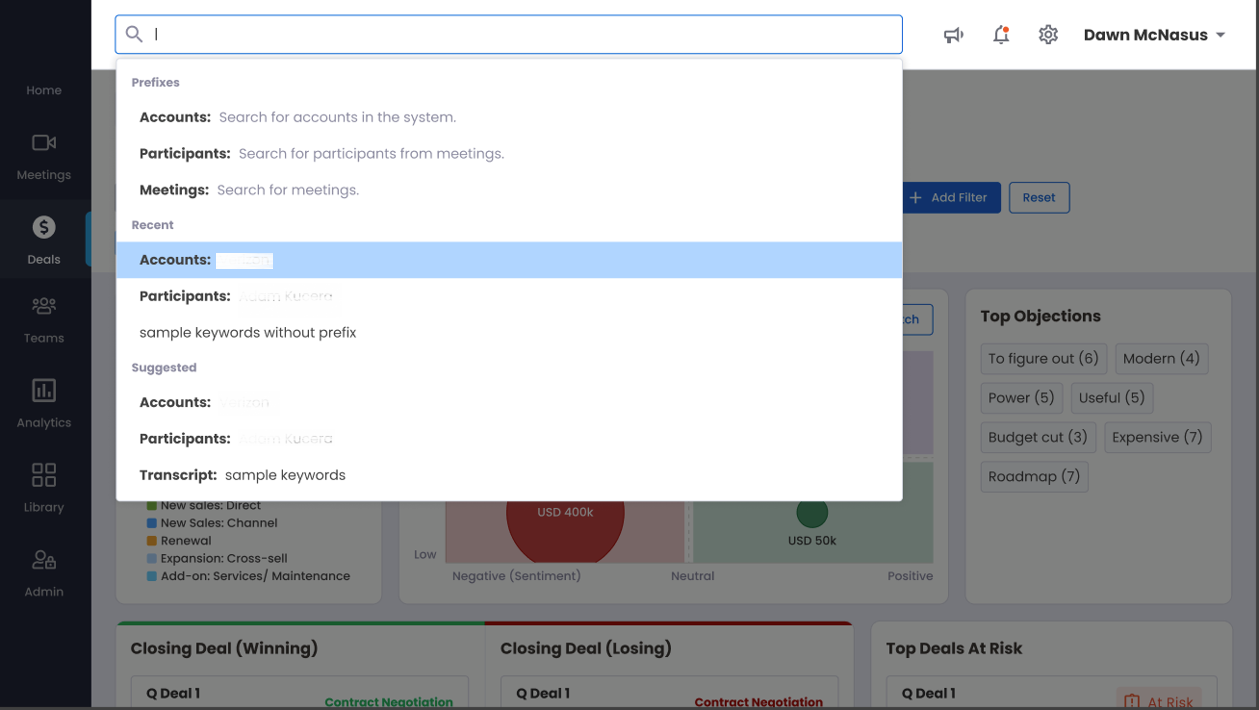
In addition to meeting subjects, the search function enables you to find meetings that are associated to accounts, participants, and transcripts.