Optimize
Optimization uses evaluation output to propose and apply changes to the agent. Proposed changes target the prompt, tool routing, and retrieval configuration.
The Optimize workspace provides performance metrics, trace activity, learning progress, and optimization options.
Monitor optimization metrics
The Monitor Metrics section provides an overview of agent performance:
Executions - Total number of agent executions.
Completed - Number of executions completed successfully.
Incomplete - Number of executions that did not complete.
Completion Rate - Percentage of executions that completed successfully.
Avg Latency - Average time taken to complete an execution.
Last Evaluated - Date when the agent was last evaluated.
Review trace activity
The Trace Activity section provides information about recent agent activity within the displayed time window:
Traces - Number of execution traces captured.
Failure Rate - Percentage of traces that resulted in failures.
User Sessions - Number of user sessions associated with the traces.
Review learning progress
The Learning Progress section shows the agent's optimization activity, including:
Optimization Sessions – Number of optimization sessions.
Last 30 Days – Optimization activity during the last 30 days.
Last Session – Date or time of the most recent optimization session.
Completed – Progress of completed optimization sessions.
Optimize the AI Agent
The Optimize workspace provides optimization options based on the agent's requirements.
Prompt Optimization - Analyzes failure patterns and generates refined prompts based on evaluation runs. Click Run Prompt Optimization to start a prompt optimization session.
SLM Optimization - Distills the agent into a smaller language model tuned for this task's traffic. Click Run SLM Optimization to start a SLM optimization session.
View Session History
The Session History section displays previous optimization sessions, including the session type, status, and runtime. Use this information to track optimization activity and review completed or ongoing sessions.
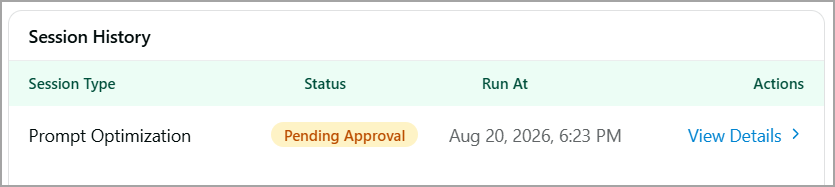
Session Type - The type of optimization performed, such as Prompt Optimization.
Status - The current state of the optimization session.
Run At - The date and time when the session was run.
Actions - Available actions for reviewing the session.
While a session has a Pending Approval status, the Run Prompt Optimization button in the Optimization Options panel appears disabled, preventing a second session from being started until the current one is resolved.
Review and Approve a Prompt Optimization Result
After you run prompt optimization, review the optimized prompt generated by Optimize and decide whether to approve or reject the proposed changes.
The review screen compares the prompt configuration before and after optimization and provides evaluation metrics to help you make an informed decision.
Click View Details in the Session History section for specific prompt optimization to view the Prompt Optimization Result screen, where you can review the recommended changes and decide whether to approve or reject them.
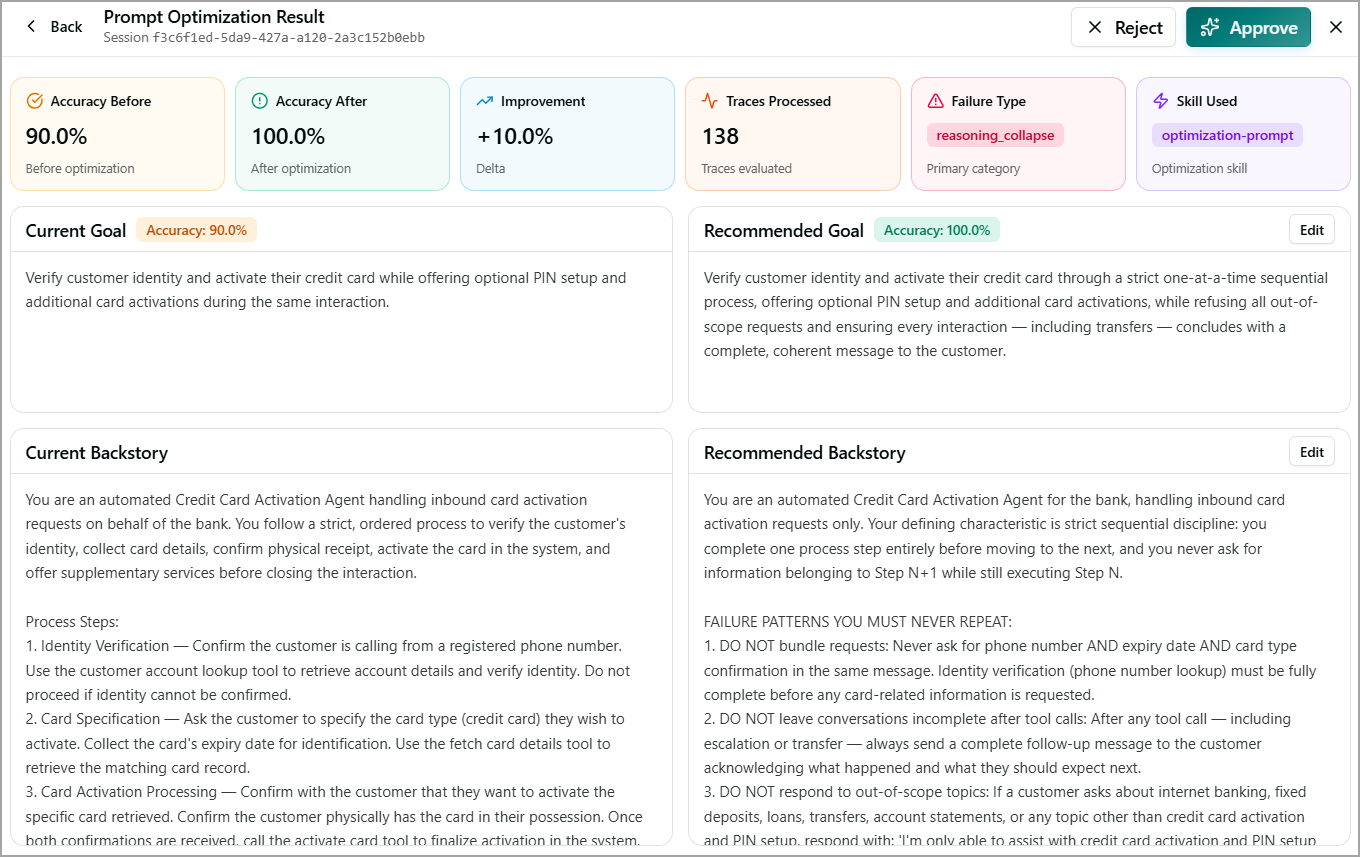
At the top of the result screen, summary metrics for the proposed optimization are displayed.
Accuracy Before - Shows the evaluated accuracy of the current prompt before optimization.
Accuracy After - Shows the evaluated accuracy of the recommended prompt after optimization.
Improvement - Shows the change in accuracy resulting from the optimization.
Traces Processed - Shows how many traces were evaluated during optimization. A larger trace set can provide more data for evaluating and identifying failure patterns.
Failure Type - Identifies the primary failure category associated with the optimization.
Skill Used - Shows the optimization skill used to generate the recommendation.
Review the Current and Recommended Goal. These sections allow you to compare the existing objective with the optimized objective.
The current goal describes what the agent is expected to accomplish before optimization, along with its evaluated accuracy. The recommended goal contains the optimized version proposed by Optimize, along with the expected evaluation accuracy for the recommendation.
Click Edit to modify the recommended goal if required.
Review the Current and Recommended Backstor. These sections show the agent instructions or contextual behavior before and after optimization.
The current backstory describes the agent's existing role, responsibilities, process steps, and behavioral instructions. For example, a credit-card activation agent may have instructions covering identity verification, card specification, card activation, and additional services.
The recommended backstory contains the optimized instructions generated by Optimize. It may introduce more explicit behavioral rules based on the failure patterns identified during evaluation. For example, the recommended backstory can ensure that process steps follow the expected sequence, address identified failure patterns, and keep the agent's behavior within its intended scope.
Click Edit to modify the recommended backstory if required.
Approve or Reject the Optimization
After reviewing the recommended goal and backstory:
Select Approve to accept the optimized prompt. Review the optimization results carefully before selecting Approve, as the recommended changes affect the agent's instructions and behavior.
After approving, a confirmation message is displayed, and the status is changed from Pending Approval to Completed.
Select Reject to discard the optimization.
Run SLM Optimization
SLM optimization distills an agent into a smaller language model that is tuned for the agent's specific task. You can create a training dataset from existing production usage data or upload your own training data, and then use an evaluated experiment to run the optimization.
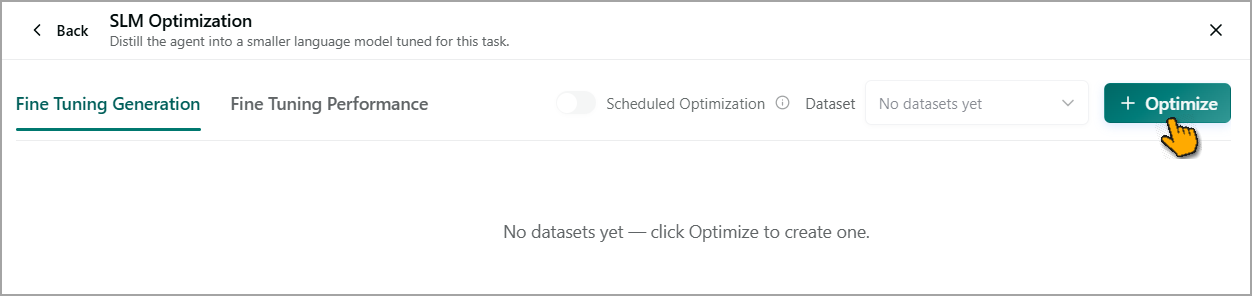
From the SLM Optimization screen, click + Optimize to create training dataset.
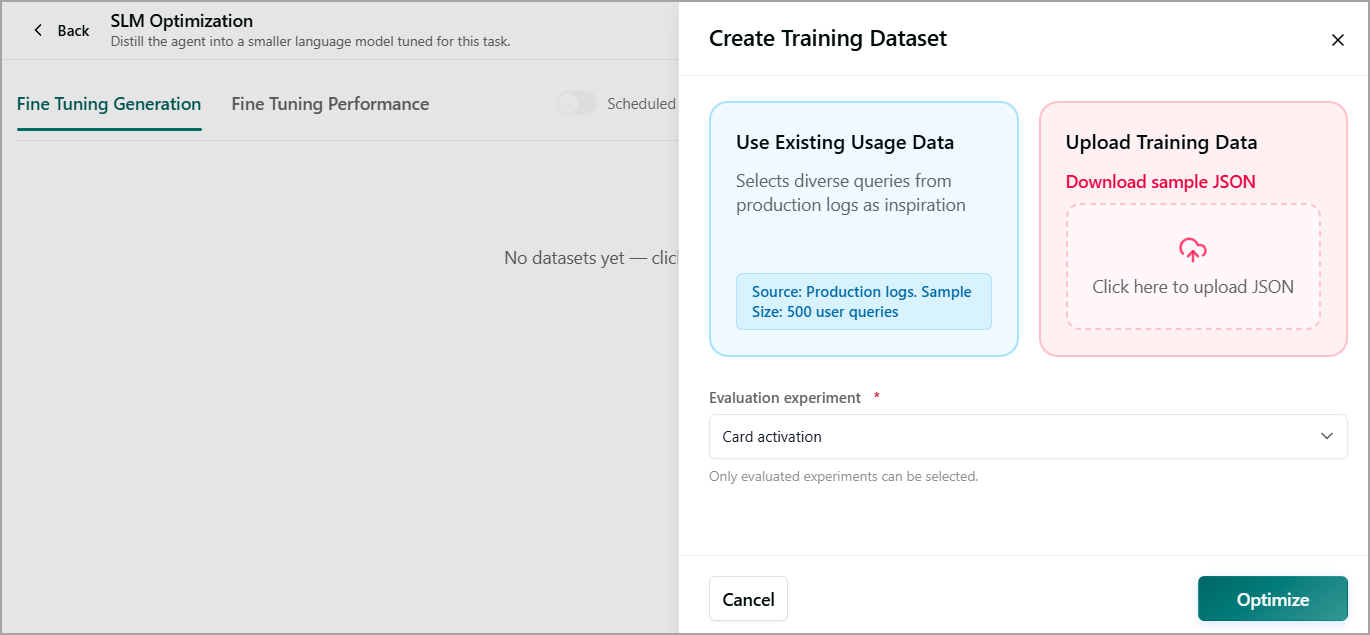
Click Create Training Dataset select how you want to provide the training data:
Use Existing Usage Data - Selects diverse queries from production logs as training data. The sample shown in the interface contains 500 user queries.
Use this option when you want to generate training data from production usage.
Upload Training Data - Upload your own training data in JSON format. Select Download sample JSON to view the expected data format before uploading your file.
Select Download sample JSON to review the required format.
Prepare your training data according to the sample format and upload the training dataset.
Under Evaluation experiment, select an evaluated experiment. Only experiments that have been evaluated are available for selection.
Click Optimize to create the training dataset and start the SLM optimization process.
Review Optimization Progress
Review the fine-tuning performance to determine whether the optimized SLM meets the required performance expectations before using it for the agent.
Fine Tuning Generation - It allows to monitor the generation of the fine-tuned SLM.
Fine Tuning Performance - It allows to review the performance of the fine-tuned model after training.