Integration with Knowledge Assist
Using our Knowledge Layer, an AI Agent can get real time, generative LLM-based answers to relevant questions during a call or chat session.
Note
The Knowledge Layer must be enabled for the current account in order for an AI Agent to access knowledge bases that are maintained there. Contact your Uniphore Support representative for more details.
Using the Knowledge Layer the AI Agent can ingest unstructured data from knowledge bases, documents, and more, providing the AI Agent with the exact information needed to address end-user inquiries and provide relevant information. For more details on the Knowledge Layer, click here.
Our Knowledge Assist integration is automatically available whenever Uniphore's Knowledge Layer is enabled for your account.
Adding Guideline Instructions
You use Guidelines to tell an AI Agent how and when to use a relevant Knowledge Assist knowledge base integration.
Note
For complete details on adding a Guideline to the AI Agent, click here.
For the AI Agent, the Knowledge for Questions mapping dropdowns and Instructions text field will be displayed automatically on the Guidelines page:
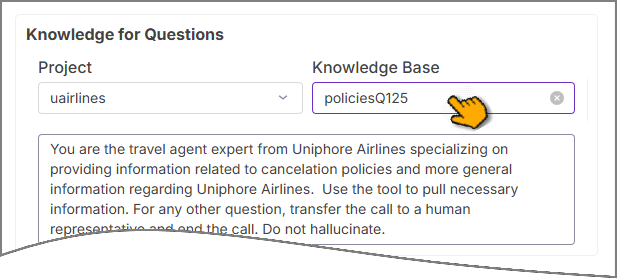 |
From both the Project and Knowledge Base dropdowns, locate and select the relevant Knowledge Layer components for this AI Agent. These components need to be created by the Developer or Account Admin and configured with your account before they are available for use on the Guidelines page. Clarify the correct component choices with your Developer or Account Admin. For complete details about how these components work, click here.
In the Instructions field, using simple natural language, describe how this Guideline should answer relevant questions and inquiries. Instructions should relate only to the activities of the currently-selected AI Agent. At runtime, these instructions will be processed according to the designated LLM.
You can personalize text instructions to include specific values that are relevant for the current session (such as the customer's name) by adding one or more pre-defined Session State parameters. To insert a parameter, enter an '@' at the location in the text field where you want to use the value. From the dropdown that appears, select the desired parameter. Note that only Session State parameters that have been pre-defined for the current AI Agent will be displayed in the list.
When finished, click Save. The Guideline will be updated and stored with the AI Agent.