Ingesting Data
There are two primary approaches to ingesting data to the platform:
Integrating with preconfigured data sources.
Uploading a document manually.
The following sections describe how to set up the end-to-end RAG pipeline for HTML, PDF, or Word documents using preconfigured data sources in the Data Integration page.
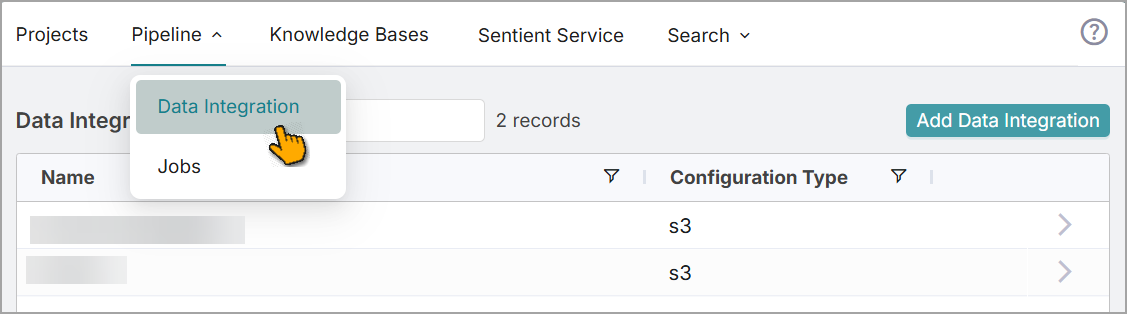
To open the Data Integration page:
On the platform home page, in the top menu, click .
From the dropdown sub-menu items, select .
The Data Integration page opens and displays a list of existing pipelines, if any.
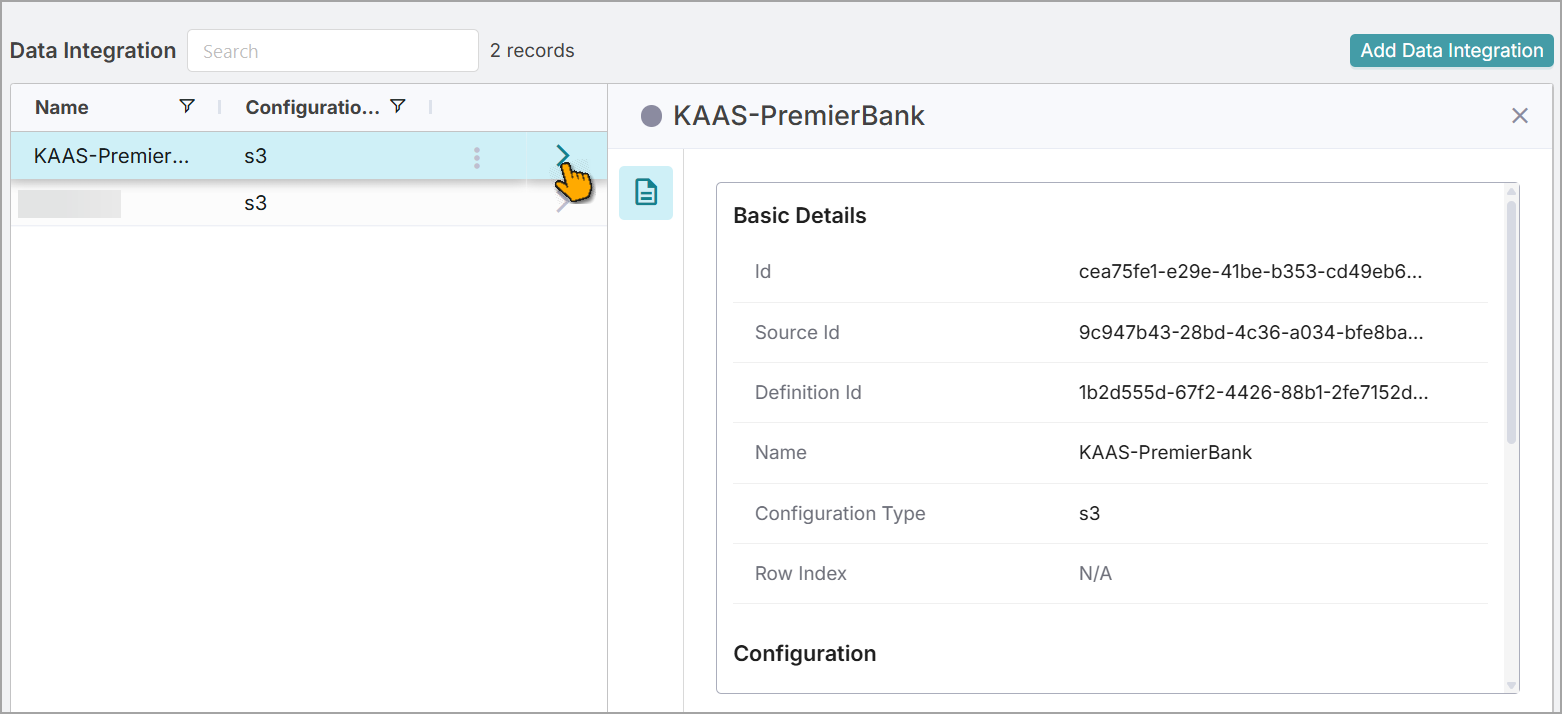
To view details about the existing pipeline, select the > icon on the right-side of the desired data pipeline.
The pipeline's basic details and configuration settings are displayed.
Creating Pipelines
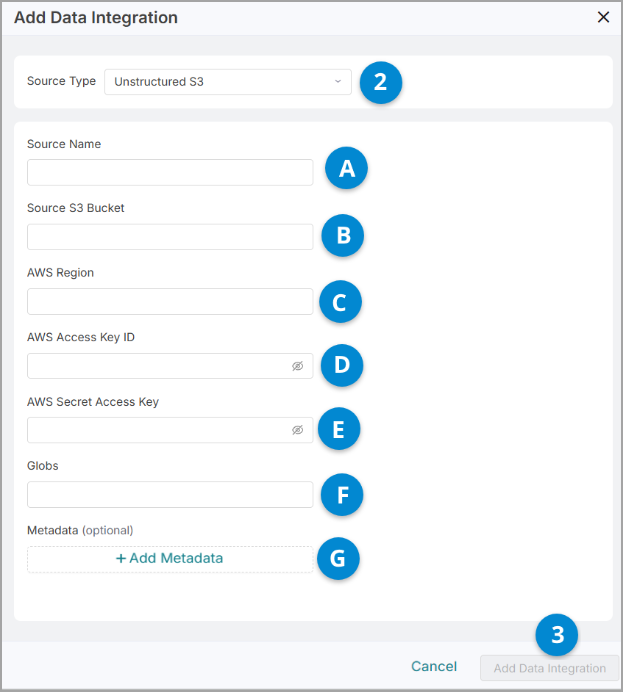
To create a new pipeline, click . The Add Data Integration window opens.
Select a Source Type from the dropdown list.
The field values may vary based on the selected source type.
Unstructured S3 - For ingesting PDF, HTML, and Word documents from S3 sources.
S.No
Field Name
Description
A
Source Name
Enter the name of your S3 source from which the documents are ingested.
B
Source S3 Bucket
Enter the S3 bucket name.
C
AWS Region
Enter the S3 region.
D
AWS Access Key ID
Enter the S3 access key id.
E
AWS Secret Access Key
Enter the S3 secret access key id.
F
Globs
Select either one of the document types: pdf, html, or docx
G
Metadata(Optional)
Click to add additional information about the document.
S3 - For ingesting structured data directly from S3 source.
Postgres - For ingesting structured data directly from Postgre source.
Note
The platform currently supports only the Unstructured S3 option.
Click .
The new pipeline is created on the Data Integration page.
Note
Each pipeline is associated with a single data format. For example, you are not allowed to create a pipeline to ingest both PDF and HTML documents.
Filtering Pipelines
On the Data Integration page, you can use the filter options to find your desired pipeline.
Use the search box at the top of the page to find a pipeline.
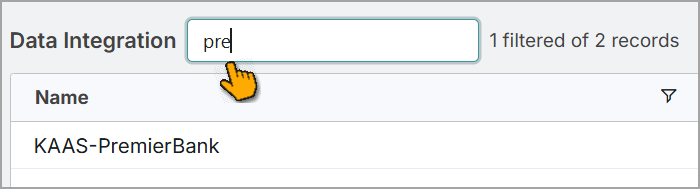
To sort the pipeline list based on the columns, select the column heading at the top of each column.
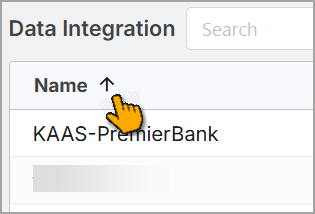
Use the  icon at the top of each information column to view the list of currently selectable values for filtering.
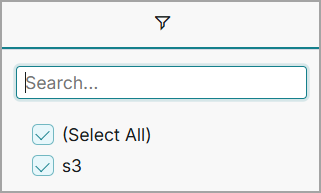
To quickly find your desired pipeline, enter a few characters of the relevant value in the search box at the top of the Filter popup. Only matching values are displayed.
You can select the relevant checkbox to view the pipeline details.
Testing Pipelines
After creating a new pipeline, you should test it to verify that the source integration is functioning correctly.
Go to the Data Integration page.
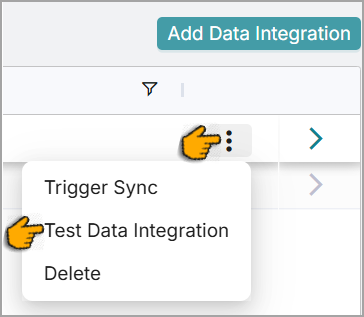
Hover over the desired data pipeline and click the Ellipsis icon.
Select .
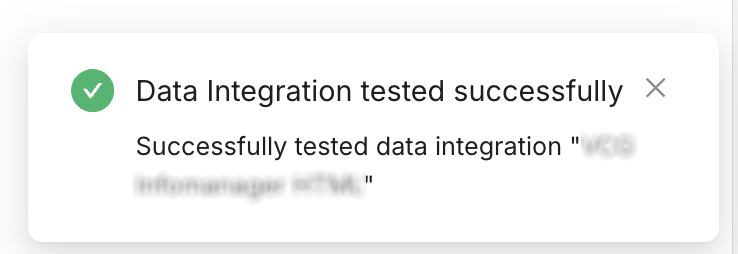
If the platform successfully connects to the configured data source, a success message displays.
If not, an error message displays.
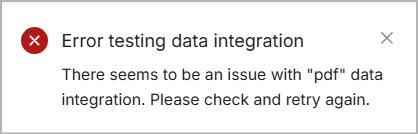
Recheck the pipeline configuration and then test it again.
Note
If you're experiencing connectivity issues with your source data, contact the Uniphore Support team.
Deleting Pipelines
To delete an existing pipeline:
Go to the Data Integration page.
Hover over the desired data pipeline and click the Ellipsis icon.
Select .
The confirmation window opens.
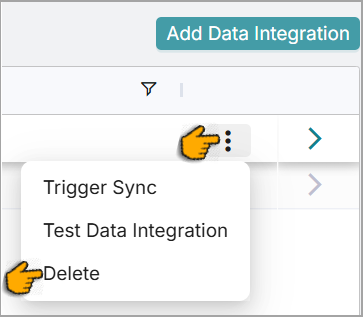
Read the message carefully and click .

The pipeline is removed from the Data Integration page.