Creating Pipeline Template
A Pipeline Template is a data processing framework that defines the configuration for data extraction, enrichment, and chunking.
This section explains how to create a new pipeline template by modifying the configuration of existing datasets within the project.
Important
To create a new pipeline template, you must have a project with dataset configured.
Go to the top menu and click .
Click Detail on the desired project.
The project detail page opens with its existing dataset configuration.
Select the dataset configuration in the Pipeline column.
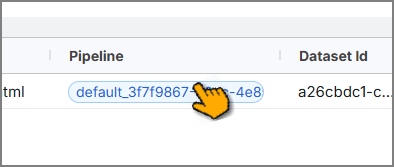
The Pipeline Configuration window opens for your selected dataset.
Tip
Mandatory fields are marked with a red asterisk
 .
.
Note
Editing this existing pipeline will create a new pipeline template and the original dataset remains unchanged.
Configuring the Document Format
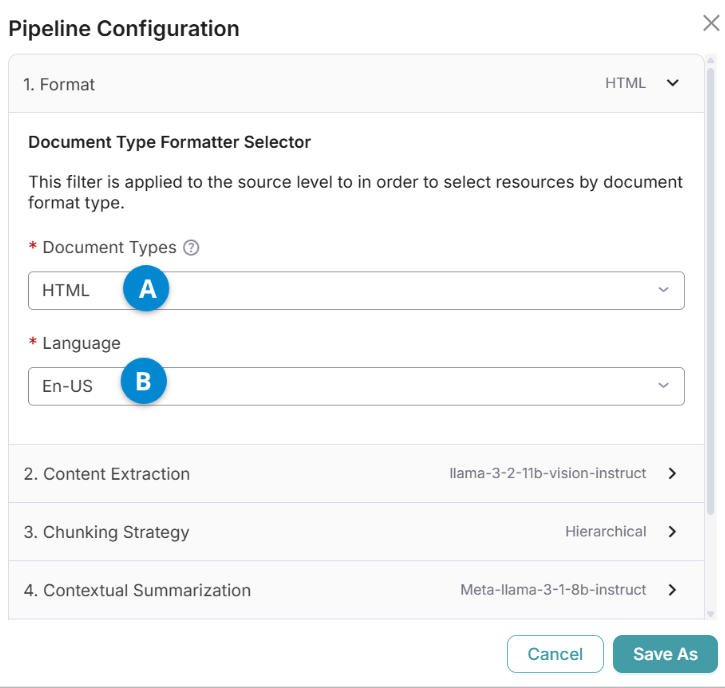
S.No | Field Name | Description |
|---|---|---|
A | Document Types | Choose a document type from the dropdown list. The system uses the selected type for chunking.
NoteEach pipeline can process only one document type. |
B | Language | Select required language from the dropdown list. NoteIn the current version, only English (US) is supported. |
Configuring the Content Extraction
Content extraction applies only when the data includes images, charts, architecture diagrams, and similar visual elements. It defines how these objects are interpreted and described in the generated text.
Select Content Extraction to view and configure its settings.
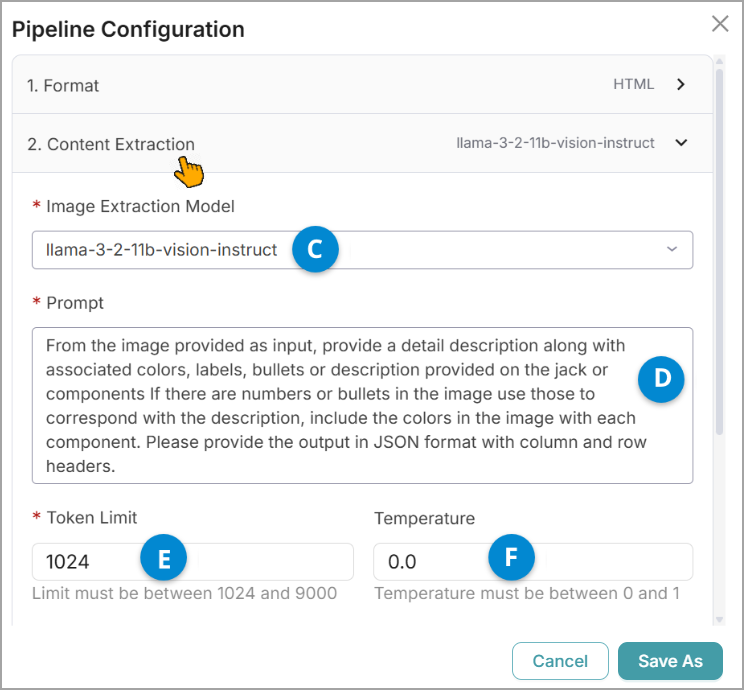
S.No | Field Name | Description |
|---|---|---|
C | Image Extraction Model | Select the model from the dropdown list. |
D | Prompt | The default instruction defines the expected image types in the data and how they're represented in text. You can modify this instruction to adjust the level of detail, formatting, or focus. |
E | Token Limit | Enter the value within the predefined limits (1024 to 9000). TipThe token value defines the maximum number of textual units—such as words, sub-words, or characters—that the platform can process in a single input. If the token value falls below the lower limit or exceeds the upper limit, it will be automatically adjusted to the nearest applicable limit. |
F | Temperature | Enter the value within the predefined limits (0 to 1). TipThe temperature parameter controls the trade-off between predictability and creativity in generated text. Lower values favor deterministic outputs by reinforcing learned patterns, while higher values encourage exploration, resulting in more diverse and imaginative responses. |
Configuring the Chunking Strategy
A data chunking strategy refers to the process of dividing data into smaller, structured segments to optimize processing, enhance analysis, and simplify management.
Select Chunking Strategy to view and configure its settings.
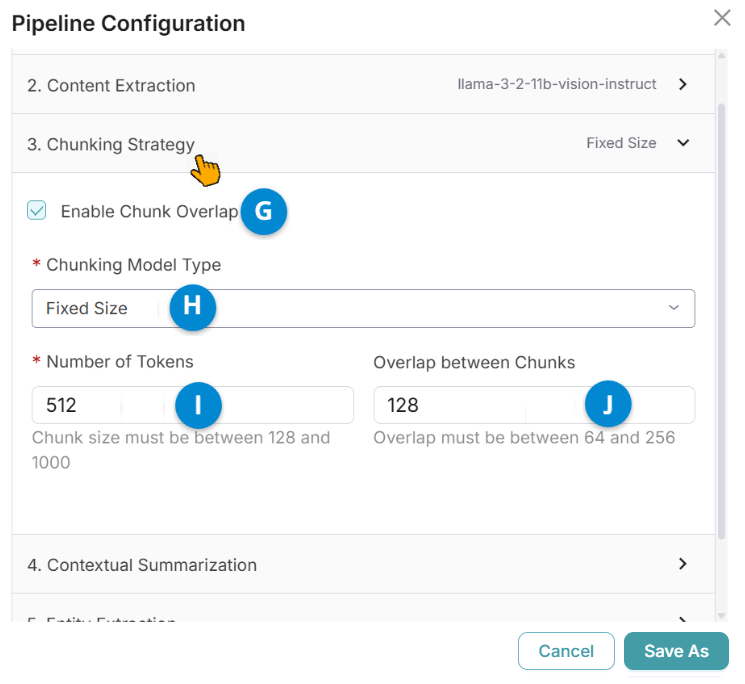
Note
Chunking strategy settings may vary depending on the document type selected earlier.
S.No | Field Name | Description |
|---|---|---|
G | Enable Chunk Overlap | Select the checkbox to enable text overlap between chunks for continuity. |
H | Chunking Model Type | Choose the chunking model from the dropdown list:
|
I | Number of Tokens | Enter the value within the predefined limits (128 to 1000). TipThe token value defines the maximum number of textual units—such as words, sub-words, or characters—that the platform can process in a single input. If the token value falls below the lower limit or exceeds the upper limit, it will be automatically adjusted to the nearest applicable limit. |
J | Overlap between Chunks | This option appears when chunk overlap is enabled. Specify the overlap value (64–256 words). |
Configuring the Context Summarization
Context summarization is useful when additional context needs to be captured for chunks. When enabled, the generated context is embedded into the Vector Database for semantic search and/or the Lexical Database for text-based search, depending on the configuration.
Select Context Summarization to view and configure its settings.
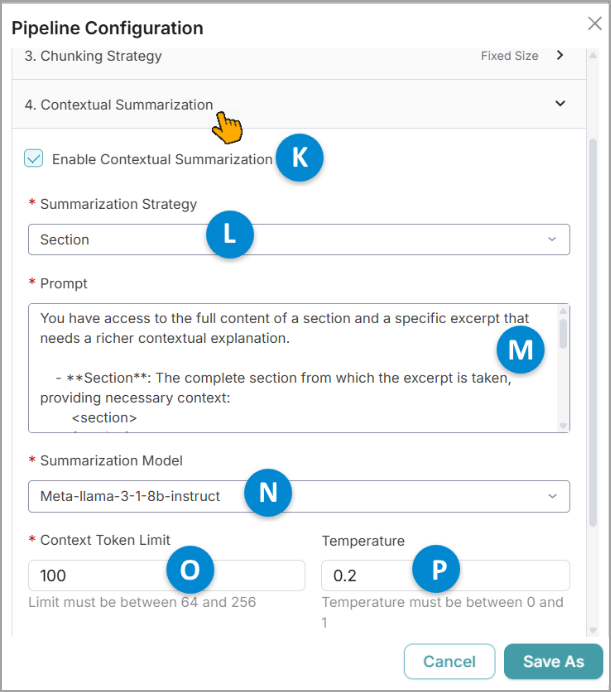
S.No | Field Name | Description |
|---|---|---|
K | Enable Contextual Summarization | Select the checkbox to generate chunk context for the selected dataset. |
L | Summarization Strategy | Choose the strategy from the dropdown list:
|
M | Prompt | The default instruction outlines how the context should be generated. You can modify this instruction to adjust the level of detail, formatting, or focus. |
N | Summarization Model | Choose the summarization model from the dropdown list. |
O | Context Token Limit | Enter the value within the predefined limits (64 to 256). TipThe token value defines the maximum number of textual units—such as words, sub-words, or characters—that the platform can process in a single input. If the token value falls below the lower limit or exceeds the upper limit, it will be automatically adjusted to the nearest applicable limit. |
P | Temperature | Enter the value within the predefined limits (0 to 1). TipThe temperature parameter controls the trade-off between predictability and creativity in generated text. Lower values favor deterministic outputs by reinforcing learned patterns, while higher values encourage exploration, resulting in more diverse and imaginative responses. |
Configuring the Entity Extraction
Entity extraction is applicable when additional domain- and dataset-specific entities need to be identified for each chunk. These entities are then incorporated into the previously generated chunk context.
Select Entity Extraction to view and configure its settings.
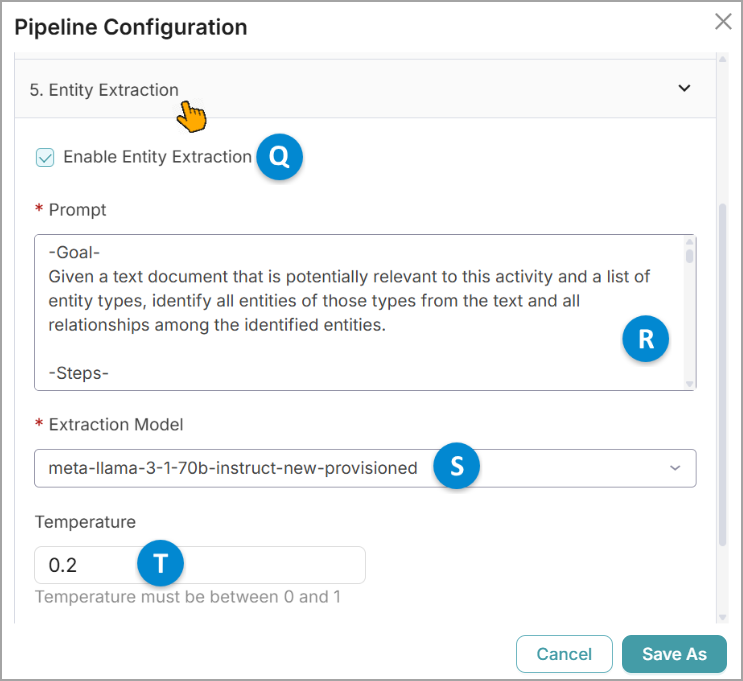
S.No | Field Name | Description |
|---|---|---|
Q | Enable Entity Extraction | Select the checkbox to enable entities extraction for the selected dataset. |
R | Prompt | The default instruction defines which entities to extract, along with examples. You can modify this instruction to adjust the level of detail, formatting, or focus. |
S | Extraction Model | Choose the extraction model from the dropdown list. |
T | Temperature | Enter the value within the predefined limits (0 to 1). TipThe temperature parameter controls the trade-off between predictability and creativity in generated text. Lower values favor deterministic outputs by reinforcing learned patterns, while higher values encourage exploration, resulting in more diverse and imaginative responses. |
Configuring the Graph Parameters
This configuration is unavailable in the current version of the platform.
Saving the Configuration
Once you've updated the existing configuration, you can save it as a new template for a pipeline setup.
Click Save As.
The Pipeline Basic Details window opens.
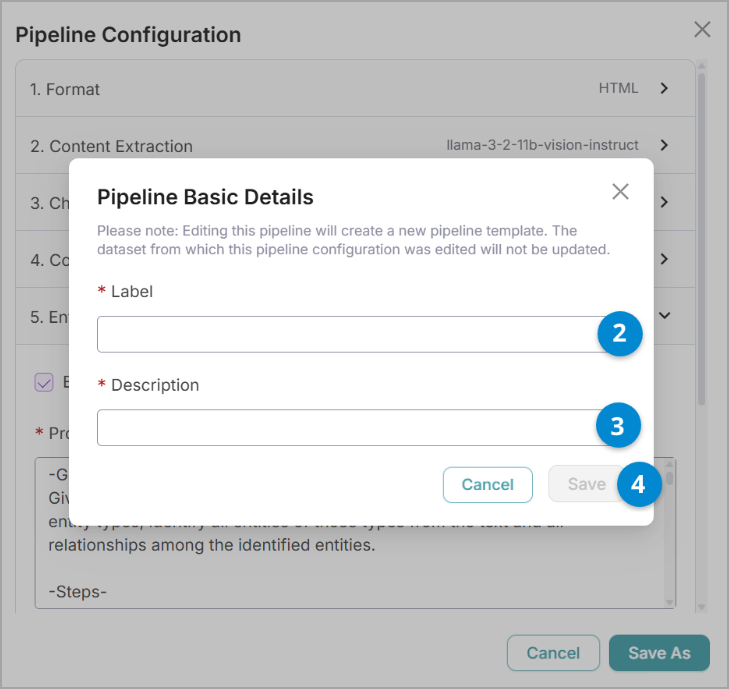
Enter a Label for the new template.
Enter a Description to help identify the template’s purpose.
Click Save.
The system creates the new pipeline template.