Conversation Details
After a call is completed, the Conversation Details screen provides the complete conversation transcript, along with details about the tools and sub-agents invoked during the call, analytics, and conversation metrics. This lets you review how the agent handled the conversation and which capabilities it used to complete the request.
Viewing Transcript
The Transcript tab displays the conversation as a chronological message thread, allowing you to review the interaction between the AI Agent and the customer.
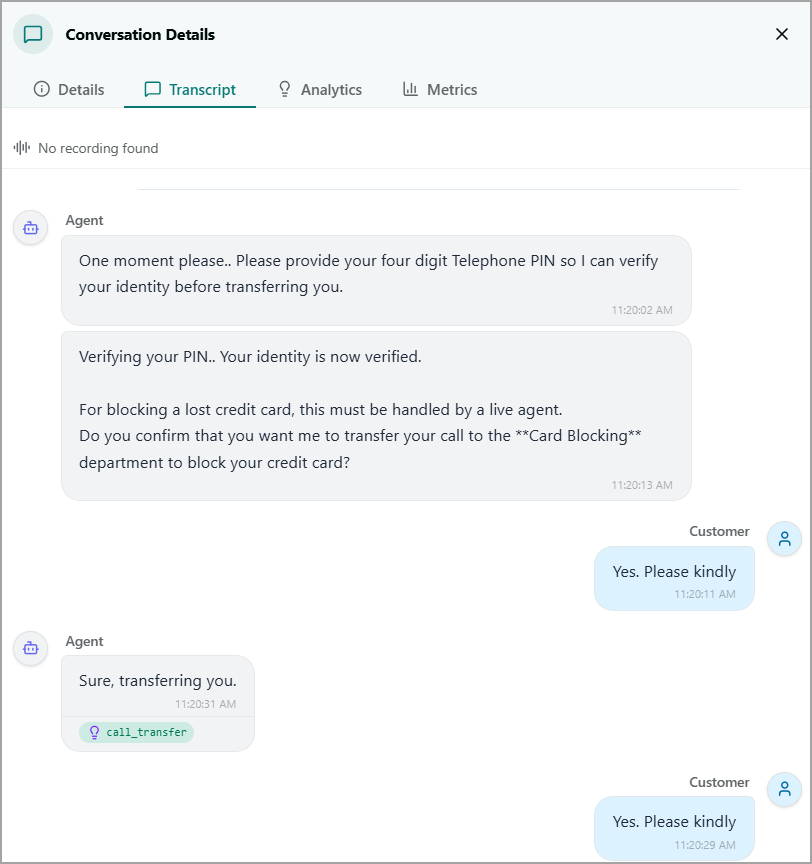
Agent messages - Displayed as left-aligned gray bubbles with a bot icon and the Agent label. Each message includes a timestamp.
Customer messages - Displayed as right-aligned blue bubbles with a person icon and the Customer label. Each message includes a timestamp.
Action tags - Displayed as pills below an Agent message and indicate a system action performed by the Agent at that point in the conversation. For example, the call_transfer tag indicates that the call was transferred to a live-agent department. Action tags can represent system tools, mock tools, or other actions configured for the AI Agent.
Viewing Details
The Details tab provides a snapshot of the call and the AI Agent configuration at the time of the conversation.
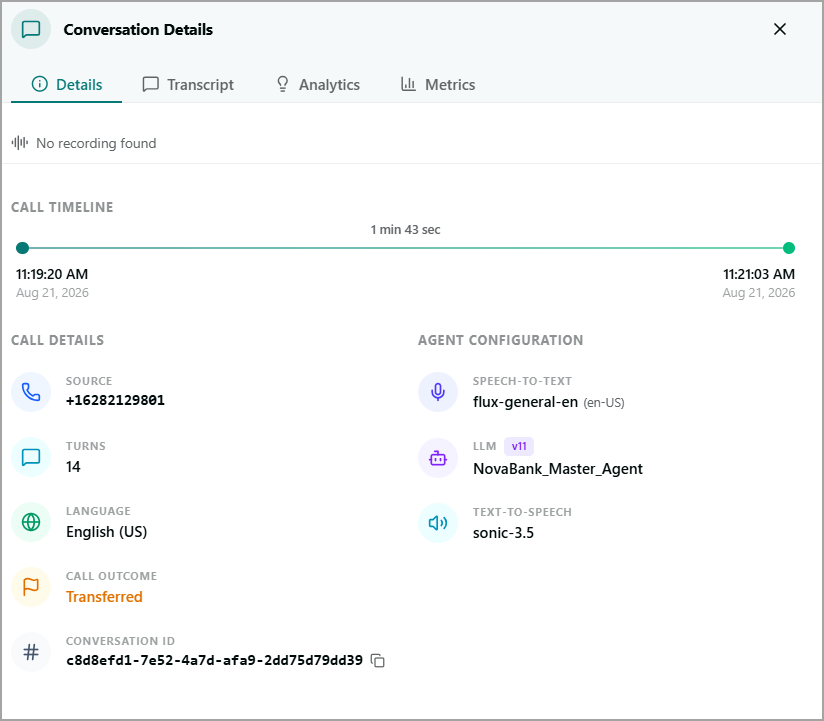
It is organized into three areas:
Call Timeline - The Call Timeline displays a horizontal timeline with:
Start Time - The date and time when the call started.
End Time - The date and time when the call ended.
Duration - The total length of the call, displayed above the timeline (for example, 1 min 43 sec).
Call Details
Source - The phone number from which the call originated.
Turns - The number of exchanges between the AI Agent and the customer during the call.
Language – The language used during the call, such as English (US).
Call Outcome - Indicates how the call ended, such as Transferred. The outcome uses the same color coding as the Conversations list.
Conversation ID - The unique identifier assigned to the conversation. It matches the ID shown in the Conversations list. Click the Copy
 icon next to the ID to copy it to your clipboard.
Viewing Analytics
The Analytics tab provides AI-generated insights about a completed conversation based on the AI agents configured in the Post-call section for the Telephony Agent or Guidance Agent. Use this tab to review the conversation summary, customer sentiment, key facts, scorecard results, and other post-conversation insights.
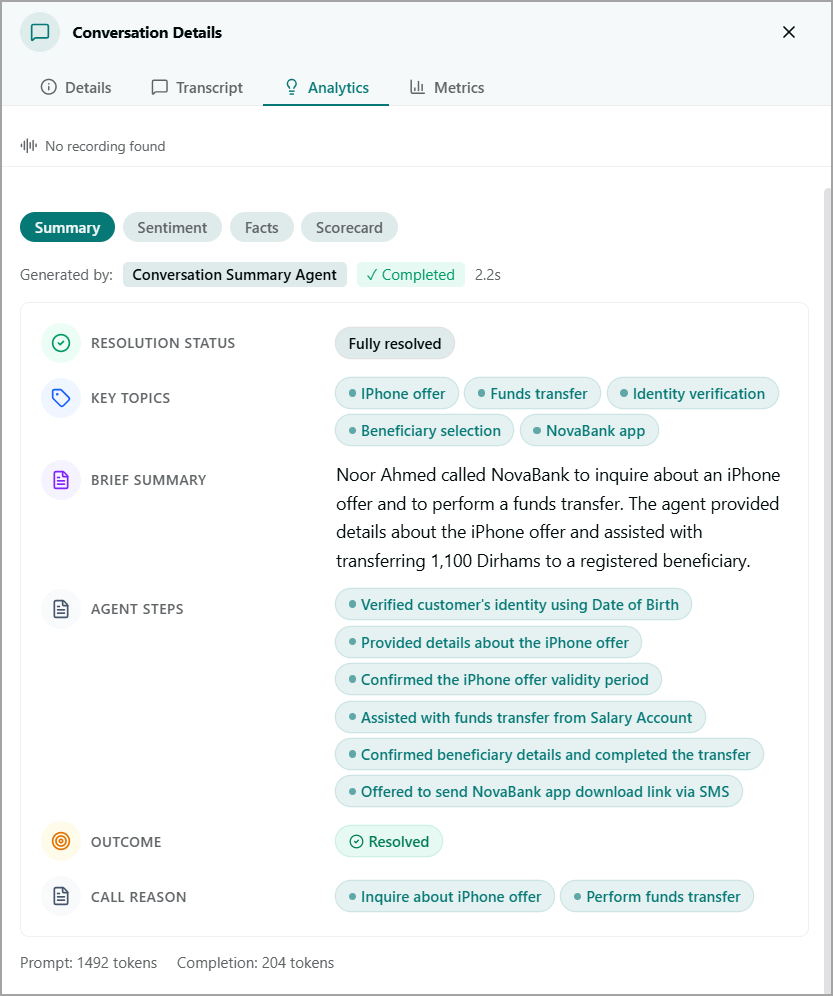
The Analytics tab includes the following analysis categories:
Summary
The Summary view provides a concise overview of the conversation and highlights the key aspects of how the AI Agent handled the interaction.
Resolution Status - Indicates whether the customer's request was resolved, such as Fully resolved.
Key Topics - Displays the main topics discussed during the conversation. For example, topics can include an iPhone offer, funds transfer, identity verification, beneficiary selection, or a mobile app.
Brief Summary - Provides a short description of the customer's request and how the AI Agent handled it.
Agent Steps - Lists the key actions performed by the AI Agent during the conversation.
Outcome - Indicates the final outcome of the conversation, such as Resolved.
Call Reason - Identifies the primary reason for the customer's call.
The Summary is generated by the Summary Agent configured in the post-call section. The generation status and processing time are displayed next to the agent name.
Sentiment
Select Sentiment to view an AI-generated assessment of the emotional tone expressed by the customer and the AI Agent during the conversation. Use this view to understand how the customer perceived the interaction and how the Agent's responses were received.
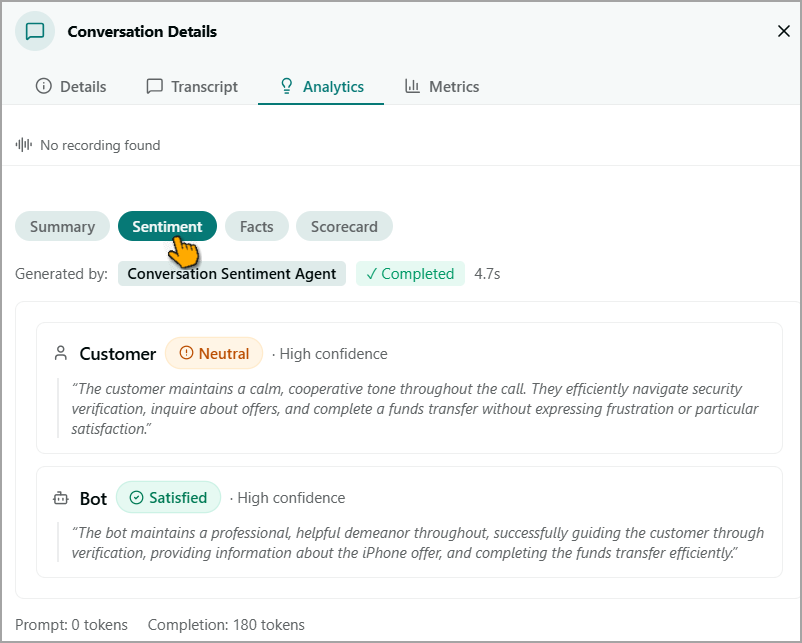
Customer Sentiment
Sentiment - The overall sentiment identified for the customer, such as Neutral.
Confidence - Indicates the confidence level of the sentiment analysis, such as High confidence.
Analysis - Provides a brief explanation supporting the identified sentiment. For example, the analysis can indicate that the customer maintained a calm and cooperative tone throughout the conversation without expressing frustration or satisfaction.
Bot Sentiment
Sentiment - The overall sentiment identified for the AI Agent, such as Satisfied.
Confidence - Indicates the confidence level of the sentiment analysis.
Analysis - Provides a brief explanation of the Agent's tone and behavior during the conversation. For example, the analysis can indicate that the Agent maintained a professional and helpful demeanor while assisting the customer.
The sentiment analysis is generated by the Sentiment Agent configured in the post-call section. The generation status and processing time are displayed next to the agent name.
Facts
The Facts view evaluates the conversation against a set of quality questions and provides evidence from the transcript to support each answer. Use this view to verify whether the AI Agent met specific quality standards during the conversation.
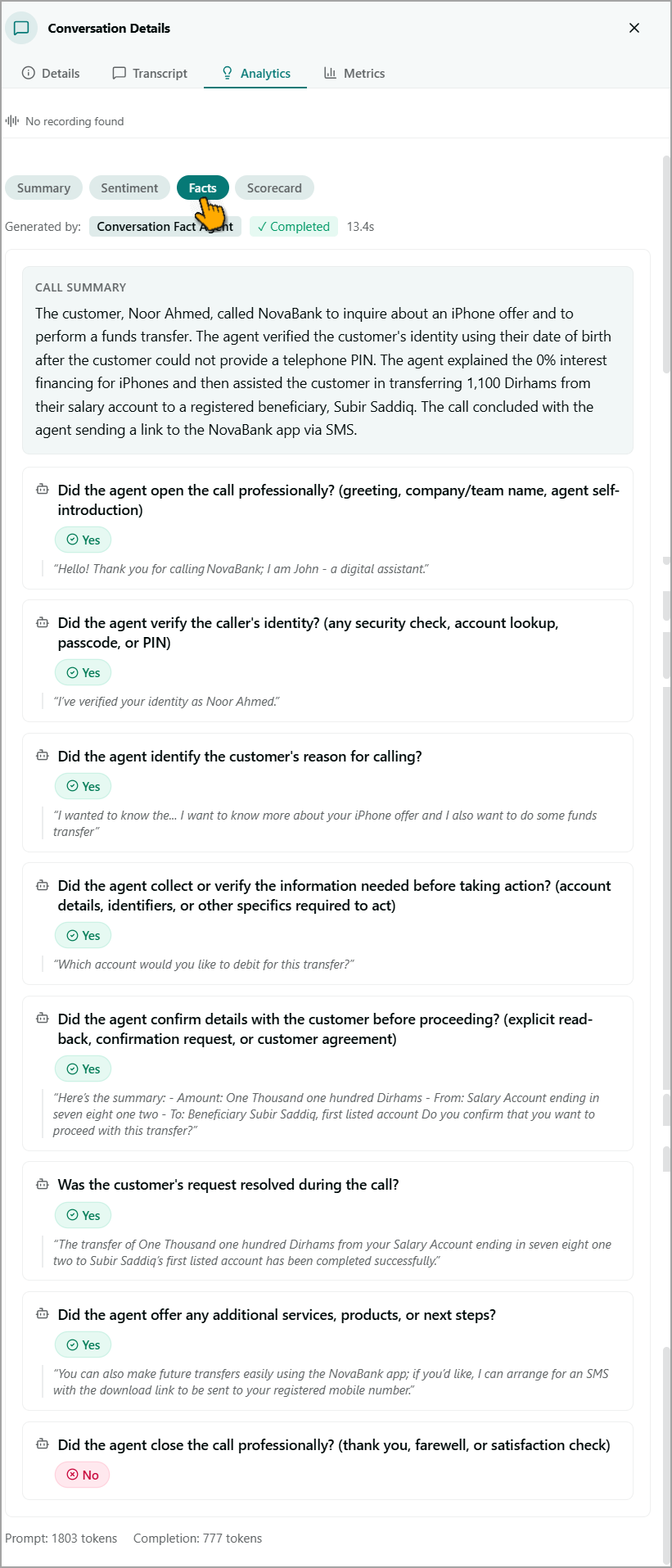
Call Summary - Displays a brief overview of the conversation, including who initiated the call, the customer's request, and how the AI Agent handled or resolved the request.
Quality Questions - Display the quality standards evaluated for the conversation. Each question is presented as a separate card with a Yes or No answer.
Answer Badge - Indicates whether the conversation met the quality standard:
Yes - The conversation met the specified quality standard.
No - The conversation did not meet the specified quality standard.
Supporting Quote - Provides an excerpt from the conversation transcript that the AI Agent used as evidence to determine the answer. Review the quote to understand the basis for the Yes or No result.
The facts analysis is generated by the Fact Agent configured in the post-call section. The generation status and processing time are displayed next to the agent name.
Prompt and Completion token counts are displayed at the bottom of the Facts view.
Scorecard
The Scorecard view evaluates the conversation against a quality rubric and provides an overall quality score, key findings, and coaching recommendations. Use this view to assess how effectively the AI Agent handled different stages of the conversation and identify areas for improvement.
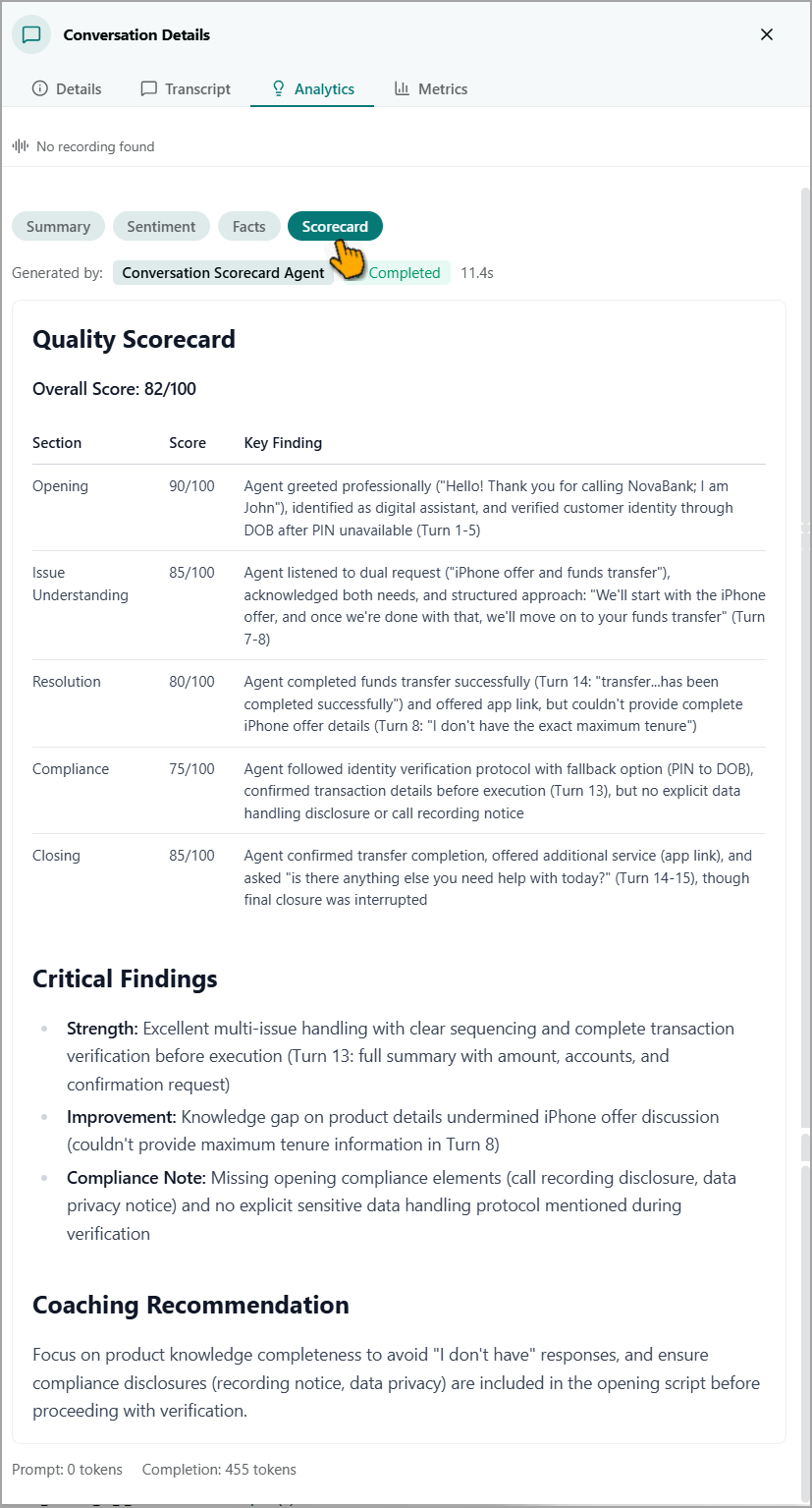
The Scorecard view includes the following information:
Overall Score - Provides a single score out of 100 that summarizes the overall quality of the conversation. The score appears under the Quality Scorecard heading. For example, 82/100.
The Section Score Table breaks down the overall score by different stages of the conversation. The table includes the following columns:
Section - The conversation stage being evaluated, such as Opening, Issue Understanding, Resolution, Compliance, or Closing.
Score - The score assigned to the section, out of 100.
Key Finding - A brief explanation of the evaluation, along with a reference to the relevant conversation turn.
Critical Findings - Highlights the most important observations from the evaluation. Each finding includes a label, such as:
Strength - Highlights what the AI Agent handled well.
Improvement - Identifies an area where the AI Agent can improve.
Compliance Note - Highlights an observation related to compliance requirements.
Each finding includes a brief explanation and a reference to the relevant conversation turn.
Coaching Recommendation - Provides a specific, actionable recommendation based on the critical findings. Use this guidance to identify areas where the AI Agent's performance can be improved.
The scorecard analysis is generated by the Scorecard Agent configured in the post-call section. The generation status and processing time are displayed next to the agent name.
Prompt and Completion token counts appear at the bottom of the Scorecard view.