Working with the AI Model
Synchronizing the Real-Time Guidance Agent AI Model
After your Real-Time Guidance Agent account is created, you'll need to synchronize any preexisting account AI data with the Real-Time Guidance Agent AI Model that will be used at runtime.
Note
Before initial synchronization can be performed, your System Admin needs to set up Real-Time Guidance Agent AI connections for your account. For more information, contact your Uniphore Support representative.
The first AI Model sync is always performed at the Account level, by Environment. A user must have both Account Admin and U Applications Admin roles to perform a sync.
Access to the AI Model page is from the Real-Time Guidance Agent menu of the Admin Console:
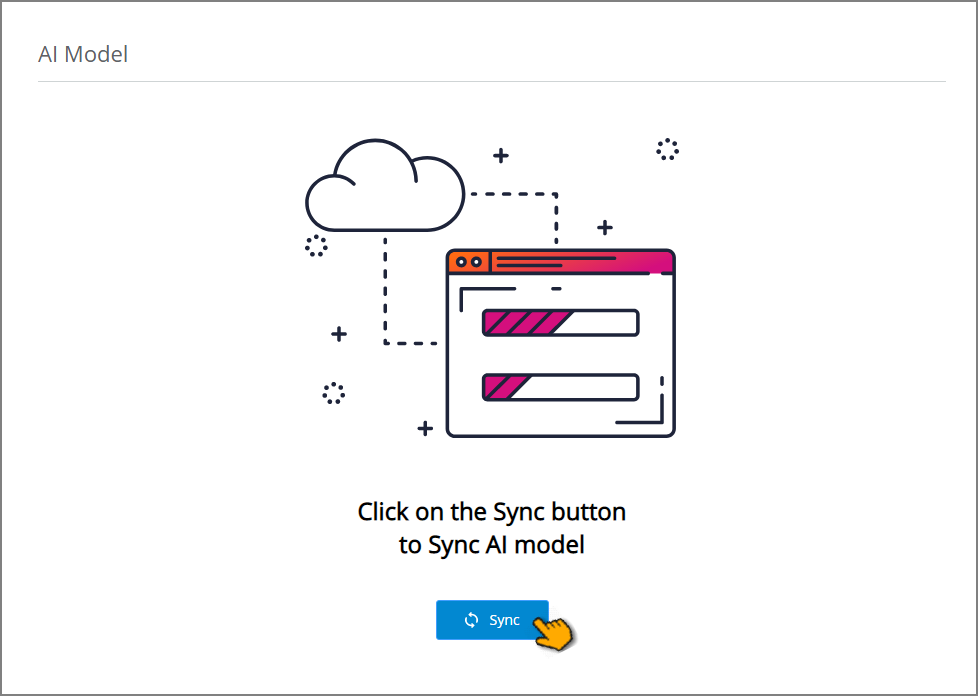
To perform the initial synchronization, click Sync. A message is displayed and the synchronization process will begin. You can continue working on other activities in X-Console while the sync is executing.
The duration of the sync process will depend on the size of your AI data model. A popup message will be displayed to notify you when the process has completed, along with its final status.
Note
In the event a synchronization fails, please contact your Uniphore Support representative.
After the Account has been synced successfully, the AI Model page will display all existing components of the AI data model:
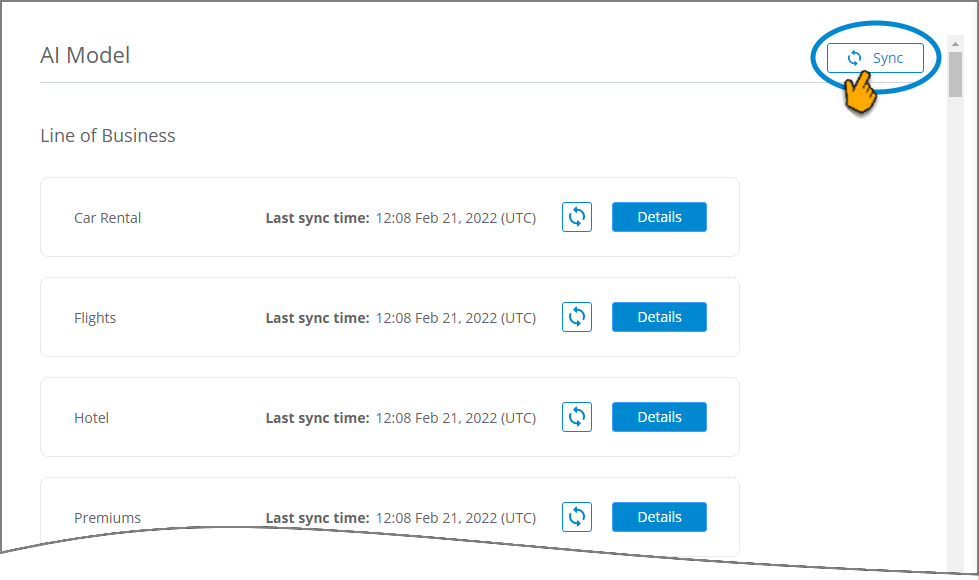
After the sync, each LOB will show the precise time and date of the synchronization in the Last sync time field.
Note
Each LOB relates to an Organization in the U-Assist After Call Work (ACW) application.
You can now view and map sub-component details of the AI Model.
Whenever the account's Real-Time Guidance Agent AI Model is updated with a new LOB or sub-components, you can perform a subsequent synchronization operation at the account level by clicking Sync in the upper right corner.
Synchronizing Multi-Environments
To ensure data consistency and promote ease of usability in your X-Console Multi Environment setup, you will need to maintain separate AI Models for each working environment (e.g., Dev, Test and Prod).
To achieve this, first go to each of these environments and perform the initial synchronization that is described above.
Subsequently, when you deploy your environment (e.g., from Dev to Test or Test to Prod), the deployment will have the required mapping to accurately synchronize the AI Model for the target environment.
Synchronizing a Specific LOB Component
After the Account AI Model has been synchronized successfully, you can choose to sync any of its component LOBs individually at any time. Syncing a specific LOB typically requires less time than syncing the complete AI Model.
Locate the LOB you want to sync and click the Sync icon:
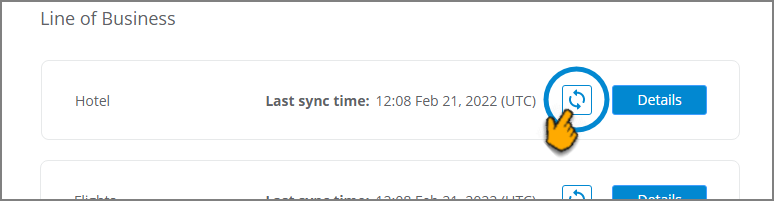
A message is displayed and the synchronization process will begin. You can continue working on other activities in X-Console while the sync is executing. A popup message will be displayed to notify you when the process has completed, along with its final status.
After a sync, the Last sync time field is updated to reflect the precise time and date of the synchronization.
Note
You can also synchronize a LOB by clicking the Sync button on its details page.
Viewing and Mapping the Real-Time Guidance Agent AI Model
After synchronizing the AI Model for your account, a user with the Flow Admin role (or higher) can view its components and add mappings to associate them with X‑Platform components. The mappings you configure will determine some of the associations and actions performed by during runtime.
Real-Time Guidance Agent uses natural language processing (NLP) to understand a customer's goal for contacting the Agent. In the AI Model, each Line of Business (LOB) contains one or more Business Processes (BP), with each BP designed to achieve a unique goal. Using NLP, Real-Time Guidance Agent semantically translates the goal of a BP into one or more Intents, which in turn use dedicated Entities to provide the specific data that is needed to achieve the goals of a conversation.
Tip
To learn more about the Real-Time Guidance Agent AI Model component hierarchy and structure, click here.
Real-Time Guidance Agent provides customizable domains, called Experiences, to assign user language and manage unique subsets of AI data components for BPs in an account.
Mapping LOB Business Process Components
Every BP contained in an LOB contains one or more Intents and Entities. Each Intent can be mapped to a specific X‑Designer Flow under the Experience module to provide the connections that are needed to achieve the goal of a Business Process.
Similarly, you map each Entity to a Session Variable to provide the connections that pass the various data values that are used to achieve the goal.
From the Admin Console Real-Time Guidance Agent menu, select AI Model. The AI Model page will be displayed.
On the right side of the LOB that you want to view, click Details:
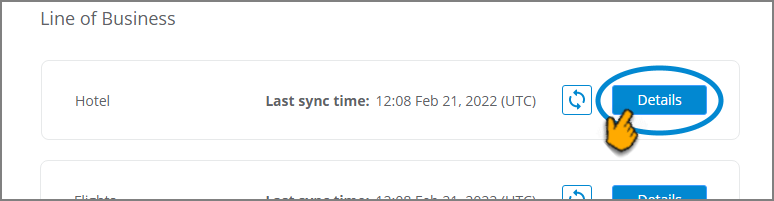
The LOB Details page will be displayed, listing all of its Business Processes:
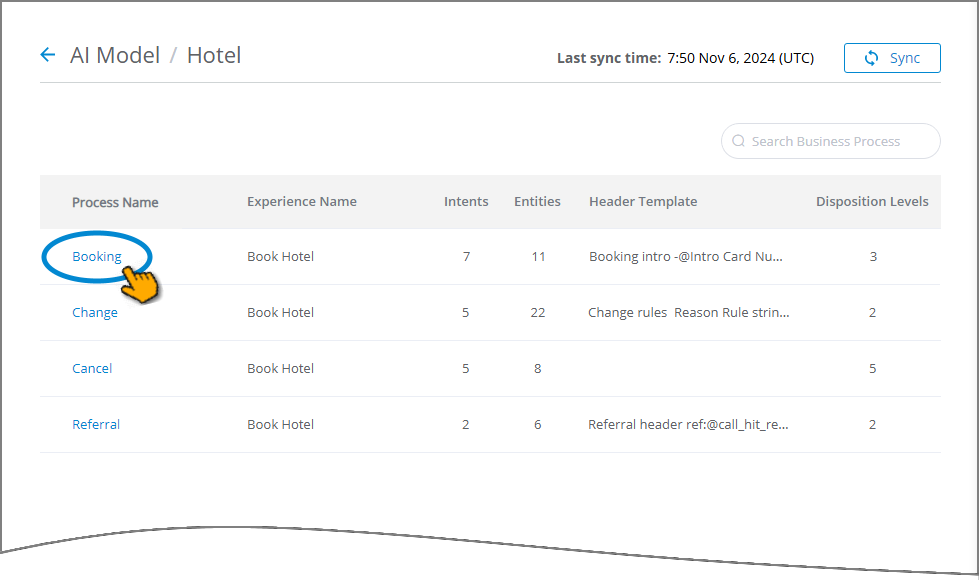
Each Business Process displays its associated Experience name, along with the number of Intents, Entities, Header template for the contact summary and disposition levels that is uses. For details on assigning an Experience to a BP, click here.
When the list is long, you can locate a specific BP by entering a few letters from its name in the Search field, located at the upper right corner of the list.
Click the name of the Business Process you want to configure. In the Synced Intents panel, all related rule-based Intents that were created with the type 'Call reason' in U-Assist ACW are listed. This panel is for viewing and information purposes only and cannot be edited.
You can map these Synced Intents to the X‑Designer Flow and define a Summary Template using the Experience page.
For defining the Intent Summary Template, click here.
For mapping Synced Intents to Flows, click here.
Note
Synced Intents and Synced Entities are defined and maintained using the U-Assist ACW application.
In the Synced Entities panel, all Entities that were created in U-Assist ACW are listed, along with their Type. For each Entity Name, from the Select Variable dropdown list, choose the X‑Platform Session Variable that will be used to store the value provided by Real-Time Guidance Agent at runtime:
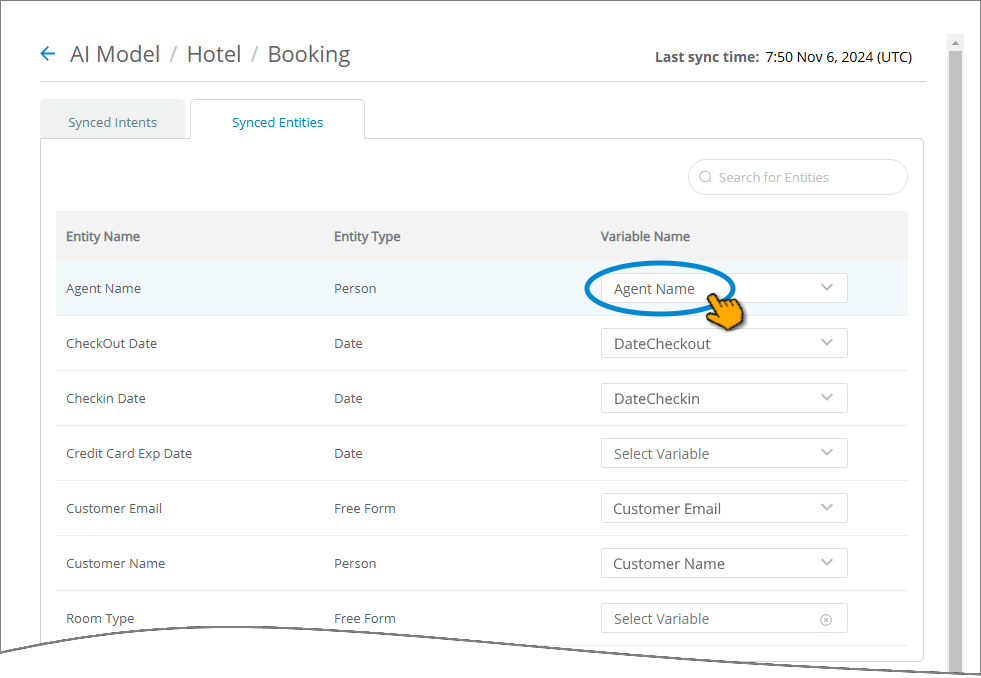
Only variables that match the current Entity Type will be displayed. For example, when mapping an Entity of type Date, the Session Variable you select also will be of the type Date.
When the list is long, you can locate a specific Entity Name by entering a few letters from its name in the Search field, located at the upper right corner of the list.
To complete the basic mapping, perform Step 1 through Step 4 above for each Business Process in the current LOB.
Your mapping is saved incrementally as you work. You can also edit your mapping configurations at any time, as needed.
When mapping is completed, Real-Time Guidance Agent is ready to provide all mapped details to the Agent AI Assist client application at runtime. For details about using the application, click here.
Mappings for AI-Based Suggestions
Real-Time Guidance Agent can automatically display AI-based data suggestions underneath specific input questions in an Interaction Flow at runtime. This provides an Agent with a quick way to fill in information, and can greatly reduce entry errors during a call:
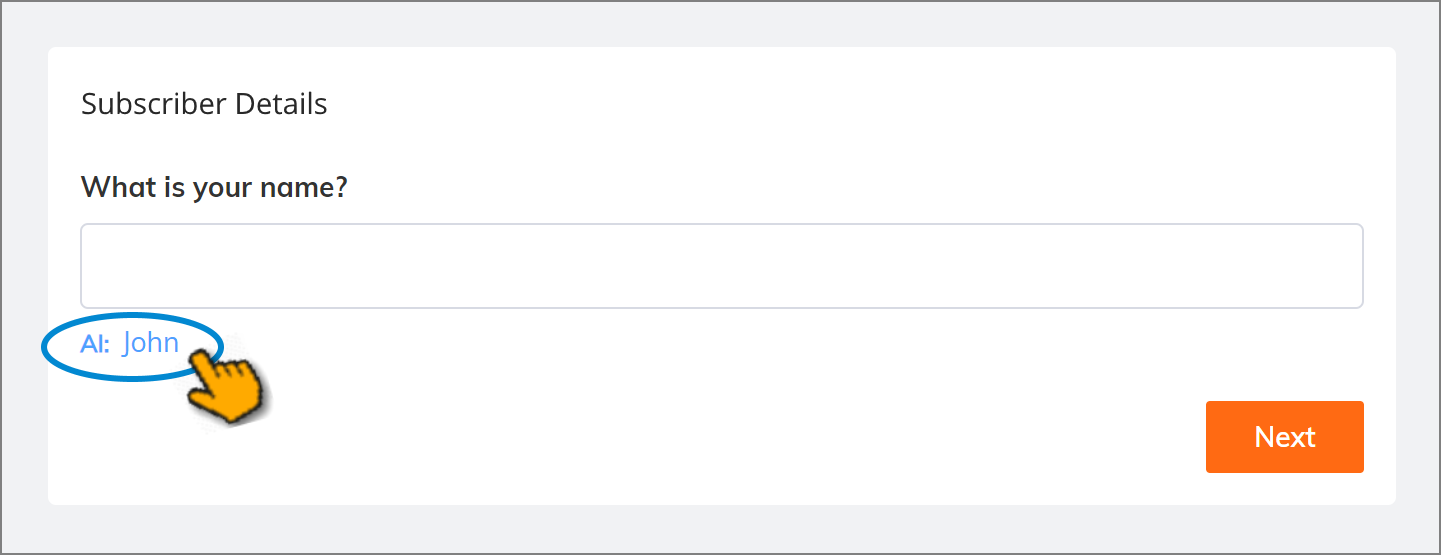
To support the display of AI-based field suggestions:
An Intent that uses the relevant Entity is mapped to an Interaction Flow in the BP.
Map the relevant Entity to the Session Variable that stores the value of the input question field.
In the desired Flow, assign this Session Variable as the Variable Name for the element that will display the field.
Real-Time Guidance Agent suggests data values for certain field types using the Entity data from the relevant AI Model, based on its analysis of the current conversation.
For details on using the AI-based suggestions in the AI Agent Assist client, click here.
For details on adding AI-based suggestions to elements in your X‑Designer Flow, click here.