Viewing Persona Archetypes
The Persona Archetype feature helps you identify and organize common caller profiles discovered from conversation transcripts. Each persona represents a group of customers who share similar goals, behaviors, and interaction patterns.
By analyzing discovered process categories, Process Intelligence automatically generates caller archetypes that describe who is calling, what they want to accomplish, and where they encounter challenges. These AI-generated personas can be used to drive simulations and evaluations within Customer Service AI, enabling organizations to validate AI agent behavior against representative customer profiles. These insights can be used to drive simulations and evaluations within the CSAI platform, design more effective AI agents, optimize conversation flows, and improve customer experiences.
Persona archetypes also provide actionable insights for designing and optimizing AI-powered customer interactions. They are used to:
Design voice agents that align with specific customer profiles and business scenarios.
Configure conversation flows based on common customer intents and behaviors.
Define escalation strategies for interactions that require human assistance.
Determine whether a customer request is best handled through Self-Service Agent (SSA) or a Human Agent.
By leveraging these caller profiles, organizations can build intelligent, context-aware voice agents that deliver personalized, context-aware responses and effectively address the unique needs, expectations, and potential friction points of each customer type.
Accessing Persona Archetype
Click Process Intelligence (
 ) from the left navigation menu to open the Process Mining page.
Select the specific workspace from the dropdown. The selected workspace must have at least one completed discovery run, indicated by the Discovery complete status badge next to the workspace selector.
Click the Persona Archetype tab next to Process Categories. The caller personas generated from the discovered process categories are displayed.
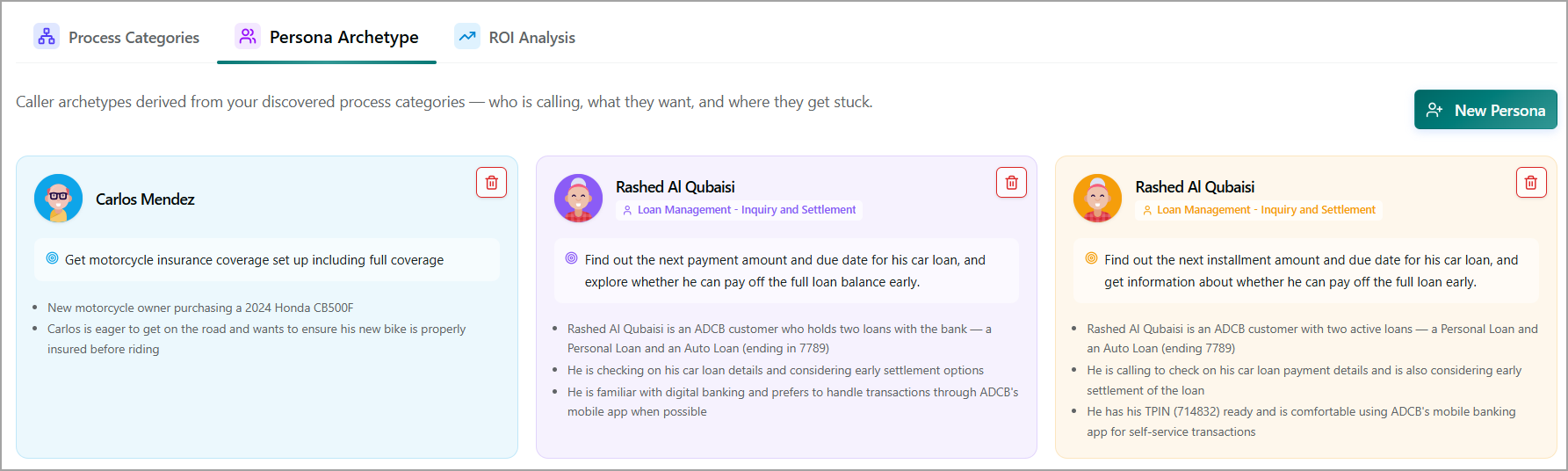
Each persona is displayed as a card and provides a quick summary of a typical customer profile. Each persona card includes:
Persona Name and Avatar - Displays an AI-generated, human-readable name (for example, Carlos Mendez) together with an avatar illustration to represent the caller archetype. The name and avatar provide a simple and recognizable way to identify and discuss the persona during analysis and AI agent design. They are illustrative representations of a group of callers with similar characteristics and do not correspond to a specific individual.
Primary Goal - Highlights the main objective or reason for the customer's interaction. It summarizes the primary outcome that callers within the persona are trying to achieve and is automatically derived from the dominant intent identified across the conversation transcripts associated with the persona.
Context Bullets - Displays AI-generated bullet points below the Primary Goal that provide additional context about the caller archetype. These summaries describe common situations, motivations, preferences, or background characteristics identified from the underlying transcript data.
Note
Persona Archetype data is available only after at least one successful discovery run has been completed on a workspace containing transcript data. If no personas are displayed, verify that the selected workspace contains transcripts and that discovery has completed successfully.
Creating a New Persona
Click New Persona in the upper-right corner to open the New Persona window.
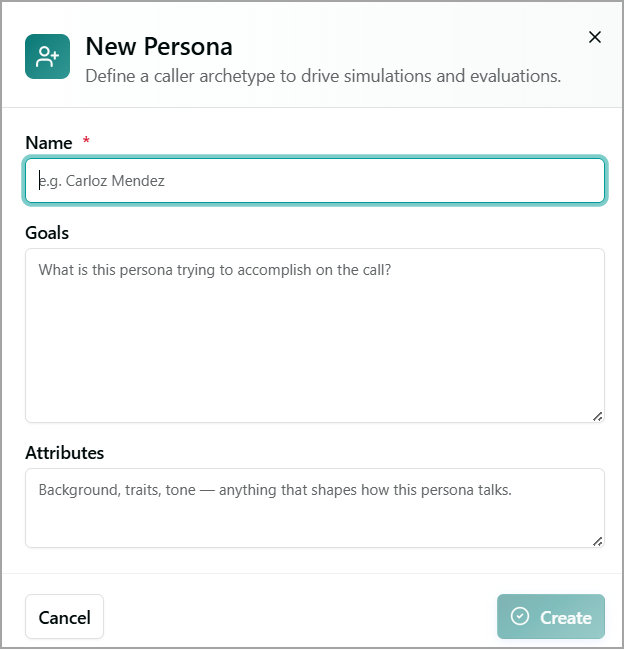
In the Name field, enter the name of the caller archetype.
In the Goals field, enter what the persona is trying to accomplish during the interaction.
In the Attributes field, define the persona's background, characteristics, communication style, preferences, or other traits that influence how the caller interacts with the AI agent.
Click Create to create the new persona. The new persona is added to the Persona Archetype page and becomes available for simulations and evaluations. To cancel your activity at any time without saving, click Cancel.
Deleting a Persona Archetype
Click the Trash (
 ) icon on the persona card that you want to delete. A confirmation message is displayed.
Click Delete to permanently remove the persona from the workspace, or click Cancel to retain the persona.