Uploading Documents Manually
The Administration Platform allows you to manually upload documents to a selected dataset directly within the application.
Go to the top menu and click .
The Projects page displays a list of existing projects as cards.
Click Detail on the desired project.
The project detail page opens and displays all the existing datasets.
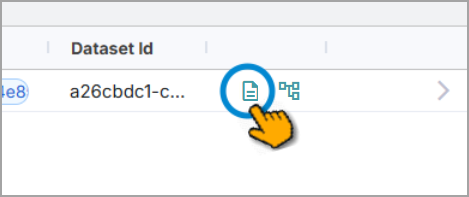
Click the View Documents icon on the dataset where you want to upload documents.
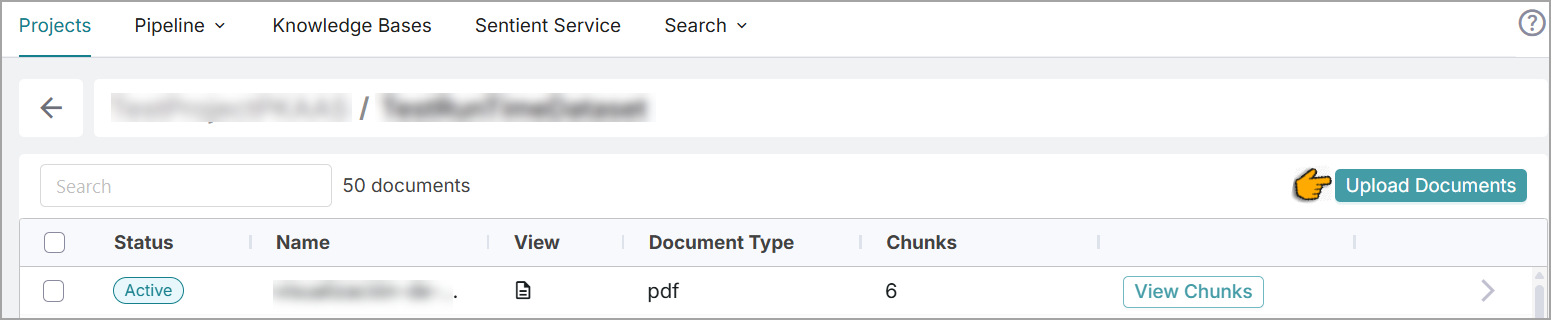
A list of all documents that have been processed within the dataset is displayed.
Click Upload Documents.
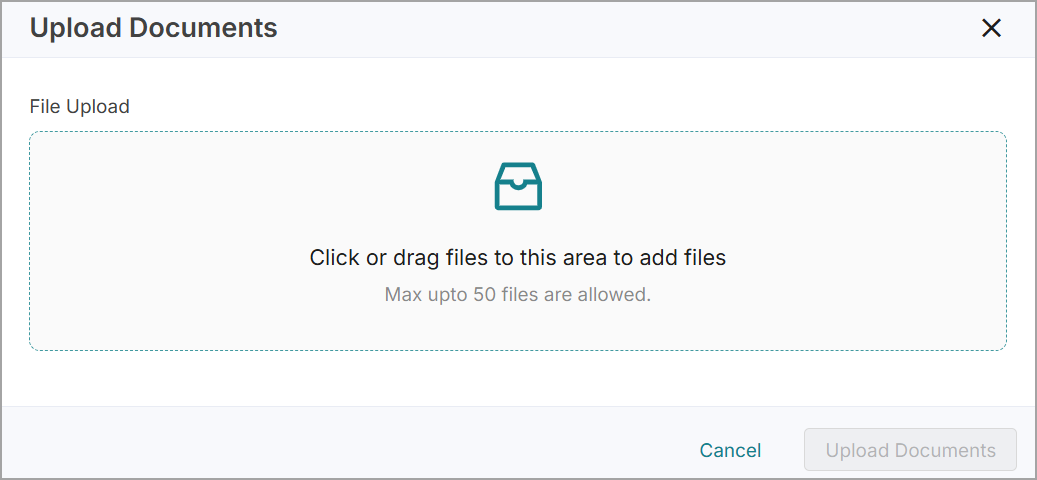
The Upload Documents side panel opens.
Open the File Manager to browse and add individual files or drag and drop multiple files at once.
You can upload up to 50 files at a time.
To remove a file, click the Delete icon next to it.
Click Upload Documents to start the upload.
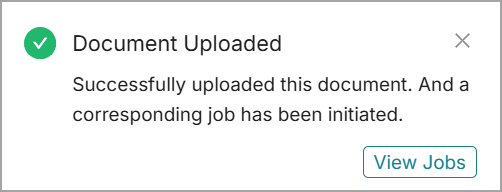
The success message displays.
The success message confirms that the document has been ingested. However, the extraction and enrichment pipeline jobs are still running in the background. Click the View Jobs link in the success message or go to the Jobs page to track the document’s processing status.