Monitoring Data Synchronization
You can monitor all data synchronization activities on the Jobs page in the Administration Platform.
Use the jobs page to:
Check the current status of sync operations.
Debug issues related to data syncing.
Review triggered workflows and their execution details.
To view the jobs page:
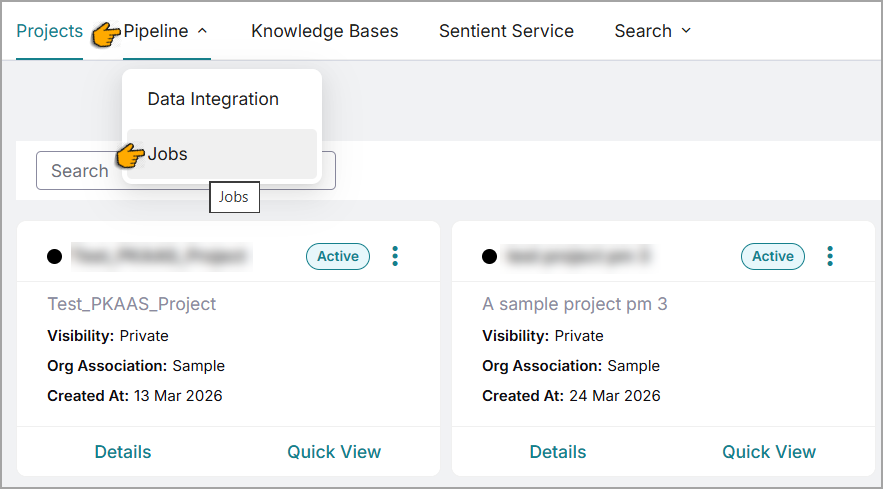
Go to the top menu and click Pipeline.
From the dropdown submenu items, select Jobs.
The Jobs page opens.
From the Project dropdown list, select the required project.
By default, jobs related to the first dataset in the project are displayed.
From the Dataset dropdown list, select the relevant dataset associated with the project.
All data sync jobs for the selected dataset are listed along with other information.
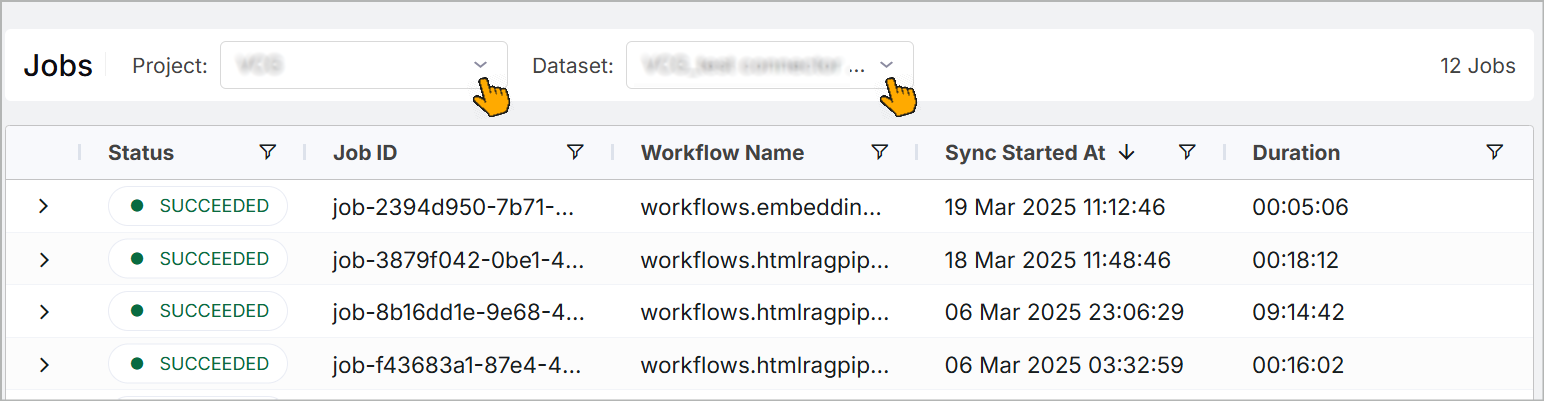
The following information is displayed:
Job status (e.g., Running, Failed, or Succeeded).
Data and time of each sync.
Graphical workflow of the sync process.
Other relevant information about the sync process.
Tip
To directly view the syncing jobs for a specific project and dataset, go to the Projects page and select > > View Jobs  icon.
icon.
Filtering Jobs
The Jobs page includes a filtering mechanism that allow you to quickly select and view any combination of job reporting data.
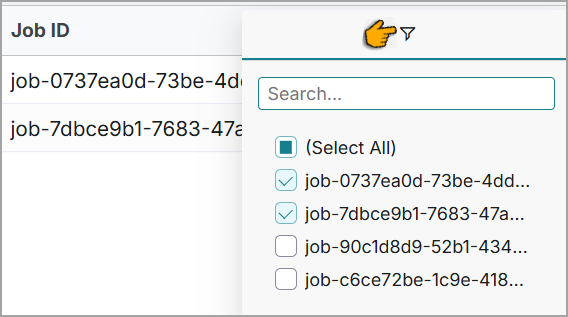
Click the  icon located at the top of any column to view a list of available filtering values.
Enter a few characters in the search field to narrow down the list. Only matching values are displayed.
Select the relevant check box to apply the filter and view the corresponding job details.
Viewing Jobs in Graphical Workflow
View the job statuses in a graphical workflow chart format for better visualization.
To view the chart, click the > icon at the beginning of the Job. A sub-panel opens displaying the job’s workflow chart with color-coded status indicators.
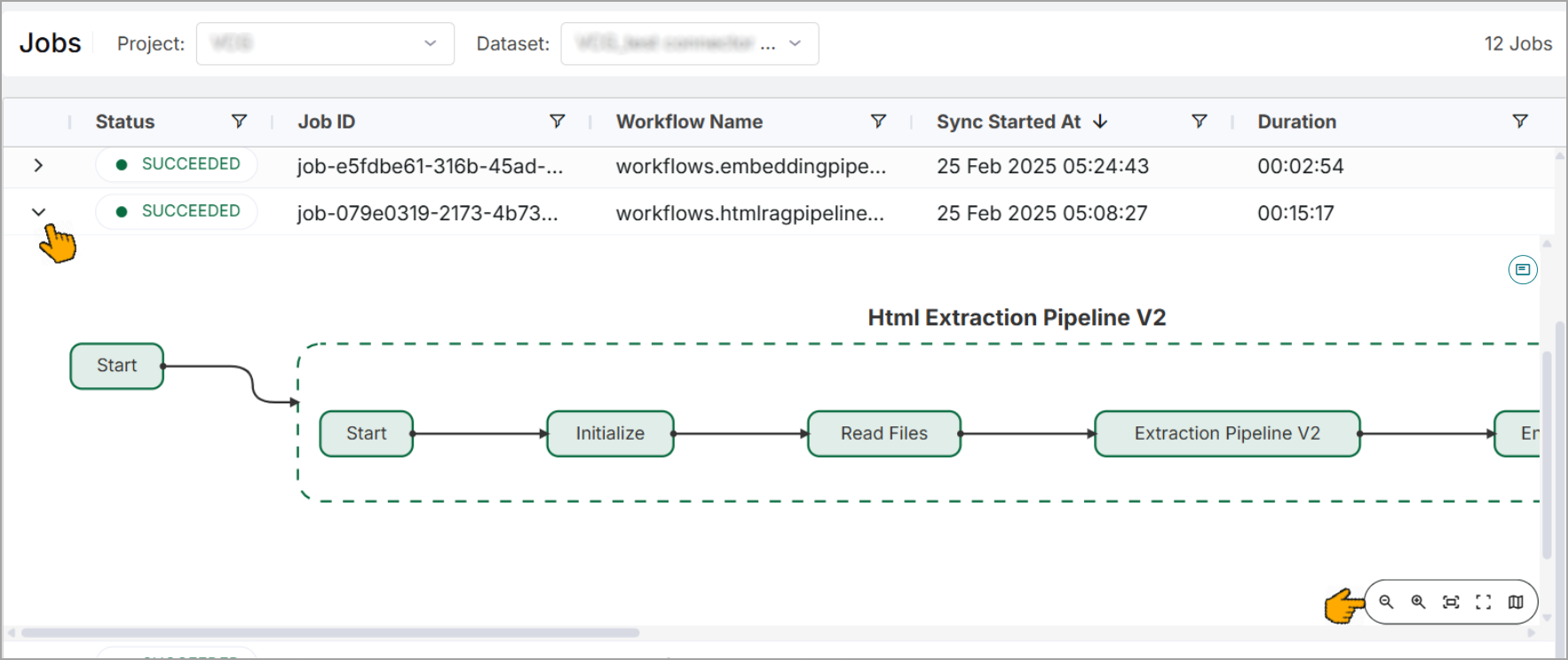
Use the toolbar in the lower-right corner of the sub-panel to:
Zoom Out
Zoom In
Fit to Screen
Full Screen
Show Mini Map