Searching Knowledge Bases
This platform allows you to ask questions and retrieve relevant information from the Knowledge Base using the Search feature.
In the Knowledge Base enriched documents are divided into chunks and processed through an embedding model, which transforms them into vector representations. These vectors enable the platform to perform semantic similarity analysis between user's question and the document chunks.
You can search business information using two methods:
Knowledge Q&A
Context Retriever
Knowledge Q&A
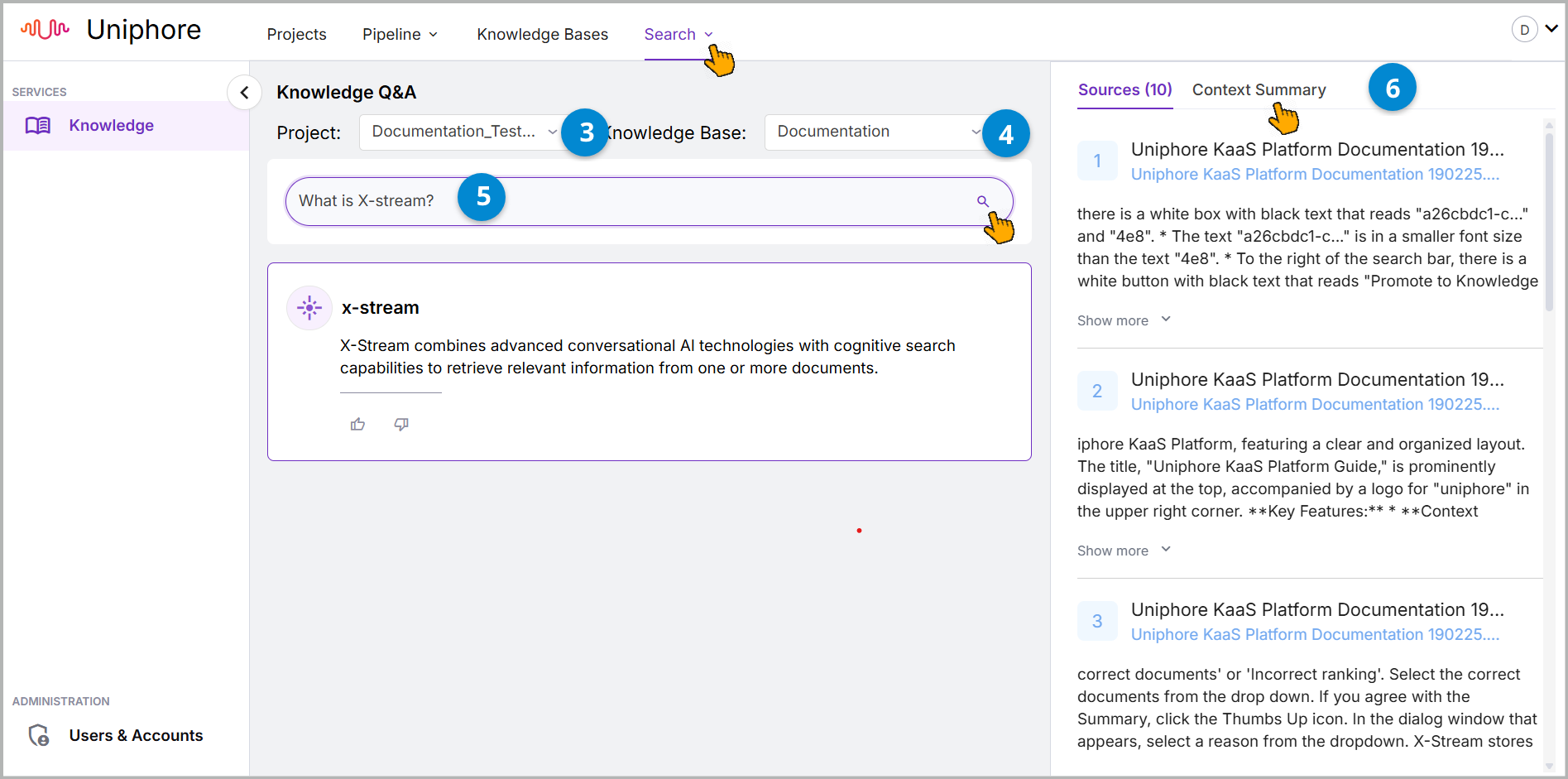
Knowledge Q&A provides a curated answer derived from enriched documents. You can input specific questions to receive precise, context-aware responses.
To search information using Knowledge Q&A:
Go to the top menu and click .
From the dropdown submenu items, select .
The knowledge Q&A page opens.
Select the project from the dropdown list.
Based on the selected project, select the knowledge base from the dropdown list.
Enter the question and click the Search icon.
The platform generates and displays the answer below the question.
The right-side panel displays the sources used to generate the answer along with related details.
You can also switch to the Context Summary tab to view additional information.
Note
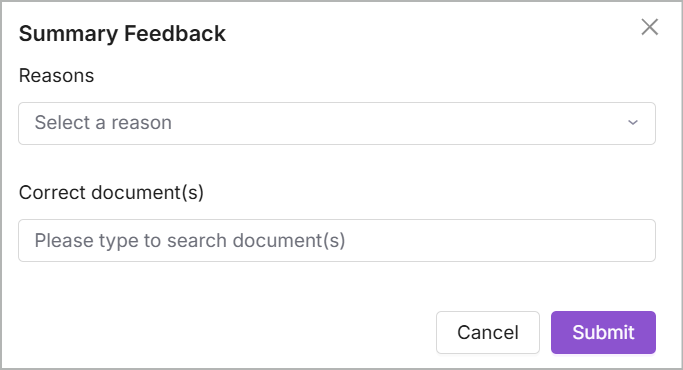
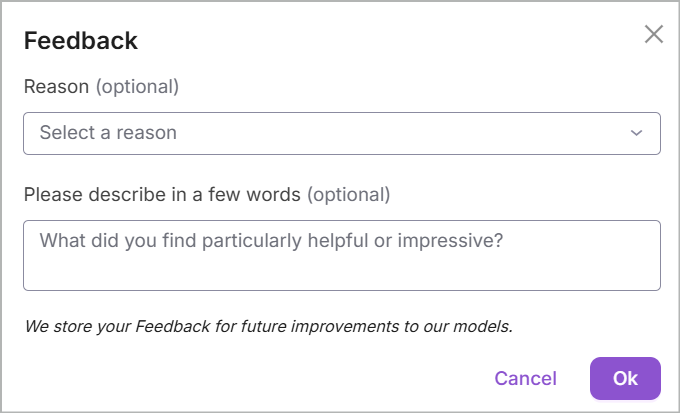
If you have any feedback about the result, you can provide it using the Feedback Form.
Context Retriever
The context retriever matches your question with information from documents and retrieves relevant chunks or sections from one or more sources. This allows you to verify whether the correct documents are being retrieved.
The search results (chunks) are ranked and scored based on the most relevant answer to the query.
Go to the top menu and click .
From the dropdown submenu items, select .
The Context Retriever page opens.
Select the project from the dropdown list.
Based on the selected project, select the knowledge base from the dropdown list.
Enter the question and click the Search icon.
The platform generates and displays the answer below the question.
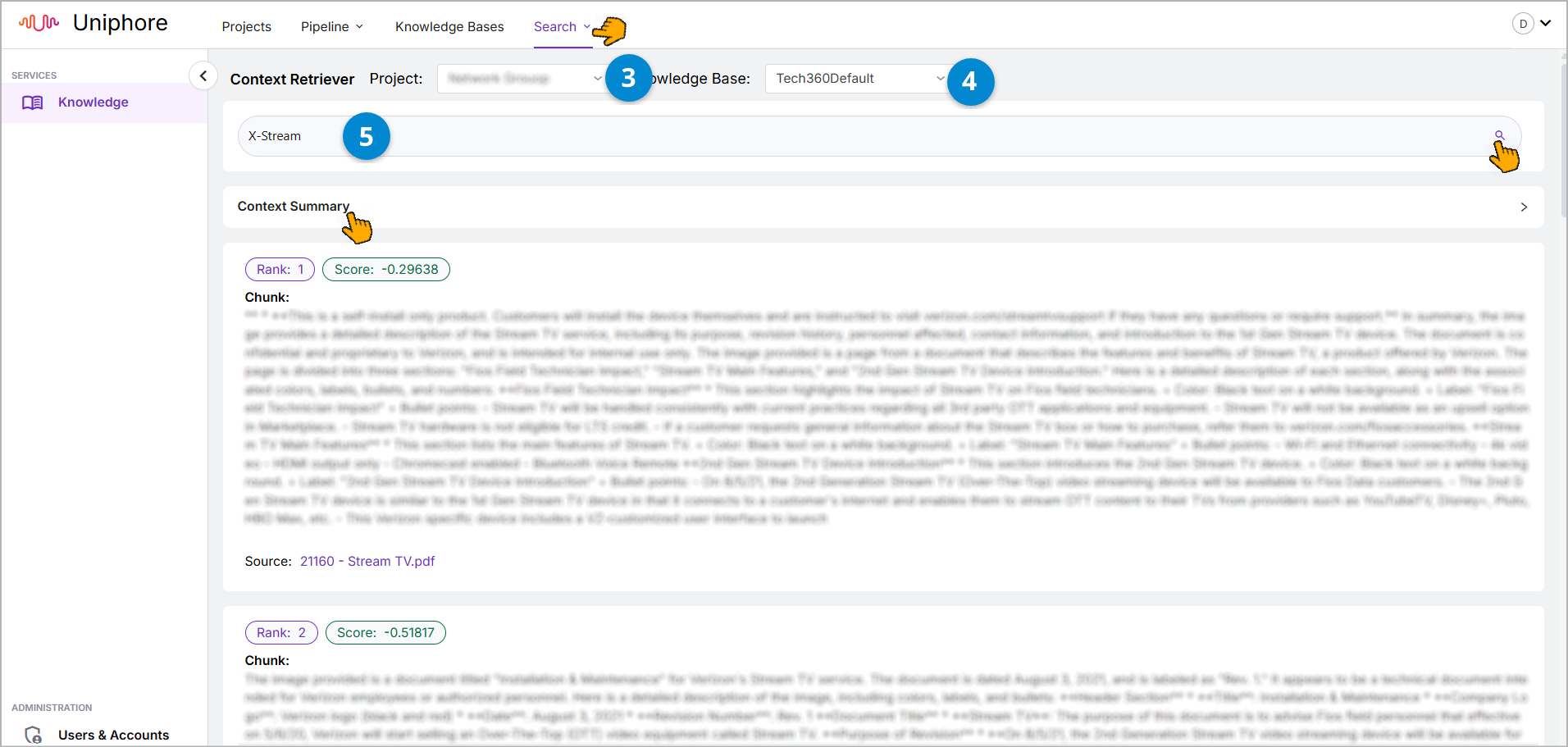
The answer chunks (search results) are displayed according to their Rank and Score, which are based on the relevance of the answer. The Score determines the ranking, with the chunk having the highest score appearing first. Also, the name of the source document from which each chunk is extracted is shown below each chunk.
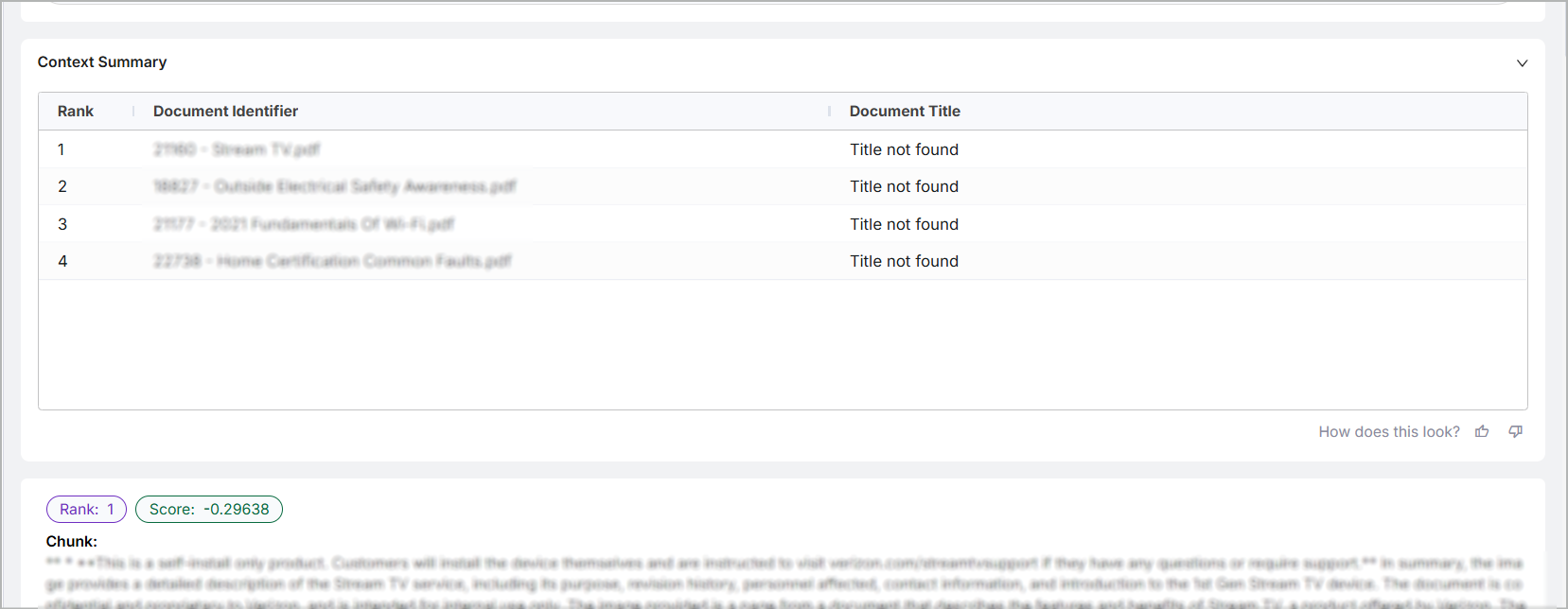
Click Context Summary.
It expands the panel, displaying a summary of the search results.
Note
If you have any feedback about the result, you can provide it using the Feedback Form.
Feedback Form
The following feedback icons are available on the Knowledge Q&A and Context Retriever pages. These icons appear below each answer and in the Context Summary section, allowing you to provide feedback on the generated information.
Location | Thumbs Up | Thumbs Down |
|---|---|---|
Under the Answers | If the generated answer is clear and accurate, click this | If the generated information is unclear or inaccurate, click this |
To fill the feedback form:
| ||
Context Summary | To fill the summary feedback form:
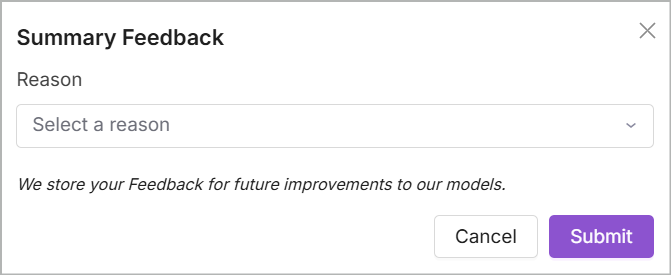 | To fill the summary feedback form:
 |


Note
Knowledge (KaaS) stores this feedback to improve the accuracy of future search results.