Knowledge Base
A Knowledge Base (KB) is a centralized repository of structured information that is used to store, organize, and retrieve knowledge efficiently. It's designed to help users find answers, solve problems, or understand concepts quickly.
The Administration Platform enables the creation of Knowledge Bases (KBs) from project datasets. Since KBs are tied to datasets, a project can contain multiple KBs.
Creating Knowledge Base
You can create and update a KB using project datasets:
Go to the top menu and click .
Click Detail on the desired project card.
The project detail page opens, displaying a list of datasets.
Select the datasets for KB:
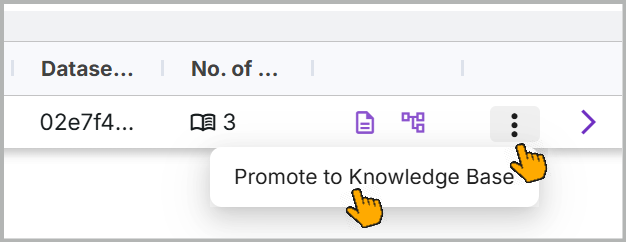
Hover over on the required dataset and click the Ellipsis icon.
Alternatively, select one or more dataset checkboxes and then click the Ellipsis icon in the top-right corner.
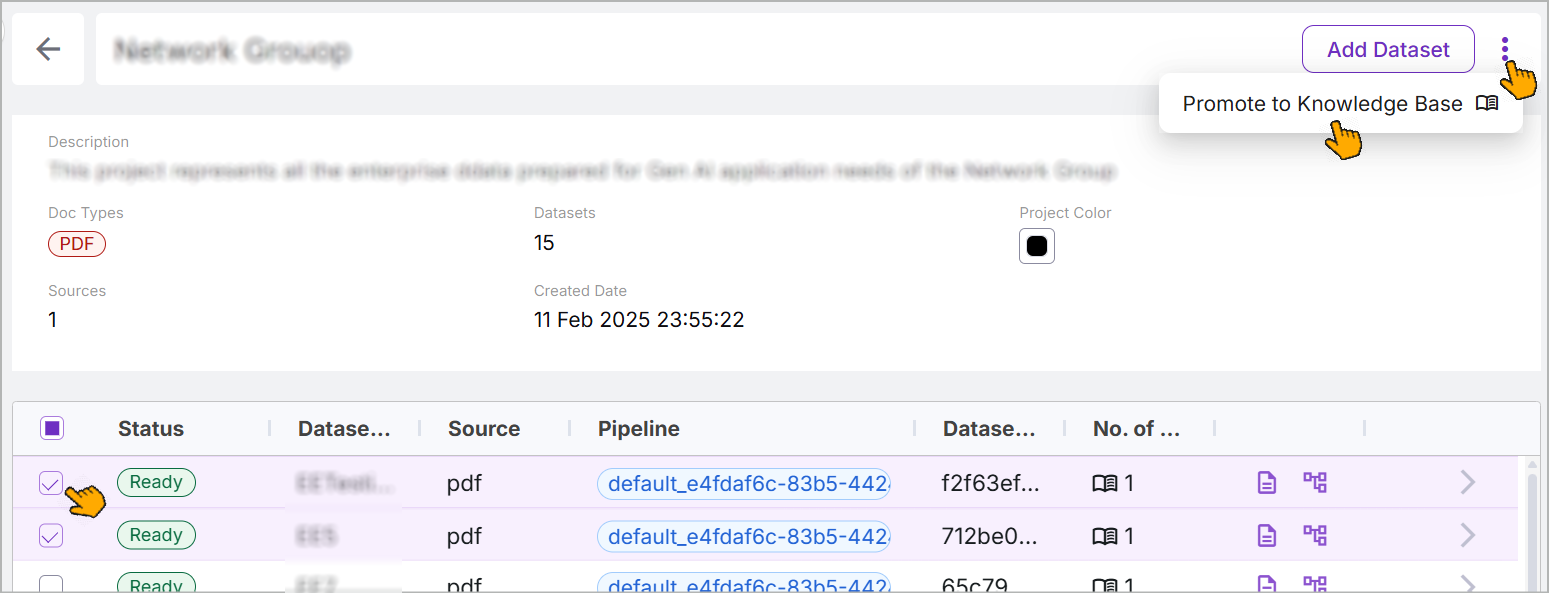
Select Promote to Knowledge Base.
The Promote to Knowledge Base window opens.
Choose the Promotion option based on your use case. The available fields will vary depending on the selected option.
Create New - Select this option when you need to create a new KB for the dataset.
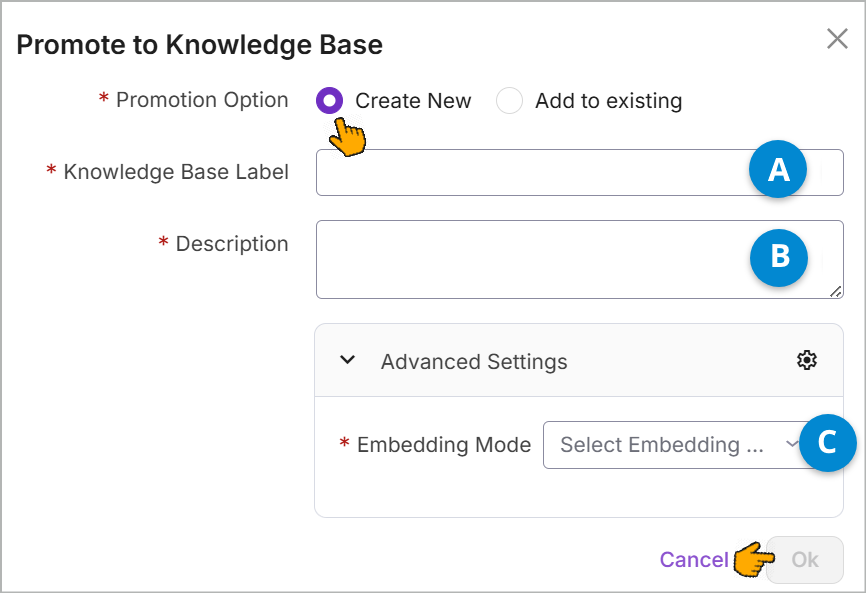
Enter a new name for the Knowledge Base Label.
Enter a Description for the KB.
Select the embedding model from the dropdown list.
The selected model is used to create a vector representation of the dataset.
Add to existing - Select this option when you need to add the dataset to the existing KB and update it. Choose the existing KB from the dropdown list.

Click OK to promote the selected dataset(s) to a knowledge base.
The success message is displayed.

Viewing Knowledge Bases
The platform allows you to view all KBs that have been promoted from a project datasets. To view existing KBs:
Go to the top menu and click .
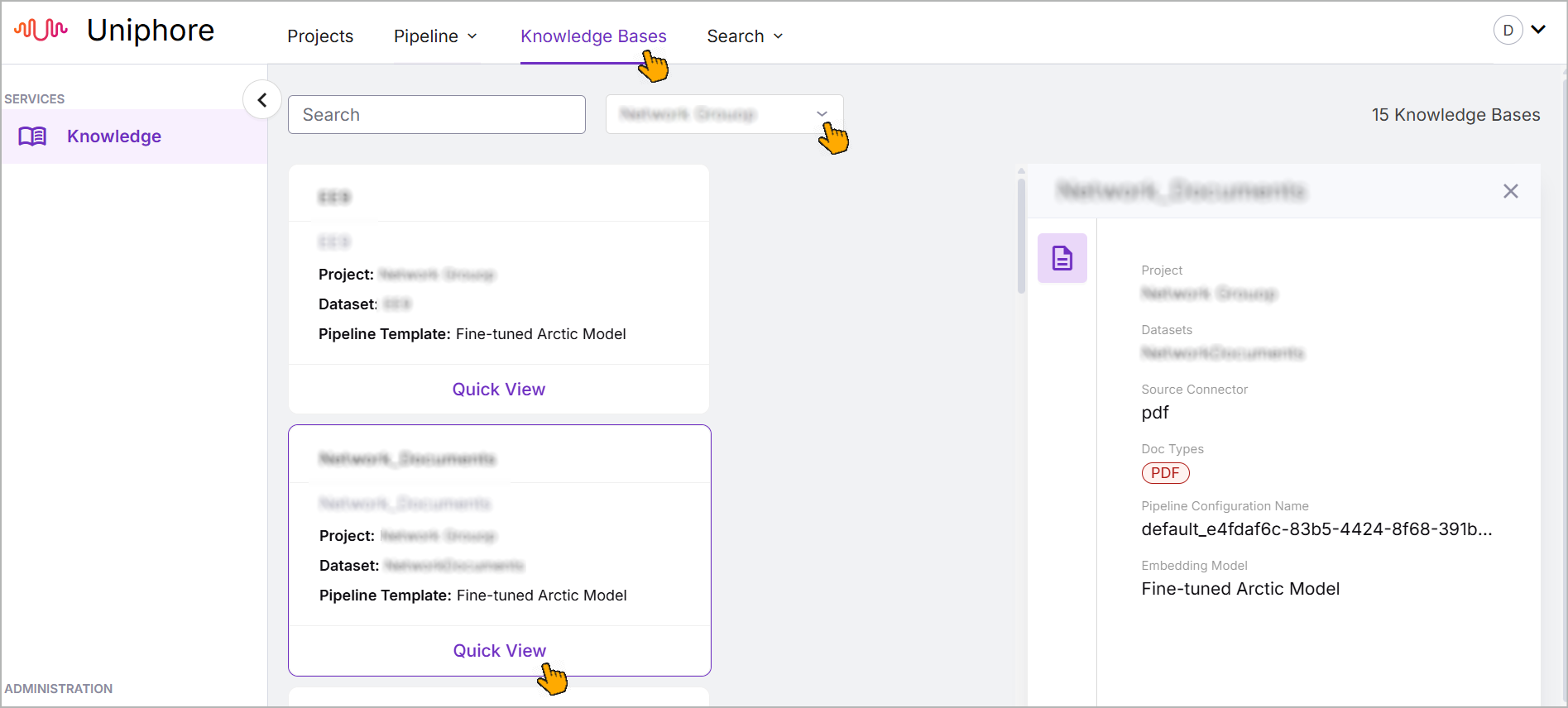
The KB page opens, displaying all KBs as cards.
From the dropdown list, choose the project.
Related KBs are displayed.
Use the search field at the top of the page to find a specific KB.
On the KB card, click Quick View.
The side panel opens, displaying key details about that KB.