Schema Agent
Schema Agents are a core platform AI capability that provides intelligent relationship discovery across multiple unstructured knowledge bases within your organization. By analyzing your KBs, these agents identify common entities, patterns, and connections, then construct a comprehensive relational map revealing how information relates across different sources. The platform allows you to evaluate these discovered relationships and fine-tune them to ensure they accurately reflect your organization's specific context, terminology, and business requirements.
This unified schema enables your AI agents to understand context that spans knowledge bases, retrieve relevant information from multiple sources simultaneously, and deliver accurate, comprehensive answers by leveraging the full scope of your connected organizational knowledge.
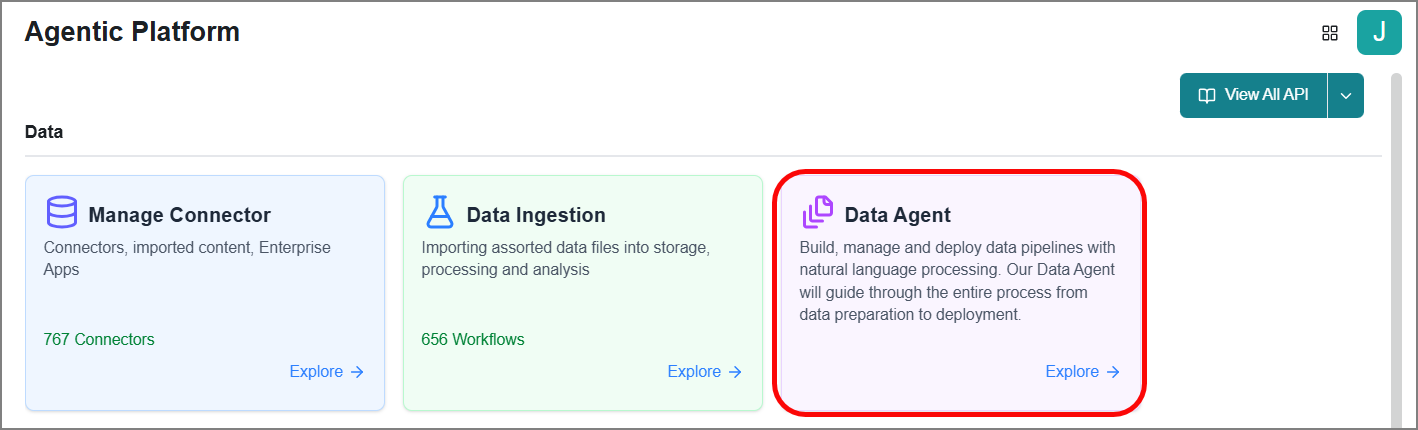
To access schema agents, go to the Home page > Data > Data Agent > Schema Agent.
You can view all existing schema agents and their associated insights from this central dashboard.
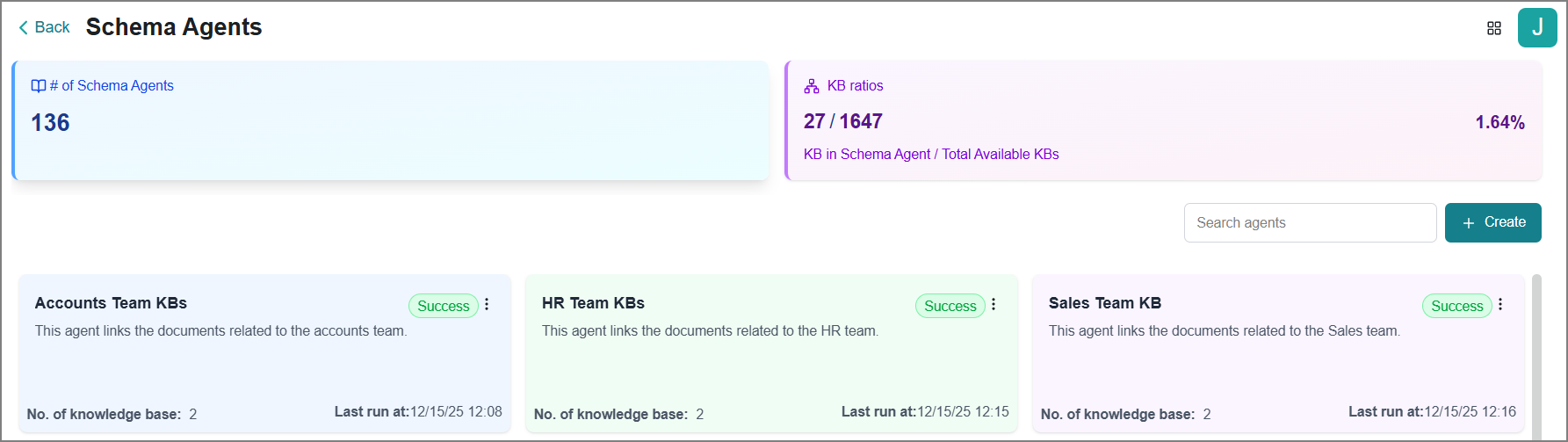
Schema Agents - Total number of schema agents you have created.
KB Ratio - The ratio of your available KBs that are currently included in schema agent mappings.
Creating a Schema Agent
To create a schema agent:
Click Create on the Schema Agents page.
The Create Schema Agent window opens.
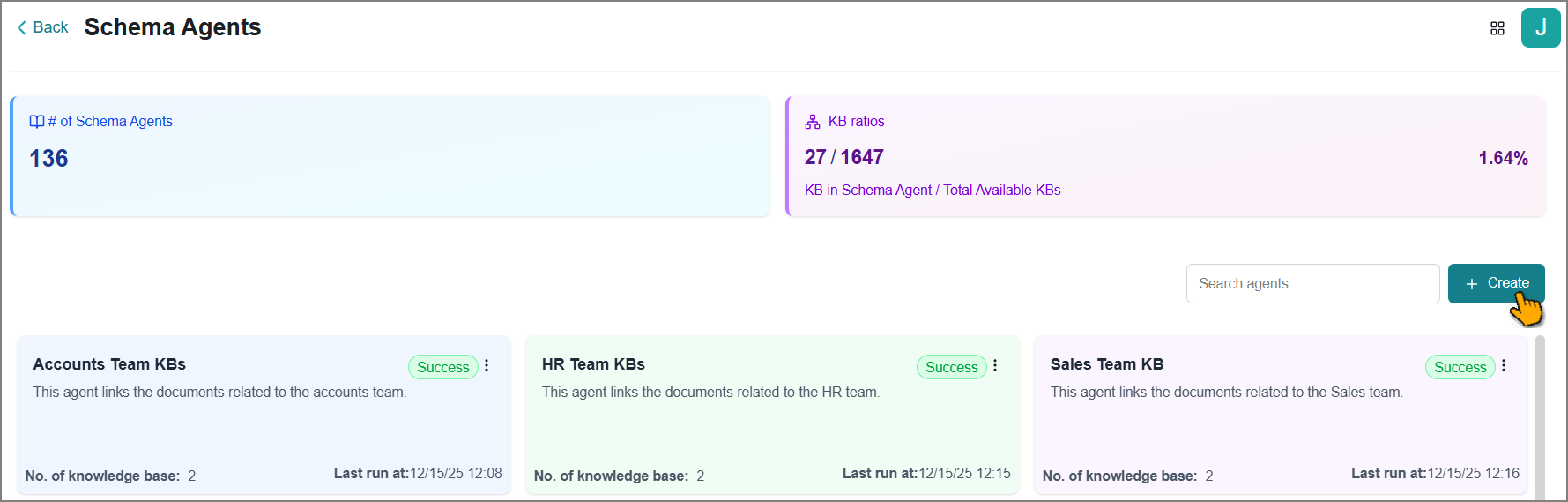
Enter a meaningful name for the schema agent.
Enter a detailed description for the schema agent.
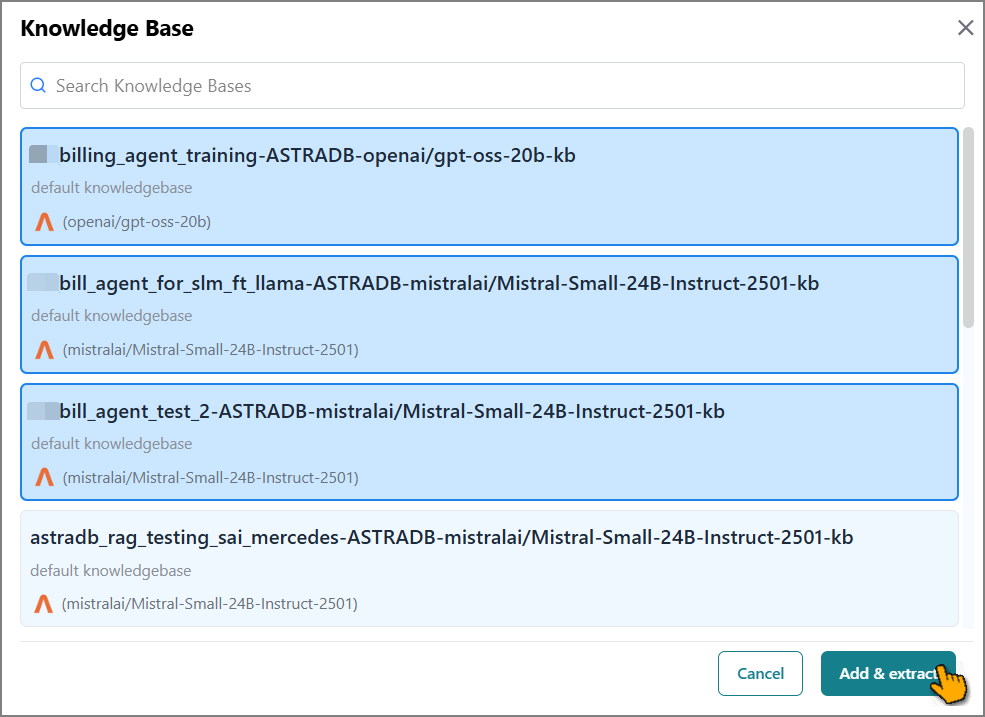
Click Add Knowledge Base.
The right-side panel opens to display all unstructured KBs.
Search and select two or more KBs as required.
Tip
Select a minimum of two KBs to proceed further.
Click Add & Extract.
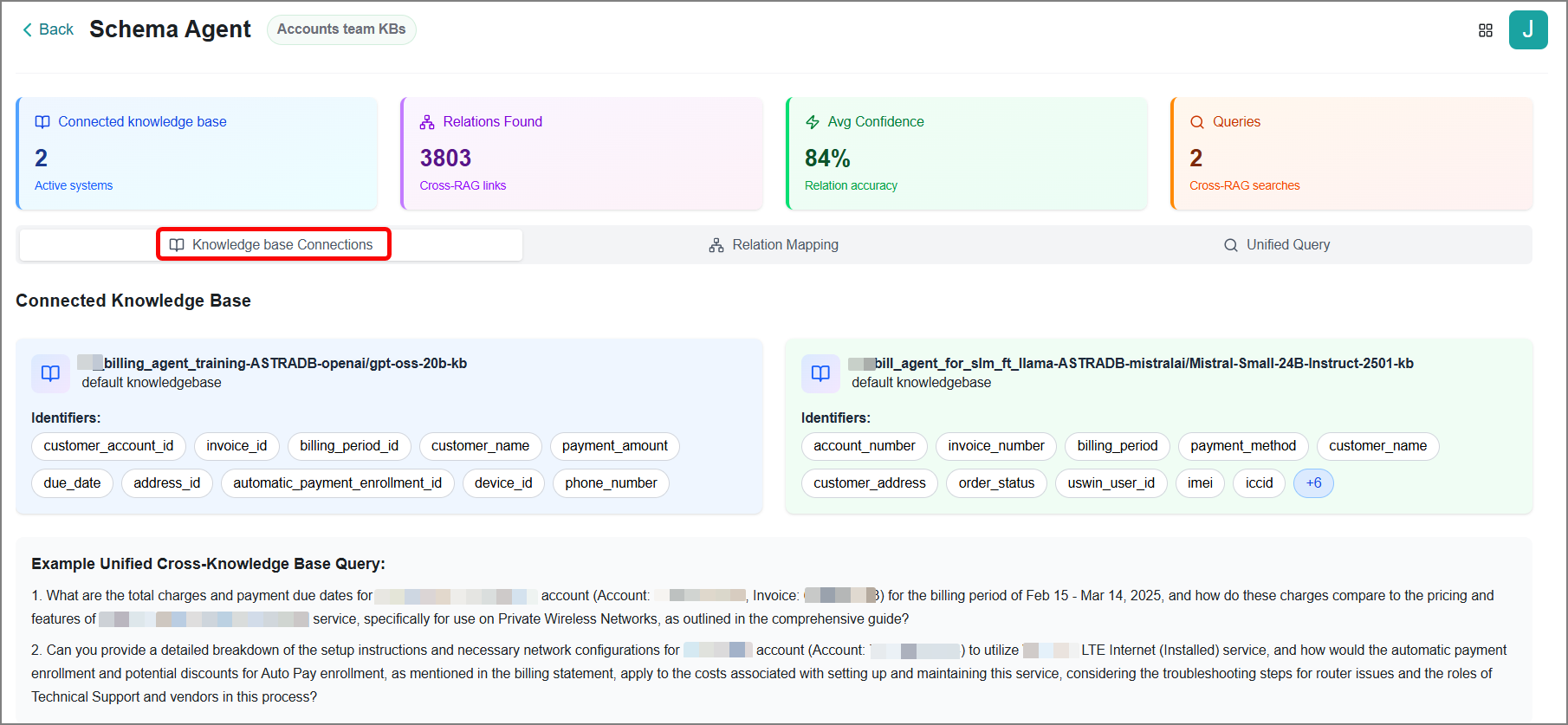
The new schema agent page opens. In the Knowledge Base Connections tab, you can review and manage auto-discovered Identifiers from each KB.
Tip
You can also view a sample query that relates to a cross-knowledge base at the bottom.
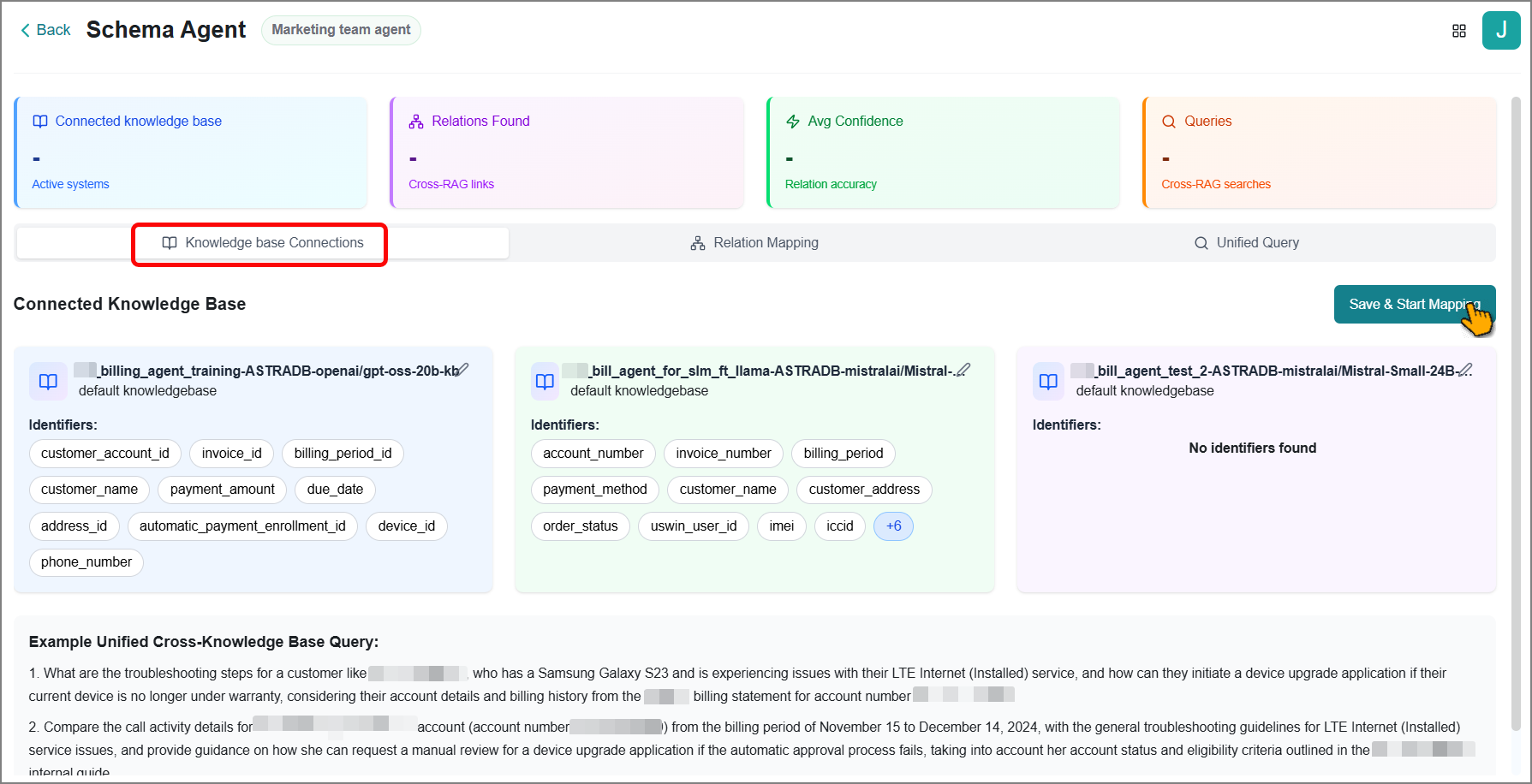
To update identifiers:
Click the edit
 icon.
icon.The Manage Identifiers window opens.
Enter a new identifier name in the format.
Click Add to tag the new identifier.
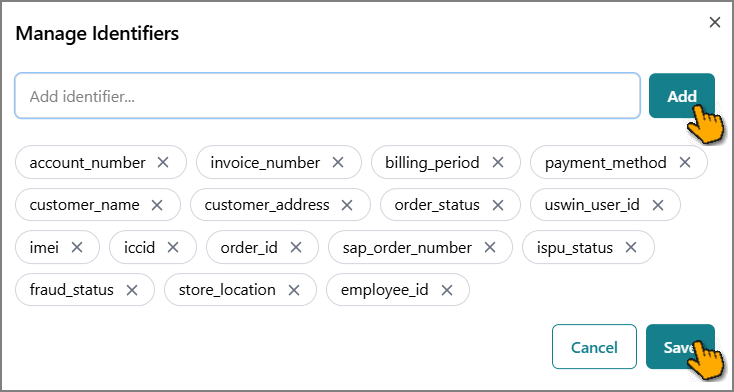
Click the X icon on the existing identifier to remove it.
Click Save to confirm the changes.
Click Save & Start Mapping.
The platform begins generating relational mapping based on the identifiers and other common factors.
Tip
Allow sufficient time for the mapping process to complete. Processing time varies based on the number of KBs mapped, KB size, and complexity.
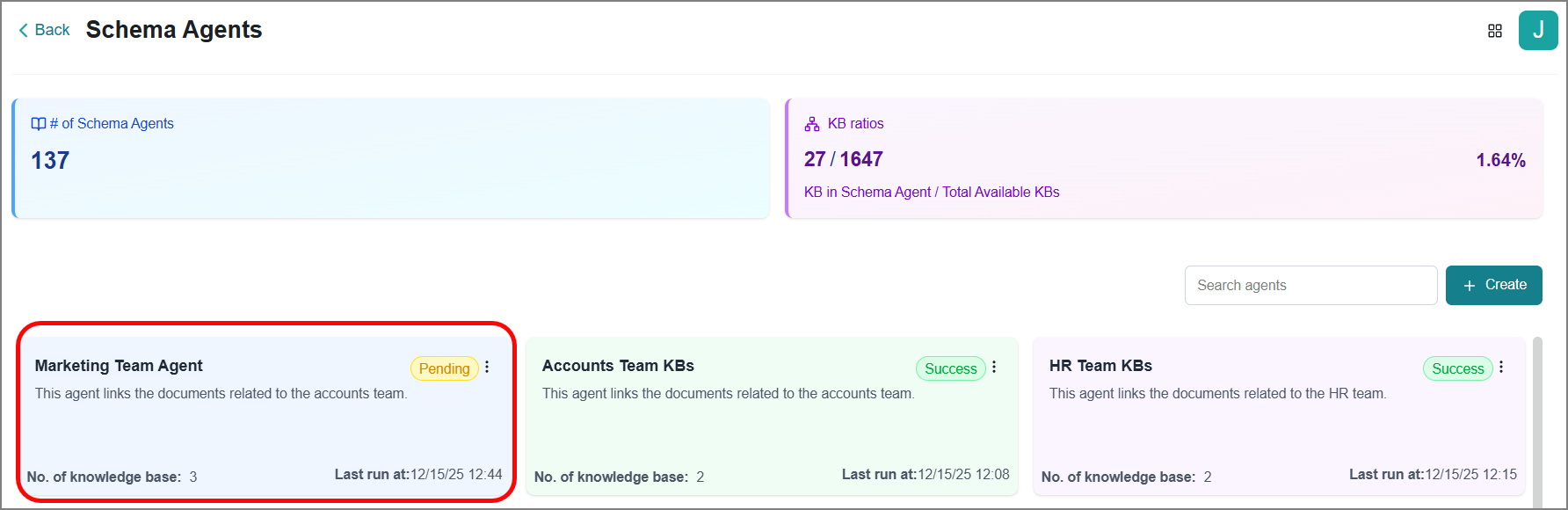
You can view the current status of the KBs mapping on the Schame Agents page.
Viewing a Schema Agent
Select the required schema agent card to access its detailed configuration. The schema agent details page provides access to multiple tabs and other analytical insights that help you understand and manage your KB relationships.
Knowledge Base Connections tab - Allows you to view all discovered identifiers and auto-generated examples for unified cross-knowledge base queries.
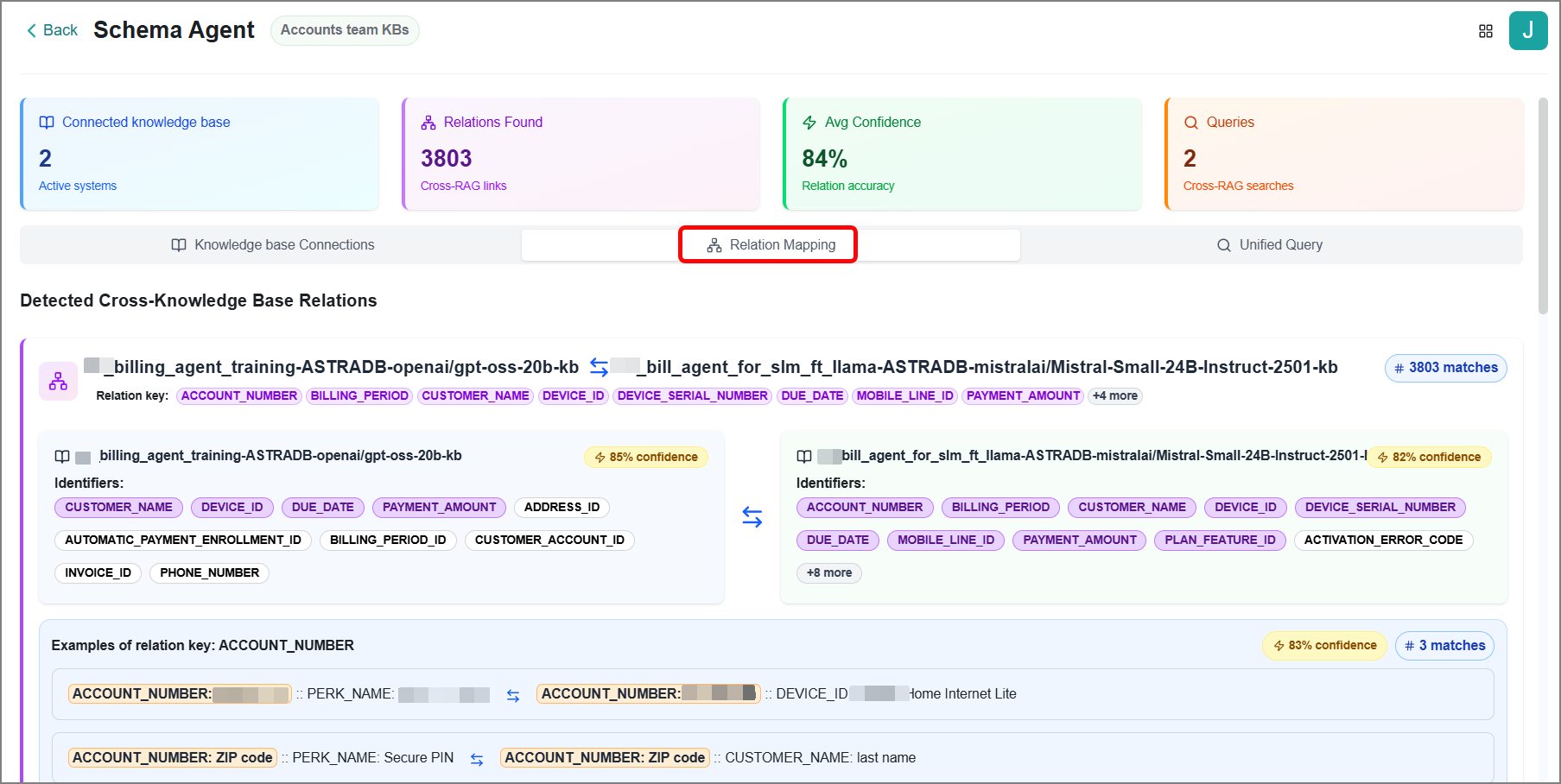
Relation Mapping tab - Allows you to view all relationships created between your selected KBs. You can see which identifiers are common across KBs, which are unique to specific KBs, the confidence level indicating how accurately identifiers are matched, and the total number of matches, along with detailed information for each relationship.
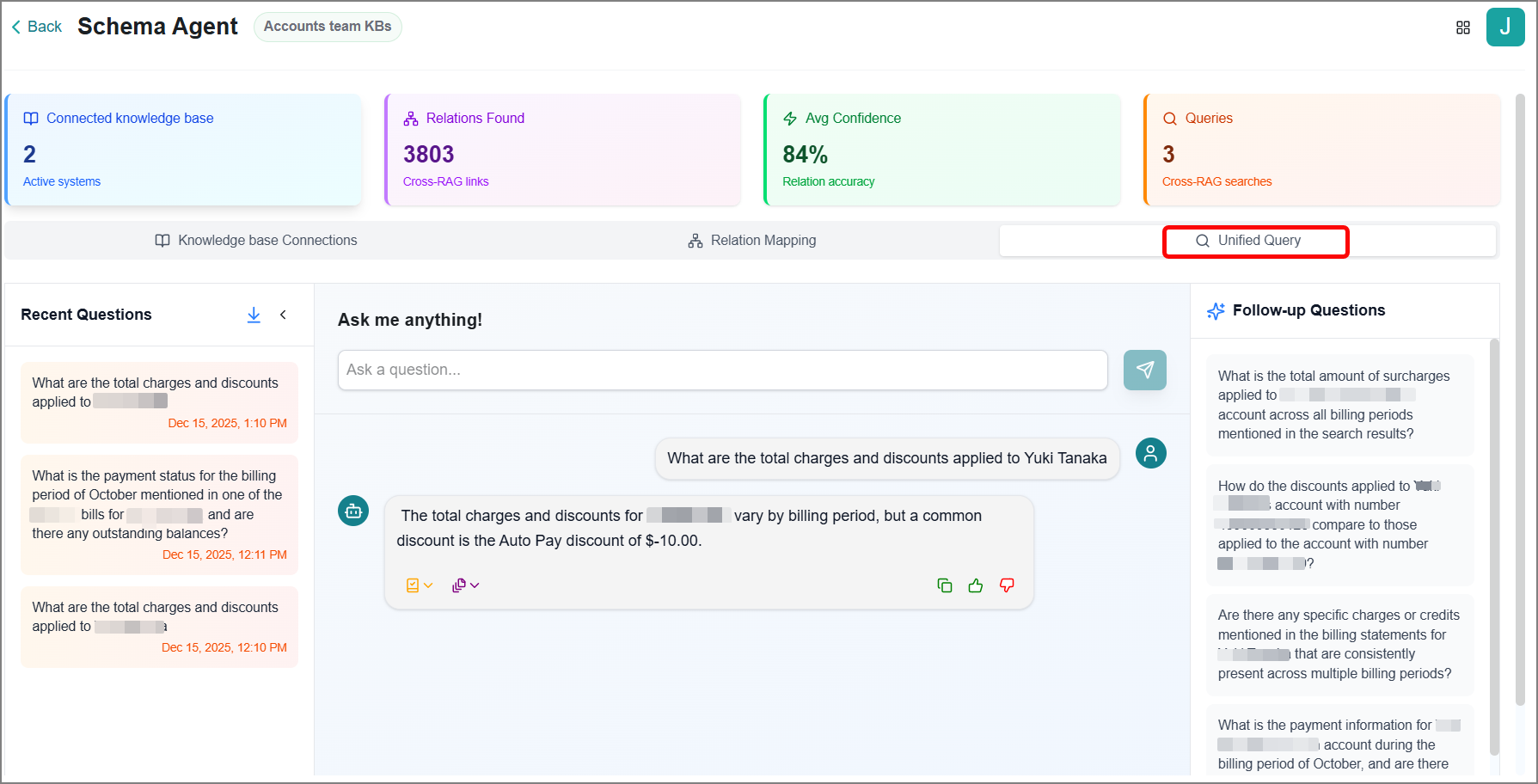
Unified Query tab - Use this tab to Evaluate your Schema Agent by asking questions that draw from all mapped KBs.
You can view the following insights:
Connected Knowledge Bases - The total number of KBs connected in the schema agent.
Relations Found - The total number of common identifiers discovered across all connected KBs.
Average Confidence - The accuracy of your mappings with confidence percentages for discovered identifiers.
Queries - The total number of queries that have been used to verify and test the schema agent.
Evaluating Schema Agents
The platform generates answers by querying across multiple sources, helping you verify that your schema agent is correctly connecting and retrieving information.
To access this feature:
Select the required schema agent that you wish to evaluate.
Click the Unified Query tab.
Enter your query in the Ask Me Anything text box.
Tip
To ensure accurate and relevant responses, it's best to ask clear and appropriate questions, which helps the system generate outputs that meet your expectations.
Press Enter while the cursor is in the text box, or click the Submit
 icon.
icon.The response is displayed below the question.
If available, use the Click to view visualization option to view the generated graphical data for the response.
In addition, you’ll find the following options to explore.
Icon
Description

Select this icon to view all source files from which the answer was generated.

Select this icon to view the generated contextual chunks for the response.

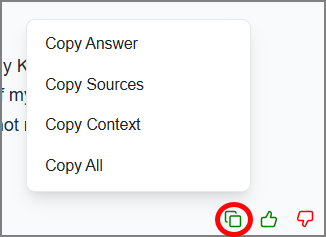
Select this icon to choose what to copy: the response, answer source, contextual chunks, or everything.

Select this icon if you find the response helpful. This feedback helps validate the response and improve the platform's AI future performance.

Select this icon if you find the response unhelpful.
The pop-up window opens.
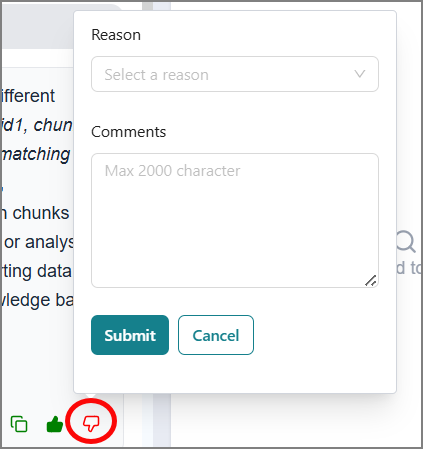
Choose a reason from the dropdown list.
Enter a detailed description of why the response was unhelpful.
Select Submit to send your feedback.
Your feedback helps validate the response and improve the platform's AI future performance.
Follow-up Questions
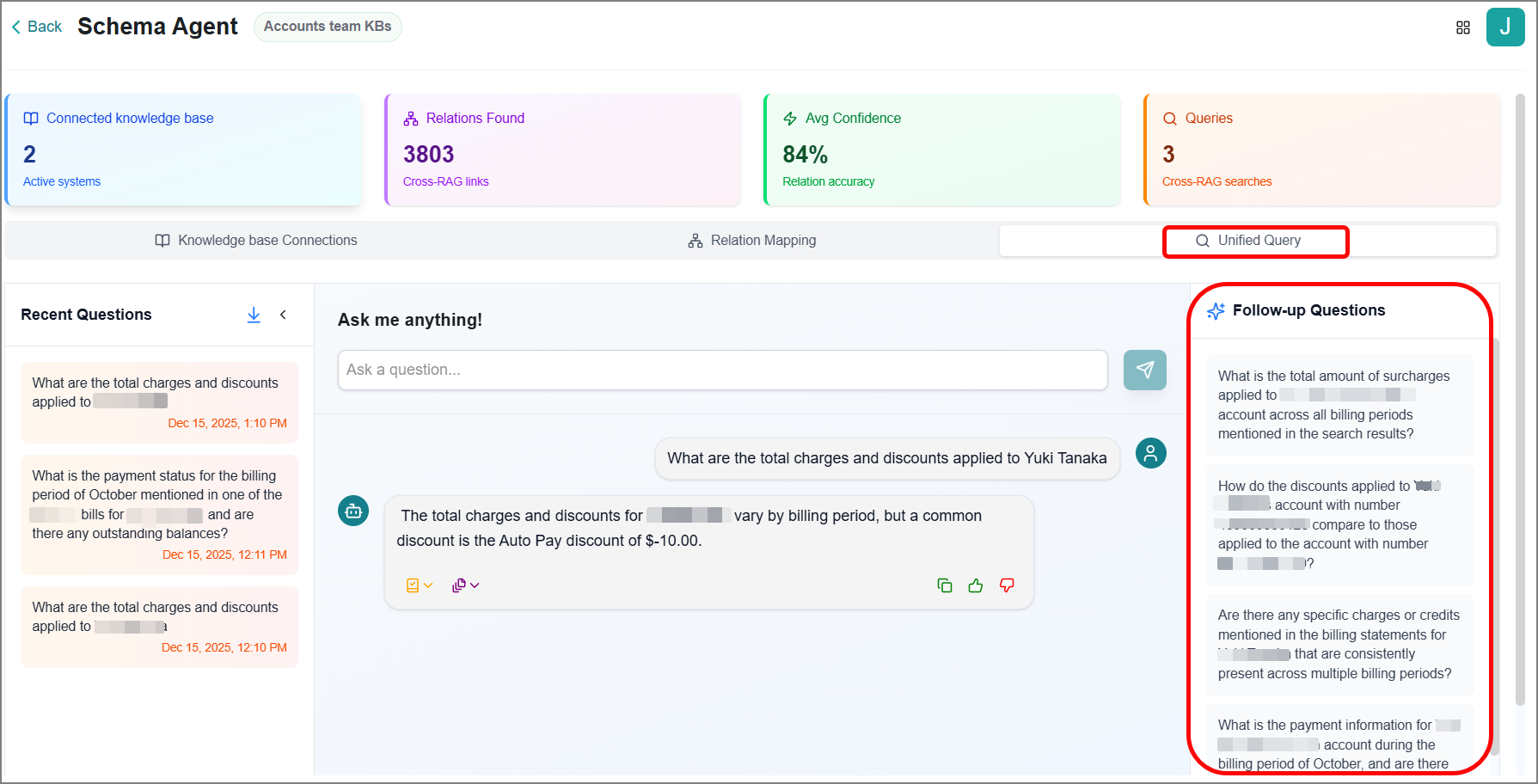
The platform also displays AI-generated Follow-up Questions based on your initial query to guide deeper exploration and refine the conversation's context.
You can select a follow-up question to receive a contextual response.
Note
When a question falls under any violation category in guardrails, no follow-up question is displayed.
Recent Questions
Click the expand > icon to open the Recent Questions panel from the left side. It displays the complete list of questions associated with your organization for the schema agent.
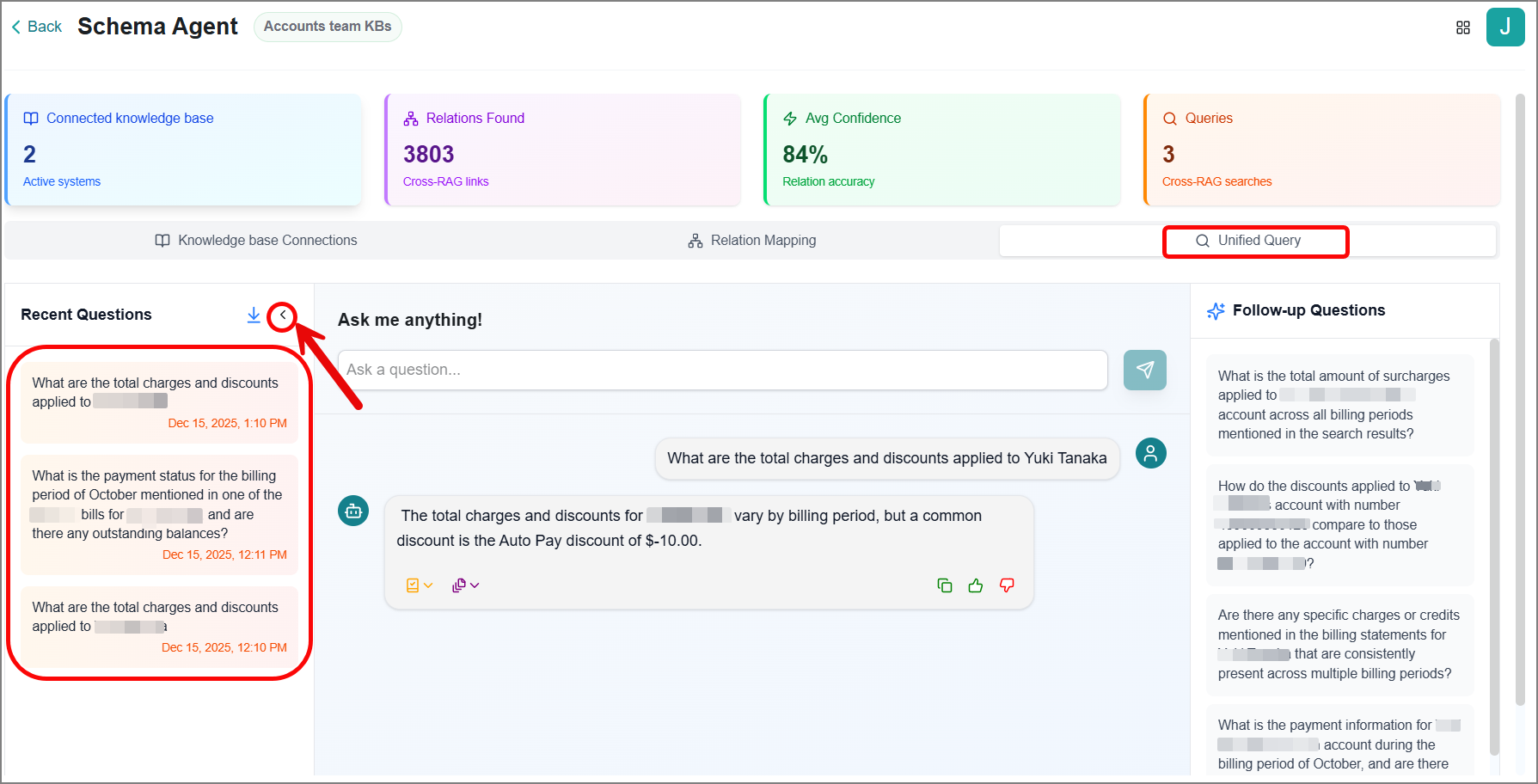
Once you find a suitable question, select it to reuse, and the platform's AI provides a relevant response in context.
Click the Download
 icon to download all recent questions.
Managing Schema Agents
You can view and manage multiple information related to your schema agents on this page, providing you with comprehensive oversight and control over your KBs' relationship mapping. All schema agents are displayed as individual cards, each showing key information including KB mapping status, the number of KBs mapped, last run details, and additional insights at a glance.
Modifying a Schema Agent
The platform allows you to update the schema agent's name and description as needed.
Click the Ellipsis
 icon.
icon.Click Edit.
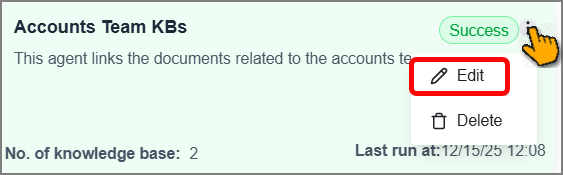
The Edit Schema Agent window opens.
Update the name and description.
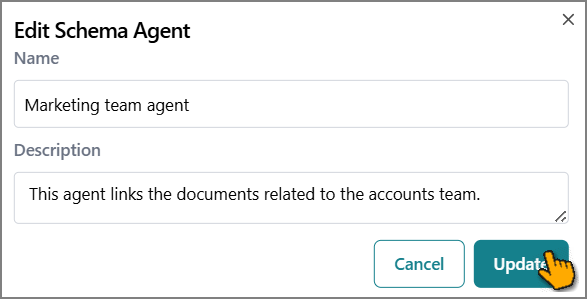
Click Update to confirm the changes.
Removing a Schema Agent
The platform allows you to remove schema agents as needed.
Click the Ellipsis
icon.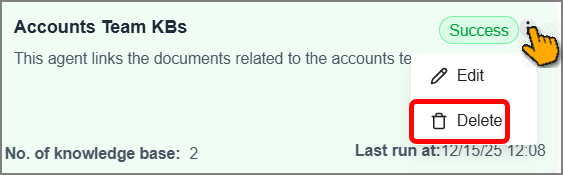
Click Delete.
The Delete Agent window opens.
Enter DELETE (in capital letters) in the text box to confirm this action.
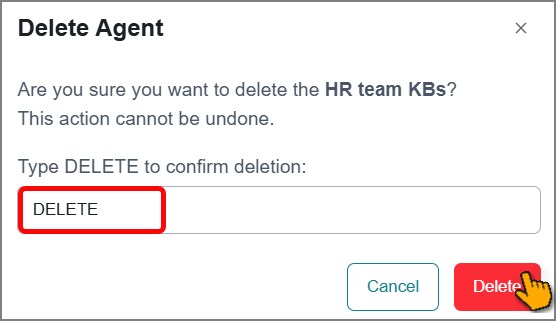
Click Delete.
The Schema Agent is deleted.