Prompt Engineering
Prompt Engineering is where you create, generate, and test the prompts attached to your AI agents. You can write prompts manually or use the built-in LLM to generate them from structured inputs, then validate them against real queries before attaching them to an agent.
Key Capabilities
Prompt Creation - Craft precise, contextual prompts using natural language or guided input fields.
LLM Integration - Leverage integrated LLMs to generate, test, and refine prompts dynamically.
Persona & Context Settings - Define tone, audience, persona, and domain to align prompts with business goals.
Validation & Testing - Use the "Try Now" feature to simulate queries and test the effectiveness of the prompt.
To access this page, go to the home page > Agents > Prompt Engineering.
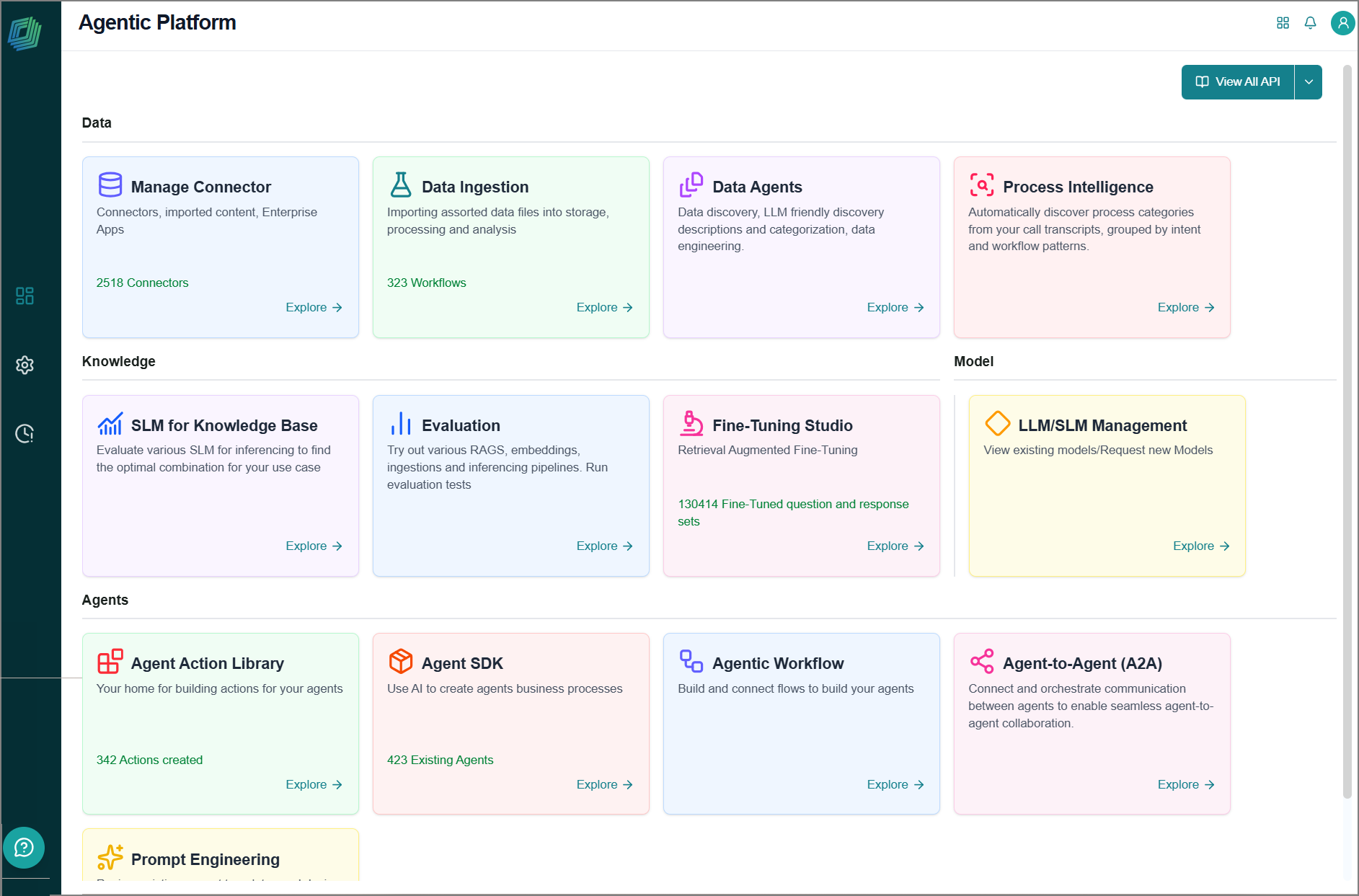
The Prompt Engineering page opens, displaying all existing prompts in card view.
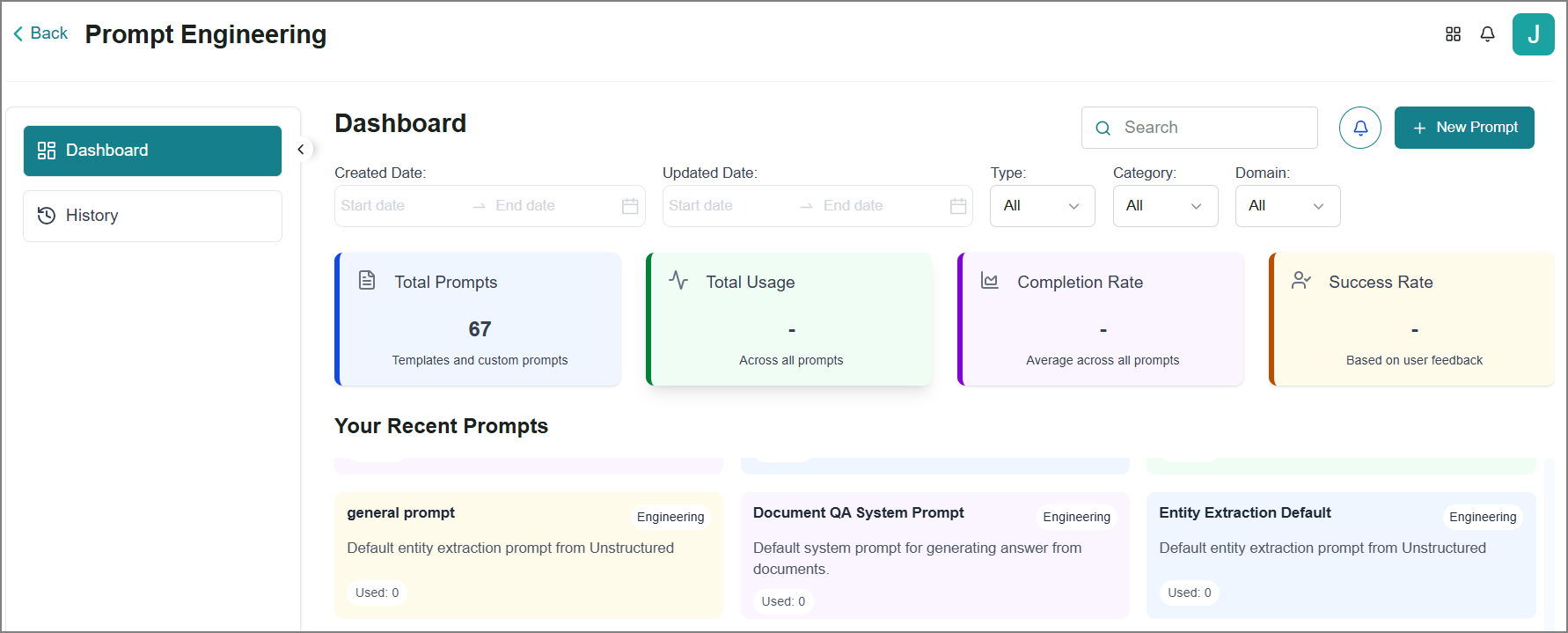
View prompt insights to gain a deeper understanding of their usage:
Total Prompts - The number of prompts currently available in your account.
Total Usage - The total number of prompts has been used or executed.
Completion Rate - The percentage of prompts that completed execution successfully.
Success Rate - The percentage of prompts that received positive feedback from users.
Creating a Prompt
To create a new prompt:
Go to the Home page > Agents > Prompt Engineering.
Click New Prompt.
The Create Prompt panel opens on the right side.
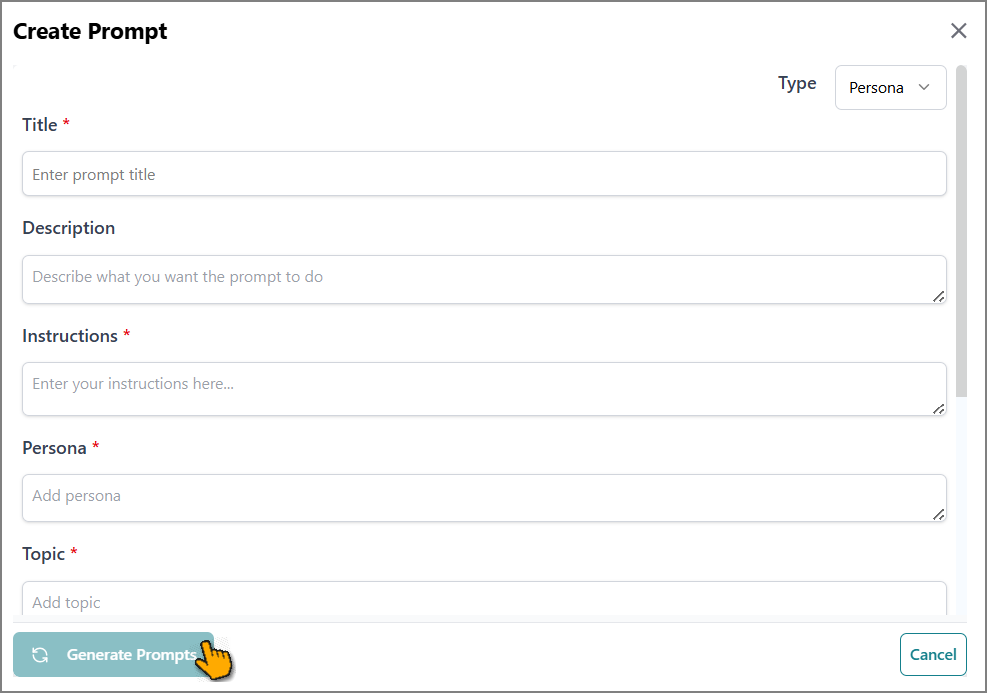
Field
Values
Type
Select either of the following to define the prompt behavior:
Standard - Use this option for default prompt behavior with no role definition.
Persona - Use this option to define a custom role and personality for the agent.
Title
Enter a name for the prompt.
Description
Enter a detailed description of the prompt.
Instructions
Enter specific instructions that tell the AI agent what to do with the input.
This field directly influences how the model interprets the input and generates a response.
Examples
Enter one or more sample inputs and expected outputs to illustrate how the prompt should behave. This helps AI agents better understand the task and improve response consistency.
Applicable to the Standard prompt type.
Persona
Enter a persona description that defines the role, tone, and behavior the AI agent should adopt while generating responses for this prompt.
Applicable to the Persona prompt type.
Topic
Enter the primary subject or theme the prompt is focused on. This helps categorize the prompt, making it easier to identify and manage.
Applicable to the Persona prompt type.
Tone
Enter the desired communication style or emotional expression the AI should use when responding to this prompt.
Applicable to the Persona prompt type.
Audience
Specify the intended readers for the AI’s response.
Applicable to the Persona prompt type.
Prompt Length
Enter the number of tokens (words and characters combined) that the AI model should use to generate its response.
Note
Token limits may vary by model.
Number of Prompts
Specify how many variations of the prompt should be generated or executed in a single run.
Language
Choose the desired prompt language from the dropdown list.
This determines the language in which the AI agent interprets the prompt and generates its response.
Domain
Choose the appropriate domain from the dropdown list to specify the subject area or industry context in which the prompt will operate.
Category
Choose the appropriate category from the dropdown list to classify the prompt based on its functional purpose or use case.
Note
Mandatory fields are marked with
 .
.Click Generate Prompts.
The LLM generates a new prompt and lists it on the Prompt Engineering page.
Filtering Prompts
You can locate the required prompt from the existing list by applying multiple filters on the page.

You can filter prompts using the following:
Search Box - Enter the prompt name.
Creation Date - Select the start and end dates to filter prompts by their creation date.
Updated Date - Select the start and end dates to filter prompts based on their most recent updates.
Type - Choose the prompt type from the dropdown list.
Category - Choose the appropriate category from the dropdown list.
Domain - Choose the appropriate domain from the dropdown list.
Managing Prompts
The Prompt Engineering page contains all available prompts, which you can access to efficiently review, edit, validate, and manage to suit your specific agent requirements.
To view or update a prompt:
Click the desired prompt from the card view.
The Prompt Detail panel opens from the right side for a quick preview.
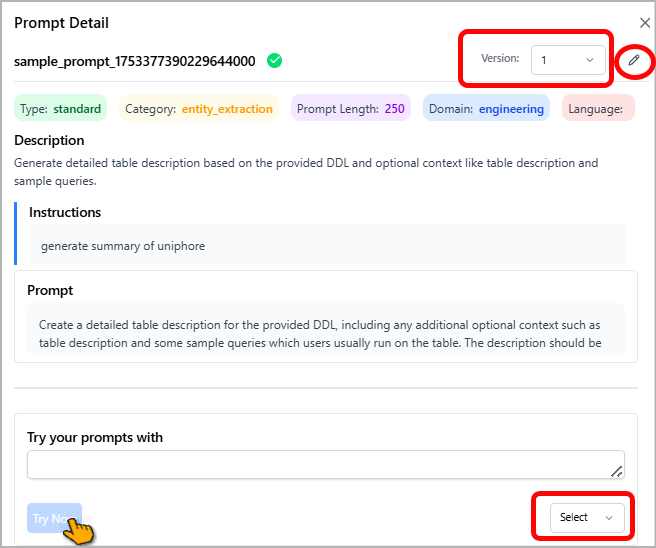
Choose the prompt's Version to view different details associated with the same prompt.
Click the Edit
 icon to edit the prompt details.
Refer to the Creating a Prompt for more information.
To validate a prompt, enter a user query in the Try your prompts with field that is relevant to the selected prompt.
This allows you to simulate how the prompt will respond to real user input.
Choose the LLM from the dropdown list at the bottom right.
Click Try Now.
You can view the result based on your query, the selected prompt, and the configured LLM model.
Viewing Prompt History
You can view the history of all prompts available on the platform.
To access the prompt history:
Click History from the left-side menu.
The Prompt History page opens and displays an overview of all your prompt records, including key information such as date, status, and prompt name.
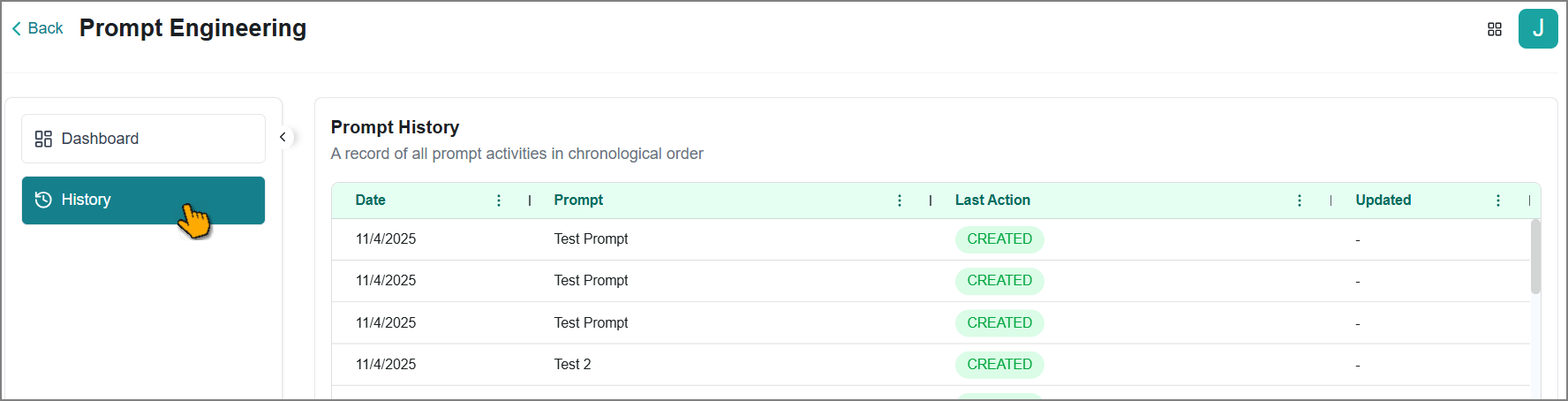
Select the desired record from the list.
The Prompt Detail panel opens from the right to view full details about the prompt.
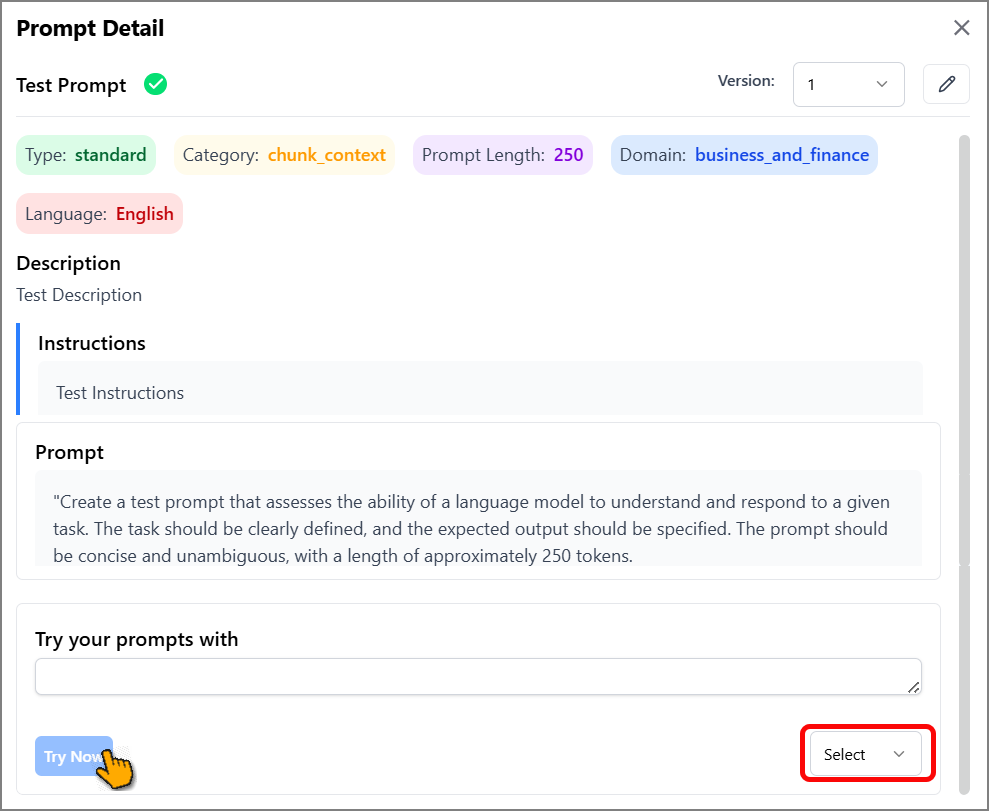
If required, validate the prompt:
Enter a user query in the Try your prompts with field.
Choose the LLM from the dropdown list at the bottom right.
Click Try Now.
You can view the result based on your query, the selected prompt, and the configured LLM model.