Agent-to-Agent (A2A)
Agent-to-Agent (A2A) is where you connect your Business AI Cloud agents to external AI agents using the A2A protocol. You can register a remote agent by providing its Agent Card URL, verify its capabilities and authentication requirements, and then map it to one of your own agents in Agent SDK so it can be called as part of that agent's workflow.
Key Capabilities
Agent Registration - Connect an external agent by providing its Agent Card URL, so Business AI Cloud can discover its identity and capabilities.
Secure Authentication - Connect to remote agents using API Key, OAuth 2.0 Authorization Code, or Open Access, depending on what the remote agent requires.
Agent Discovery - Automatically retrieve a remote agent's name, description, and skills from its Agent Card.
Agent Mapping - Attach a connected external agent to one of your agents in Agent SDK so it can be invoked as part of that agent's workflow.
To access this page, go to the home page > Agents > Agent-to-Agent (A2A).
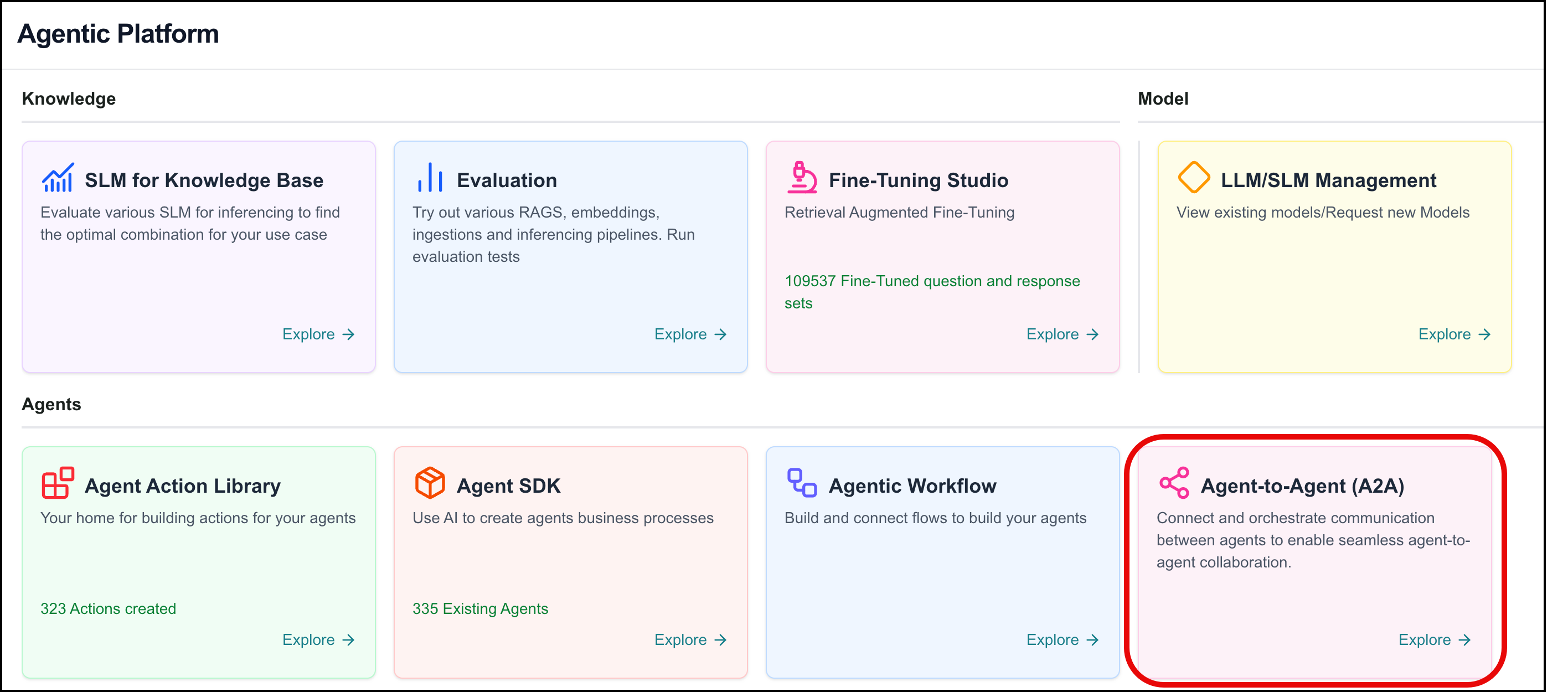
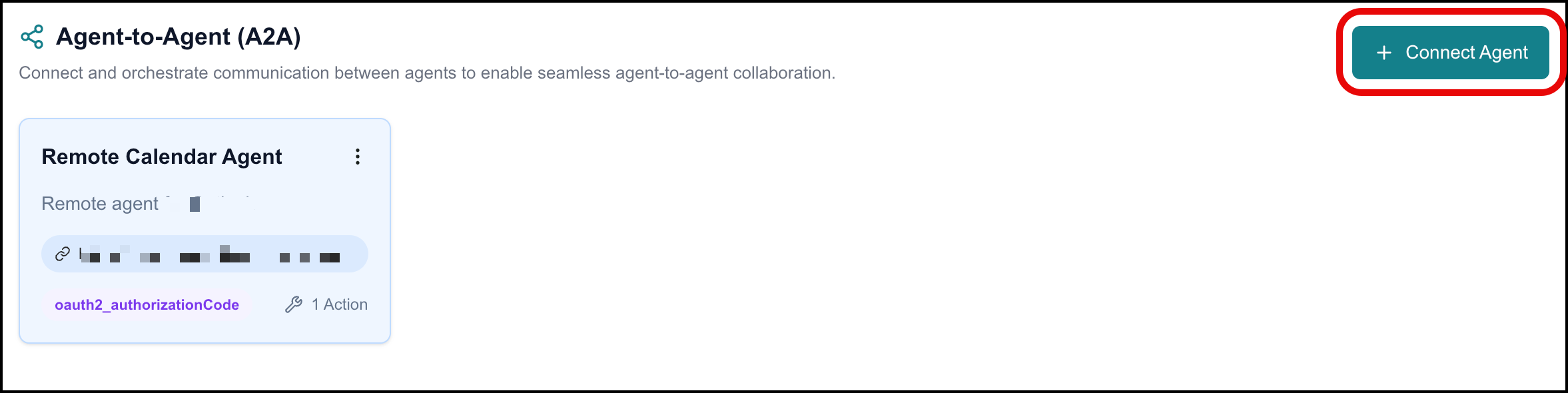
The Agent-to-Agent (A2A) page opens, displaying all connected external agents in card view.
Understanding A2A Concepts
Agent-to-Agent (A2A) is an open protocol from Google that enables AI agents to communicate directly with one another. Unlike MCP, which connects an agent to tools, APIs, or databases through a single request-and-response call, A2A allows one agent to delegate a task to another agent and receive intermediate updates before the final result is returned.
Agent Card
An Agent Card acts as the public identity and capability description of an AI agent. It provides metadata that allows other agents to discover and understand how to interact with it.
An Agent Card typically contains:
Agent name
Description
Endpoint URL
Supported capabilities
Skills
Input/output modalities
Authentication information (if required)
Protocol version
Note
Skills, in the context of A2A, refer to the capabilities a remote agent can perform, and not the Skills you create for your own agents in Business AI Cloud.
Agent Discovery
Before connecting to a remote agent, Business AI Cloud retrieves its Agent Card from the agent's standard discovery endpoint:
/.well-known/agent-card.json
This card tells Business AI Cloud what the agent is called, what it does, and how to authenticate with it - enabling automatic discovery and interoperability across different AI frameworks.
Supported Authentication Types
When connecting to a remote agent, Business AI Cloud supports the following authentication methods, depending on what the remote agent's Agent Card requires:
API Key - A key is passed in the request header to authorize each call.
OAuth 2.0 Authorization Code - You provide a client ID and client secret, then authorize the connection through the remote agent's login flow.
Open Access - No authentication is required to connect to the agent.
Note
Currently, A2A supports connecting Business AI Cloud agents to external, remote agents only. Exposing your own Business AI Cloud agents to external systems through A2A is planned for a future release.
Connecting an External Agent
To connect a new external agent:
Go to the Home page > Agents > Agent-to-Agent (A2A).
Click + Connect Agent.
The Connect Agent panel opens on the right side.
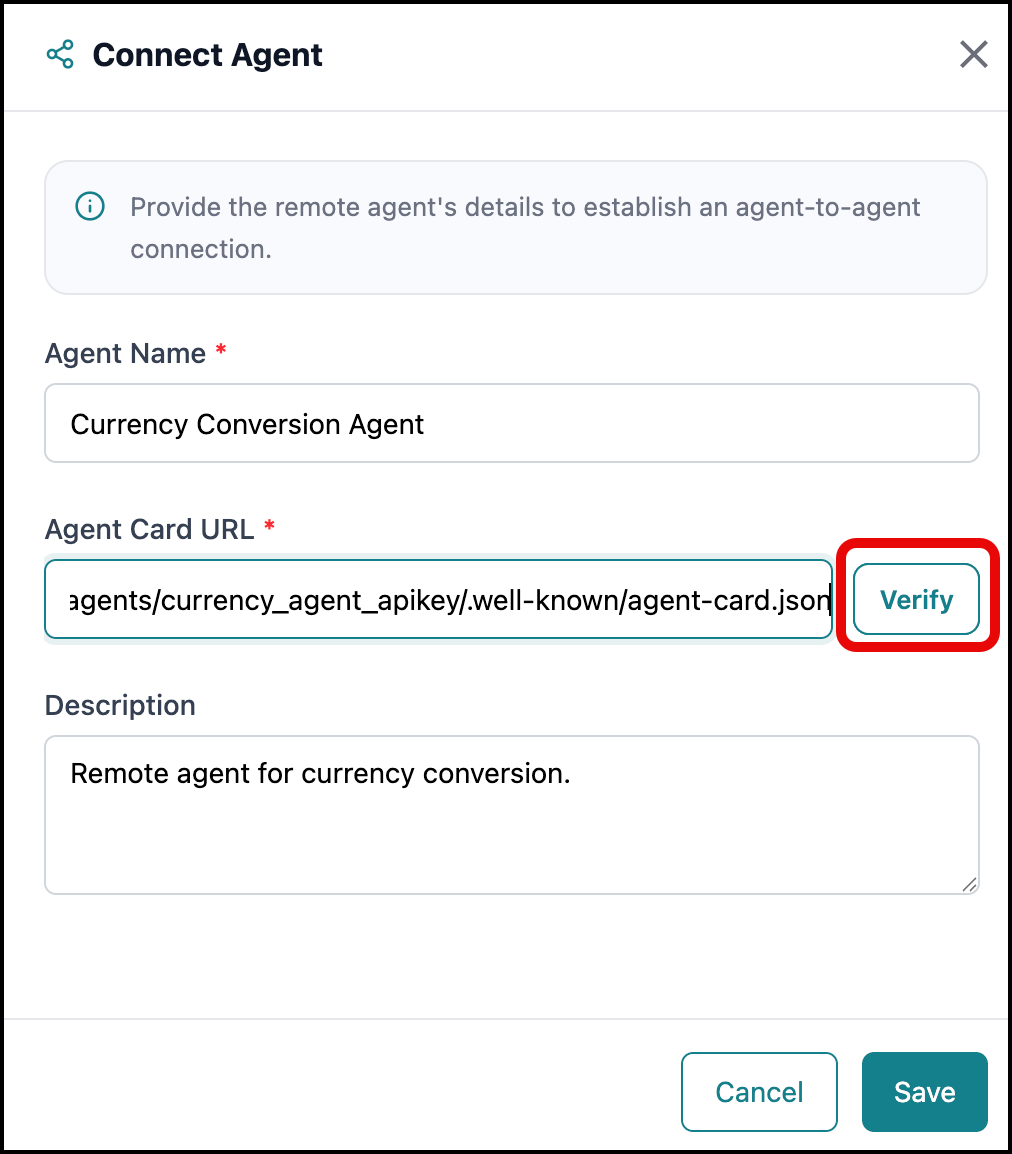
Enter a name for the remote agent.
Enter the Agent Card URL for the remote agent, then click Verify.
Business AI Cloud retrieves the agent's Agent Card and displays any authentication fields required to connect.
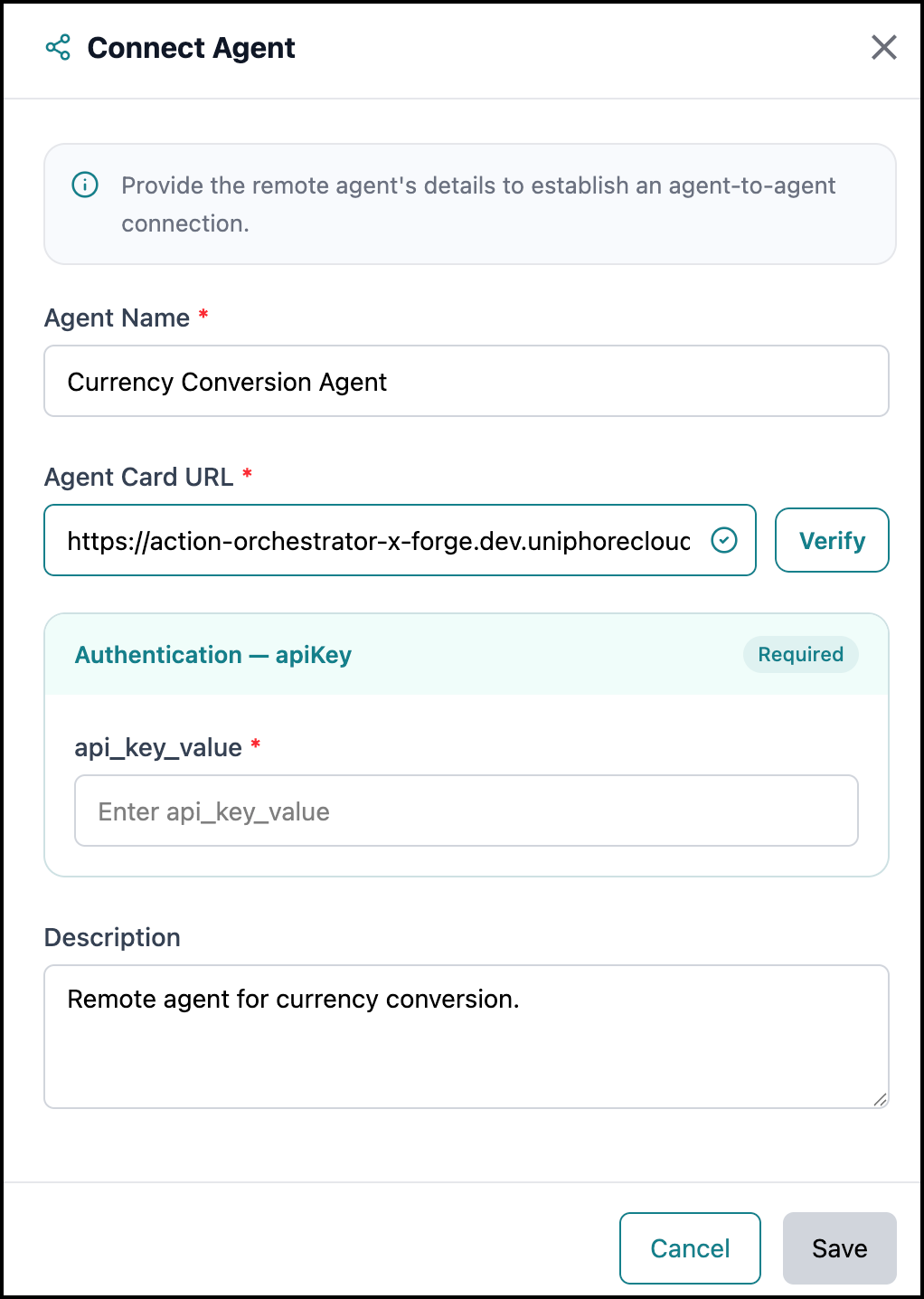
Fill in the remaining fields, based on the table below.
Field
Value
Authentication
Depending on what the remote agent requires, provide one of the following:
API Key - No additional input needed; the key is supplied by the remote agent's card.
OAuth 2.0 Authorization Code - Enter the
client_idandclient_secret, then authorize the connection.Open Access - No authentication fields are required.
Description
Enter an optional description of what this agent does.
Note
The Authentication section appears only after the Agent Card URL has been verified, and its fields change based on the remote agent's requirements.
Click Save.
The connected agent appears on the Agent-to-Agent (A2A) page and is now available to be called by agents created within Agent SDK.
Using an External Agent
Once an external agent is connected, you can map it to one of your agents so it can be called as part of that agent's workflow. To map an external agent to your agent:
Go to the Home page > Agents > Agent SDK. Open an existing agent or create a new one.
Click the Agents tab.
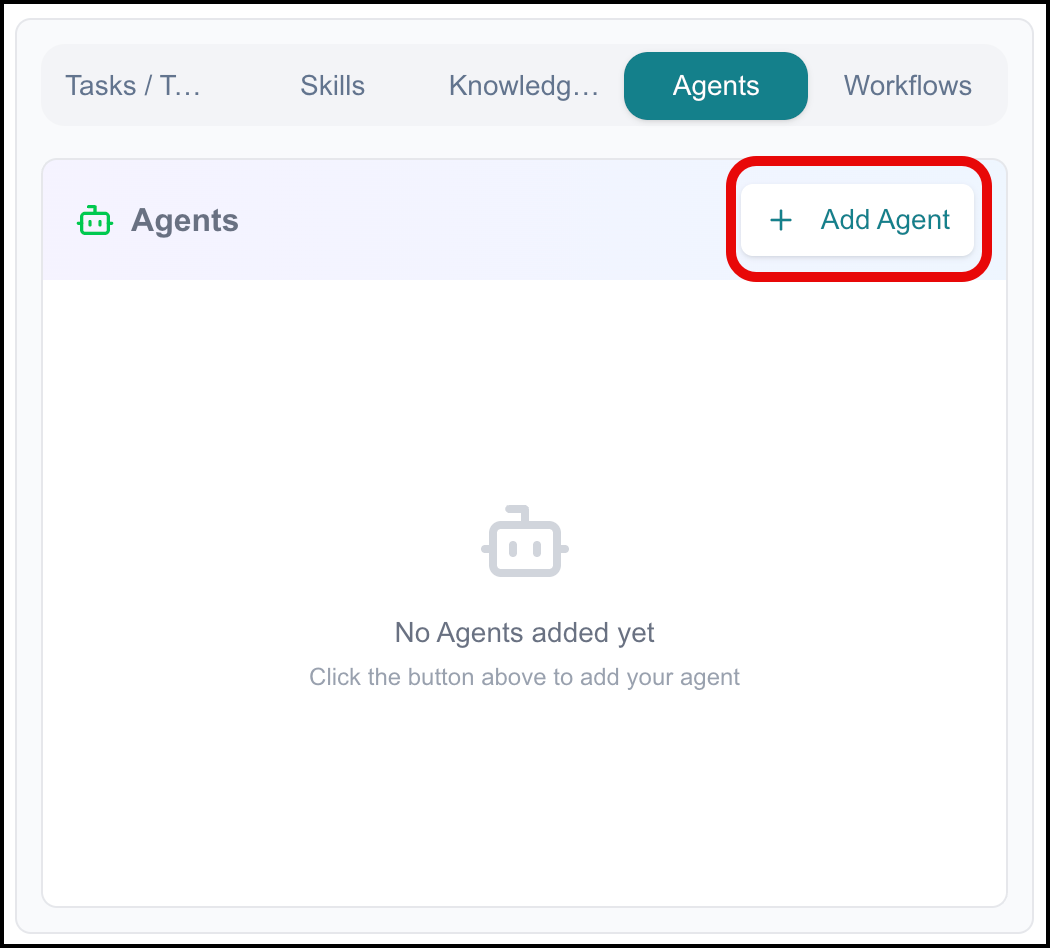
Click + Add Agent.
The Agents panel opens, listing two tabs: Agents and External Agents.
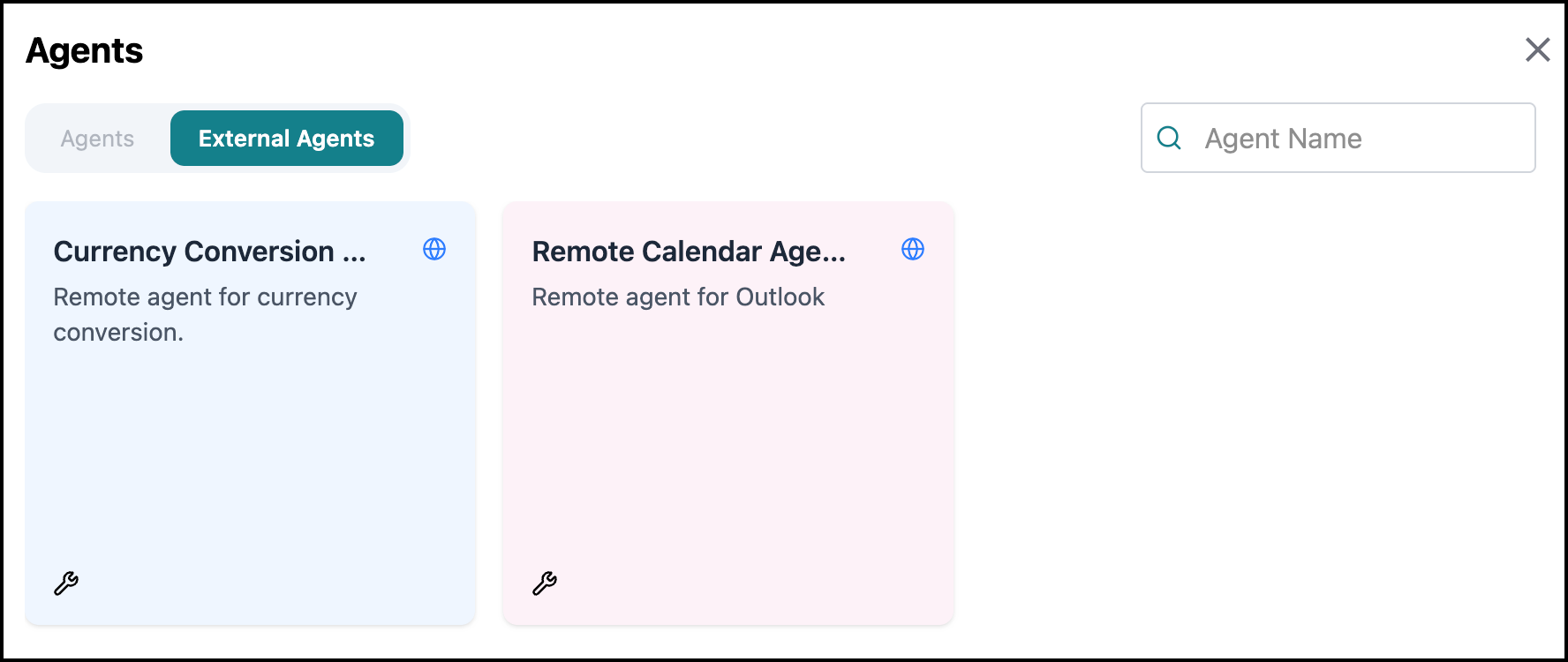
Click the External Agents tab.
Search for or select the external agent you want to add.
Click Save.
The external agent appears under the Agents section of your agent, tagged External, and your agent can now delegate tasks to it.
Note
An external agent must be successfully connected and authorized on the Agent-to-Agent (A2A) page before it can be added here. If authorization is incomplete (for example, an OAuth connection that hasn't been authorized), attempting to use the agent will return an unauthorized error.
Managing Connected Agents
The Agent-to-Agent (A2A) page lists all your connected external agents, which you can review, edit, or remove as needed.
To view, update, or delete a connected agent:
Go to the Home page > Agents > Agent-to-Agent (A2A).
Click the Ellipsis (
 ) icon on the desired agent's card.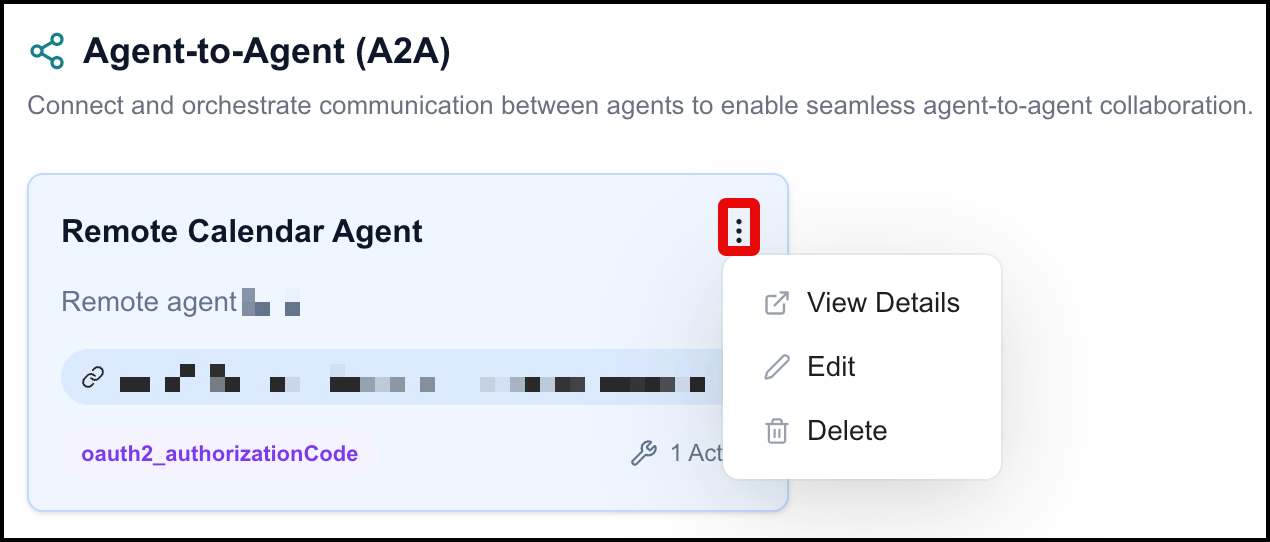
Choose one of the following:
View Details - Shows details for the agent, including Agent Card URL, Authentication details, and available actions.
Edit - Opens the Edit Agent panel, where you can update the agent's name, description, or authentication details. You cannot edit the Agent Card URL.
Delete - Removes the agent from the Agent-to-Agent (A2A) page.
Note
Deleting a connected agent also removes it from any of your agents that currently reference it. Any agent mapped to a deleted external agent will no longer be able to delegate tasks to it.