Playlists
The playlists that were created by you and others from your organization are shown here. Click on the individual video to replay. To create a playlist, click the + Create a Playlist button. It is grouped in three tabs as follows:
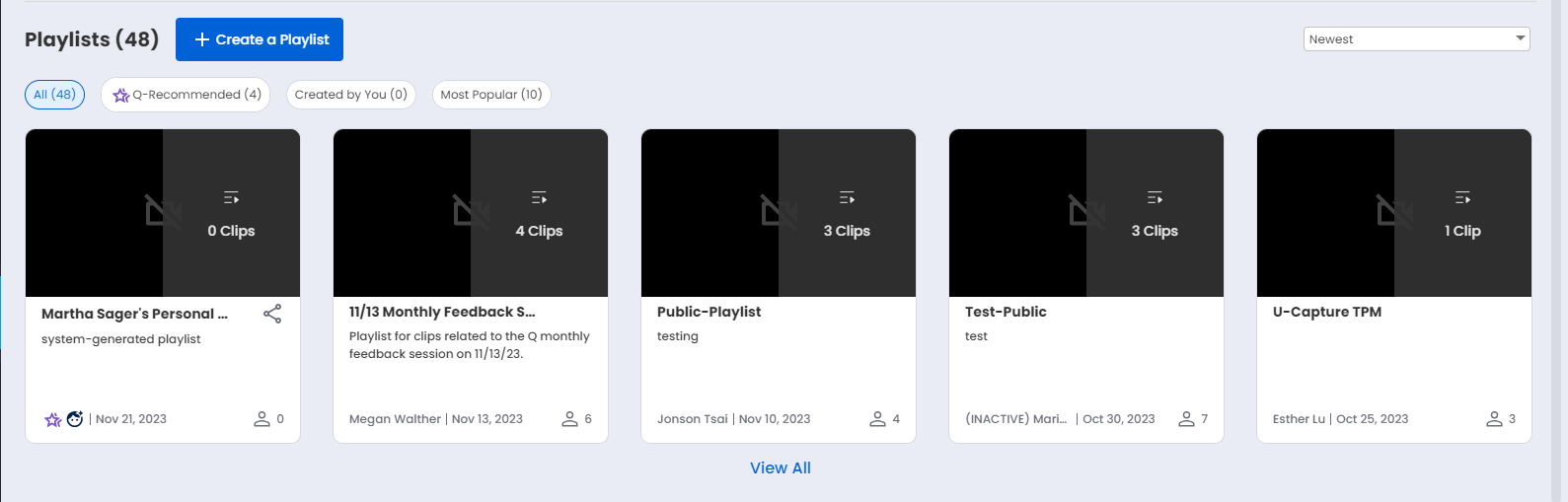
All: Shows all the playlists
Q Recommended: This is the system generated playlist that contains the key moments that are auto converted into clips. These are generated based on:
Pre-defined playlists with industry-standard sales methodology topic categories. For e.g. Confusion and objections handling, Competition handling, Pricing etc. to name a few.
Personal recommendation content that helps users to improve their sales techniques.
Personalized Playlists: These are out of the box machine generated "micro coaching" playlists for individual sellers. These are the meetings for you to review since in these meetings attended by you there was a demonstrated lack of empathy. The review of this playlist helps you to improve your skills.
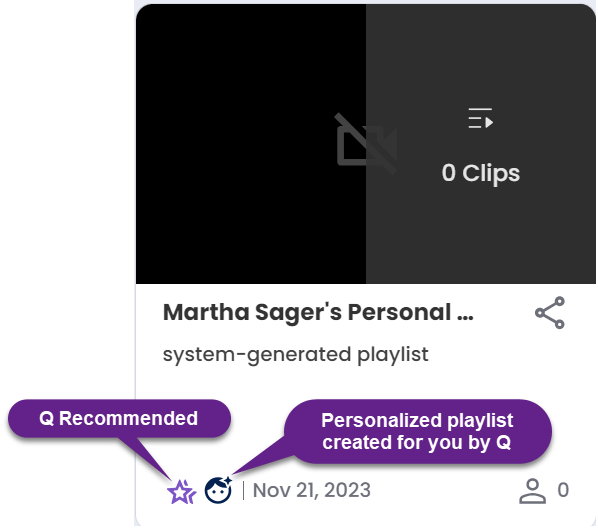
The Q Recommended playlists are identified by a star icon at the bottom left corner while the personalized playlist created for you by Q are identified by a facial emoji.
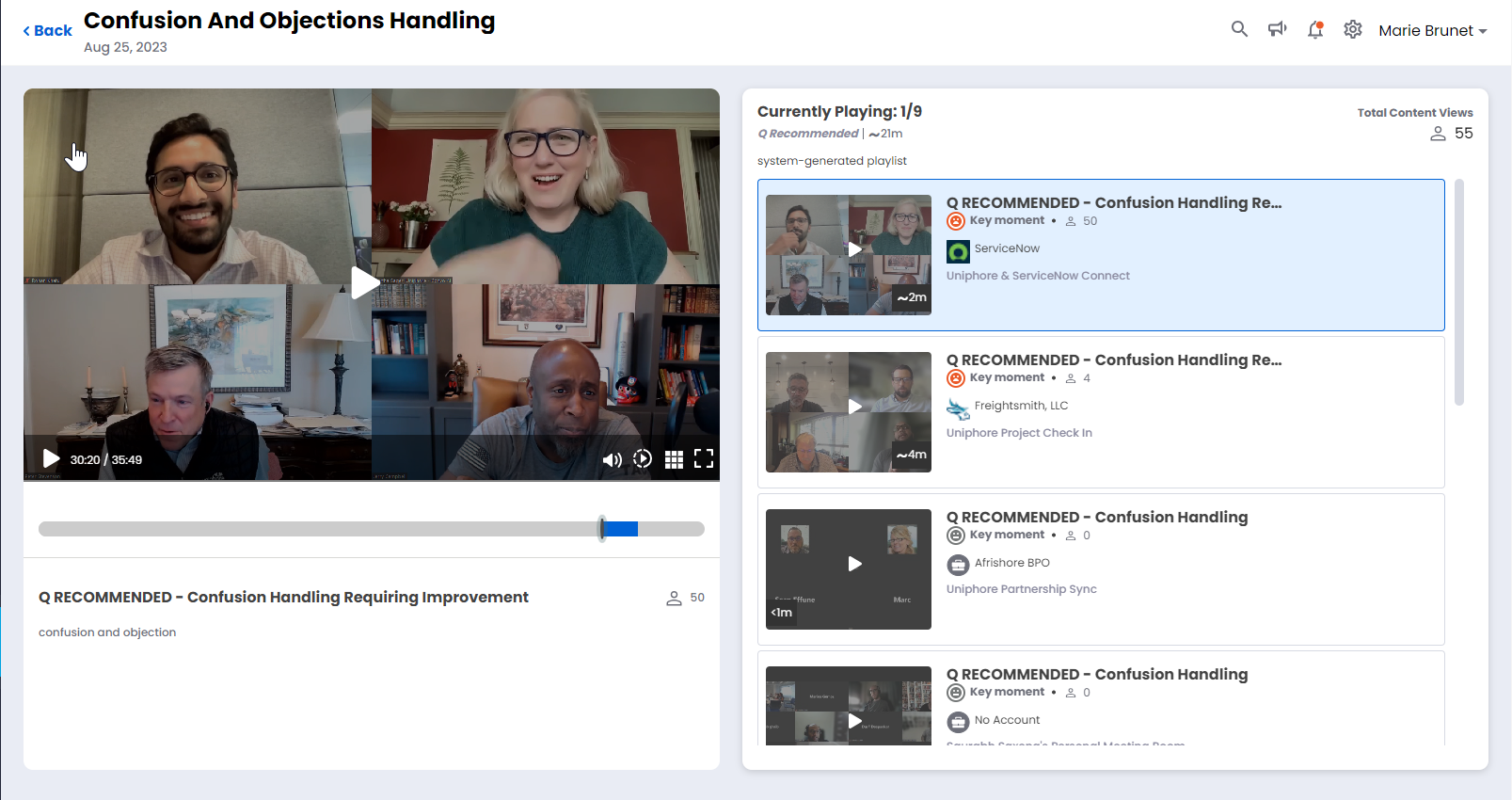
Click a meeting category to view the clips under that category. A new window opens up that shows all the clips under that category. By default, the topmost clip in the list is selected for viewing. Click on the replay clip pane on the left to play the clip. You can select a desired clip from the list on the right to play it in the replay clip pane.
Created by You: Shows only the playlists that are created by you.
Most Popular: Shows only the playlists that are most popular in terms of the number of viewers and the number of replays.
Customize Playlist
As an Administrator, you can customize your personal playlist according to the requirment, or you can adjust the predefined machine-recommended parameters to create a playlist. The system identifies moments based on the specified criteria, generates clips accordingly, and organizes them into the playlist.
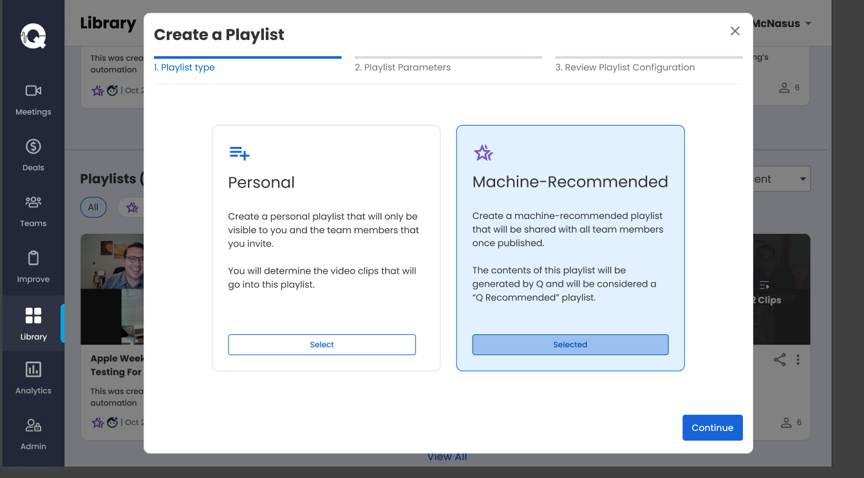
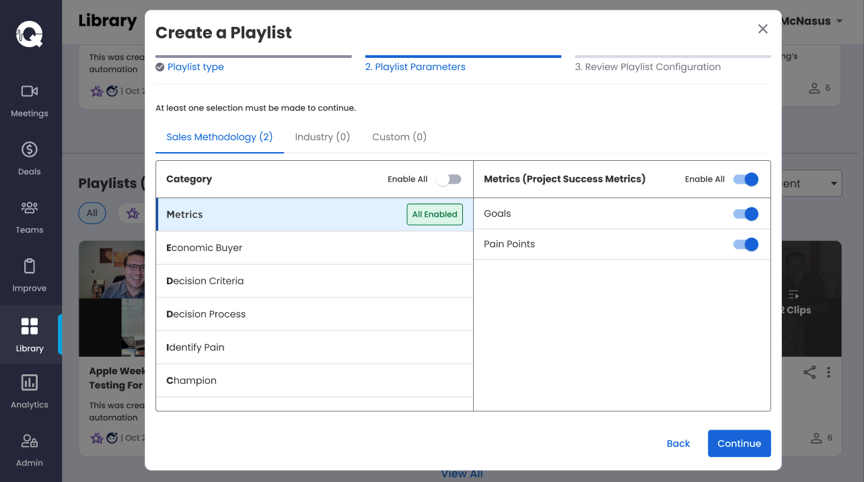
Create a Playlist
Click + Create a Playlist to create a playlist.
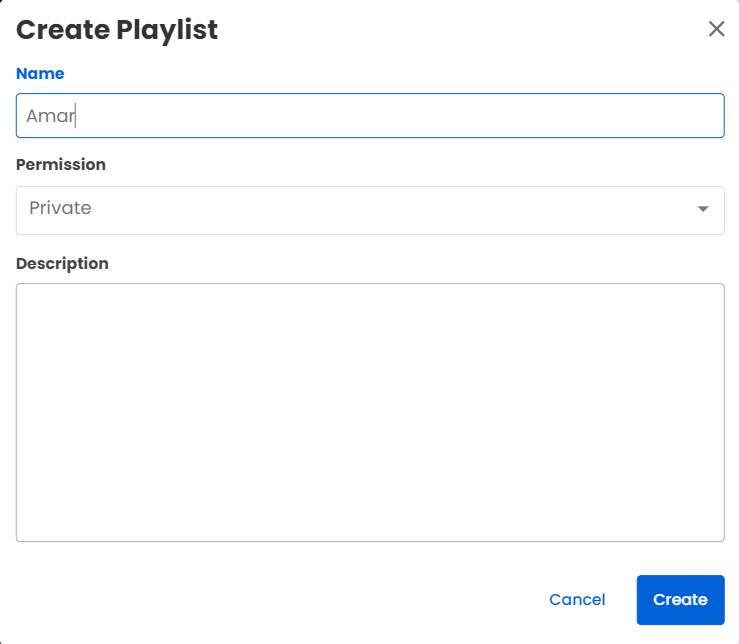
Enter a name of the playlist in the Name dialogue box.
Select the permission from the Permission dialogue box. You can choose either Private or Public. A private playlist cannot be viewed by others other than the creator. A public playlist can be viewed by all the "Sales Interaction Agent" users.
Add a description of the playlist in the Description dialogue box.
Click Create to create the playlist or click Cancel to cancel the playlist creation.
The other actions for the playlists are as listed below:
Click on the individual video to view the replay pop out shown below:
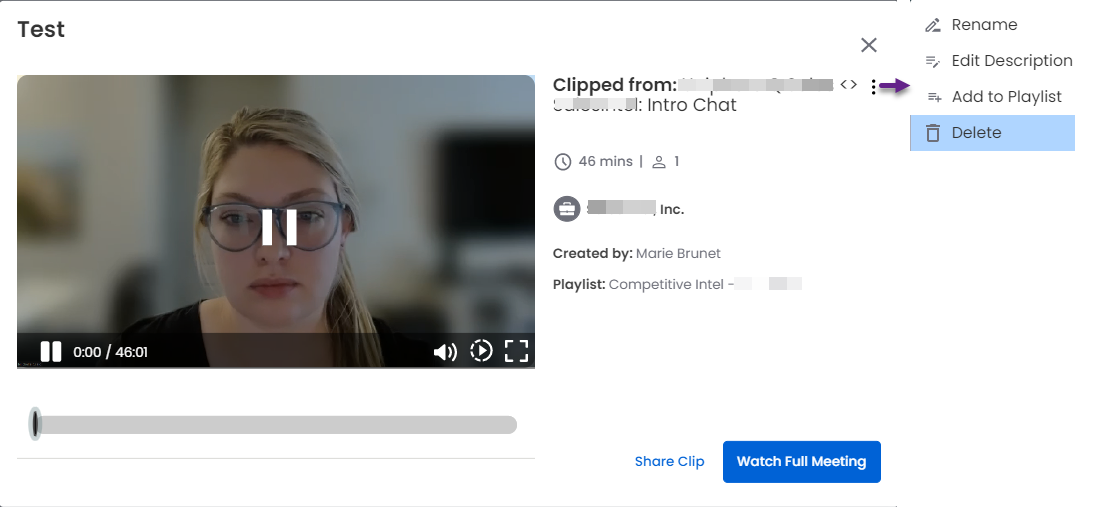
Click on Watch Full Meeting to view the full meeting in the Meeting Replay page Left Pane – Video Area and Controls.
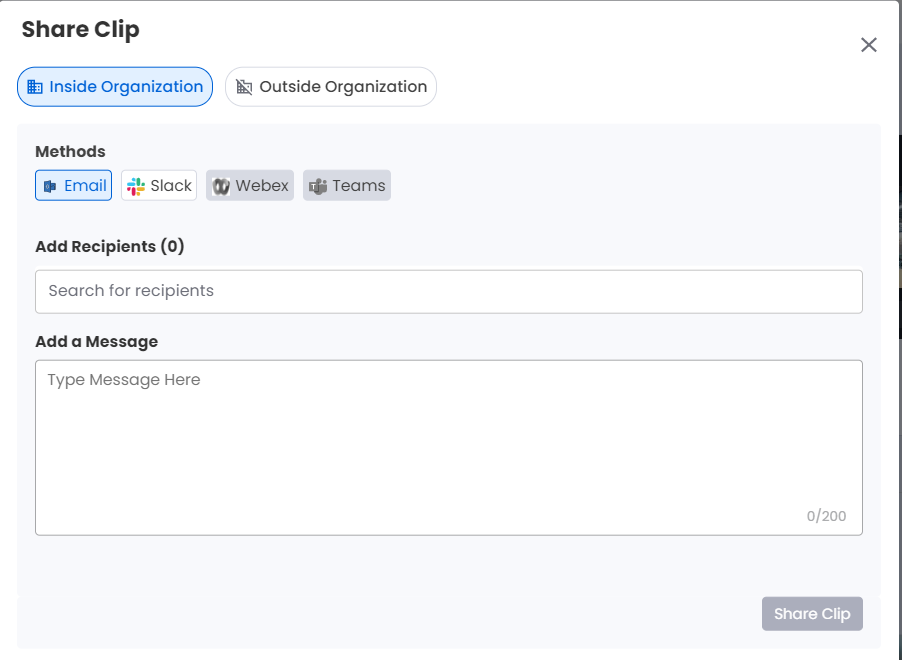
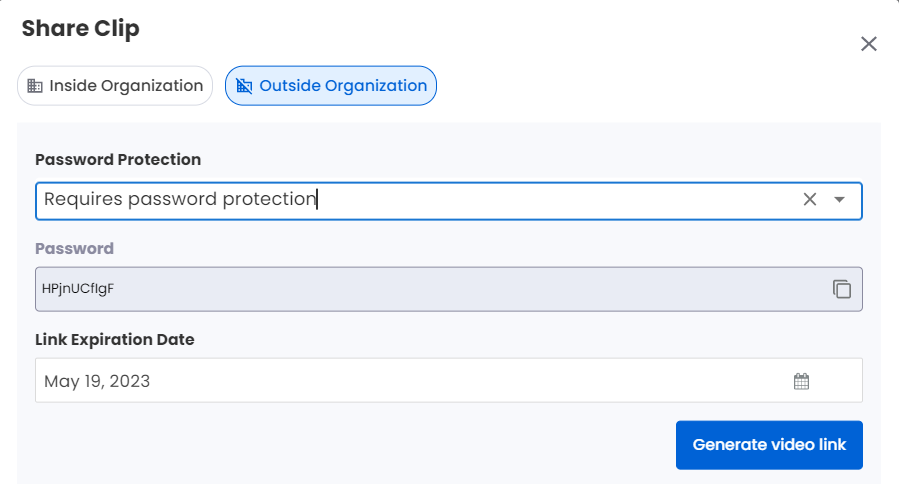
Click on Share Clip to share the clip either inside organization or outside organization as shown below:
They can be filtered by Newest, Oldest, A-Z (Ascending order), Z-A (Descending order), Most Viewed, and Least Viewed.
Click on the vertical ellipsis icon to Rename, Edit Description, Add to Playlist, and Delete
Click on share icon to share the clip either inside organization or outside organization.
To share inside organization:
Click and choose either of the Methods (Email, Slack, Webex or Teams).
Click Add Recipients and choose the recipient(s) from the drop-down list or type the recipient's name to select. To deselect a recipient, click the clear icon near the recipient's name. To deselect all the recipients in one go, click the clear icon at the right of the Add Recipients search box.
Type the message in the Add a Message dialogue box if required (this is optional).
Click Share Clip.
To share outside organization:
Select the desired option from the Password Protection drop-down. You can choose any one of the options from the drop-down. The options are:
Requires password protection: For this option, the viewers will need to enter a system generated password to view the clip. When this option is selected a system generated password dialogue box appears below the Password Protection drop-down. It is non-editable. You can click the copy icon on the right of the dialogue box to copy the password
Open access: For this option, anyone with the link can have viewing access to the clip
Click the calendar icon in the Link Expiration Date to choose the expiration date. The date succeeding the current date is selected by default for link expiration
Click Generate video link to create a link of the clip. The Link dialogue box appears below the Generate video link button. You can click the copy icon on the right of the dialogue box to copy the link.
Click View All at the bottom to view all the playlists.