LLM/SLM Management
LLM/SLM Management is where you view and manage the base language models and domain-specific SLMs configured in your Business AI Cloud environment. From here, you can ensure the right model is available, validated, and ready for use in your knowledge base or agent workflow.
Tip
The models configured here are also available for pairing with your knowledge bases in the SLM for Knowledge Base section, ensuring consistency across your AI implementations.
Key Components
Base Models - The foundation models that serve as the starting point for creating specialized SLMs. You can view default base models and request new ones.
Specialized SLMs - Domain-specific models fine-tuned from base models for particular business functions.
Key Benefits
Domain Accuracy - Fine-tuned for specific business functions, SLMs provide more accurate results for specialized tasks compared to general-purpose models.
Quick Testing - Direct model interaction via the Ask SLM feature enables users to validate model performance before full integration.
Model Comparison & Analysis - Compare multiple SLMs side-by-side and generate comprehensive reports to help select the best model for specific use cases based on performance, accuracy, and cost metrics.
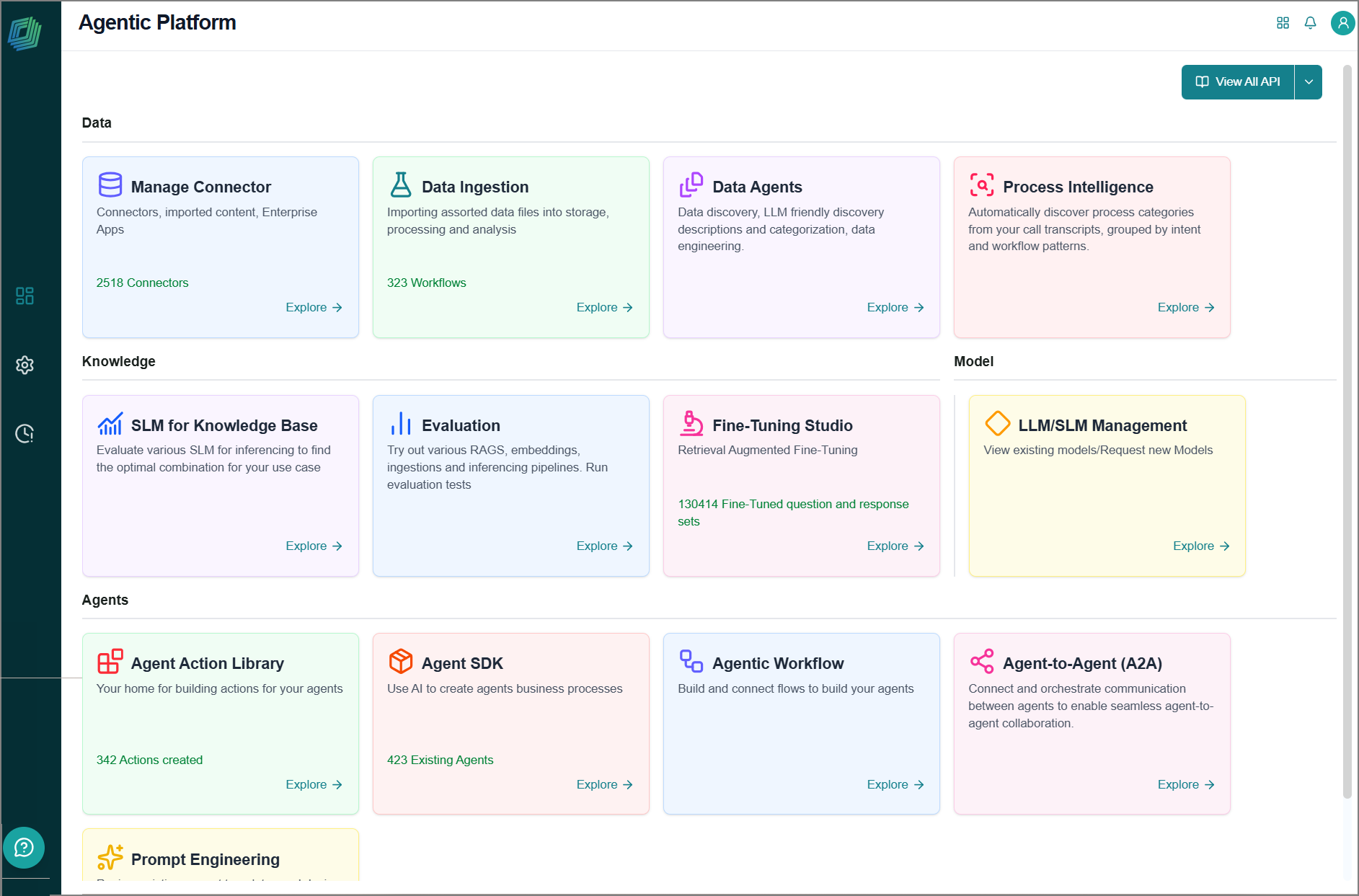
To access this page, go to the home page > Model > LLM/SLM Management.
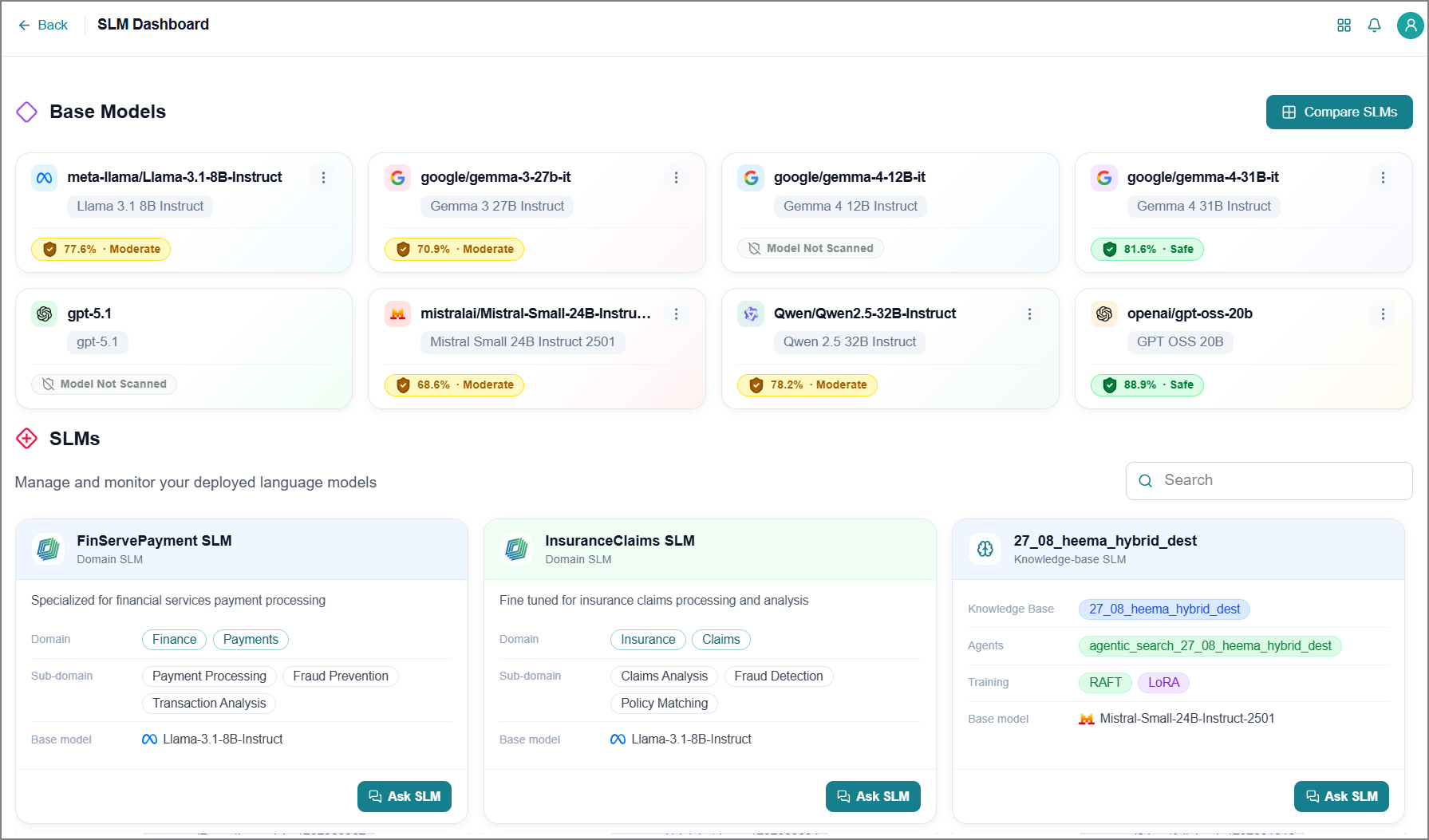
The SLM Dashboard opens and displays your default base SLM models and all business-related SLM models configured in your environment.
Model Security Scan Report
Model Security Scan helps you verify that your AI models are safe, compliant, and operating as intended, before they go live and throughout their deployment. Using industry-standard security tooling, it automatically scans models for security vulnerabilities and summarizes results as an average security score, giving you a clear view of your model's security posture and whether it meets acceptable thresholds.
Model Security Scan examines your models across five critical areas:
Model Security - Checks the model itself for signs of tampering, corruption, or exploitable weaknesses.
Context & Memory Security - Ensures the model's in-session memory remains protected and free of unauthorized access.
Tools & MCP Security - Reviews every external tool or plugin your agents use, confirming they meet security standards before and during use.
Agentic Flow Security - Tracks the step-by-step actions your AI agents take and flags anything that falls outside approved safety boundaries.
Prompt Security - Shields your models from manipulative inputs designed to hijack behavior or extract sensitive information.
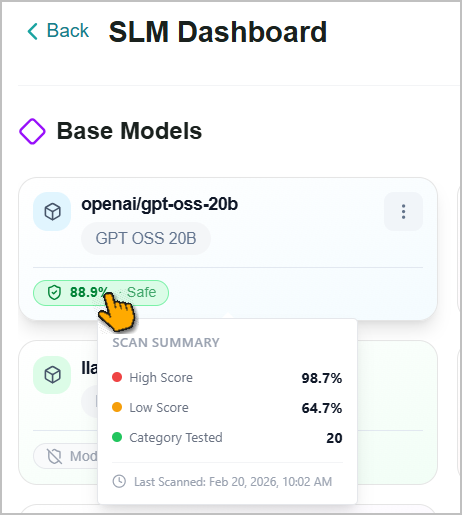
Hover over a model's scan score to view its security scanning score and summary.
 |
To download the model scan report:
Click the Ellipsis
 icon on the card.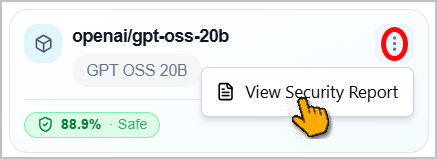
Click View Model Scan Security Report.
The report downloads automatically to your local system.
The report gives you a complete picture of your model's security health, including category-level scores, the areas where your model performed best and where it needs attention, and results across all tested security categories.
Finding Models
Use the following filters to quickly locate the model you need:
Select the SLMs tab to view the SLMs configured for your account.
Search - Enter the SLM name or keywords in the search box to find a specific model.
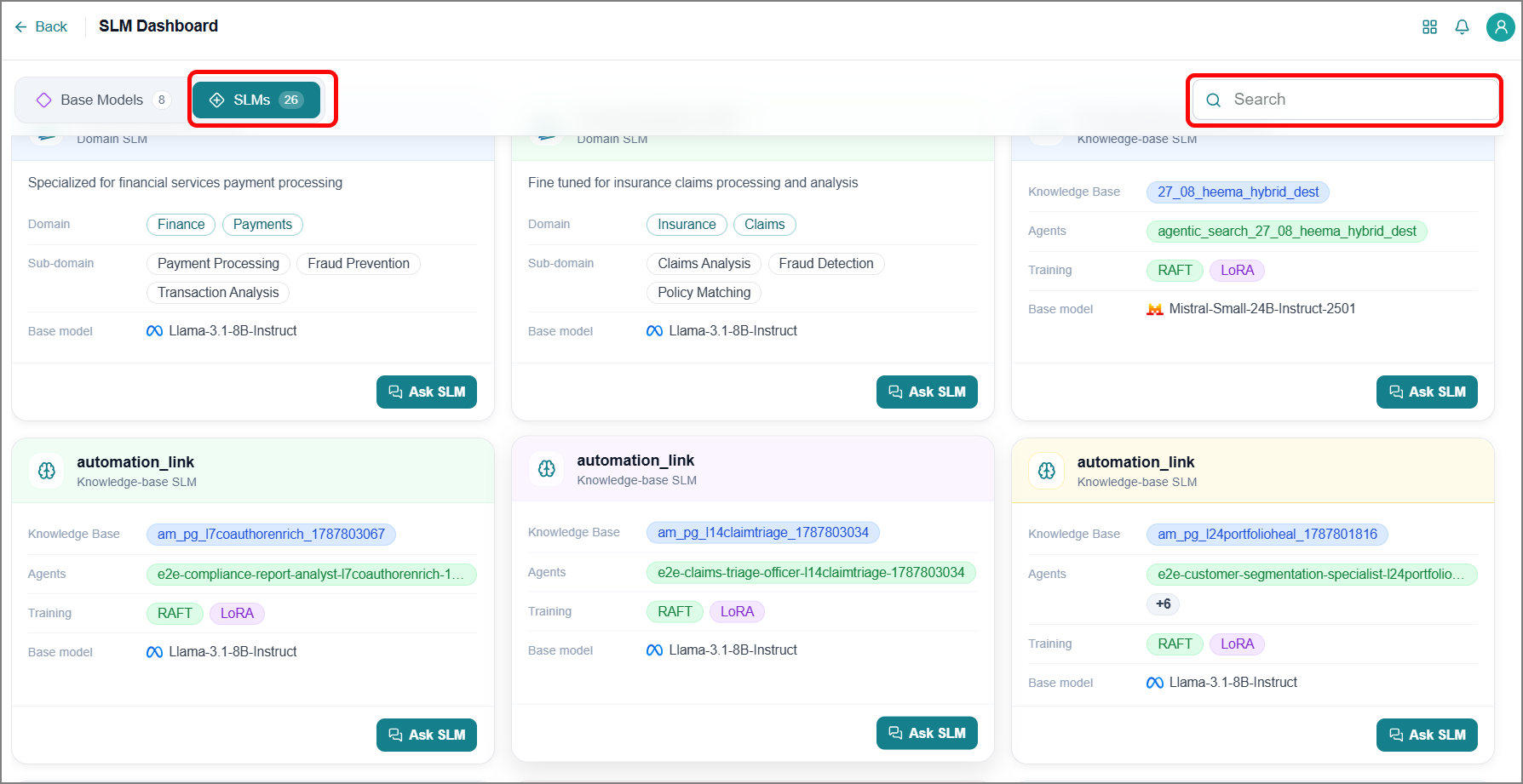
Managing SLM Models
The platform enables you to view and manage all configured SLM models in a single location. Each SLM card displays comprehensive information including the base model, paired KBs, deployed agents, and training adapter details. Test models directly to verify they meet your requirements before deployment.
If you need more details, simply click any agent or training adapter name to jump directly to that section in the Business AI Cloud platform.
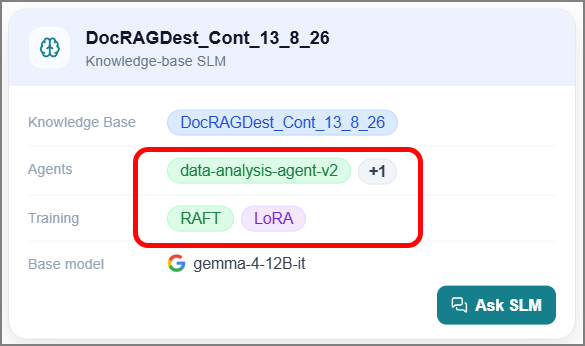 |
Testing an SLM
You can test each SLM model to evaluate its response quality and accuracy, ensuring it meets your specific requirements before deployment.
To test the SLM:
Click Ask SLM on the SLM card.
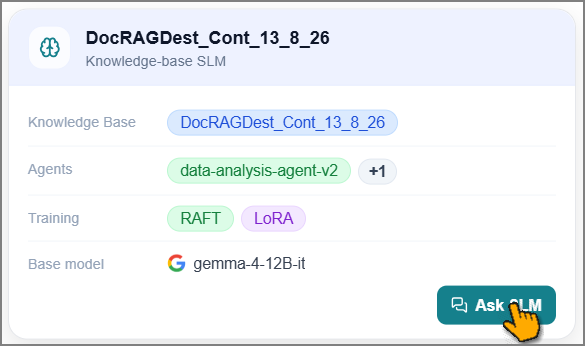
The SLM Evaluation page opens.
If needed, select a different SLM from the dropdown to evaluate its performance.
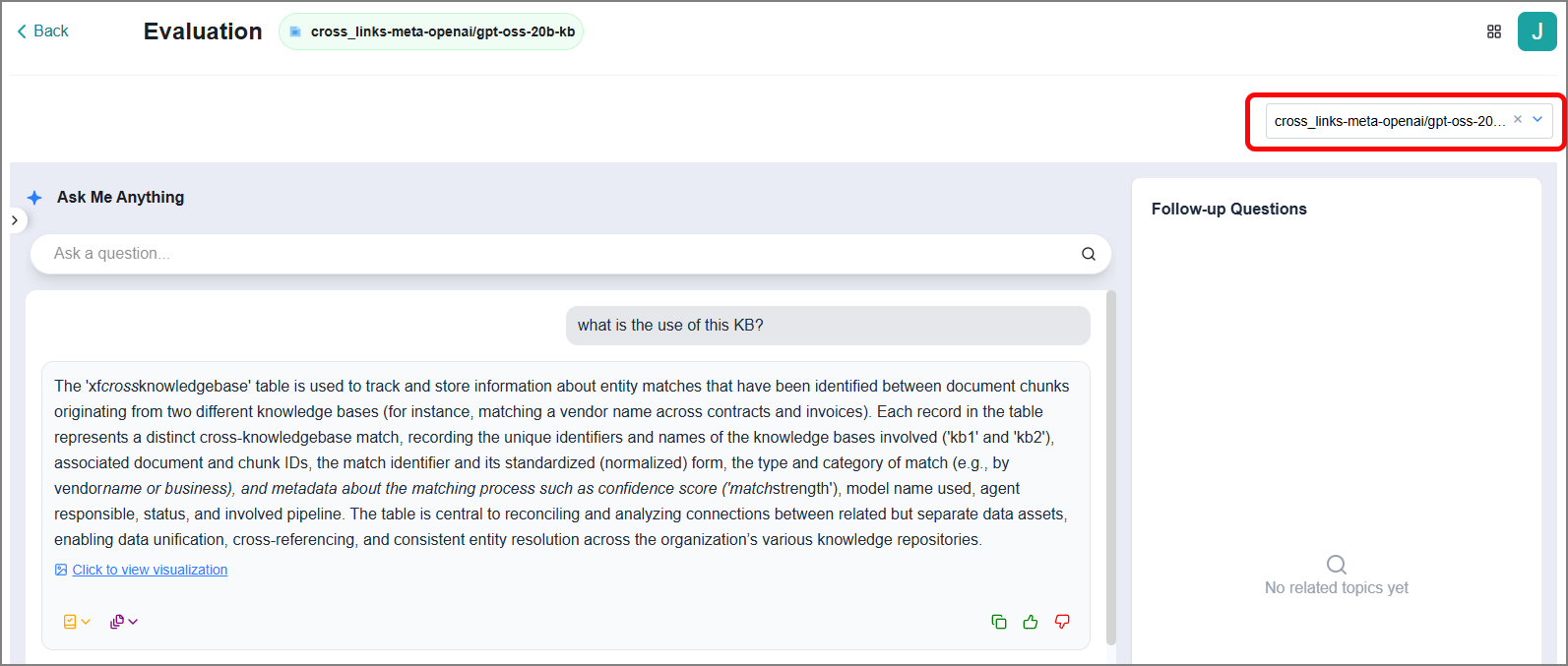
Enter your query in the Ask Me Anything text box.
Tip
To ensure accurate and relevant responses, it's best to ask clear and appropriate questions—this helps the system generate outputs that meet your expectations.
Press Enter while the cursor is in the text box, or select the Search
 icon.
icon.The appropriate response is displayed below the question.
If available, use the Click to view visualization option to view the generated graphical data for the response.
In addition, you’ll find the following options to explore.
Icon
Description

Select this icon to view the reasoning process used to generate the answer.

Select this icon to choose what to copy: the response, reasoning process, or everything.

Select this icon if you find the response helpful. This feedback helps validate the response and improve the SLM's future performance.

Select this icon if you find the response unhelpful.
The pop-up window opens.
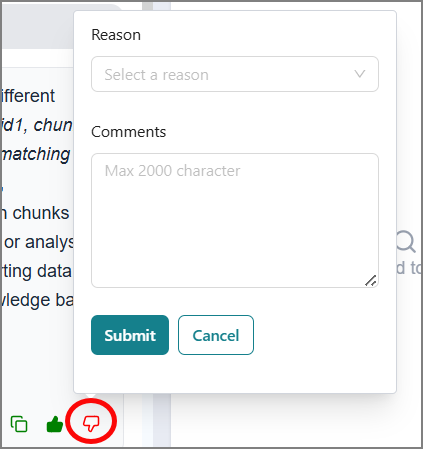
Choose a reason from the dropdown list.
Enter a detailed description of why the response was unhelpful.
Select Submit to send your feedback.
Your feedback helps validate the response and improve the SLM’s future performance.
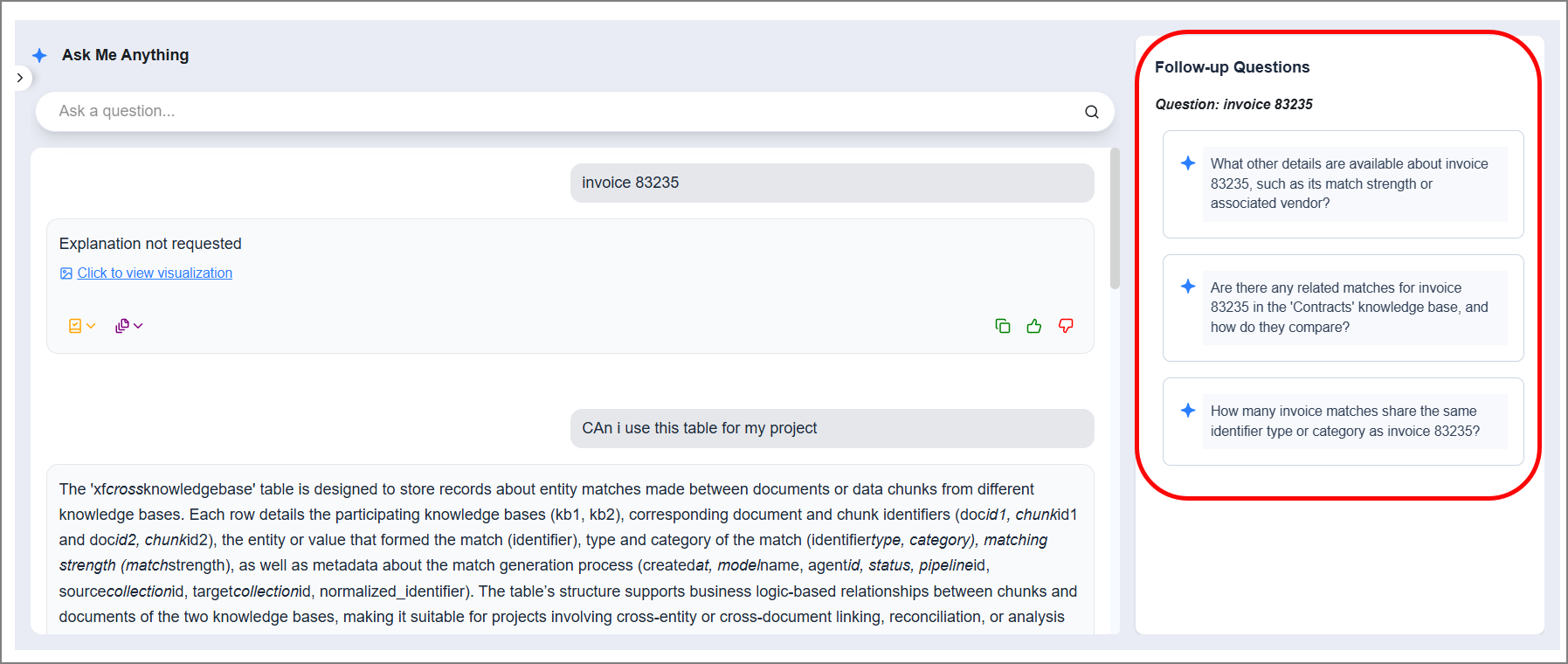
The platform also displays AI-generated Follow-up Questions based on your initial query to guide deeper exploration and refine the conversation's context.
You can select a follow-up question to receive a contextual response.
Select > to open the Recent Questions panel from the left side. It displays the complete list of SLM questions associated with your organization.
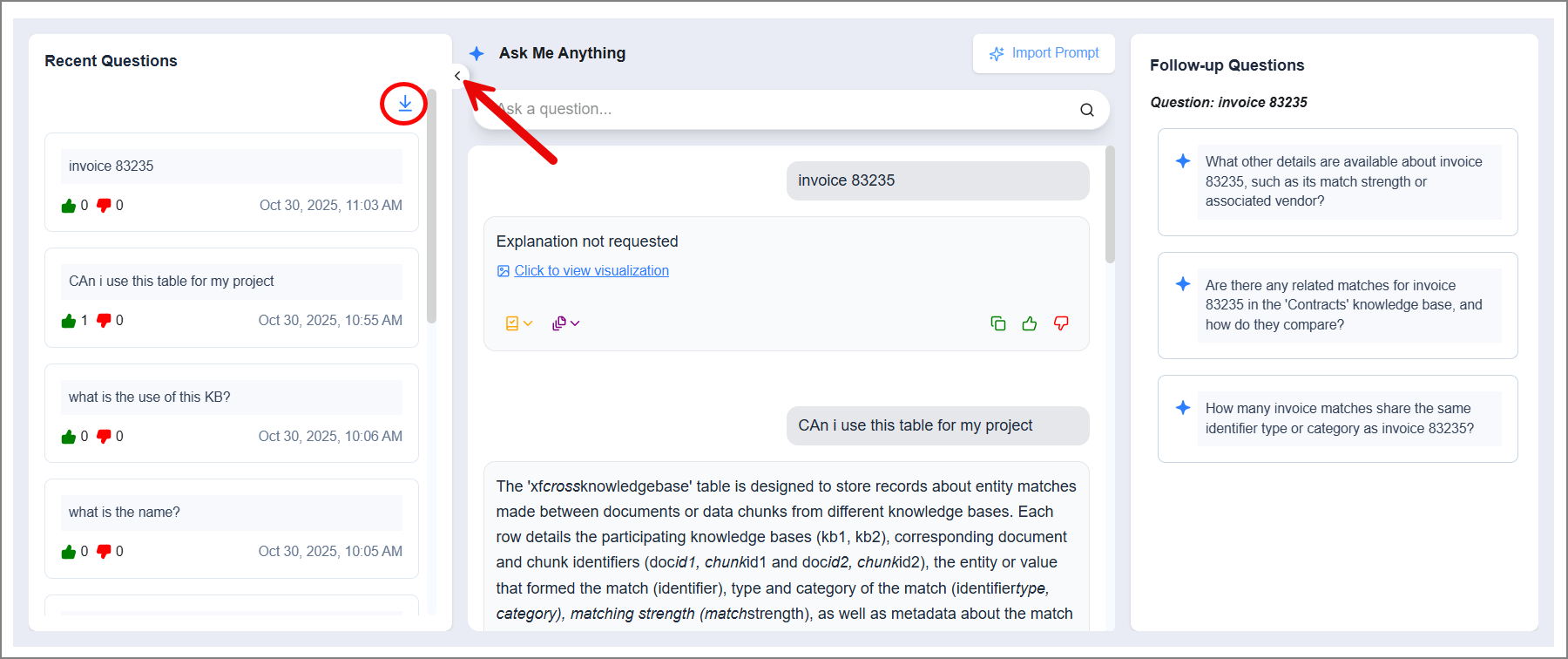
Once you find a suitable question, select it to reuse, and the SLM provides a relevant response in context.
Provide feedback using the thumbs-up and thumbs-down icons.
Click the Download
 icon to download all recent questions.